How to Add Google Certificate to LinkedIn
- George Apostolov
How to Add Google Certificate to LinkedIn: step-by-step guide
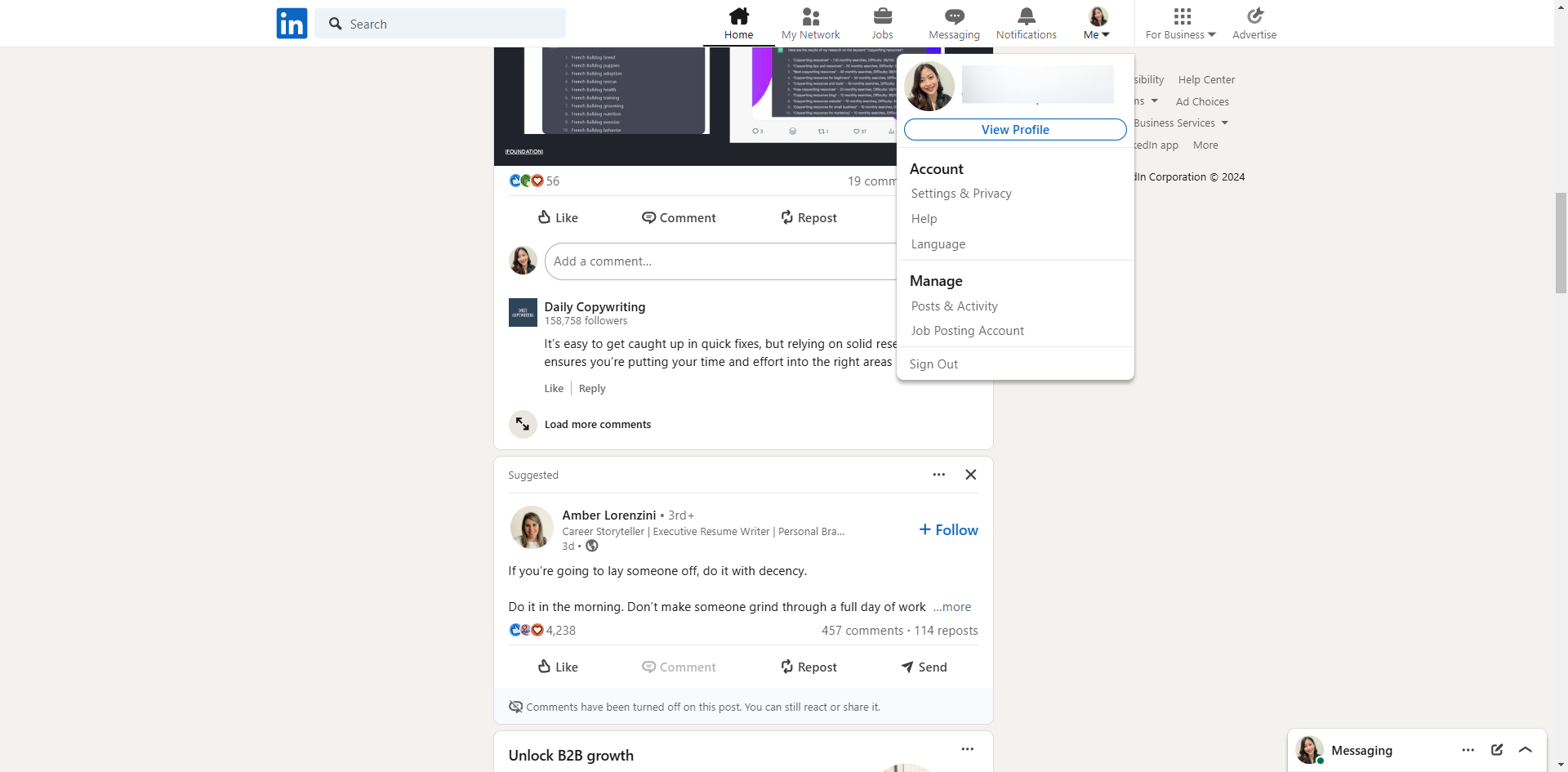
Click on your profile picture and select 'View Profile'.
Click on the 'Add profile section'.
Select 'Recommended'.
Scroll down to the 'Licenses & Certifications' section.
Enter the name of your badge or certification.
Type and select 'Google' as your issuing organization.
Add the date when you received the certification.
Add the expiration date of the certification.
Add the ID number for your badge if applicable.
Paste the unique badge URL from Google found in the badge details.
Click 'Save', and the badge will now appear in your profile under Licenses & Certifications.
Quick answer: To add a Google certificate to LinkedIn, click your profile picture, select View Profile, click Add profile section, and choose Recommended. Scroll to Licenses & Certifications, enter your badge name, select Google as the issuer, add dates, include the ID and badge URL if applicable, and click Save.
About this Google tutorial
Display your Google certification on your LinkedIn profile by updating your Licenses and Certifications section with your badge details and URL. This guide shows how to add Google Certificate to LinkedIn in 11 steps, starting with "Click on your profile picture and select 'View Profile'" and finishing with "Click 'Save', and the badge will now appear in your profile under Licenses & Certificat...". The interactive demo above is a click-through copy of the real Google interface, so you can rehearse each step before doing it in your own account.
Frequently asked questions
How many steps does it take to add Google Certificate to LinkedIn?
11 steps. Each one is listed in order above, and the demo highlights exactly where to click.
Can I try it without changing my own account?
Yes. Clicking through the demo doesn't touch your Google data or settings. Once you know the flow, repeat it in your own workspace.
This tutorial is filed under Google and LinkedIn. Related guides: How to Add Google Reviews to Wordpress Website, Google Analytics - Search console to wordpress and Google Search Console - Adding Sitemaps. Last reviewed 05 Oct 2026.

Create your first interactive demo in minutes
No credit card required • Start building today