How to Ask Screening Questions in SurveyMonkey
- George Apostolov
How to Ask Screening Questions in SurveyMonkey: step-by-step guide
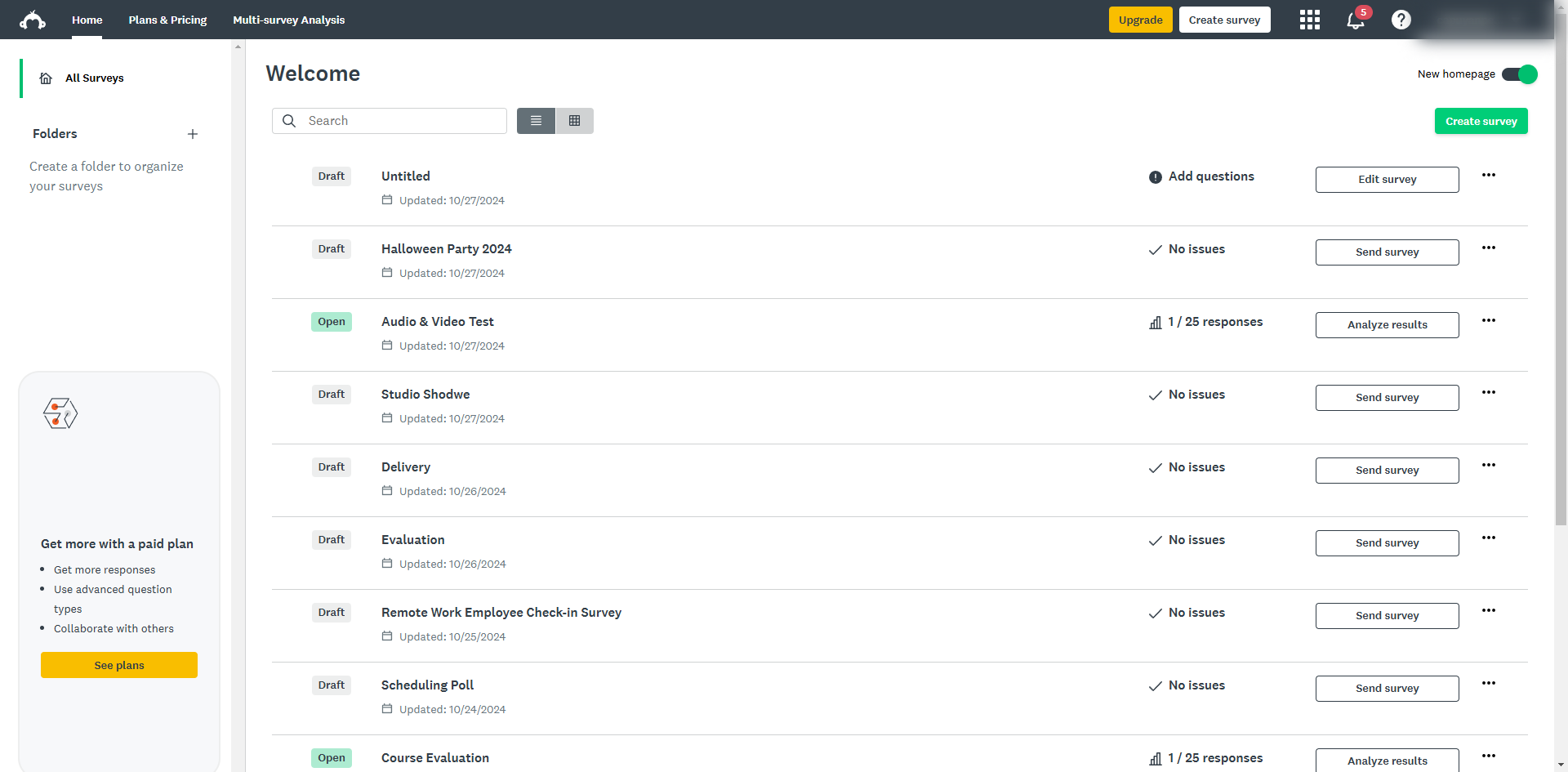
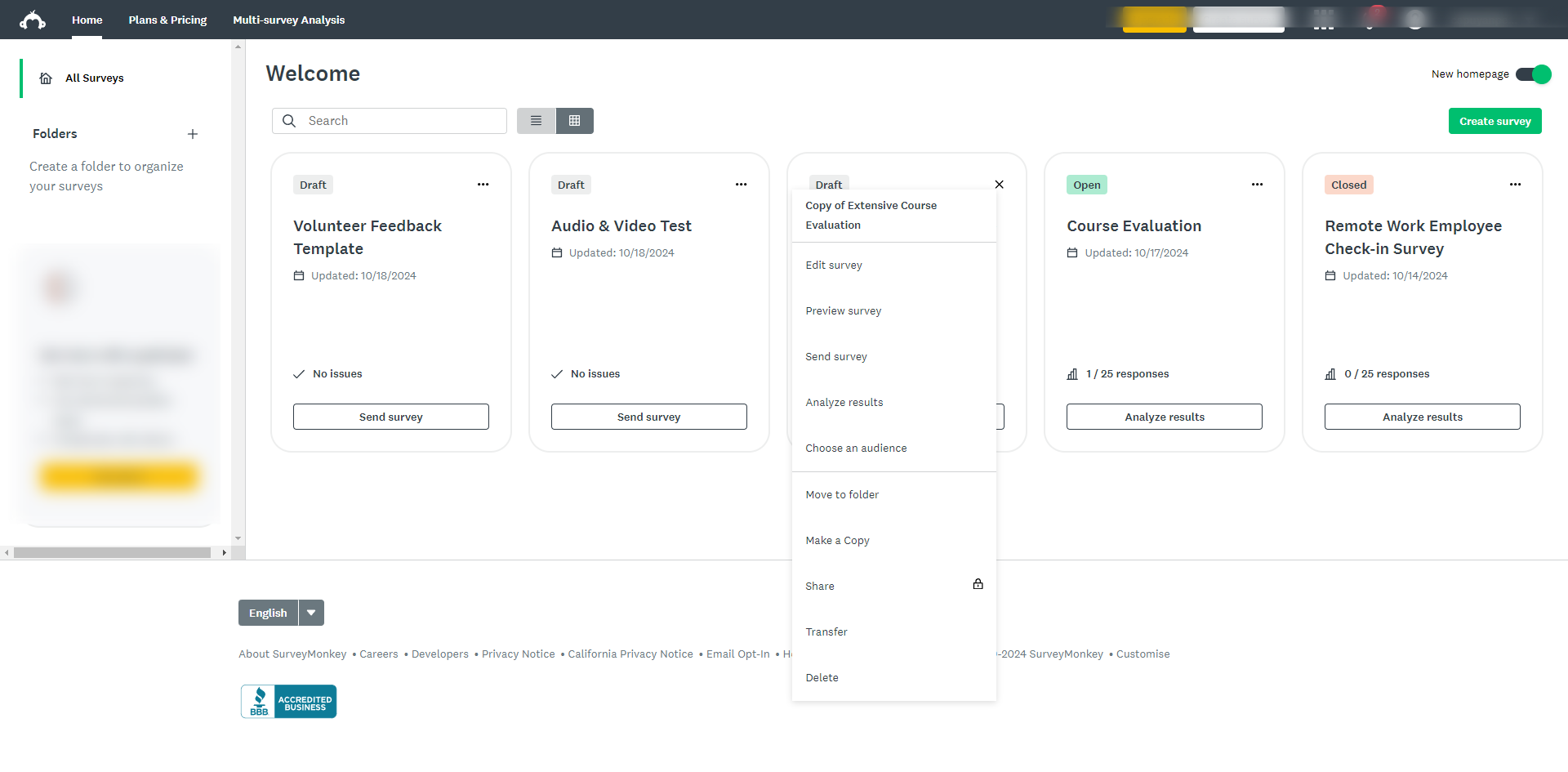
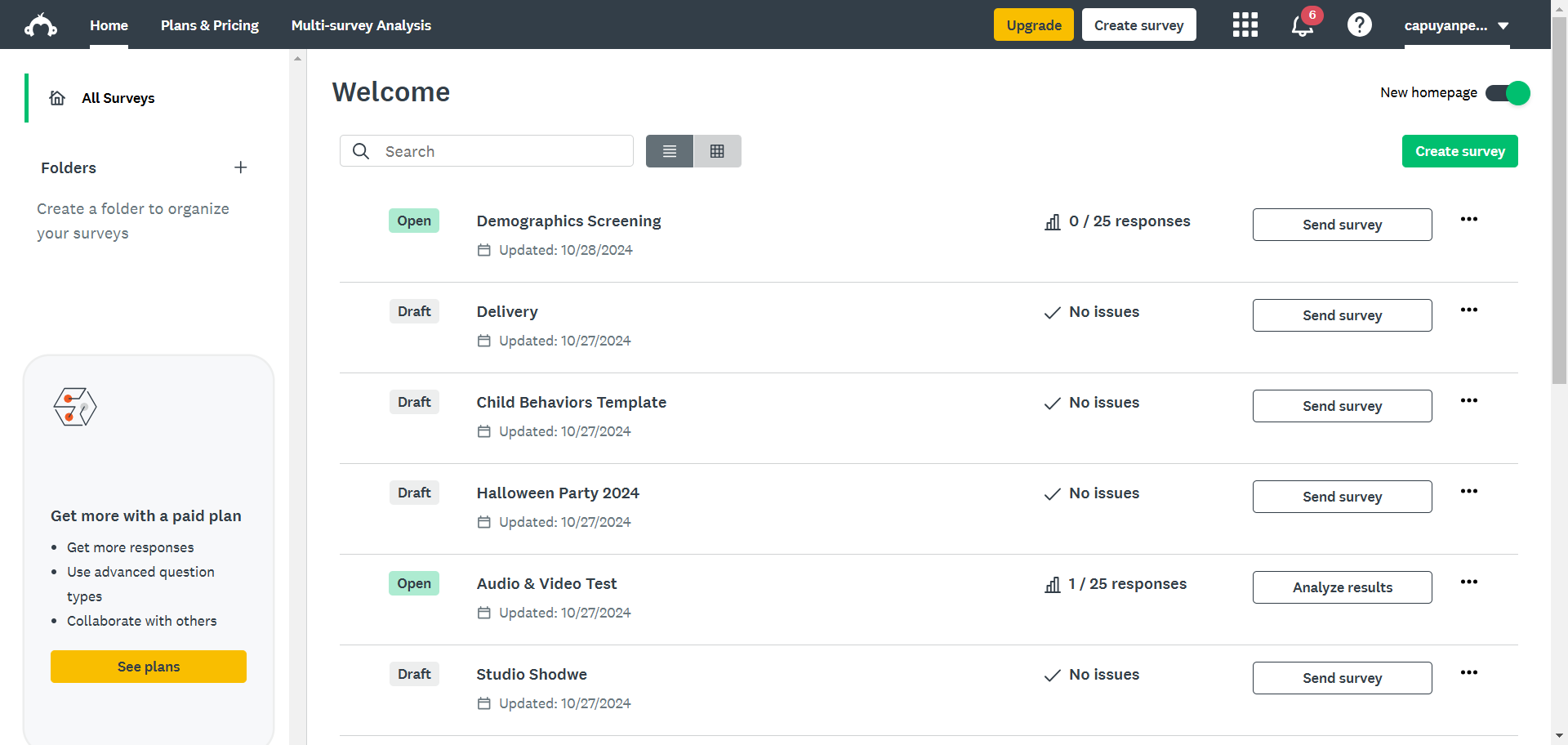
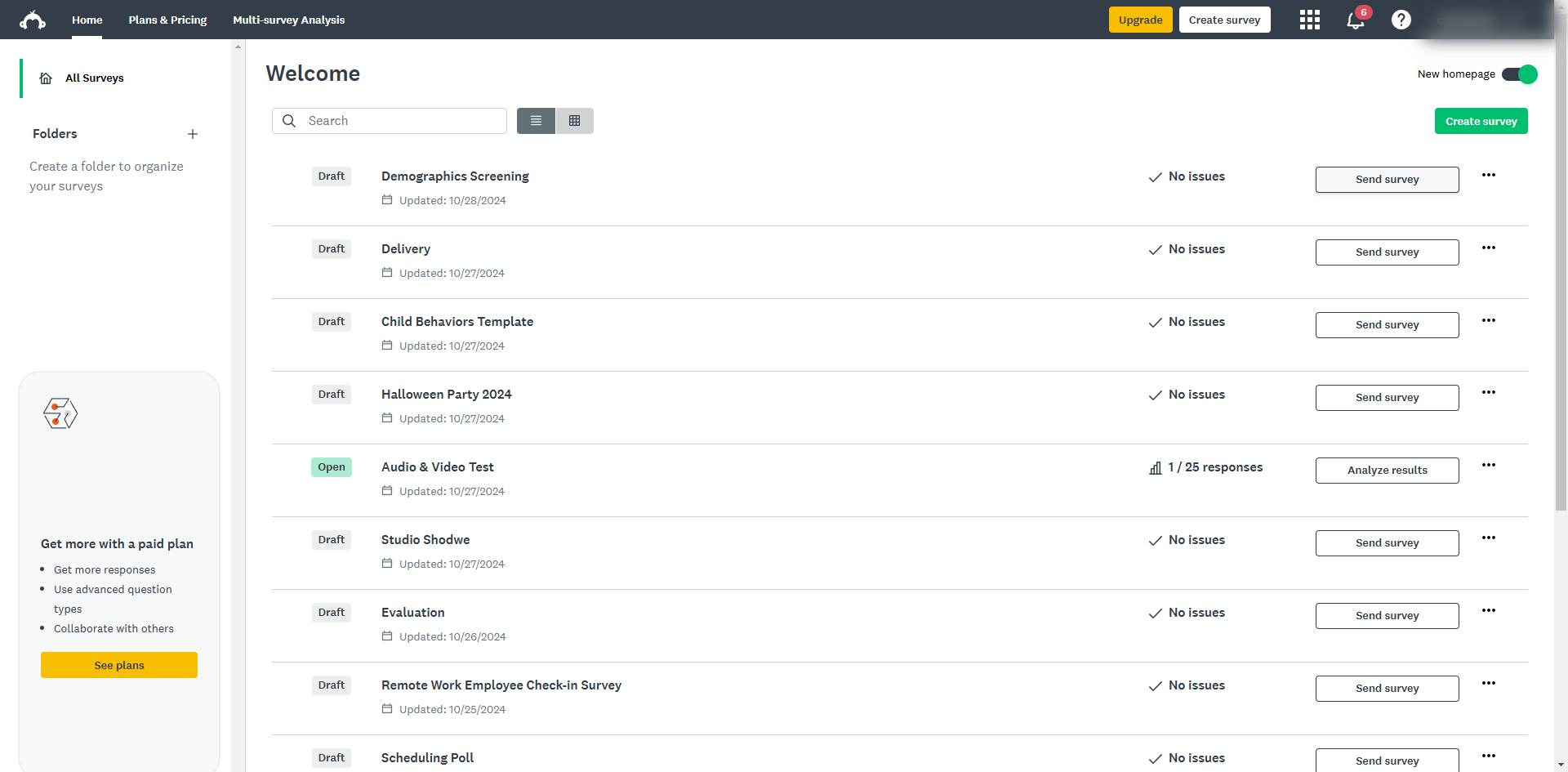
Navigate to your desired survey and click on the ellipsis icon next to the survey title.
From the drop-down menu, select 'Edit survey'.
In the 'Design Survey' tab, make sure you identify the criteria you want to screen for, such as gender, age, income, experience, or specific preferences.
Choose the question type based on your needs.
Include questions such as gender, age group and race.
After adding a question, click on the question and select 'Logic' from the options.
Set up rules like if the respondents selects 17 or younger, direct them to an exit page.
Use close-ended questions. This yields quantifiable data that can be easily analyzed and presented in a chart or graph.
Click on the 'Preview survey' button to test your survey to make sure the skip logic is correctly routing respondents.
Quick answer: To ask screening questions, navigate to your desired survey in SurveyMonkey, edit the survey, identify criteria, and choose close-ended question types. Add demographic questions, set up logic rules to direct respondents to an exit page, and preview the survey to test skip logic routing.
About this SurveyMonkey tutorial
Set up effective screening questions in SurveyMonkey by adding demographic criteria, configuring skip logic rules, and previewing the survey. This guide shows how to ask Screening Questions in SurveyMonkey in 9 steps, starting with "Navigate to your desired survey and click on the ellipsis icon next to the survey title" and finishing with "Click on the 'Preview survey' button to test your survey to make sure the skip logic is...". The interactive demo above is a click-through copy of the real SurveyMonkey interface, so you can rehearse each step before doing it in your own account.
Frequently asked questions
How many steps does it take to ask Screening Questions in SurveyMonkey?
9 steps. Each one is listed in order above, and the demo highlights exactly where to click.
Can I try it without changing my own account?
Yes. Clicking through the demo doesn't touch your SurveyMonkey data or settings. Once you know the flow, repeat it in your own workspace.
This tutorial is filed under SurveyMonkey. Related guides: How to Begin a New Research Study Using SurveyMonkey, How to Cancel SurveyMonkey Subscription and How to Center an Image on Intro Page in SurveyMonkey. Last reviewed 05 Oct 2026.

Create your first interactive demo in minutes
No credit card required • Start building today