How To Center An Image In Webflow
- George Apostolov
How To Center An Image In Webflow: step-by-step guide
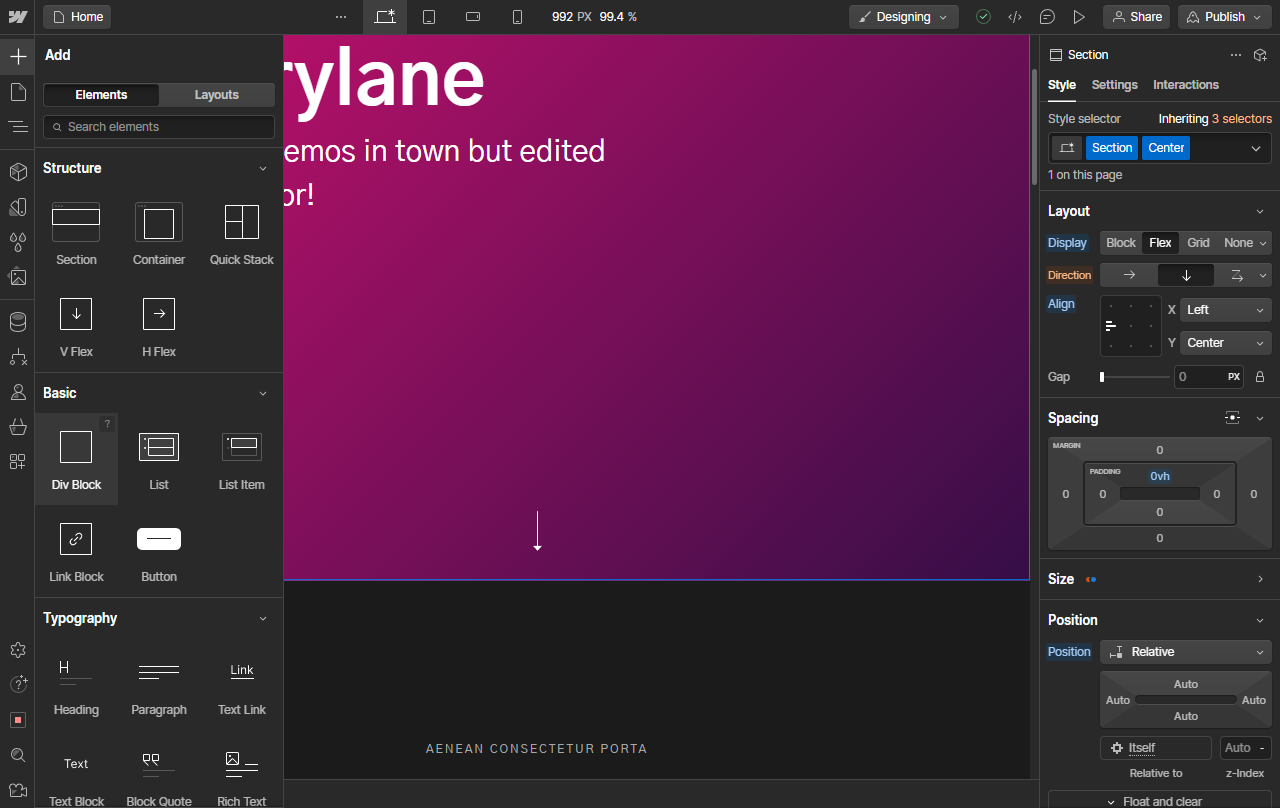
First, add a container element such as Div Block to hold your image. This allows you to apply properties to a parent element instead of the image directly.
Drop the Div Block at your desired location.
Add your image inside of the Div.
You'll notice that the image added simply takes up the space of the Div as it has no customization yet. Also that some display properties do not work on Images directly, which is why we use a Div Block.
Use the Navigator from the left sidebar to select your Div containing the image.
On the right sidebar menu, expand the Size section.
Make the width of the Div Block to be 100% for full width or pick your own value.
Notice the Div size has increased which will now allow us to position the image inside this space.
One of the easiest ways to center your image is to use Flex. Under the Layout tab on the right sidebar menu, select Flex.
You will notice a position control box you can modify or use the XY axes options to manually set the child (image) position. Click in the center to position your image in the center of the parent Div Block.
Note that for our example, only the X axis must be centered but for more images both axes will come into effect.
And you have successfully centered an image in Webflow!
Quick answer: To center an image in Webflow, add a Div Block to hold your image, place the image inside the Div, set the Div width, and use the Layout tab on the right sidebar to select Flex and center the image position.
About this Webflow tutorial
Center images easily inside a Webflow Div Block using Flex layout controls and width adjustments on your parent elements. This guide shows how to center An Image In Webflow in 12 steps, starting with "First, add a container element such as Div Block to hold your image. This allows you to..." and finishing with "And you have successfully centered an image in Webflow!". The interactive demo above is a click-through copy of the real Webflow interface, so you can rehearse each step before doing it in your own account.
Frequently asked questions
How many steps does it take to center An Image In Webflow?
12 steps. Each one is listed in order above, and the demo highlights exactly where to click.
Can I try it without changing my own account?
Yes. Clicking through the demo doesn't touch your Webflow data or settings. Once you know the flow, repeat it in your own workspace.
This tutorial is filed under Webflow. Related guides: How To Change Favicon In Webflow, How To Change Hover Color In Webflow and How To Change Line Spacing In Webflow. Last reviewed 05 Oct 2026.

Create your first interactive demo in minutes
No credit card required • Start building today