How To Change Stages In Pipedrive
- George Apostolov
How To Change Stages In Pipedrive: step-by-step guide
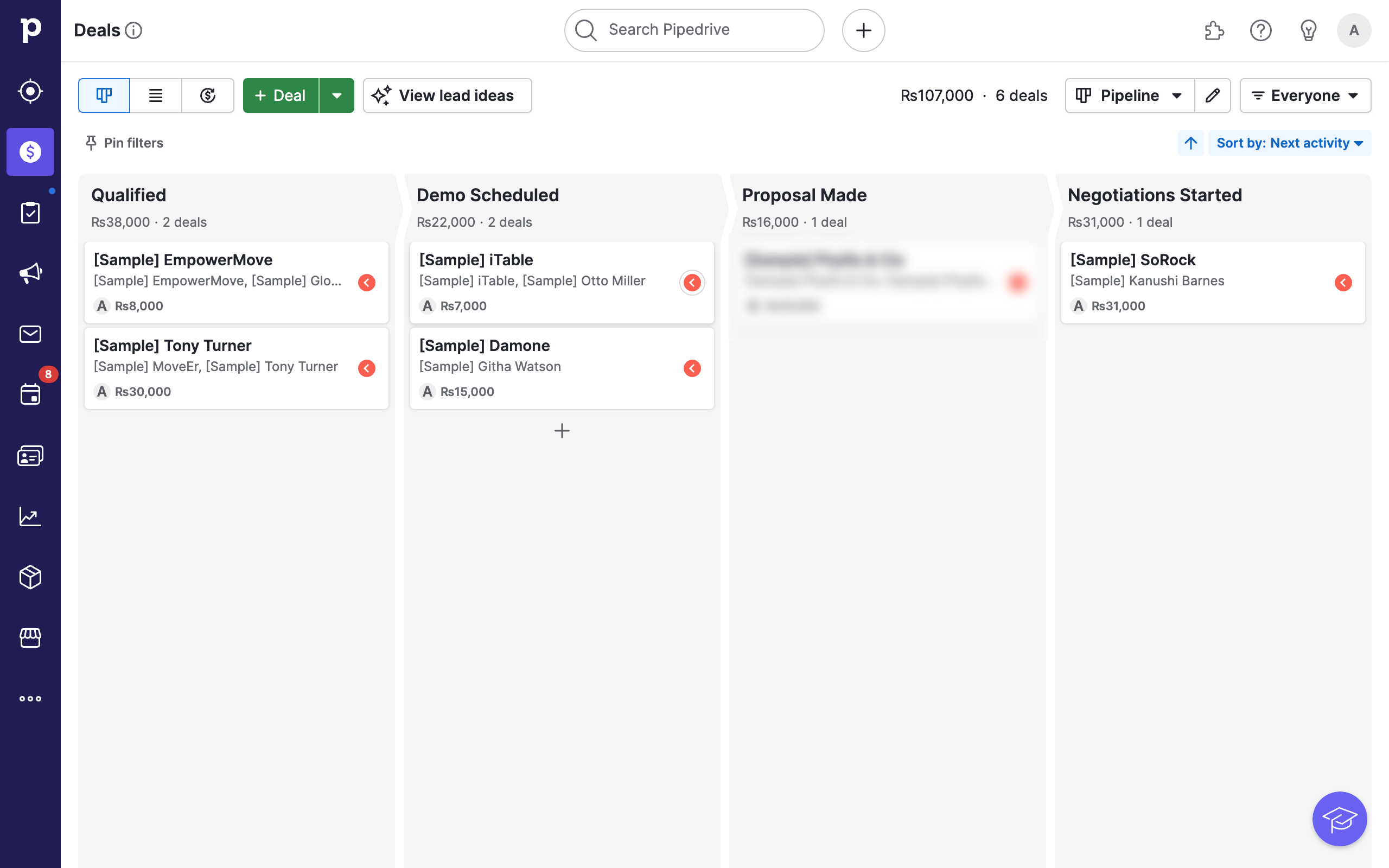
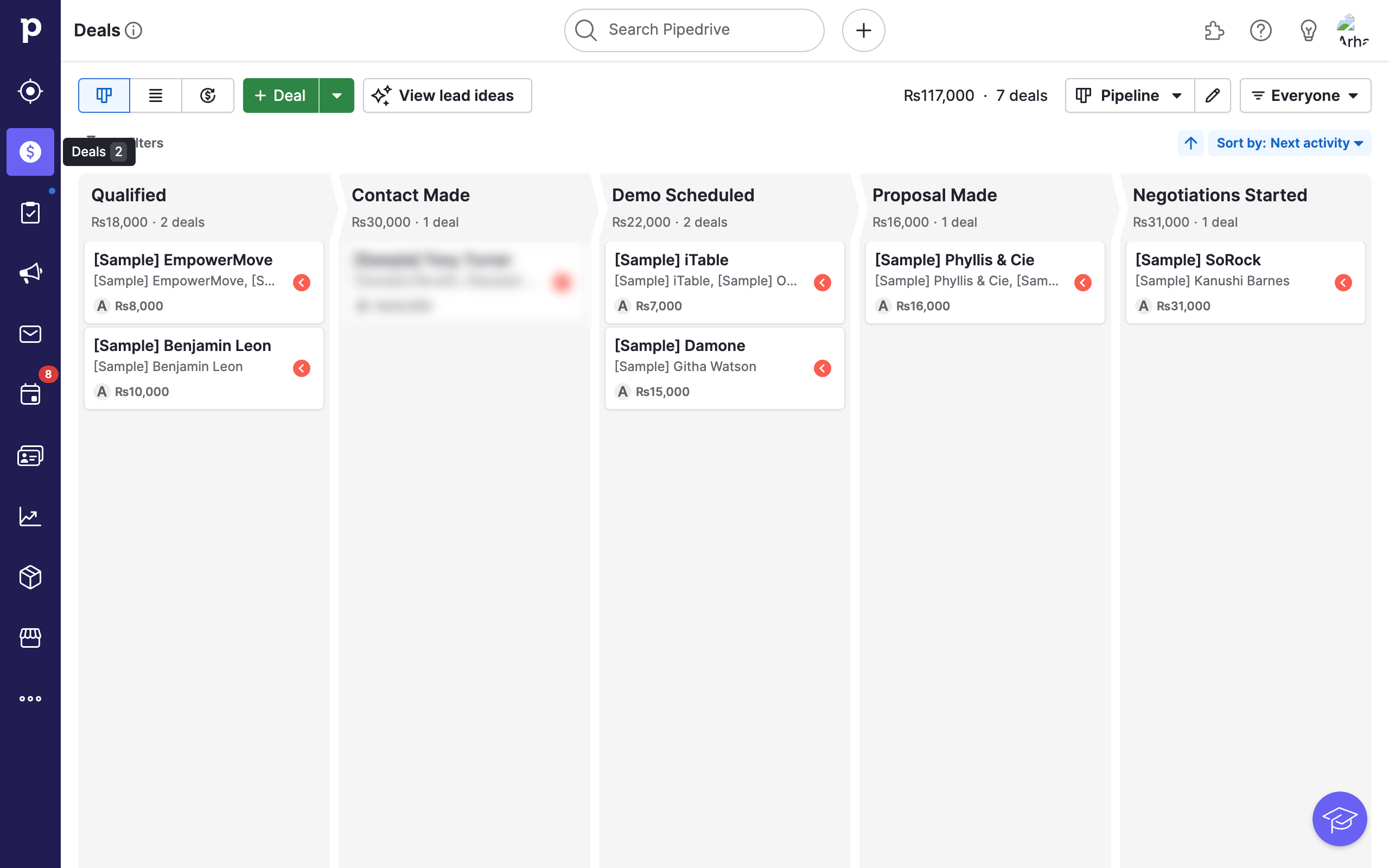
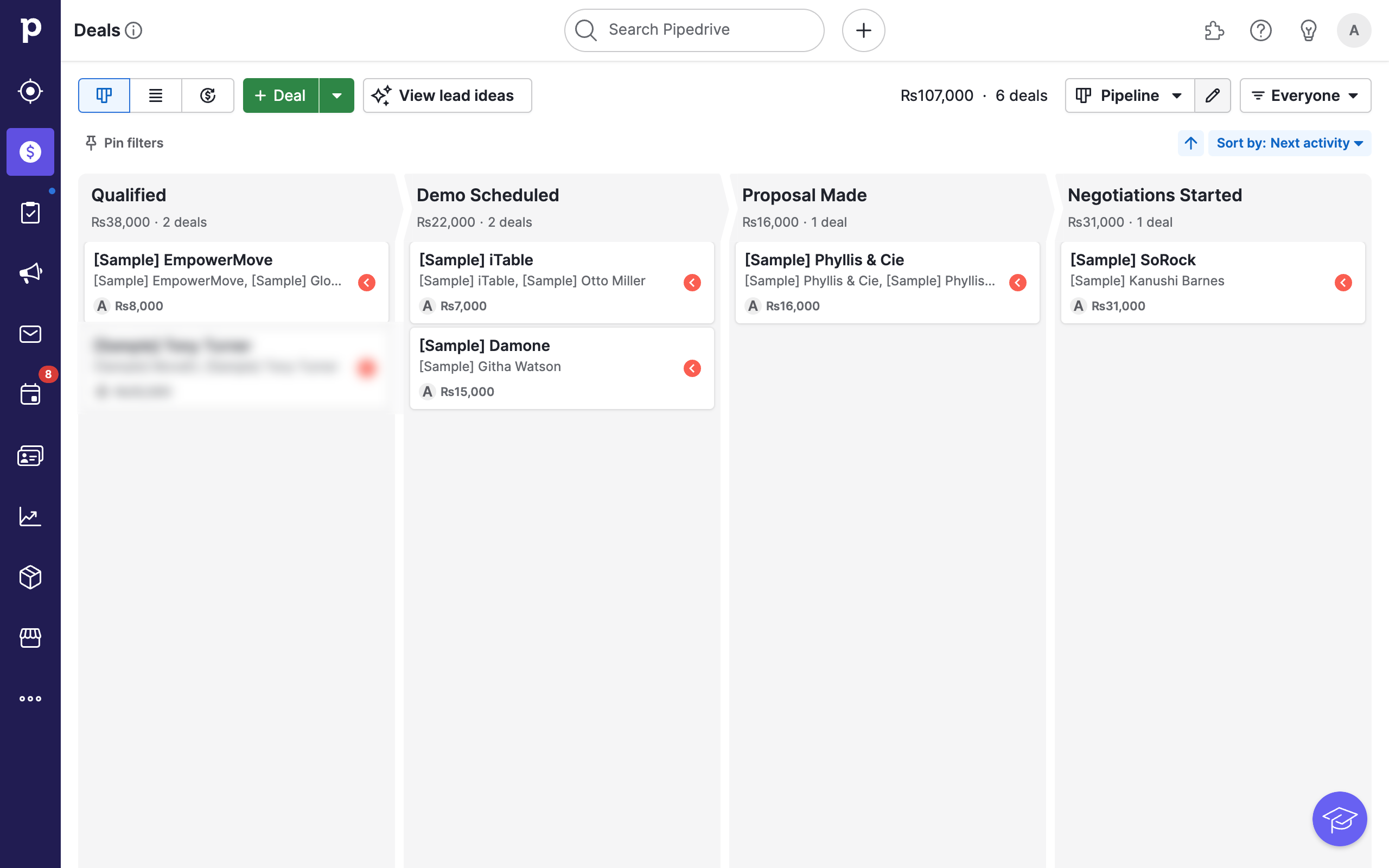
To begin editing stages, click on the Pencil Icon button next to the Pipeline name.
Once inside the editing stage, the first step to changing a stage may be by simply creating a new stage. To do so, click on the + New stage button that is visible on the right.
You may also add new stages by clicking on the (+) icon between stages.
You can rename any stage name by changing the input field.
Consider customizing other options as well such as Probability or Rotting time.
Another way to change your sages in Pipedrive is to simply drag stages around to reorder them.
Simply drag and drop your stage at the desired spot.
To remove an existing stage, click on the Delete Stage button visible at the bottom of all stages.
Confirm your choice by clicking on Delete Stage.
You now know how to make changes to your stages in various ways such as new, delete and reorder!
Quick answer: To change stages in Pipedrive, click the Pencil Icon next to the pipeline name to edit. Create new stages using the button or plus icons, rename fields, customize options like probability or rotting time, reorder by dragging and dropping, or delete stages by clicking the delete button and confirming.
About this Pipedrive tutorial
Manage and organize your Pipedrive pipeline stages efficiently by creating, renaming, reordering, customizing, or deleting them. This guide shows how to change Stages In Pipedrive in 10 steps, starting with "To begin editing stages, click on the Pencil Icon button next to the Pipeline name " and finishing with "You now know how to make changes to your stages in various ways such as new, delete and...". The interactive demo above is a click-through copy of the real Pipedrive interface, so you can rehearse each step before doing it in your own account.
Frequently asked questions
How many steps does it take to change Stages In Pipedrive?
10 steps. Each one is listed in order above, and the demo highlights exactly where to click.
Can I try it without changing my own account?
Yes. Clicking through the demo doesn't touch your Pipedrive data or settings. Once you know the flow, repeat it in your own workspace.
This tutorial is filed under Pipedrive. Related guides: How To Change The Value Of A Deal In Pipedrive, How to Connect Pipedrive Deals to Slack for Sales Updates Using Zapier and How to Connect Pipedrive to QuickBooks for Invoice Generation with Zapier. Last reviewed 05 Oct 2026.

Create your first interactive demo in minutes
No credit card required • Start building today