How to Create a Checklist in ClickUp
- George Apostolov
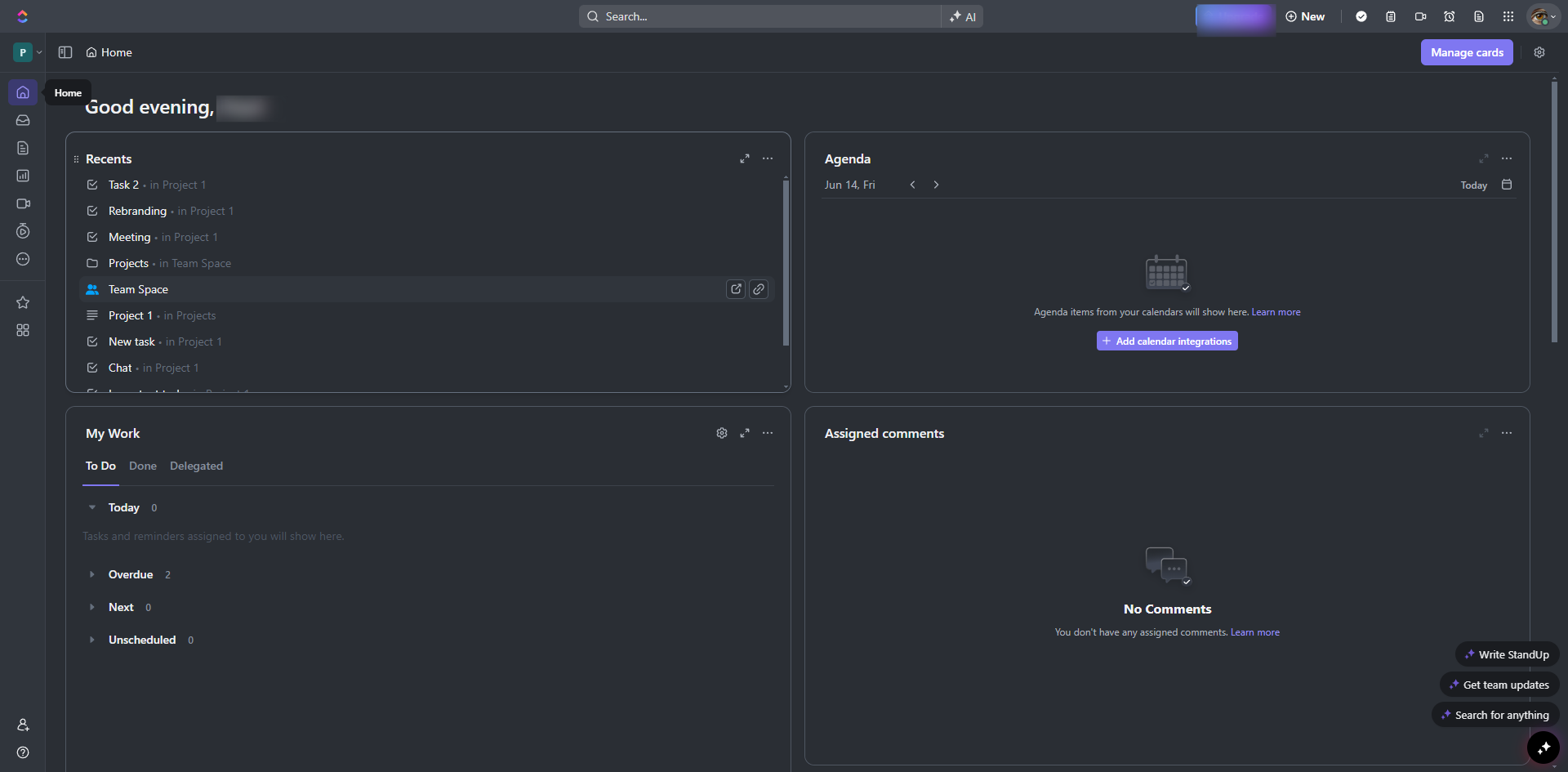
How to Create a Checklist in ClickUp: step-by-step guide
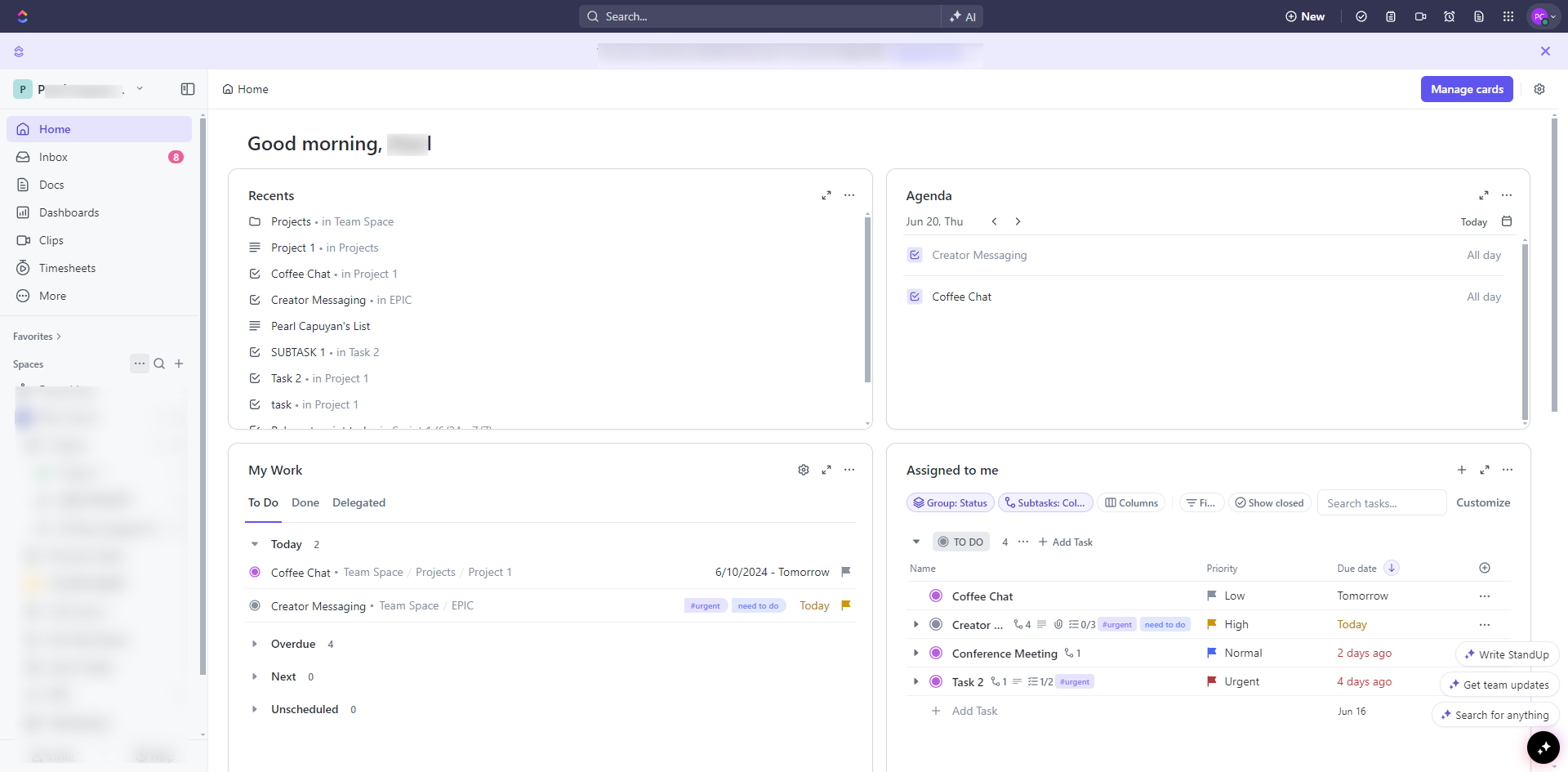
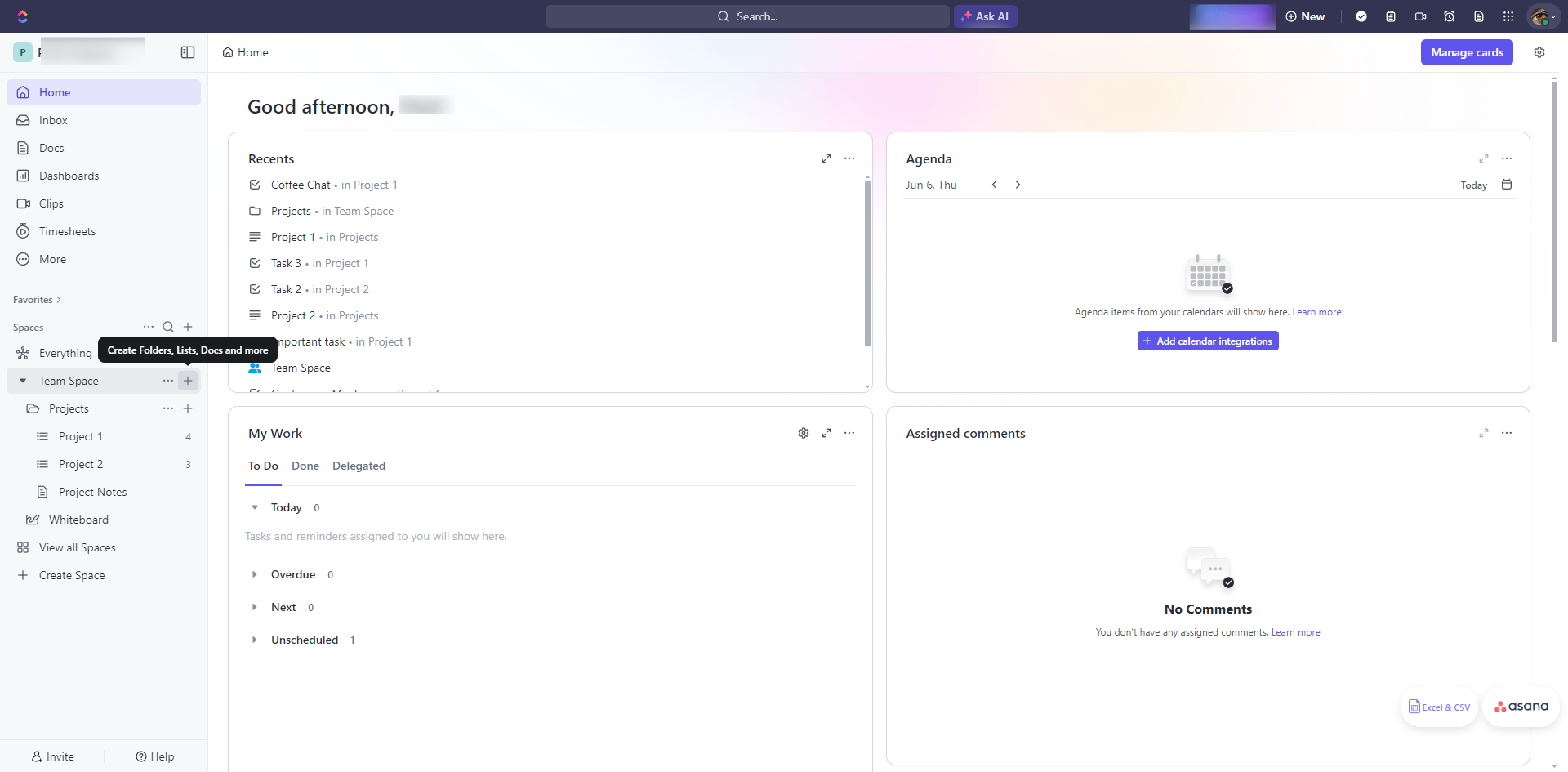
Go to the Space, Folder, or List where the task is located.
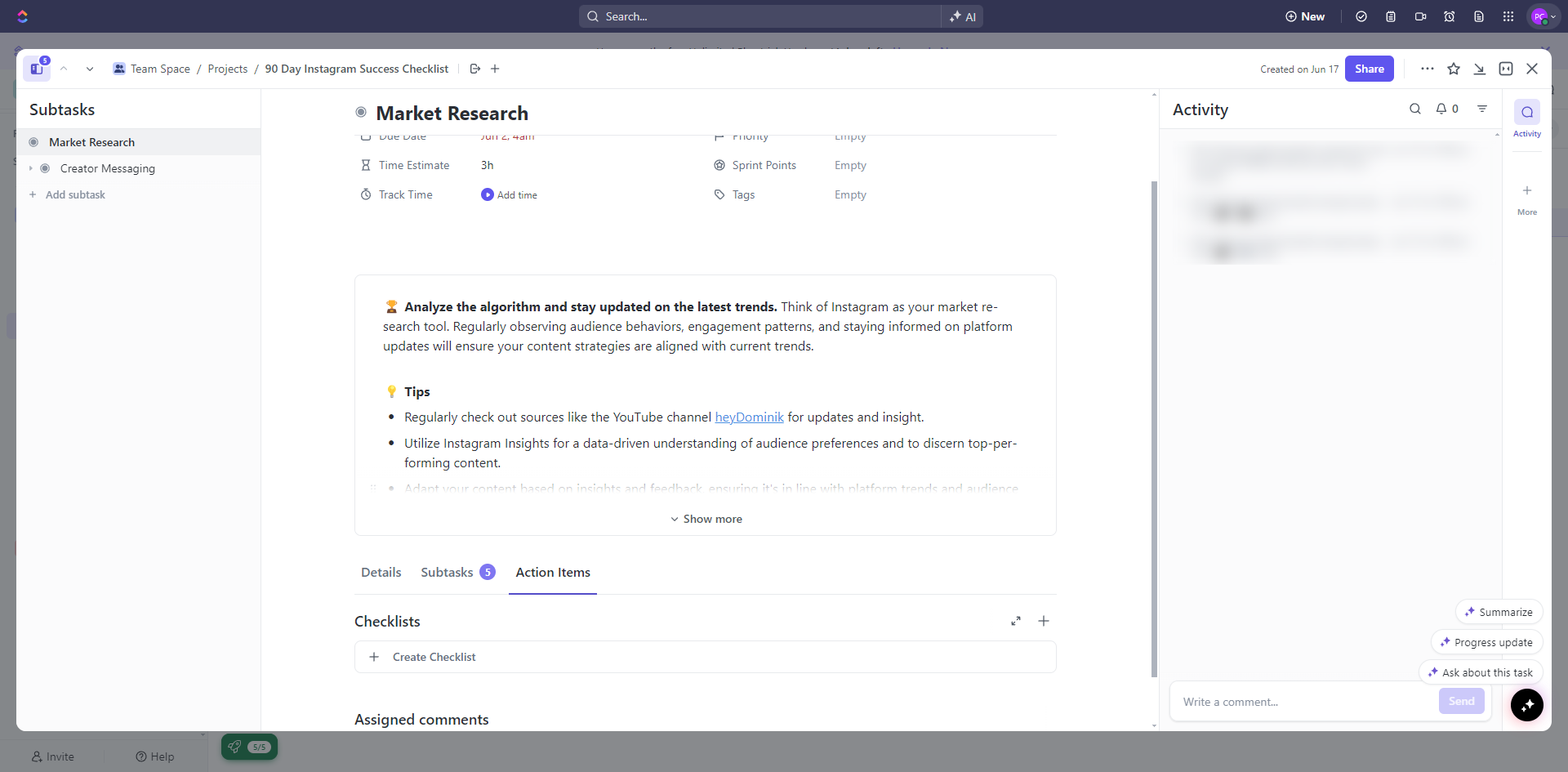
Click on the task to open its details.
In the task details pane, locate the 'Checklist' section.
Click on the empty field to enter the name of your checklist.
Click the ellipsis icon.
Click 'Add an item' to add another checklist.
Click 'Rename' to rename your checklist.
Click 'Assign to' to choose an assignee for your checklist.
You can add an assignee from the emails below.
Click the checkbox next to each item to mark it as complete.
By following these steps, you can efficiently create and manage checklists in ClickUp, making it easier to track and complete subtasks within your main tasks.
Quick answer: To create a checklist in ClickUp, navigate to the desired location, open task details, and enter the checklist name. Click the ellipsis icon to add items, rename the checklist, or assign it to users. Finally, click checkboxes to mark items as complete.
About this ClickUp tutorial
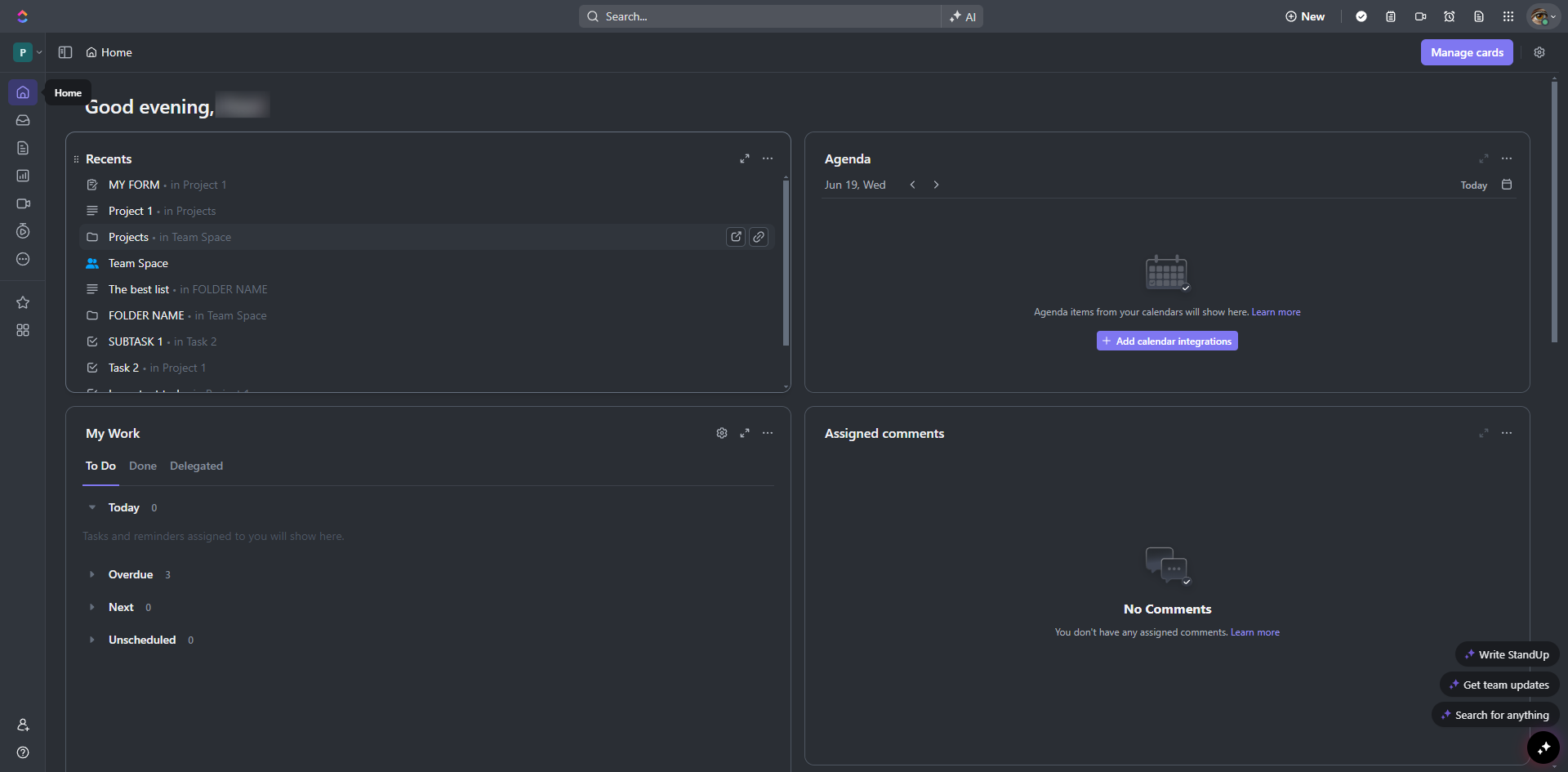
Manage tasks efficiently in ClickUp by creating custom checklists, assigning items, and tracking subtask completion step by step. This guide shows how to create a Checklist in ClickUp in 11 steps, starting with "Go to the Space, Folder, or List where the task is located" and finishing with "By following these steps, you can efficiently create and manage checklists in ClickUp,...". The interactive demo above is a click-through copy of the real ClickUp interface, so you can rehearse each step before doing it in your own account.
Frequently asked questions
How many steps does it take to create a Checklist in ClickUp?
11 steps. Each one is listed in order above, and the demo highlights exactly where to click.
Can I try it without changing my own account?
Yes. Clicking through the demo doesn't touch your ClickUp data or settings. Once you know the flow, repeat it in your own workspace.
This tutorial is filed under ClickUp. Related guides: How to Create a Checklist Template in ClickUp, How to Create a Content Calendar in ClickUp and How to Create a Dashboard in ClickUp. Last reviewed 05 Oct 2026.

Create your first interactive demo in minutes
No credit card required • Start building today