How to Create a Gallery View in Coda
- George Apostolov
How to Create a Gallery View in Coda: step-by-step guide
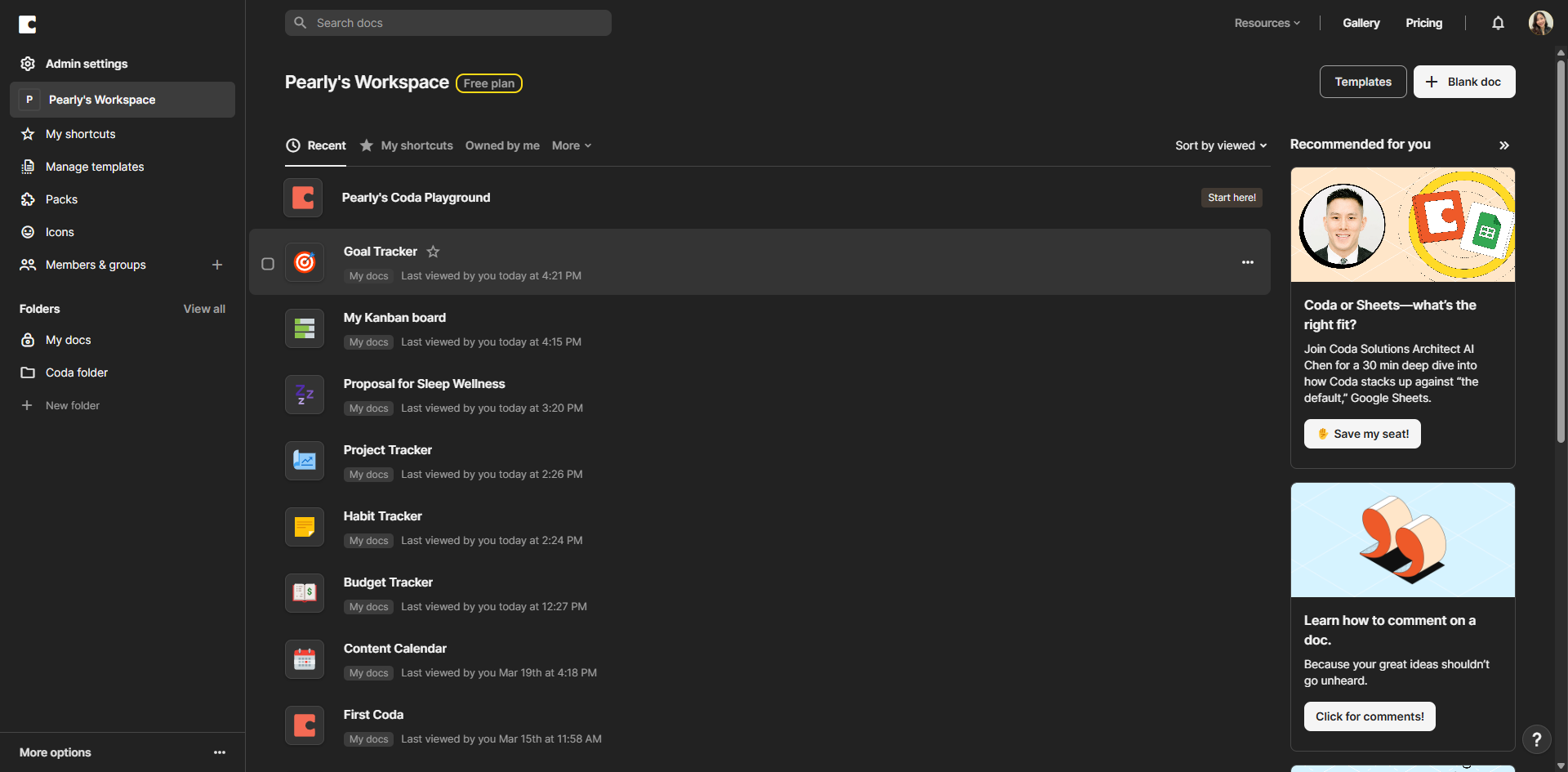
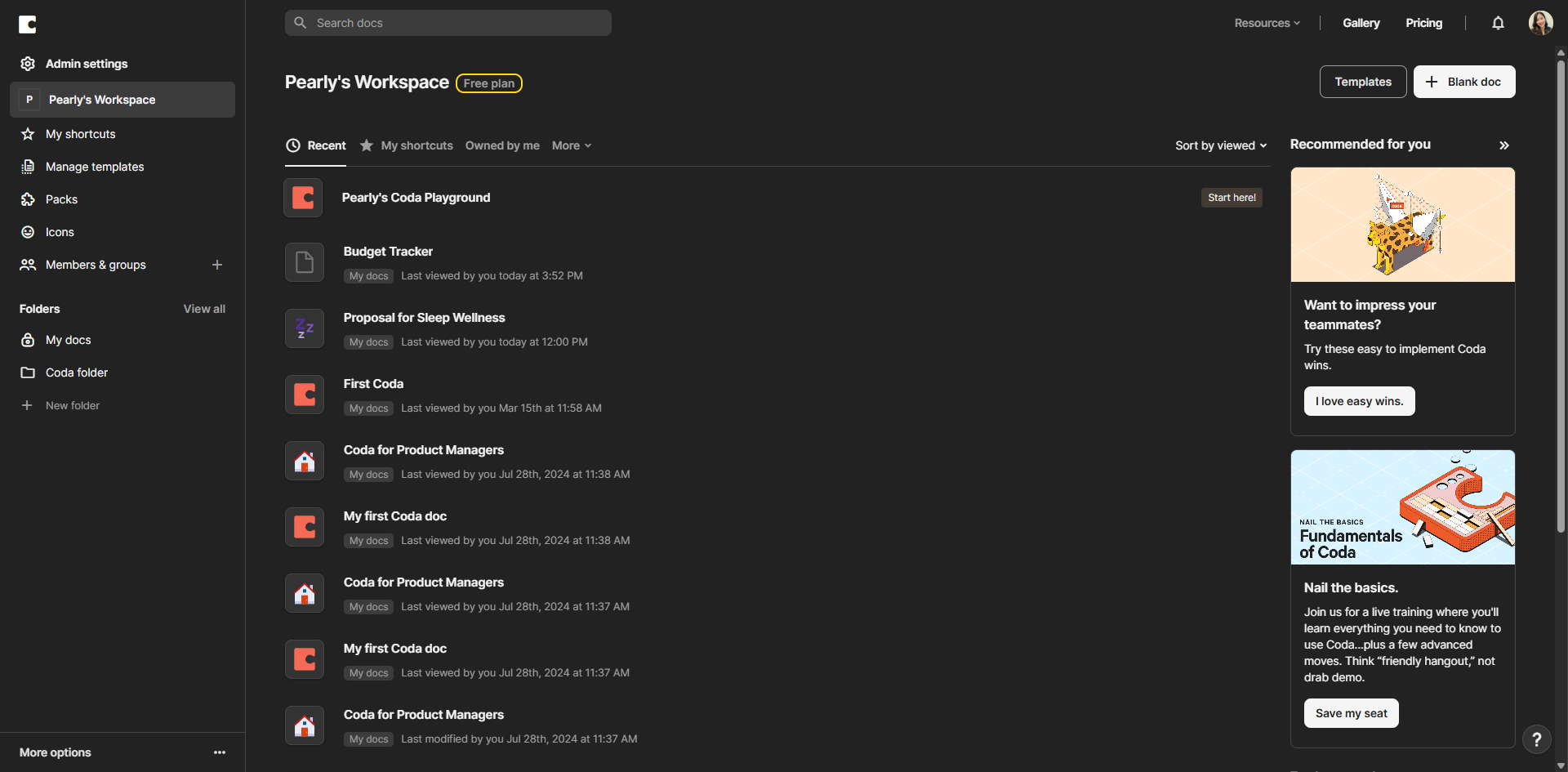
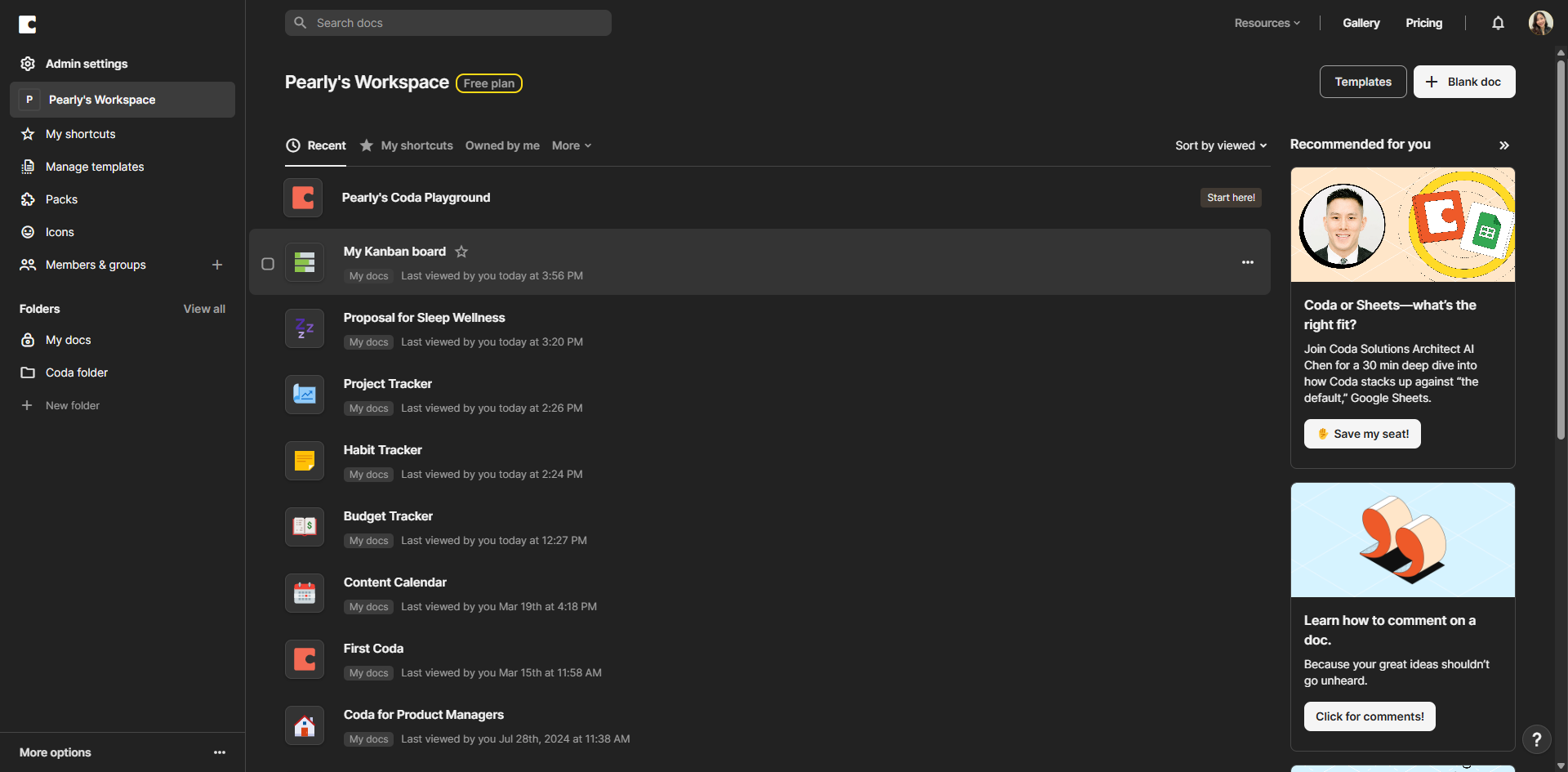
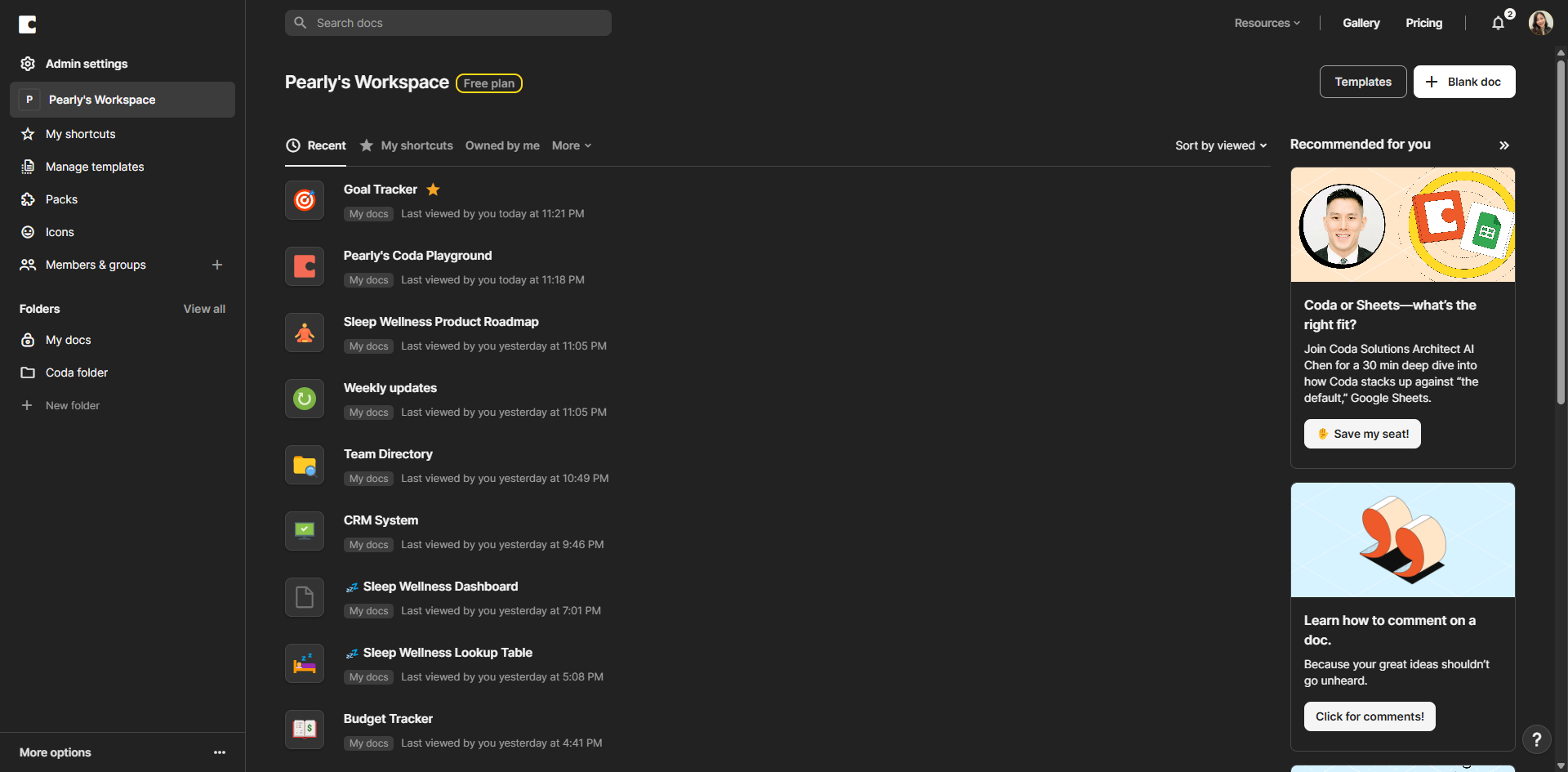
Click '+ Blank doc' to start a new document.
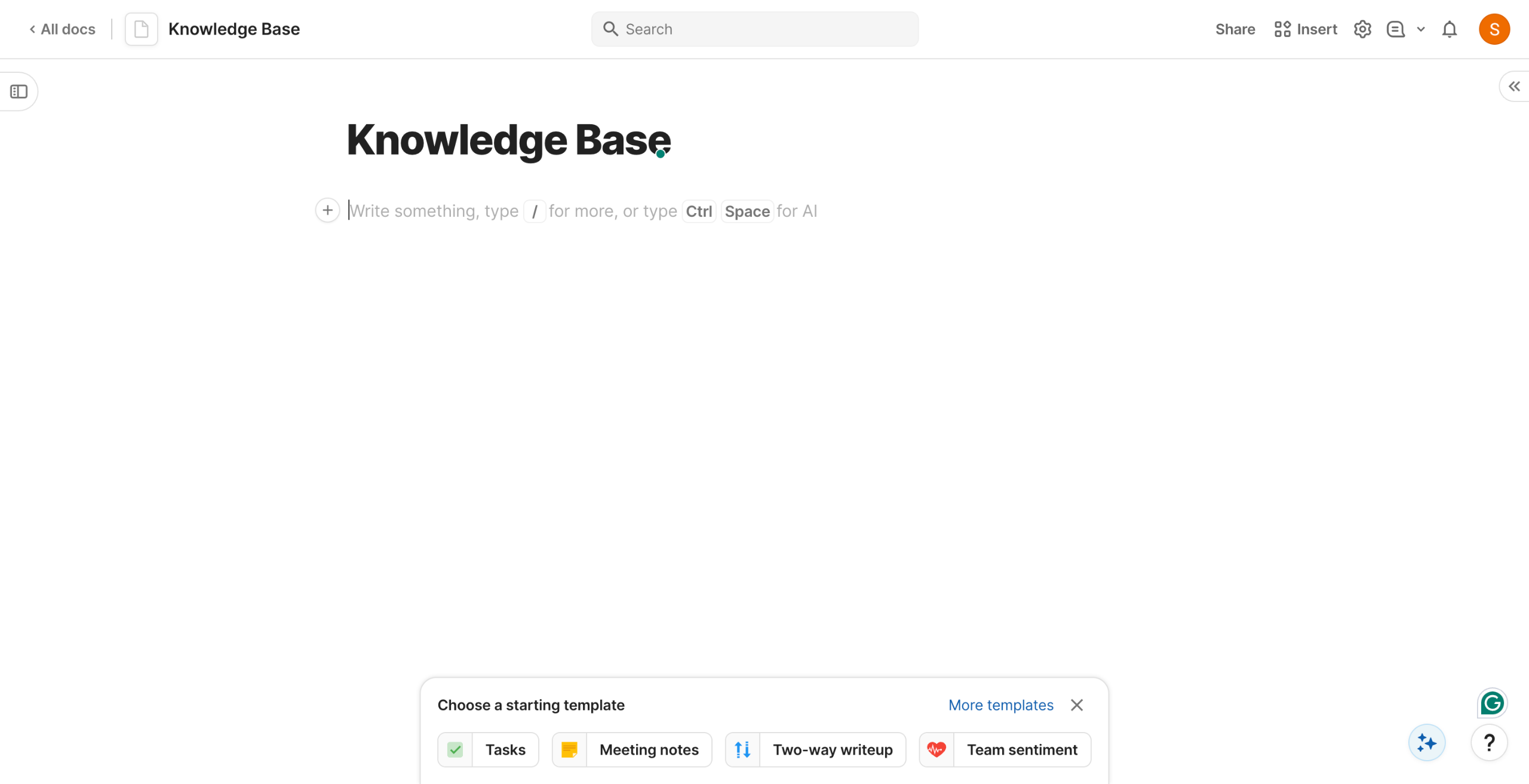
Give your document a descriptive name.
Click on the '+' icon in your document to add content.
Select 'Table' from the menu to create a new table.
Enter your data in the table columns and rows.
Add columns that will display well in Gallery View (titles, descriptions, images).
Select your table and click the 'Options' button in the top-right corner of the table.
For columns containing visuals, select 'Image' as the column type to enhance your gallery.
From the view options, select 'Cards' to transform your table into a visual gallery format.
Adjust the image display settings to optimize how your visuals appear in the gallery.
Click on a specific card to edit its contents.
Click 'Add image' to include visuals in your gallery cards.
Select 'Upload image' to import visuals from your local files.
Voilà! Your table is now displayed as a Gallery View. Looks pretty snazzy, doesn't it?
Quick answer: To create a gallery view in Coda, start a new document, add a table with data, and configure columns for visuals. Next, open the table options, set visual columns as images, and select Cards from the view options to transform the table into a visual gallery format.
About this Coda tutorial
Transform your Coda tables into visual card galleries by adding image columns and adjusting display settings for a polished layout. This guide shows how to create a Gallery View in Coda in 14 steps, starting with "Click '+ Blank doc' to start a new document" and finishing with "Voilà! Your table is now displayed as a Gallery View. Looks pretty snazzy, doesn't it?". The interactive demo above is a click-through copy of the real Coda interface, so you can rehearse each step before doing it in your own account.
Frequently asked questions
How many steps does it take to create a Gallery View in Coda?
14 steps. Each one is listed in order above, and the demo highlights exactly where to click.
Can I try it without changing my own account?
Yes. Clicking through the demo doesn't touch your Coda data or settings. Once you know the flow, repeat it in your own workspace.
This tutorial is filed under Coda. Related guides: How to Create a Goal Tracker in Coda, How to Create a Habit Tracker in Coda and How to Create a Kanban Board in Coda. Last reviewed 05 Oct 2026.

Create your first interactive demo in minutes
No credit card required • Start building today