How to Create a Project Template in Asana
- George Apostolov
How to Create a Project Template in Asana: step-by-step guide
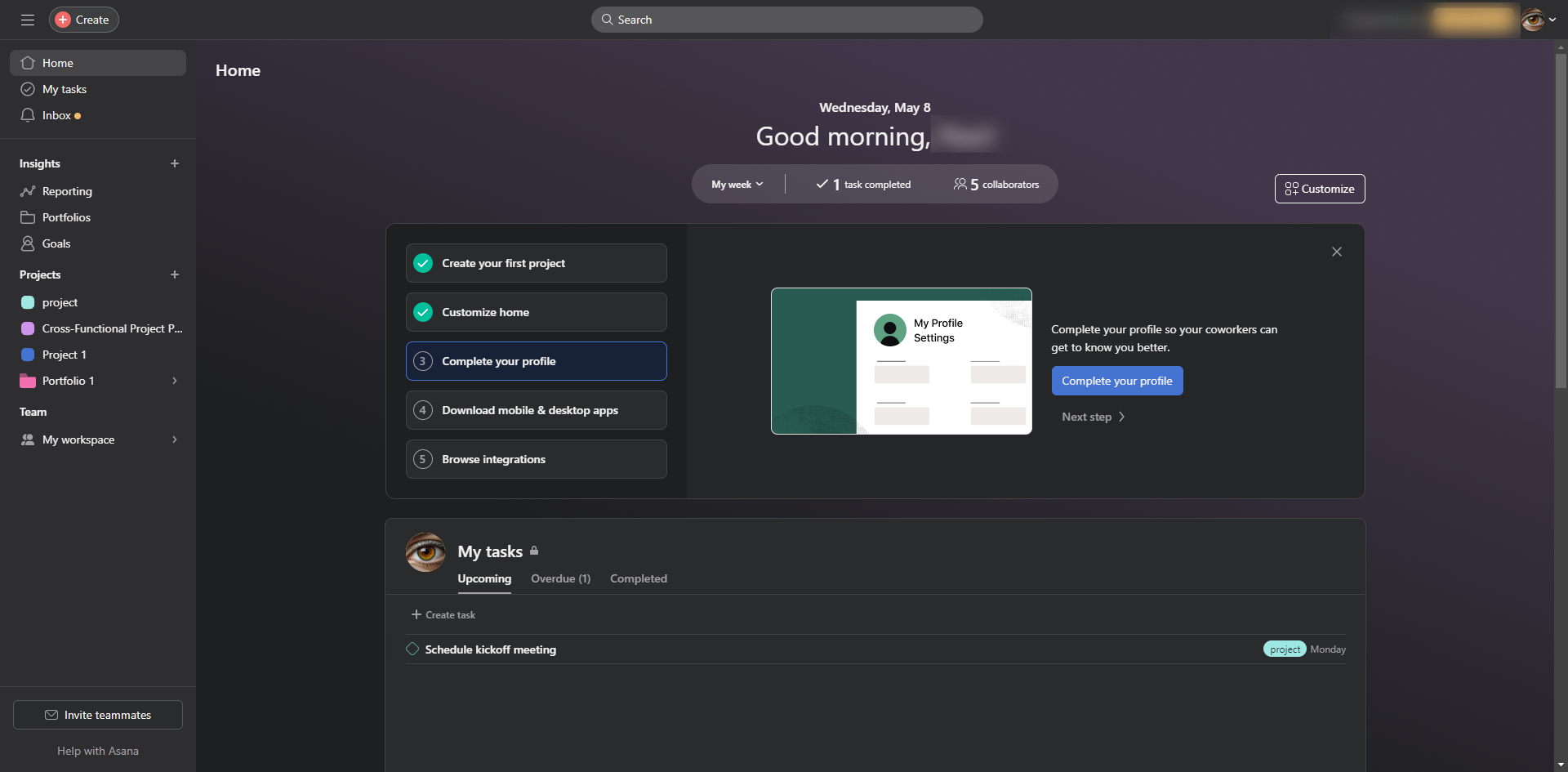
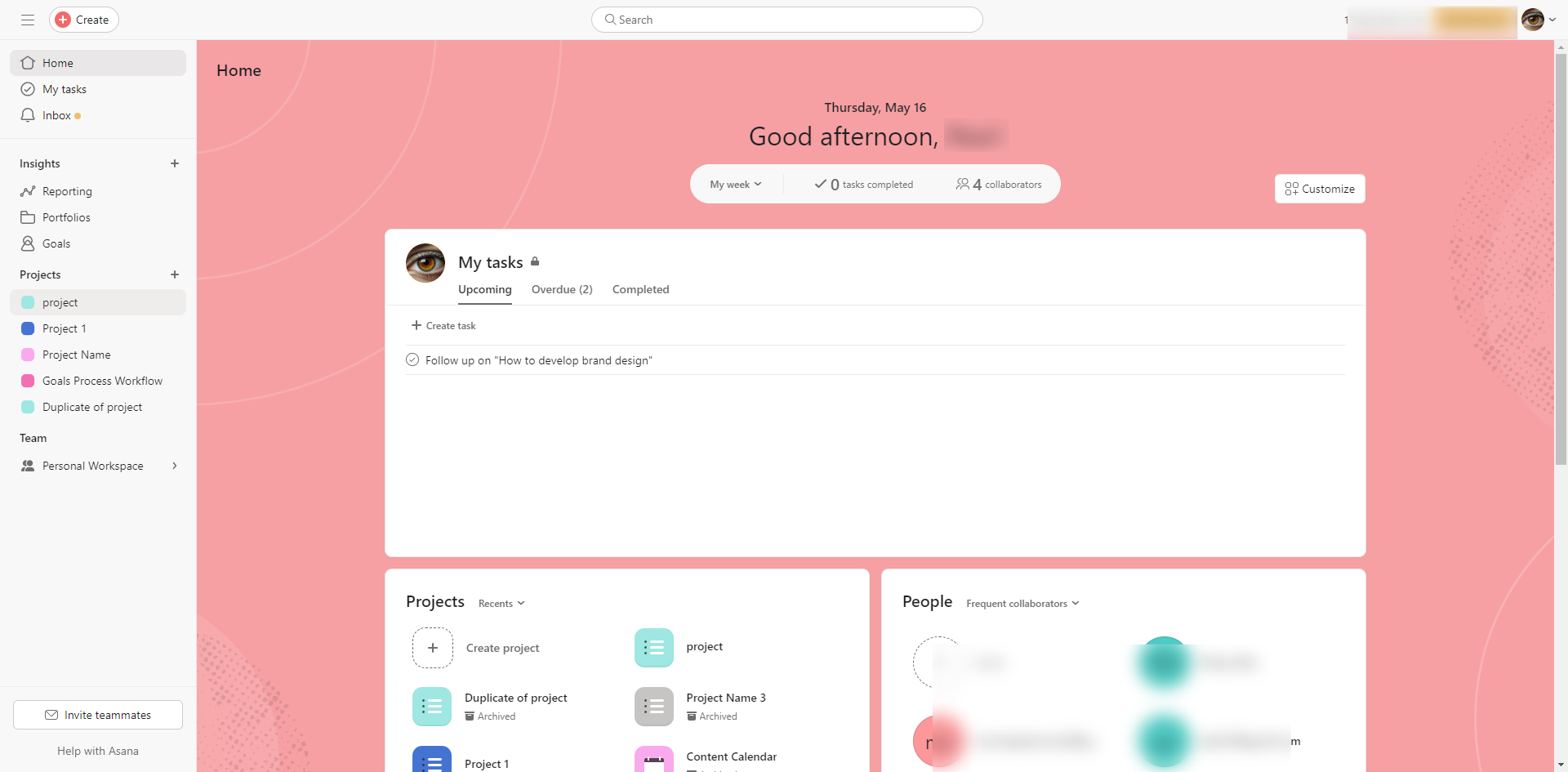
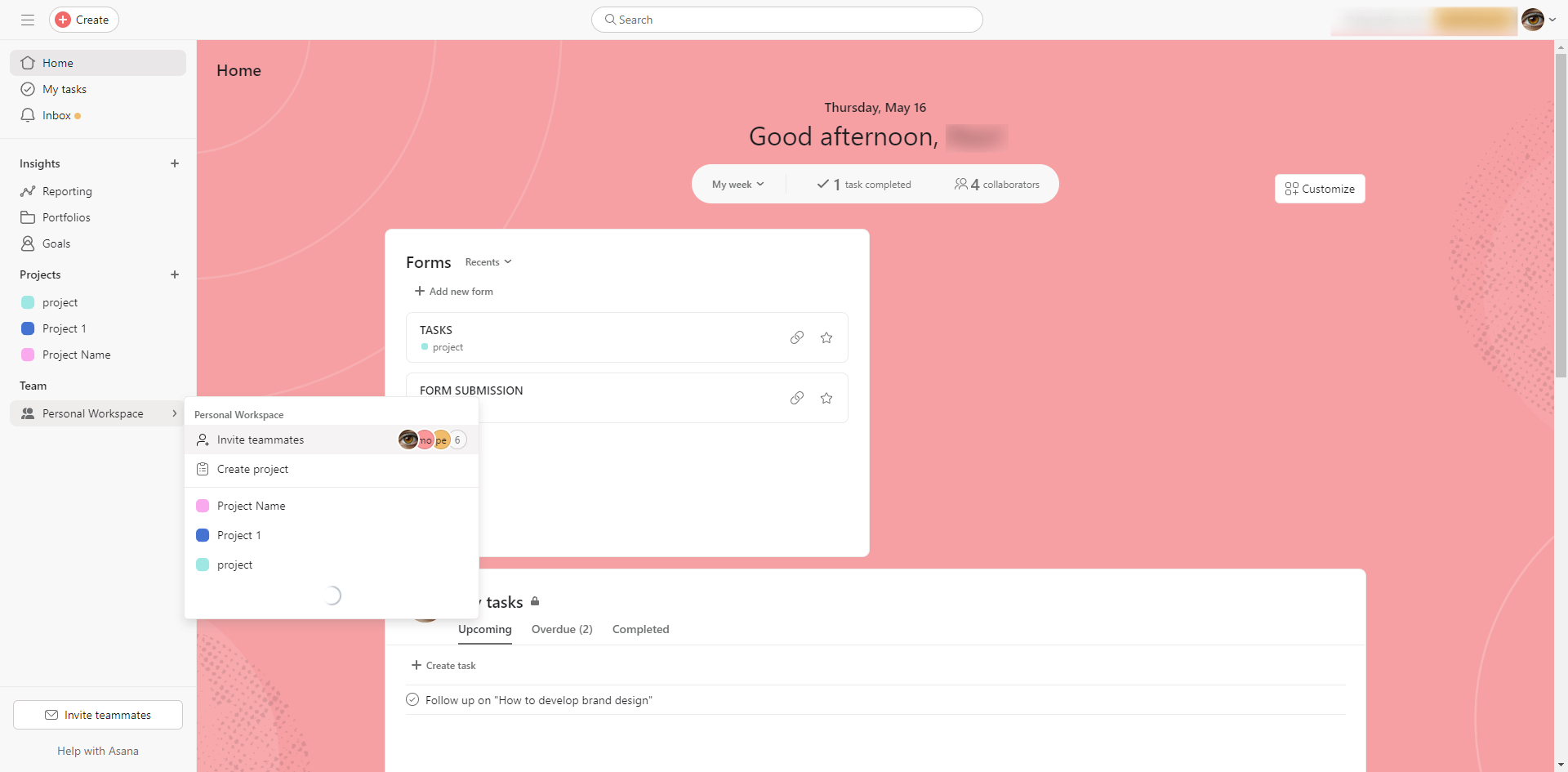
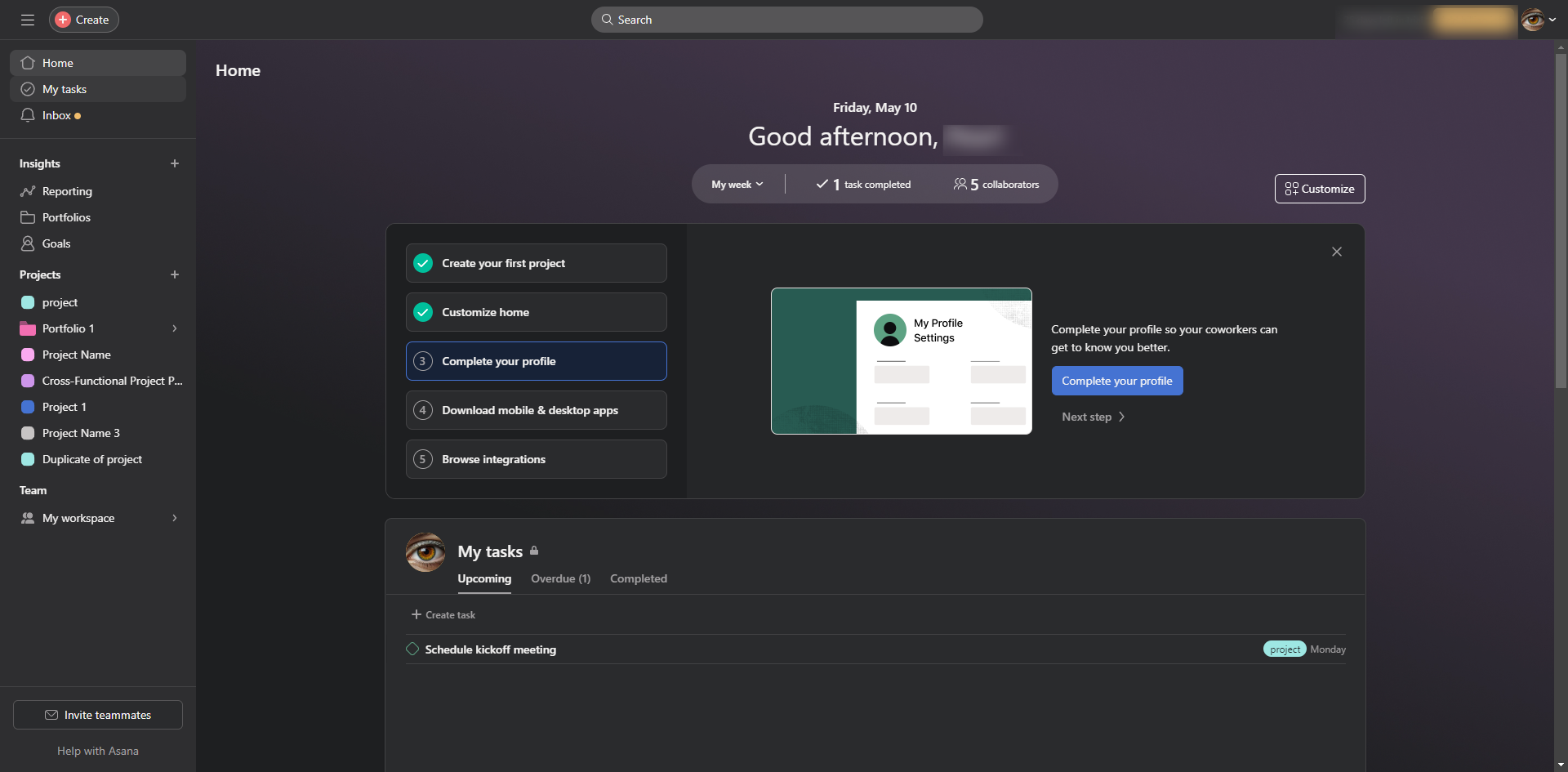
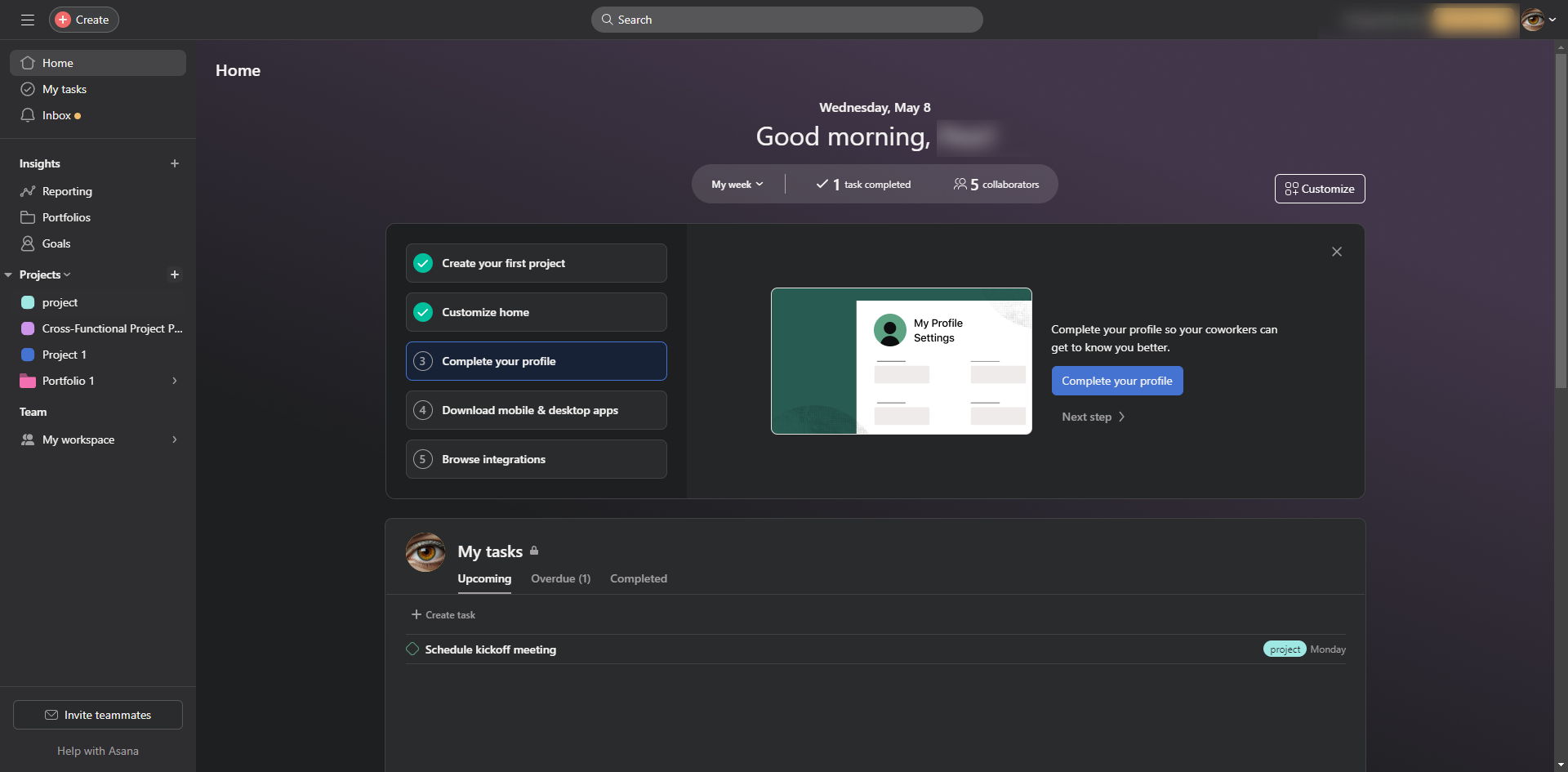
Start by creating a new project in Asana. You can do this by clicking the '+' button in the sidebar.
Select 'Project'.
Choose how you would like your project to start.
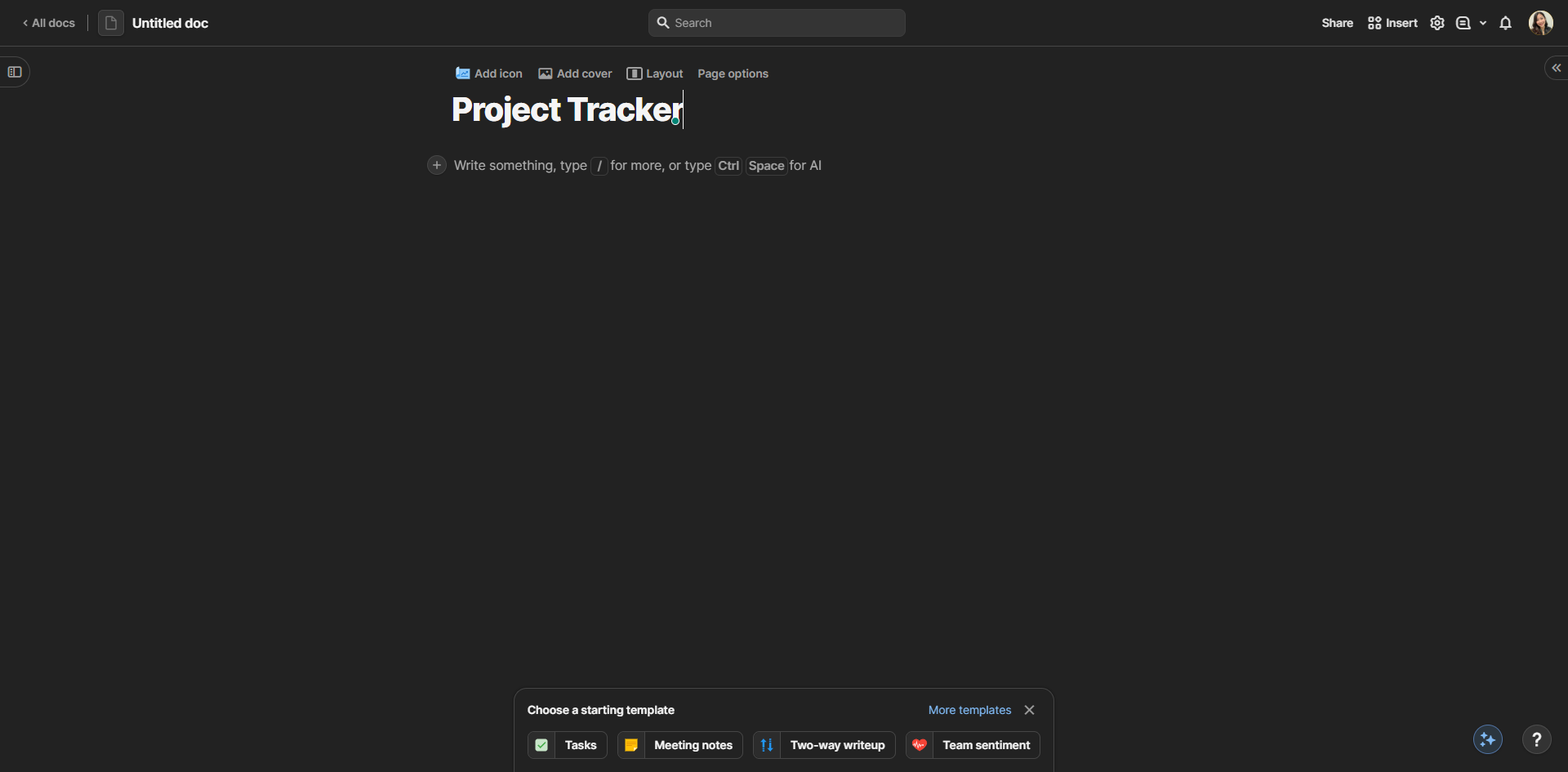
Name your project.
Click 'Create project'.
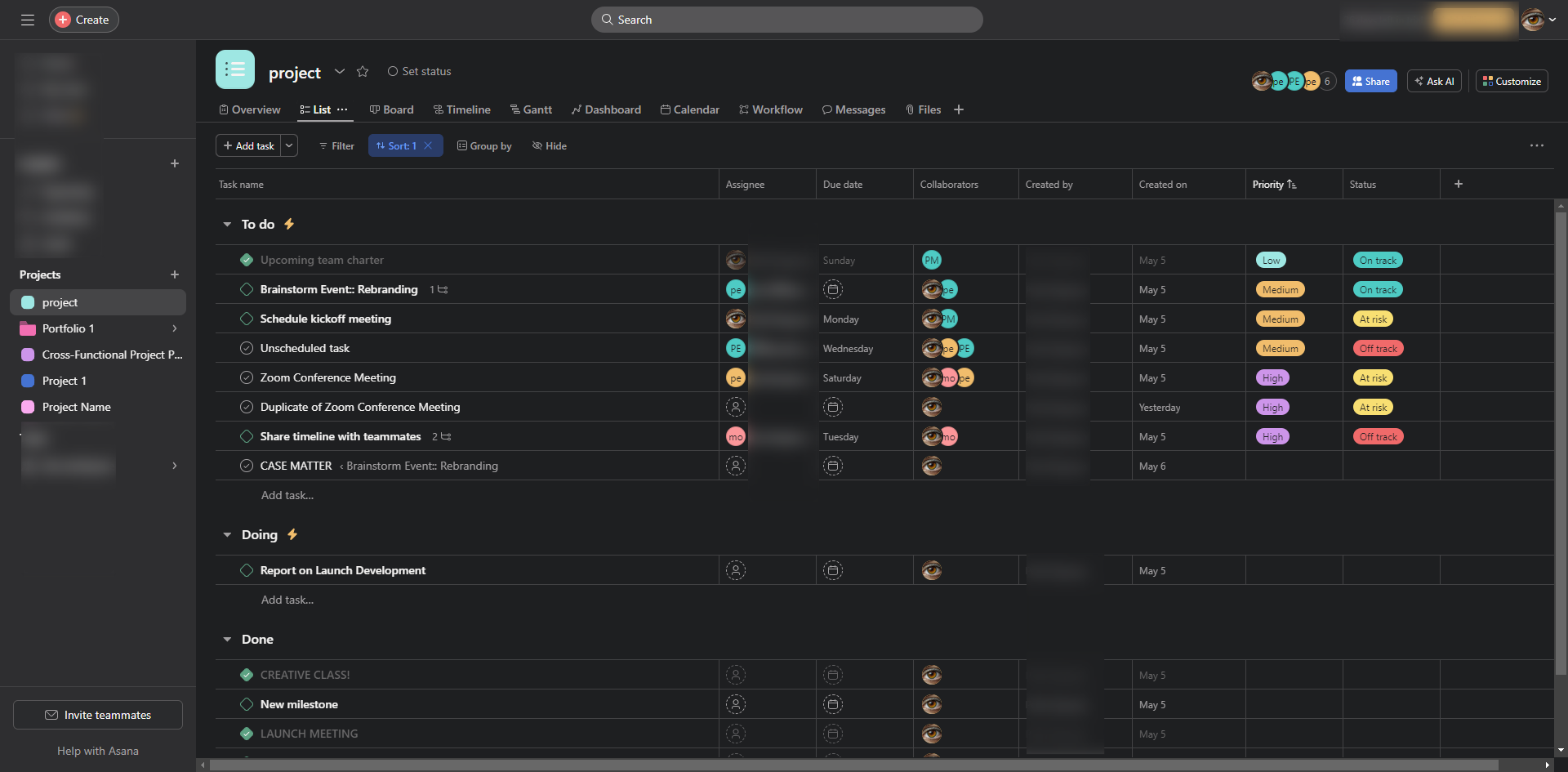
Populate tasks with relevant details such as descriptions, due dates, and assignees. This step ensures that the template provides comprehensive guidance for each task within the project.
If your projects typically have distinct phases or categories, you can create sections within the project to categorize tasks accordingly.
On the drop down menu, select 'Save as template'.
Click 'Create template'.
Once you're satisfied with the project setup, you can save it as a template by clicking 'Done'.
You can find your project template under the 'Template' section of your workspace.
Quick answer: To create a project template in Asana, start a new project via the sidebar, name it, and click create. Populate tasks with details and add sections if needed. Finally, select 'Save as template' from the drop-down menu, click 'Create template', and click 'Done' to finish.
About this Asana tutorial
Save time on future workflows in Asana by turning custom projects into reusable templates with tasks, details, and sections. This guide shows how to create a Project Template in Asana in 11 steps, starting with "Start by creating a new project in Asana. You can do this by clicking the '+' button in..." and finishing with "You can find your project template under the 'Template' section of your workspace". The interactive demo above is a click-through copy of the real Asana interface, so you can rehearse each step before doing it in your own account.
Frequently asked questions
How many steps does it take to create a Project Template in Asana?
11 steps. Each one is listed in order above, and the demo highlights exactly where to click.
Can I try it without changing my own account?
Yes. Clicking through the demo doesn't touch your Asana data or settings. Once you know the flow, repeat it in your own workspace.
This tutorial is filed under Asana. Related guides: How to Create a Recurring Task in Asana, How to Create a Rule in Asana and How to Create a Task Template in Asana. Last reviewed 05 Oct 2026.

Create your first interactive demo in minutes
No credit card required • Start building today