How To Create A Schedule In Notion
- George Apostolov
How To Create A Schedule In Notion: step-by-step guide
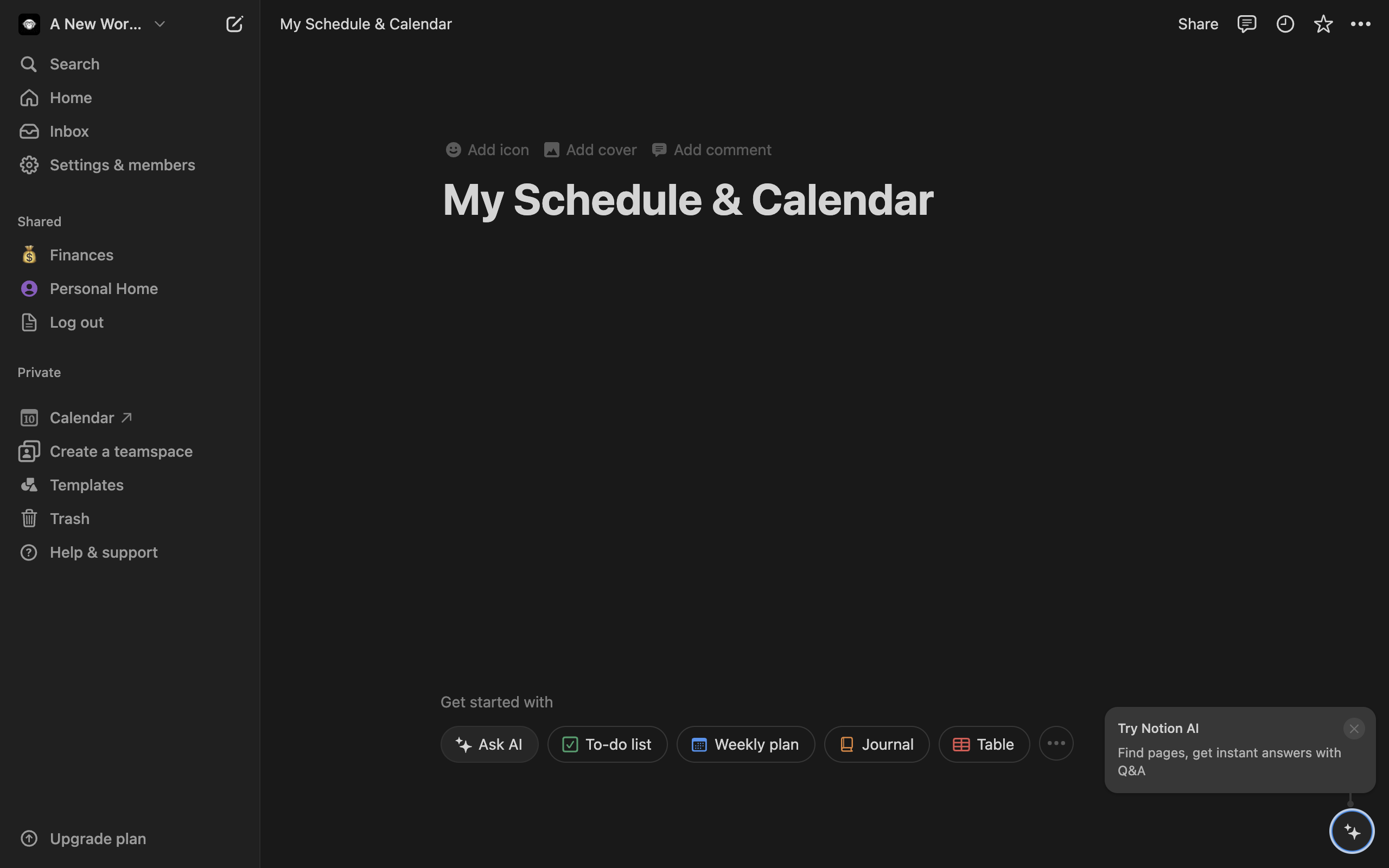
As always, we begin by creating a fresh page and entering a title.
Use the slash command (/calendar) to insert a calendar view into your page.
From the three dotted icon for more options, choose the database to link your new calendar to.
Once ready, hover on any day in your calendar for which you wish to create a schedule. Click on the (+) icon that appears to Add an item.
This new "item" also functions similar to a page and can even be expanded into a full page. Enter a title for your schedule and begin typing.
A helpful way to create schedules is by utilizing Notion's To-do List, use the slash command (/todo) to insert them.
Now, use the "@" symbol to browse more options, we will be using this to add a timestamp to our list.
Depending on what you type after the "@" symbol, Notion will automatically suggest a timestamp as an option. You can use this to set time for your tasks. Click to insert.
You can now click on this new timestamp to view specific options.
Consider setting a reminder for this time using the pop-up menu.
Choose the desired time for your reminder to go off!
Click anywhere outside to close.
Continue adding more items to your schedule.
Once done, click outside the area to close.
You now have your own calendar in Notion with a custom schedule for each day with timestamps and reminders included!
Quick answer: To build a schedule in Notion, create a fresh page and insert a calendar view using the slash command. Link a database, hover over a day to add an item, and use the slash command for to-do lists. Add timestamps with the symbol, set reminders, and close to finish.
About this Notion tutorial
Build and manage daily custom schedules, timestamps, and reminders using a calendar view inside Notion. This guide shows how to create A Schedule In Notion in 15 steps, starting with "As always, we begin by creating a fresh page and entering a title" and finishing with "You now have your own calendar in Notion with a custom schedule for each day with times...". The interactive demo above is a click-through copy of the real Notion interface, so you can rehearse each step before doing it in your own account.
Frequently asked questions
How many steps does it take to create A Schedule In Notion?
15 steps. Each one is listed in order above, and the demo highlights exactly where to click.
Can I try it without changing my own account?
Yes. Clicking through the demo doesn't touch your Notion data or settings. Once you know the flow, repeat it in your own workspace.
This tutorial is filed under Notion. Related guides: How to crop images in notion, How To Delete A Workspace In Notion and How to delete notion account. Last reviewed 05 Oct 2026.

Create your first interactive demo in minutes
No credit card required • Start building today