Salesforce - How to Create a Validation Rule in Salesforce
- George Apostolov
This guide is an interactive LiveDemo. Create interactive demos of your own product: Interactive demo software · Interactive demos for sales outreach · Start free
Salesforce - How to Create a Validation Rule in Salesforce: step-by-step guide
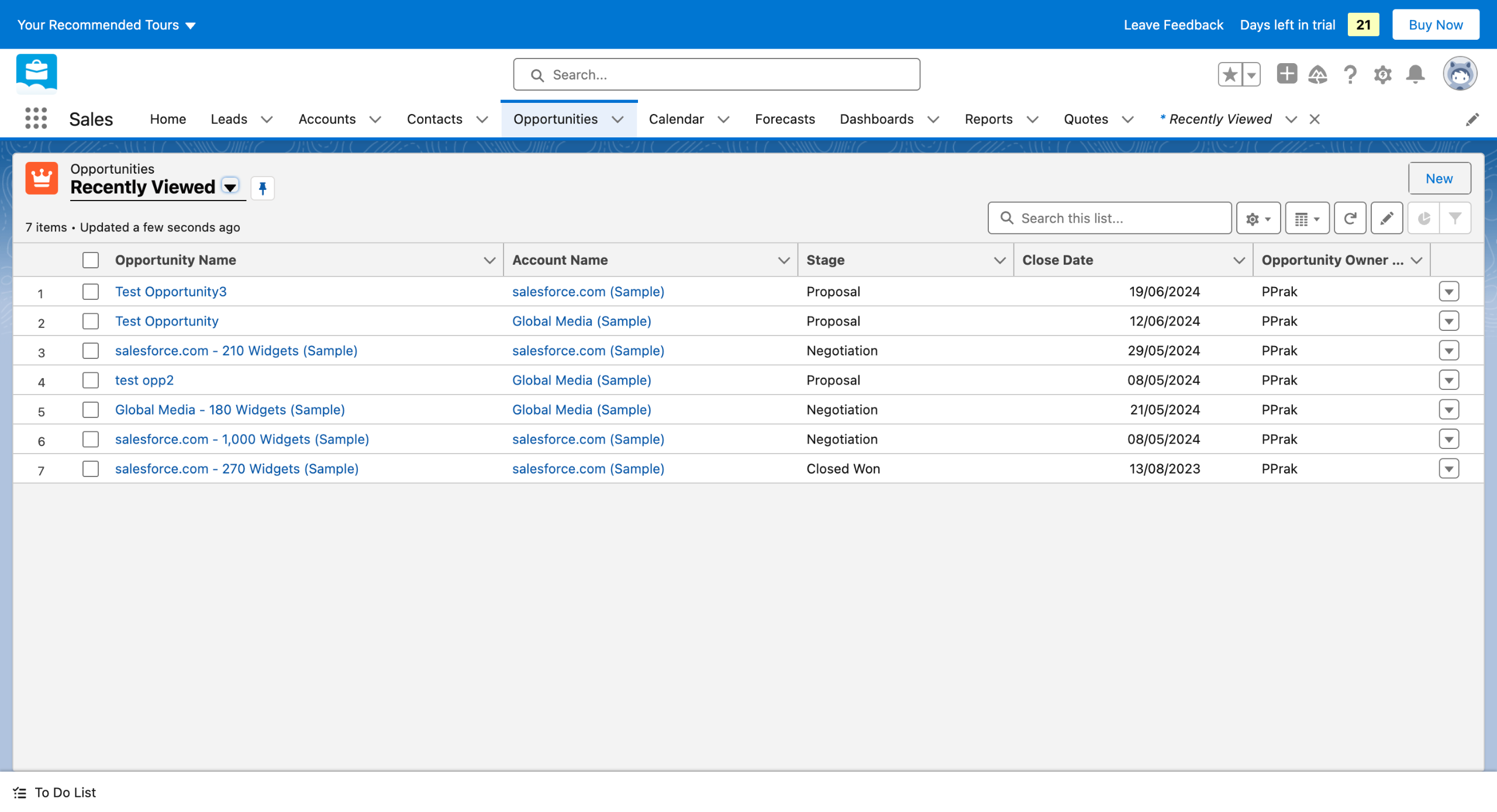
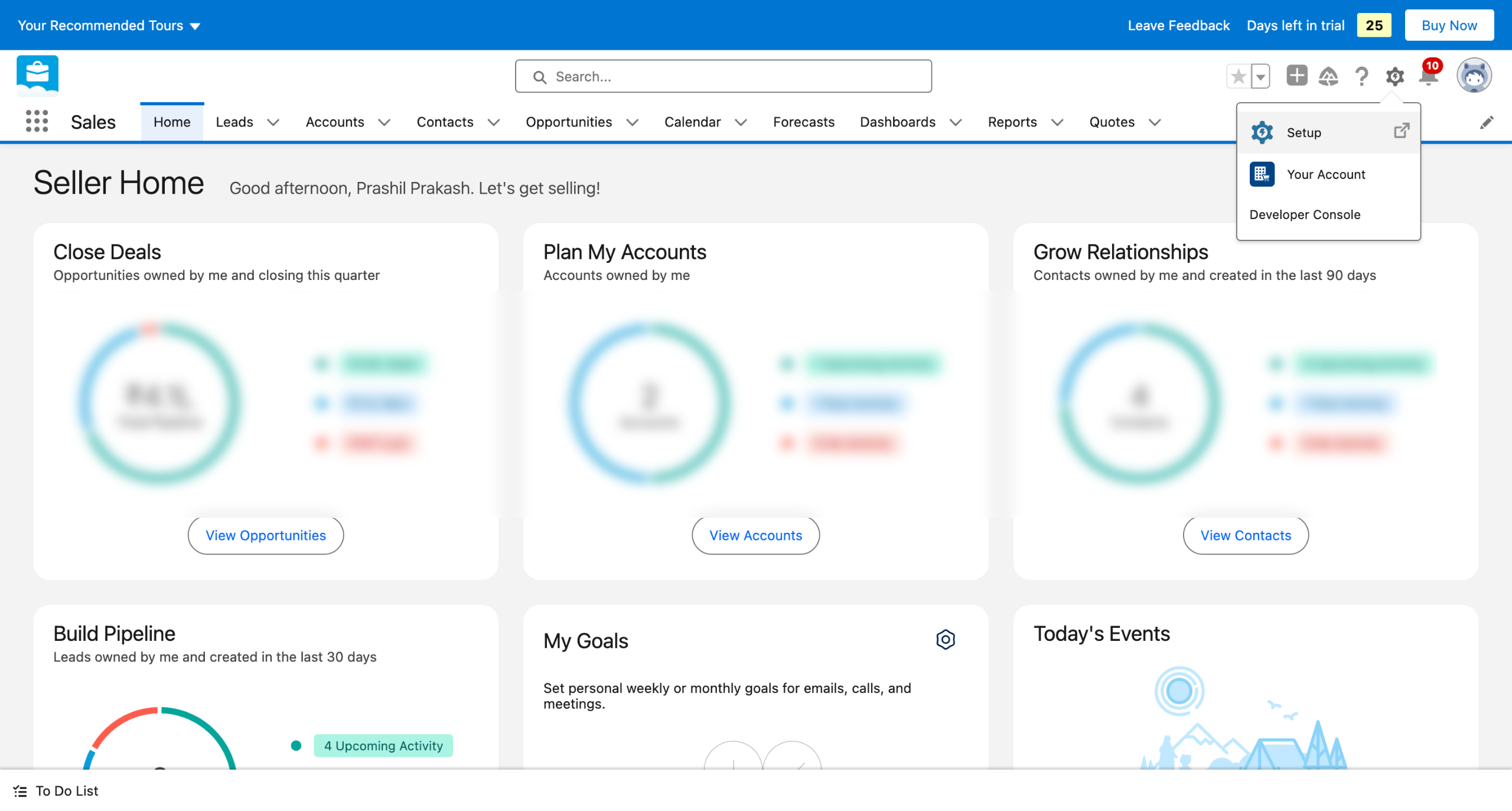
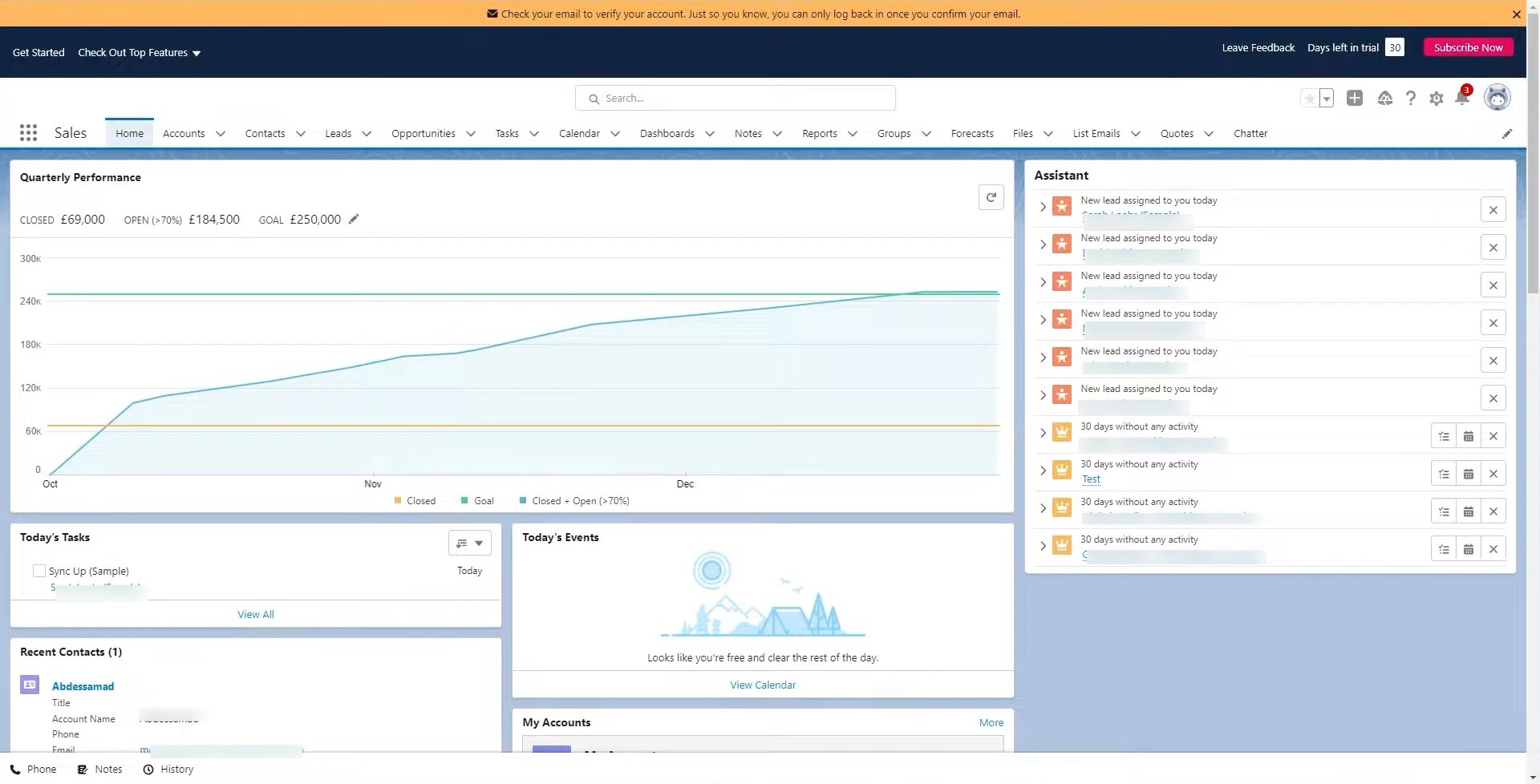
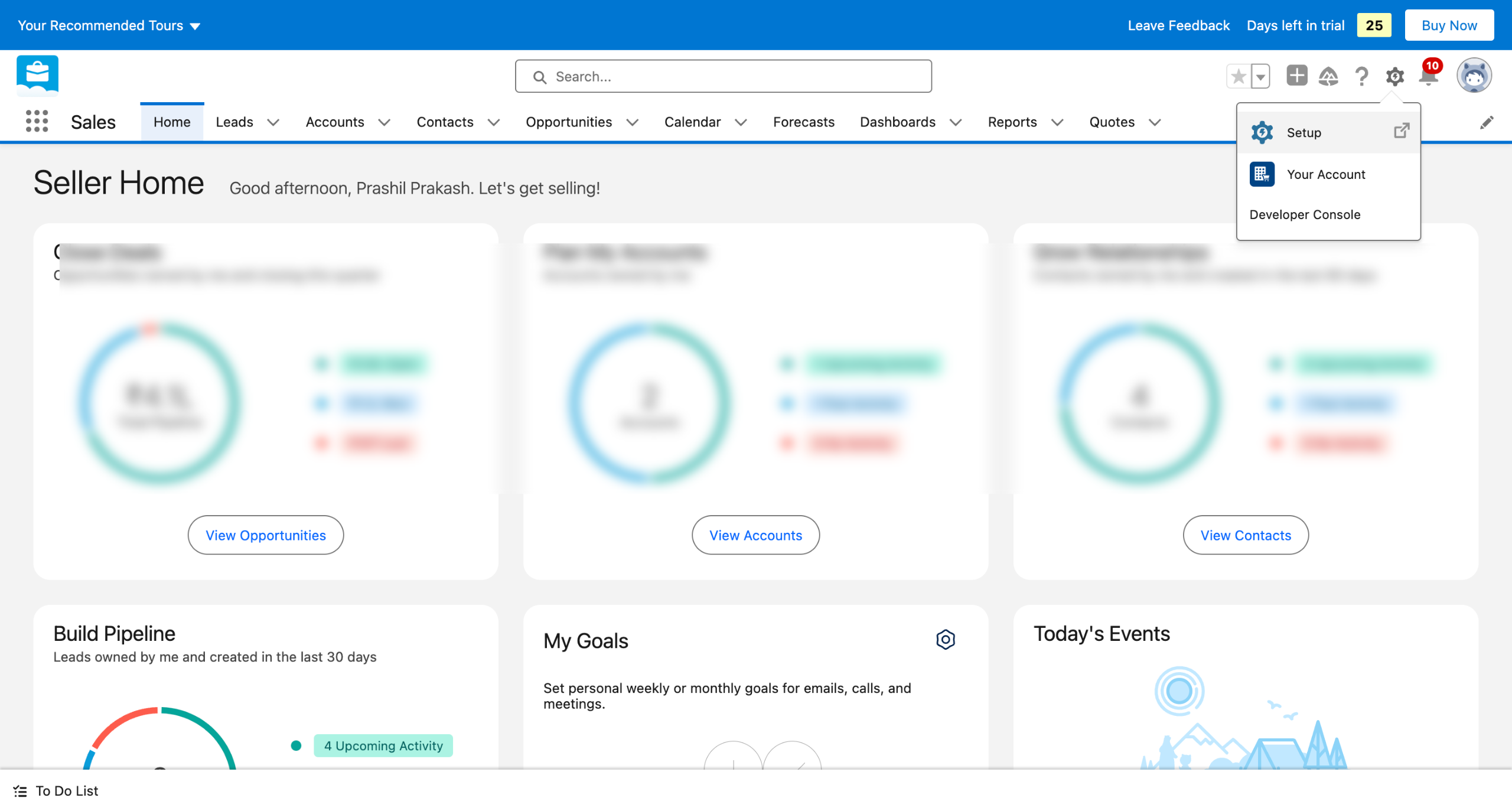
Go to Setup on the top right.
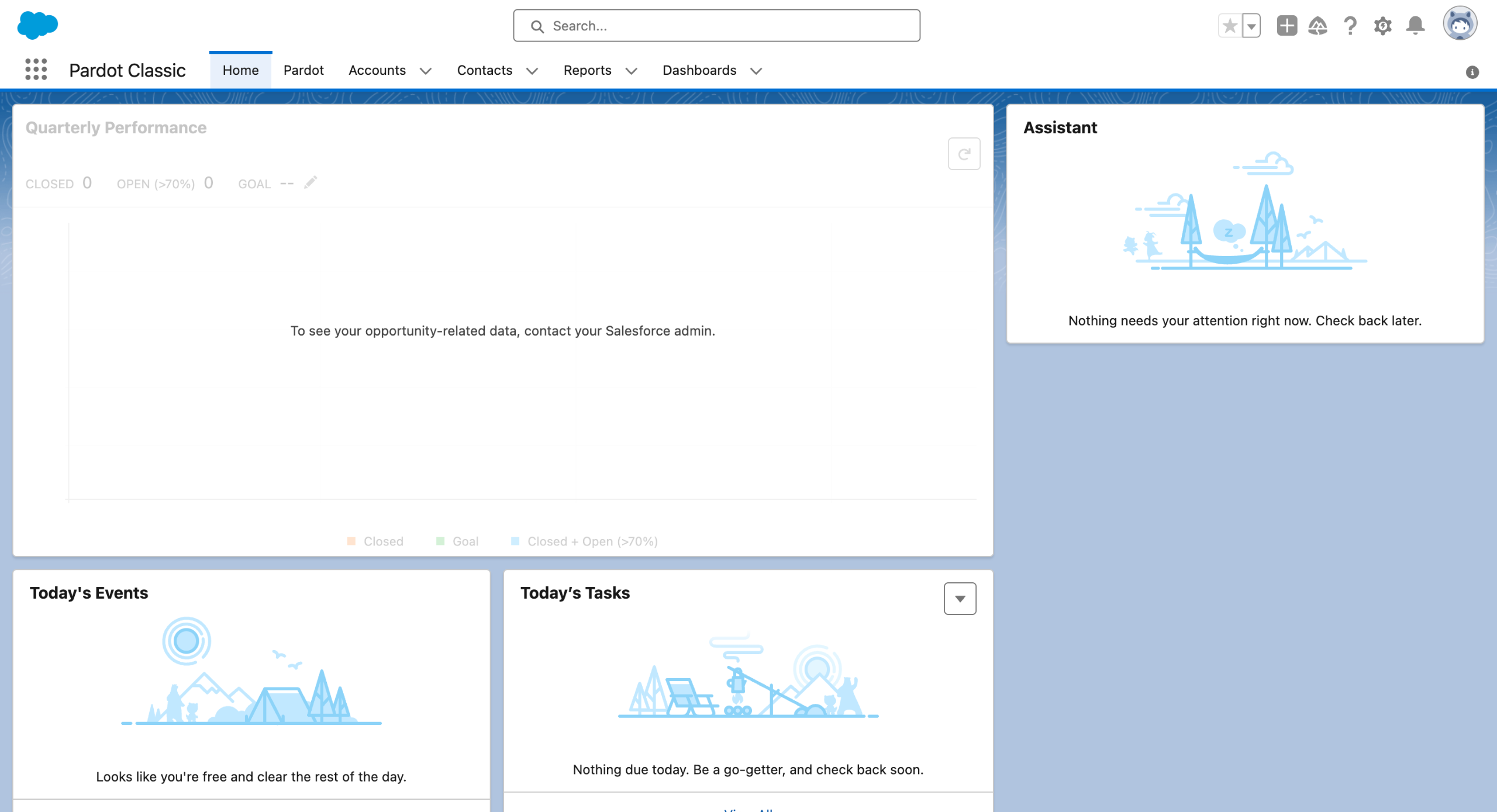
Search for Object Manager in the Quick Find.
Select the object you want to enforce the rule on (Leads, Opportunities etc).
Find the Validation Rules section and click on it.
Click New to initiate the creation of a new validation rule.
Start defining the rules for Labels and Error Condition Formula.
Label: Give your rule a clear name (e.g., "Opportunity Requires Amount").
Select Active to make the rule enforceable.
Error Message: Craft a clear message displayed to users when the validation fails (e.g., "Please enter an amount for Closed Won opportunities").
Error Condition Formula: This is the key part. Use the formula builder to define the criteria that must be met to avoid an error message. An example formula to ensure the amount is filled for opportunities marked as "Closed Won": ISPICKVAL(PRIORVALUE(StageName), "Closed Won") && Amount == null
Click Save to create the validation rule.
Quick answer: To create a validation rule in Salesforce, navigate to Setup and open Object Manager. Select your desired object, open Validation Rules, and click New. Define the label, activate the rule, enter an error message and formula, then click Save to finish.
About this Salesforce tutorial
Build custom validation rules in Salesforce Object Manager to enforce data entry requirements and display specific error messages. This guide covers salesforce - How to Create a Validation Rule in Salesforce in 11 steps, starting with "Go to Setup on the top right" and finishing with "Click Save to create the validation rule". The interactive demo above is a click-through copy of the real Salesforce interface, so you can rehearse each step before doing it in your own account.
Frequently asked questions
How many steps does salesforce - How to Create a Validation Rule in Salesforce take?
11 steps. Each one is listed in order above, and the demo highlights exactly where to click.
Can I try it without changing my own account?
Yes. Clicking through the demo doesn't touch your Salesforce data or settings. Once you know the flow, repeat it in your own workspace.
This tutorial is filed under Salesforce. Related guides: Salesforce - How to Create an Opportunity in Salesforce, Salesforce - How to Create Custom Fields in Salesforce and Salesforce - Deactivate Users. Last reviewed 05 Oct 2026.

Create your first interactive demo in minutes
No credit card required • Start building today