How to Create Form Page on GetResponse
- George Apostolov

How to Create Form Page on GetResponse: step-by-step guide
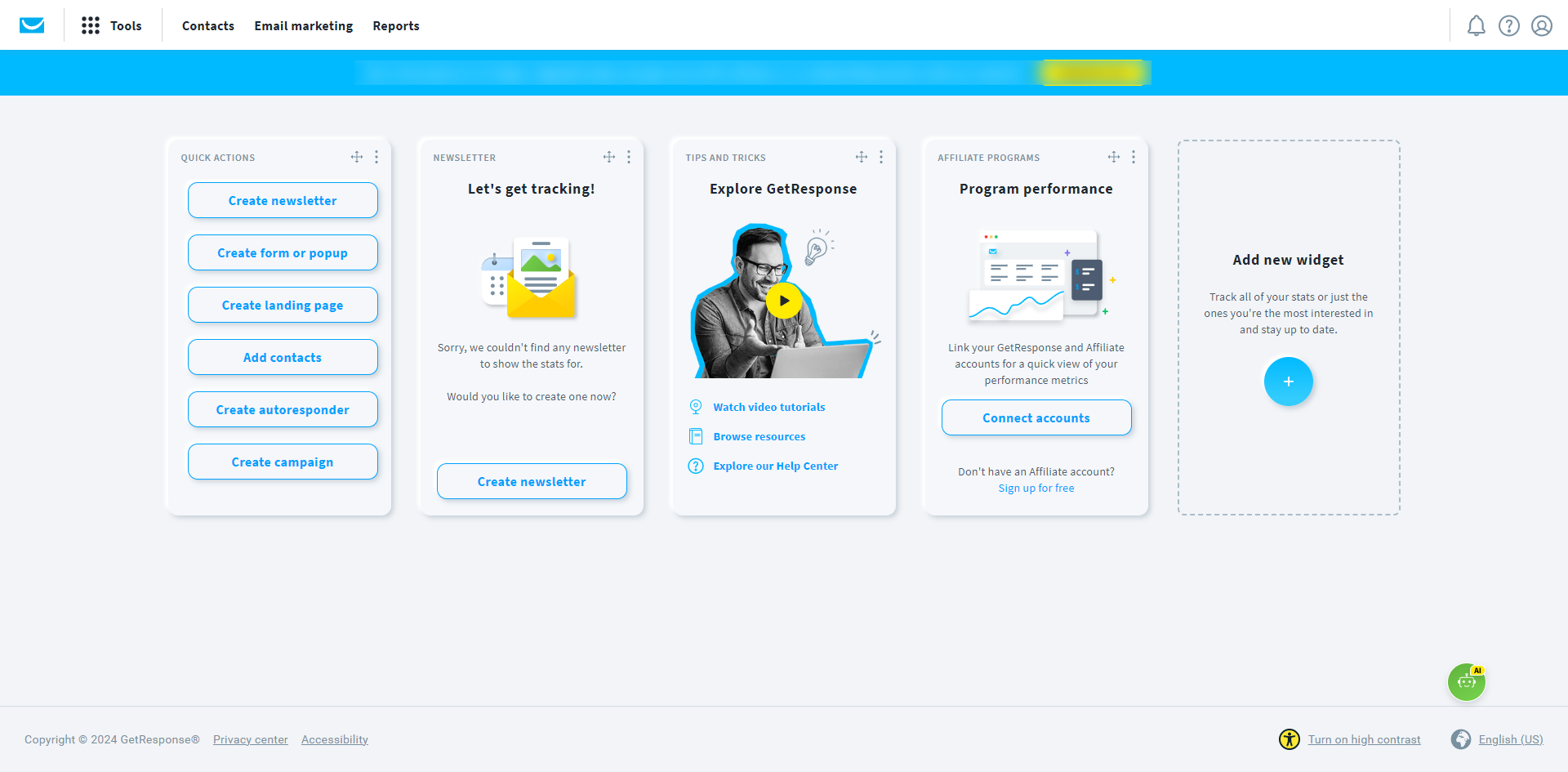
Go to 'Forms and popups'.
From available templates, choose and click 'Use template' that you want to use.
In the form editor, you can edit the template, add more fields, and edit their style and layout.
Click 'Choose audience' to pick which visitors you want to target your form.
Click 'Save' after selecting your audience.
Click 'Connect store' if you want to target store visitors of your product.
Click 'Choose trigger'.
After deciding the trigger you prefer for your form, toggle it on and click 'Save'.
To schedule your form, click 'Set timing'.
Decide the schedule, frequency, and rules when your pop up will be displayed Click 'Save' after.
Enter the name of your form.
Paste the site URL where you want the form to appear.
Click 'Save and publish' to publish the form.
That's it! By following these steps, you can effectively create and publish forms in GetResponse to capture leads and grow your email list.
Quick answer: To create form page on GetResponse, go to Forms and popups, choose a template, and edit its style. Next, choose your audience, connect a store, set triggers and timing, name the form, enter the site URL, and click Save and publish.
About this GetResponse tutorial
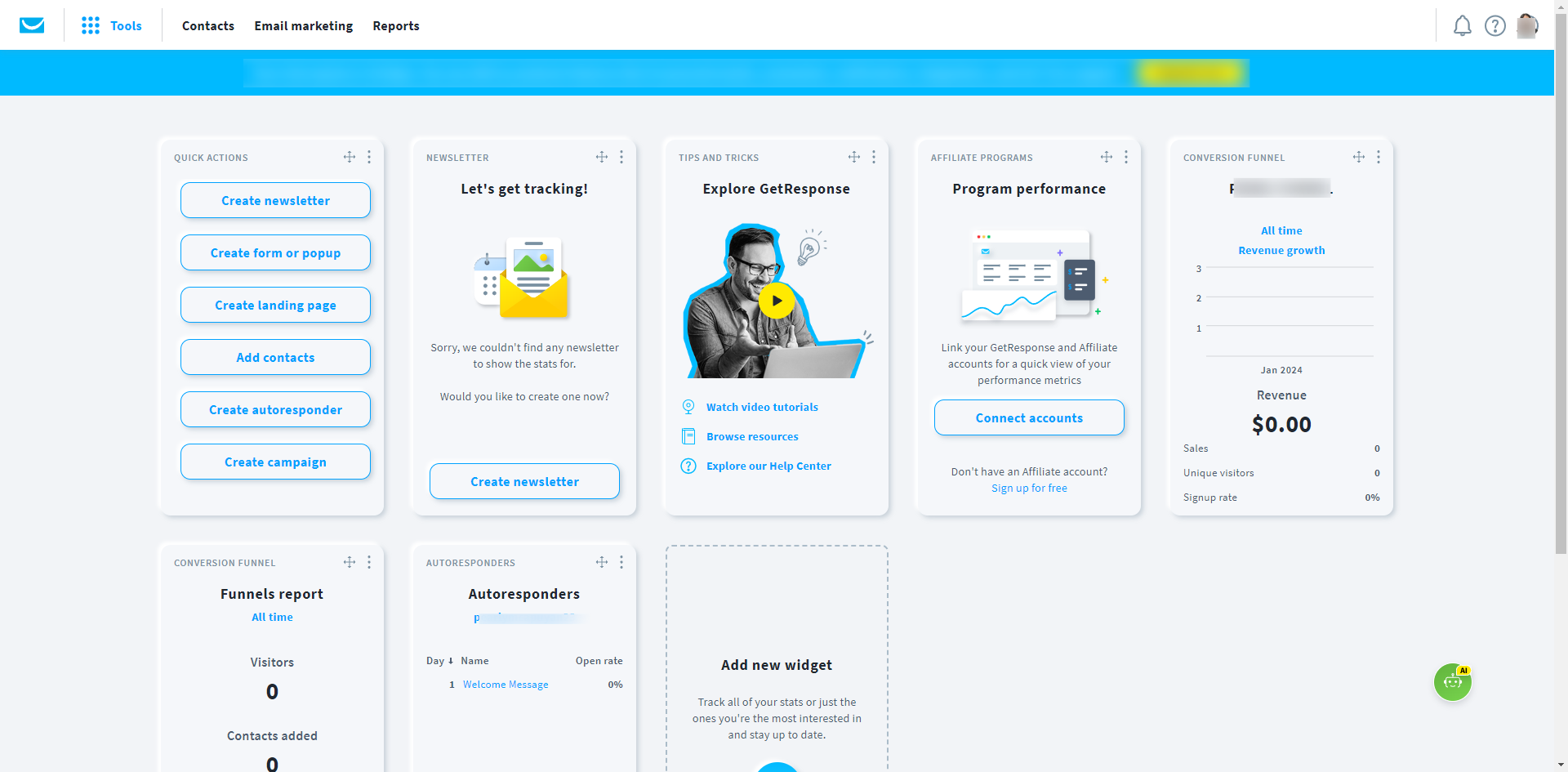
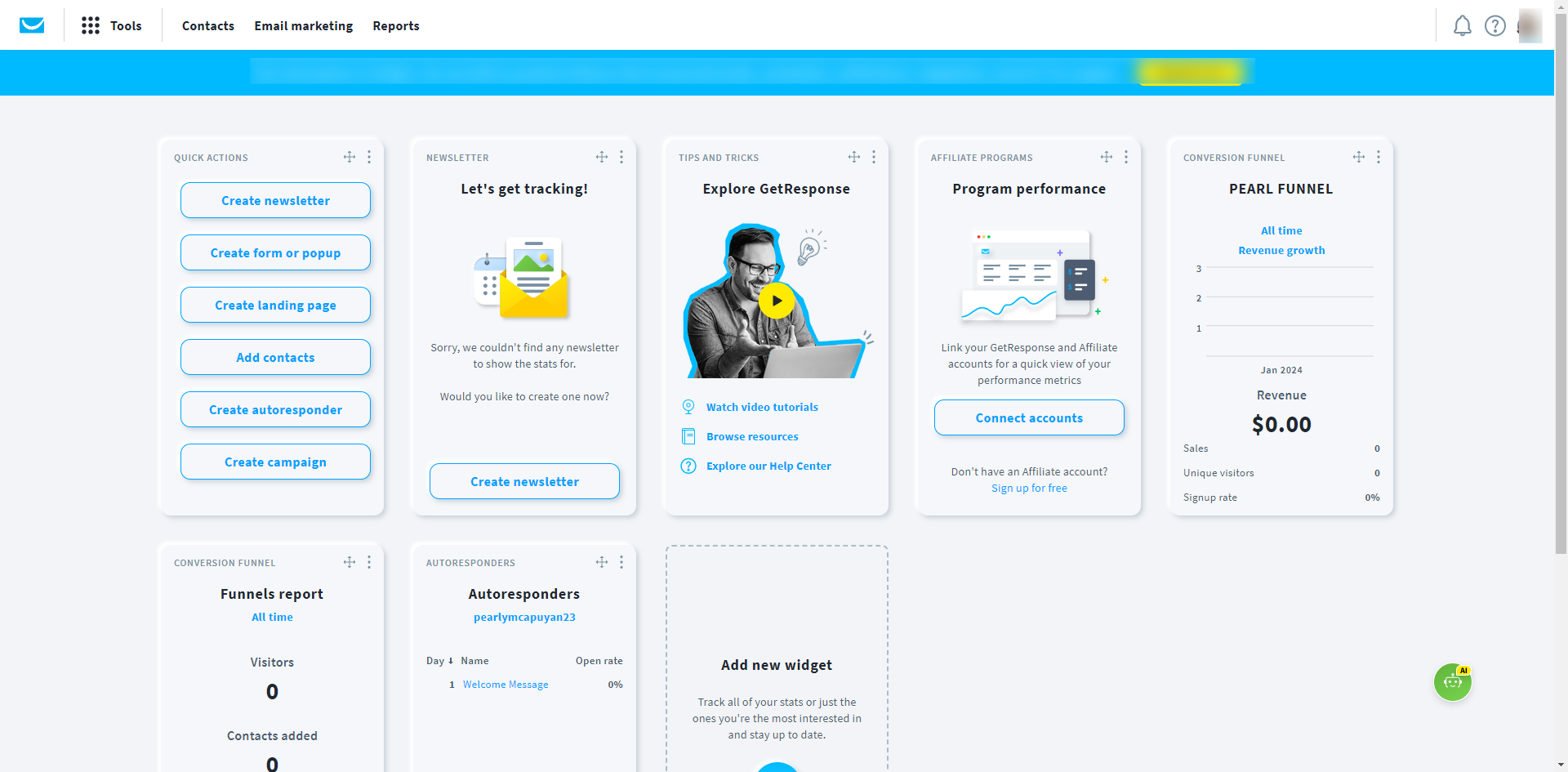
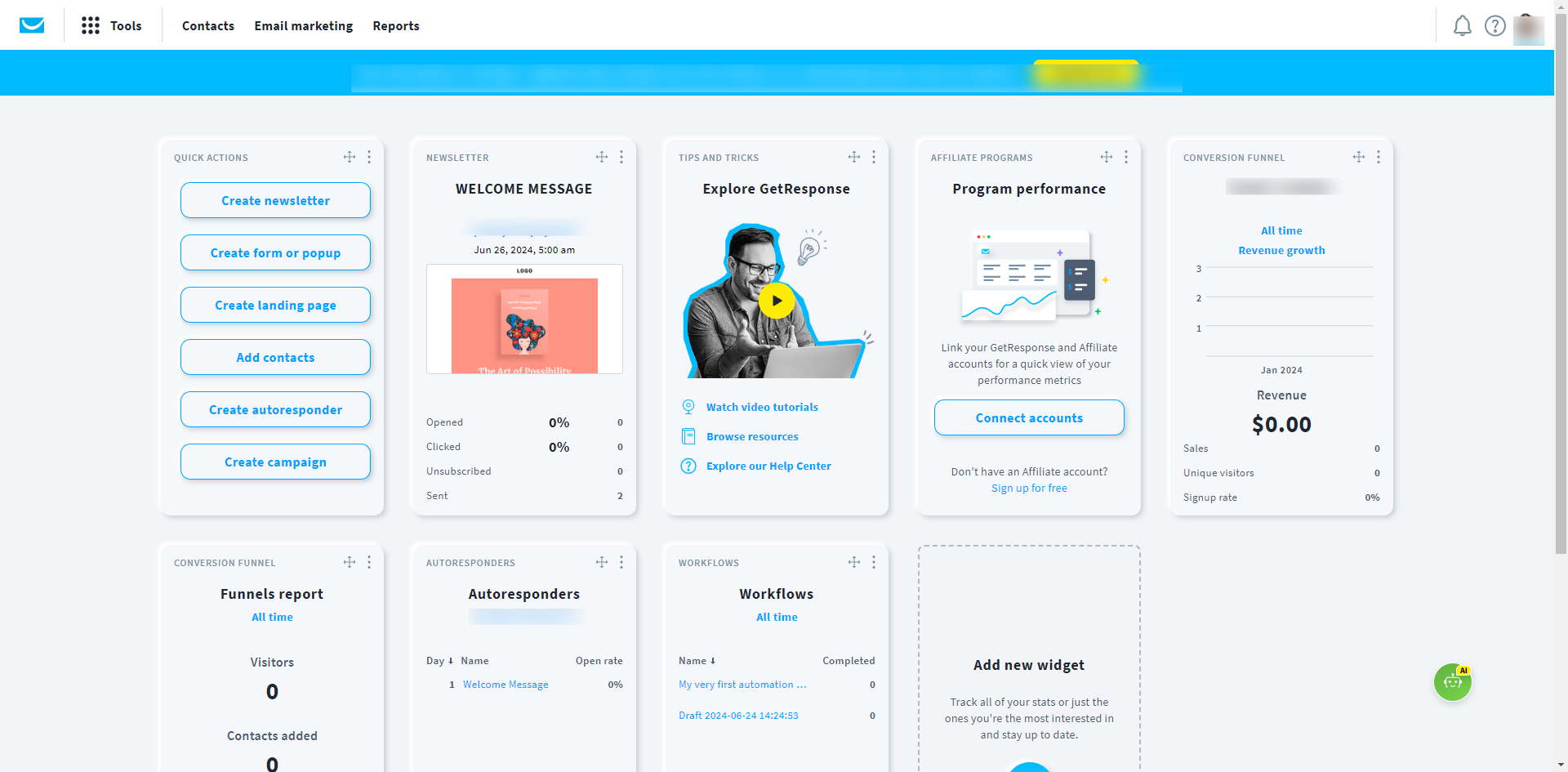
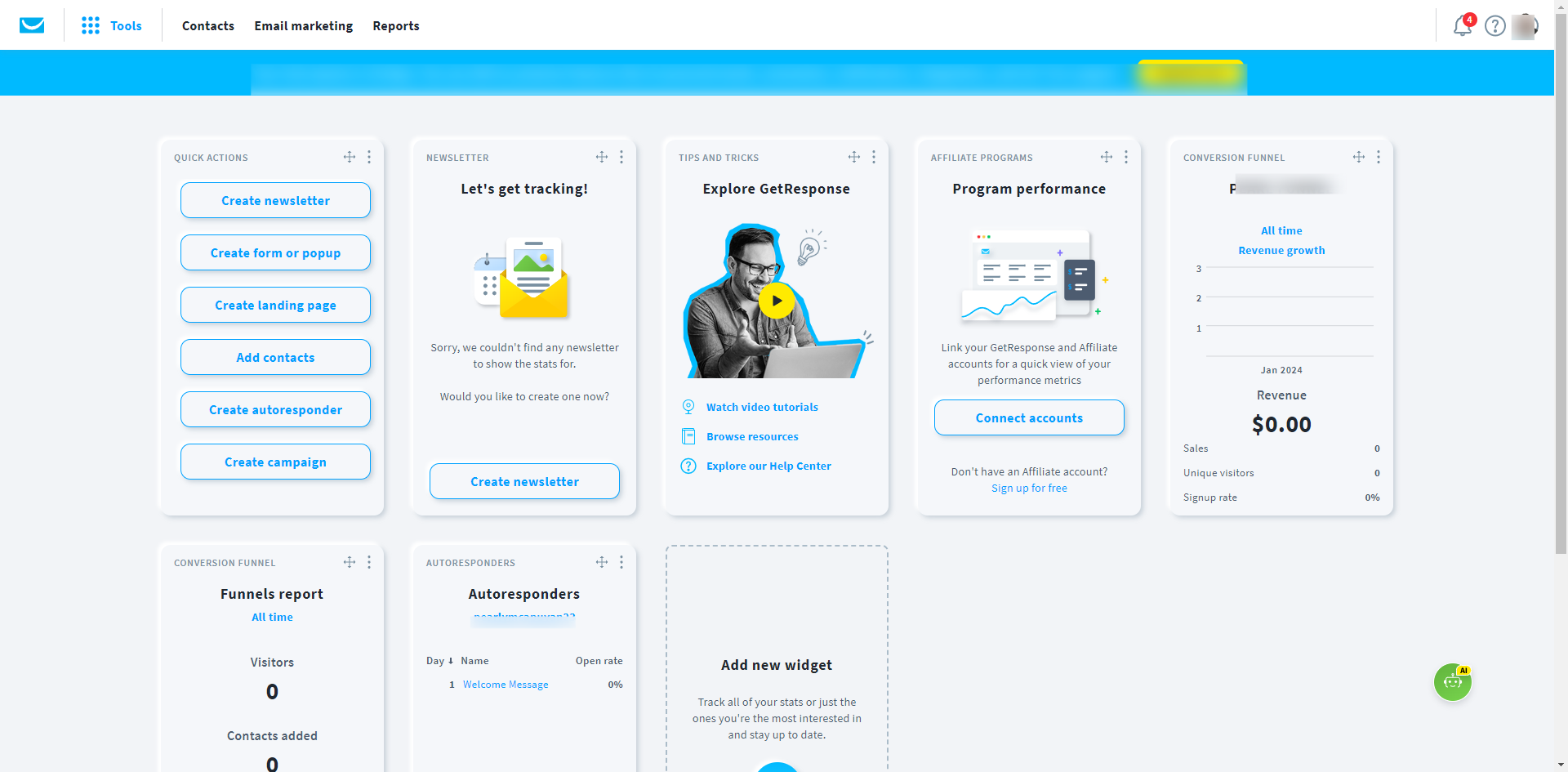
Publish custom lead capture forms on GetResponse by selecting templates, setting targeting, triggers, and timing rules. This guide shows how to create Form Page on GetResponse in 14 steps, starting with "Go to 'Forms and popups'" and finishing with "That's it! By following these steps, you can effectively create and publish forms in Ge...". The interactive demo above is a click-through copy of the real GetResponse interface, so you can rehearse each step before doing it in your own account.
Frequently asked questions
How many steps does it take to create Form Page on GetResponse?
14 steps. Each one is listed in order above, and the demo highlights exactly where to click.
Can I try it without changing my own account?
Yes. Clicking through the demo doesn't touch your GetResponse data or settings. Once you know the flow, repeat it in your own workspace.
This tutorial is filed under GetResponse. Related guides: How to Delete Contacts in GetResponse, How to Export Contacts in GetResponse and How to Find List ID in GetResponse. Last reviewed 05 Oct 2026.

Create your first interactive demo in minutes
No credit card required • Start building today