How to Design a SharePoint Page
- George Apostolov
How to Design a SharePoint Page: step-by-step guide
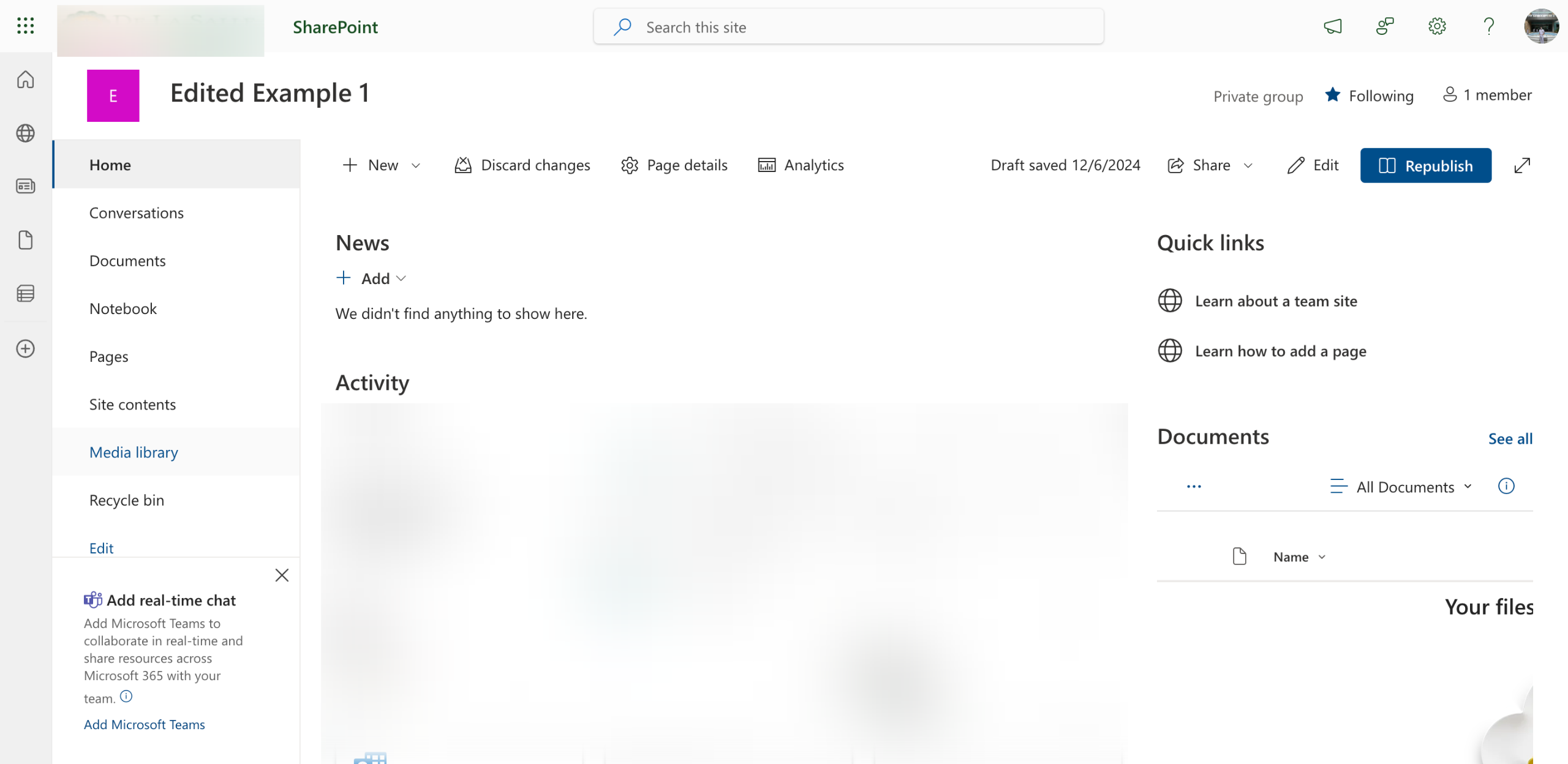
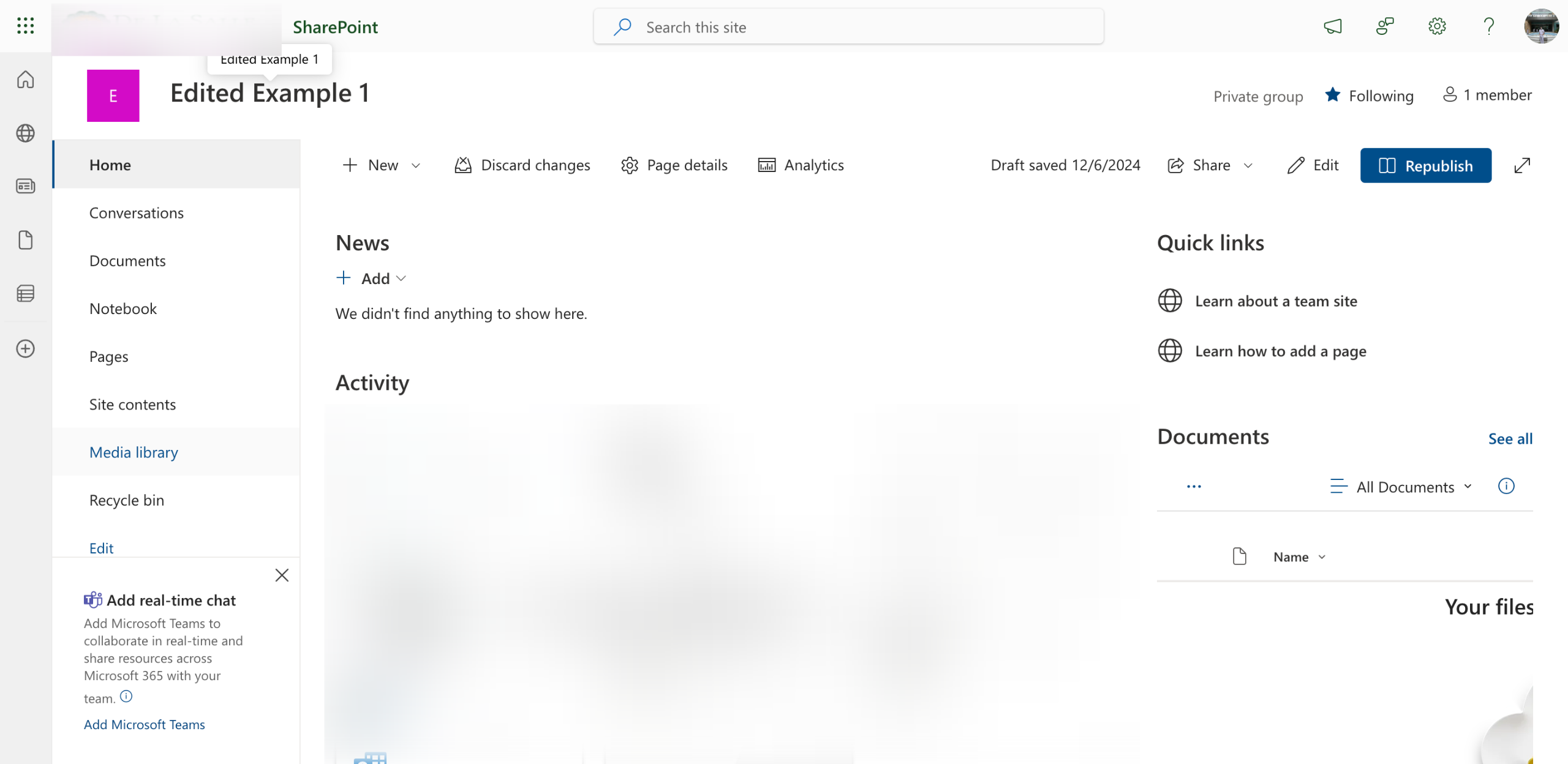
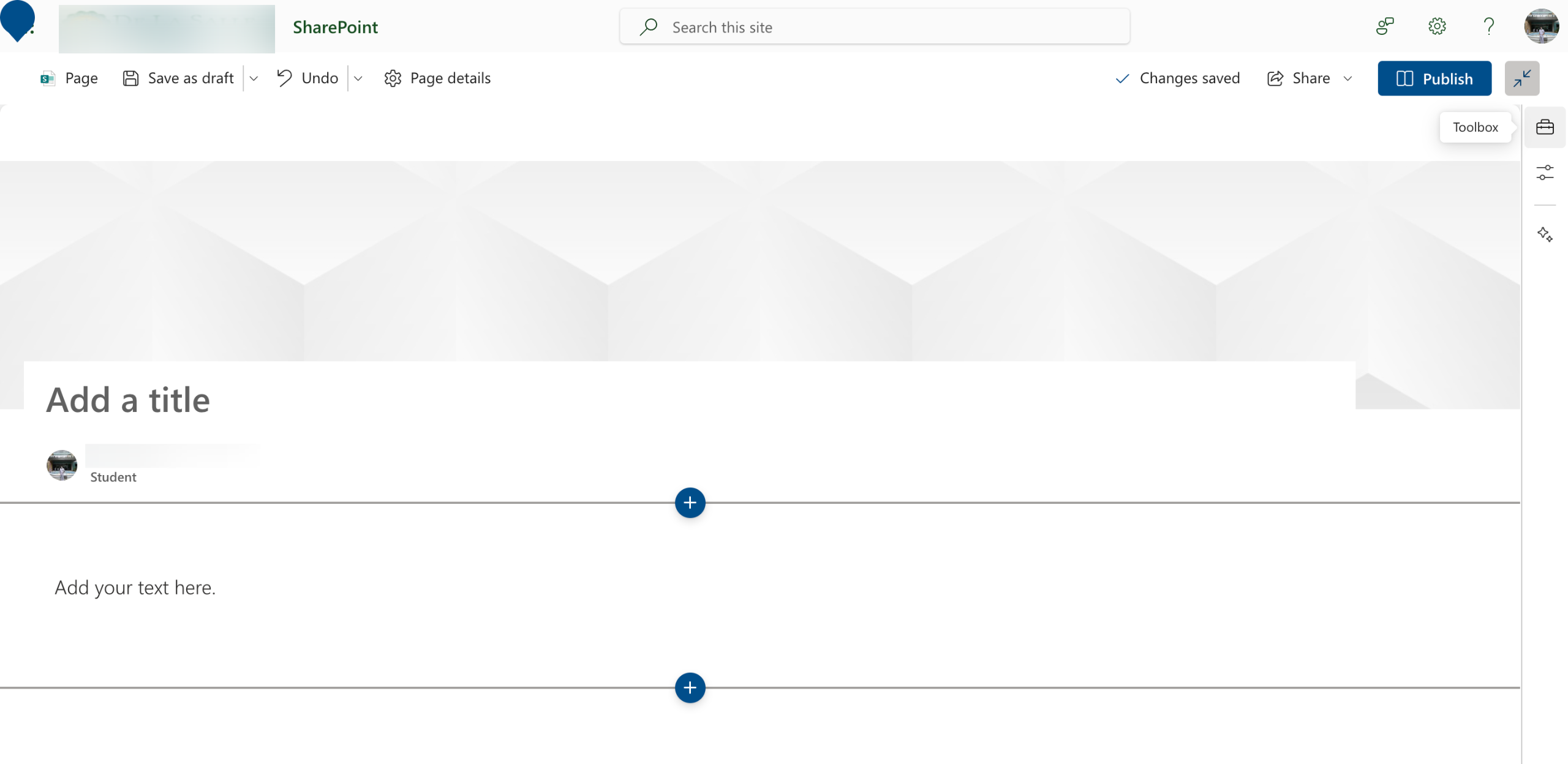
Inside the Page Editor's main dashboard, go to the right-side panel and tap 'Toolbox'.
After that, the Toolbox panel will open and offer various options that can help you create a design for your SharePoint page. For instance, you may add numerous web parts, stock images, or ready-made section templates.
To get started, browse the given selections and click the design asset you wish to add.
Following that, head over to the main dashboard of the page editor and find the floating bar above the newly added design asset. You can use this menu to customize the asset based on your preferences.
For further customization, head back to the right-side panel and tap the 'Properties' option.
Use the provided options to make your desired changes. From there, you can specify your preferred Layout, Background Details, and the like.
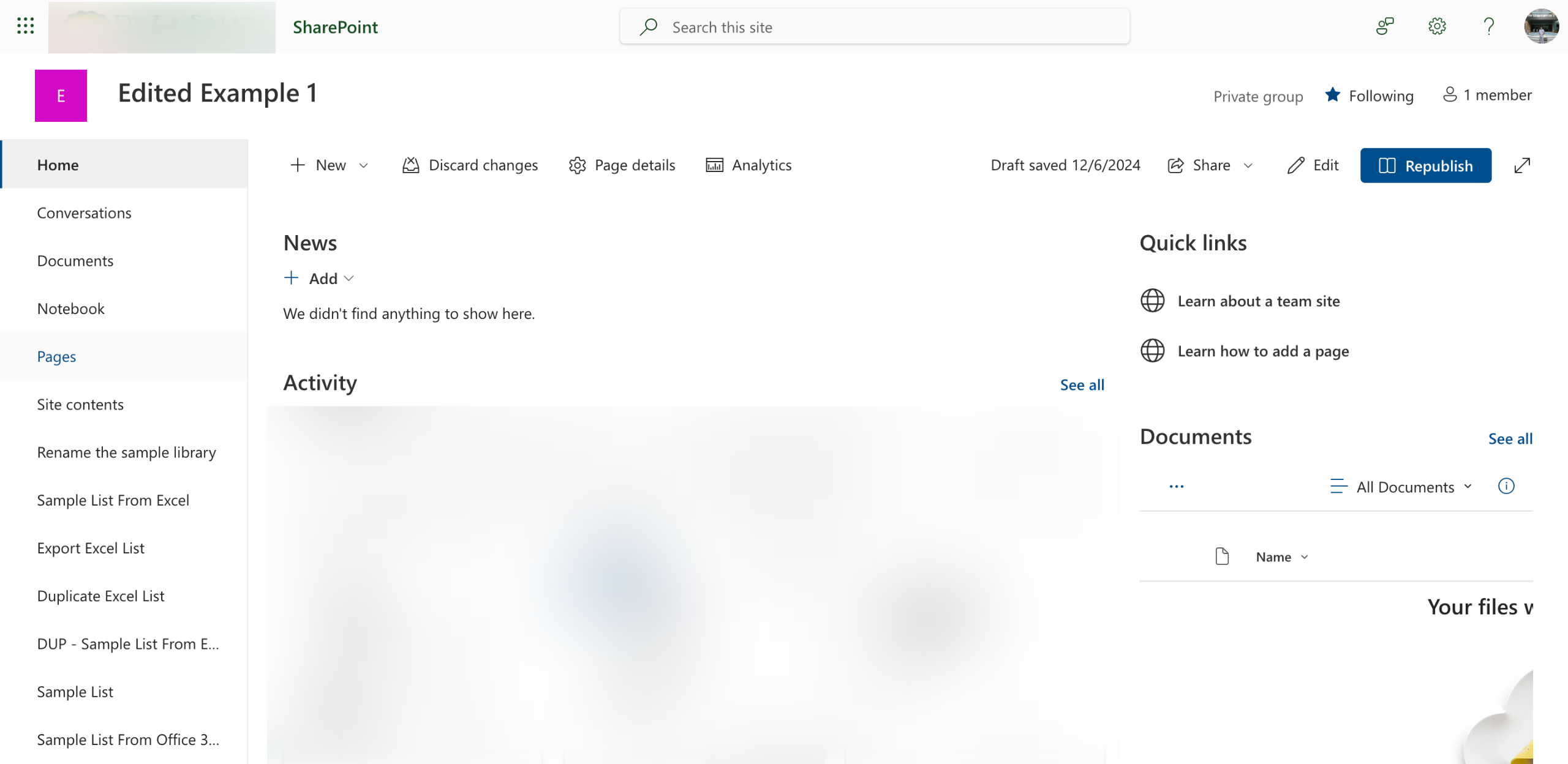
Once done, navigate to the top-right corner and click 'Publish'. Your new SharePoint page design will be created and saved instantly.
Quick answer: To design a SharePoint page in SharePoint, open the Toolbox from the right-side panel and select a design asset. Customize the asset using the floating bar and the Properties panel options. Finally, click Publish in the top-right corner to save your new page design instantly.
About this SharePoint tutorial
Create a custom SharePoint page design using the Toolbox, asset properties, and publishing tools in the page editor. This guide shows how to design a SharePoint Page in 7 steps, starting with "Inside the Page Editor's main dashboard, go to the right-side panel and tap 'Toolbox'" and finishing with "Once done, navigate to the top-right corner and click 'Publish'. Your new SharePoint pa...". The interactive demo above is a click-through copy of the real SharePoint interface, so you can rehearse each step before doing it in your own account.
Frequently asked questions
How many steps does it take to design a SharePoint Page?
7 steps. Each one is listed in order above, and the demo highlights exactly where to click.
Can I try it without changing my own account?
Yes. Clicking through the demo doesn't touch your SharePoint data or settings. Once you know the flow, repeat it in your own workspace.
This tutorial is filed under SharePoint. Related guides: How to Download Files From a SharePoint Site Library, How to Download Multiple Files From a SharePoint Site Library and How to Duplicate a SharePoint List. Last reviewed 05 Oct 2026.

Create your first interactive demo in minutes
No credit card required • Start building today