How to Edit a Joomla Site
- George Apostolov
This guide is an interactive LiveDemo. Create interactive demos of your own product: Interactive demo software · Interactive customer onboarding guides · Start free
How to Edit a Joomla Site: step-by-step guide
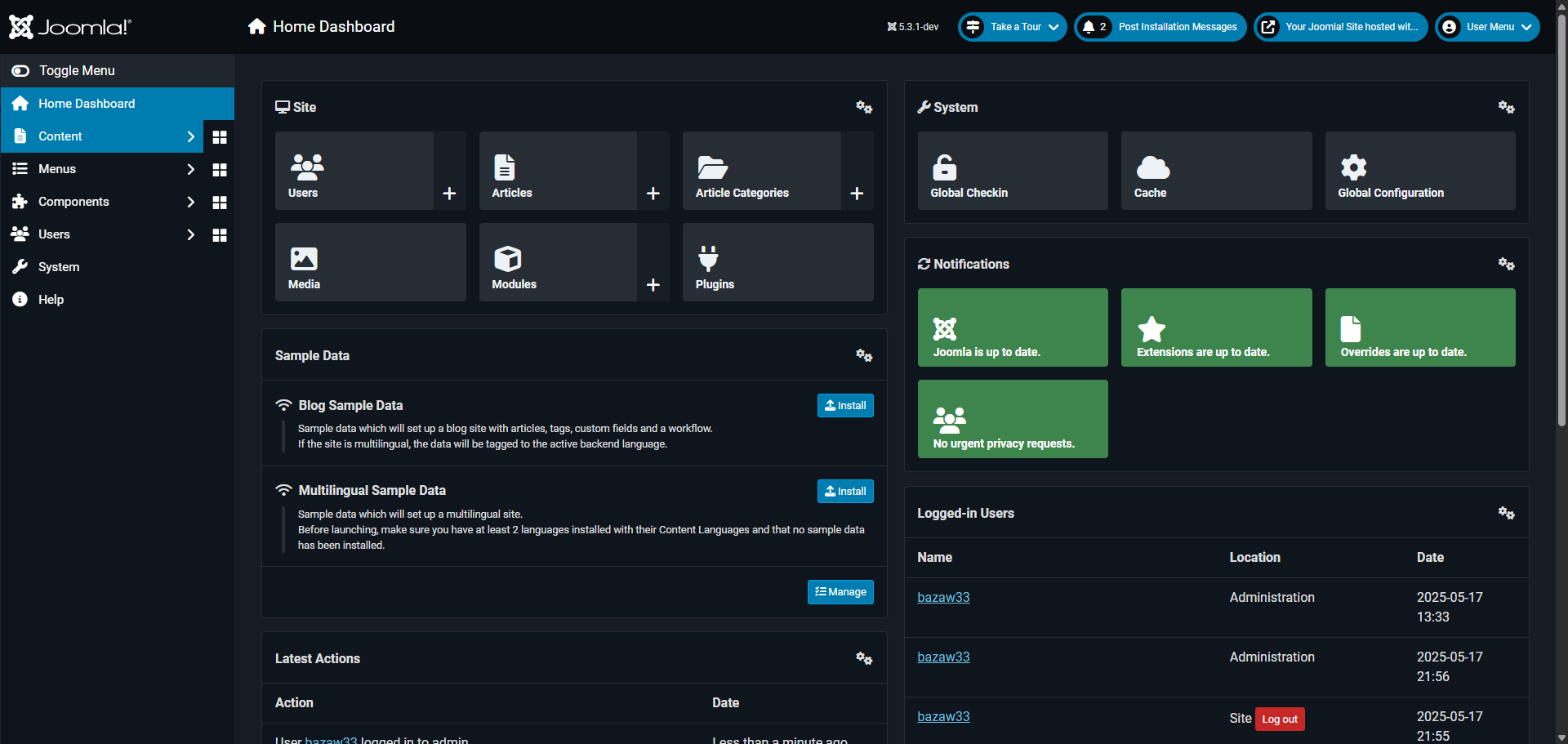
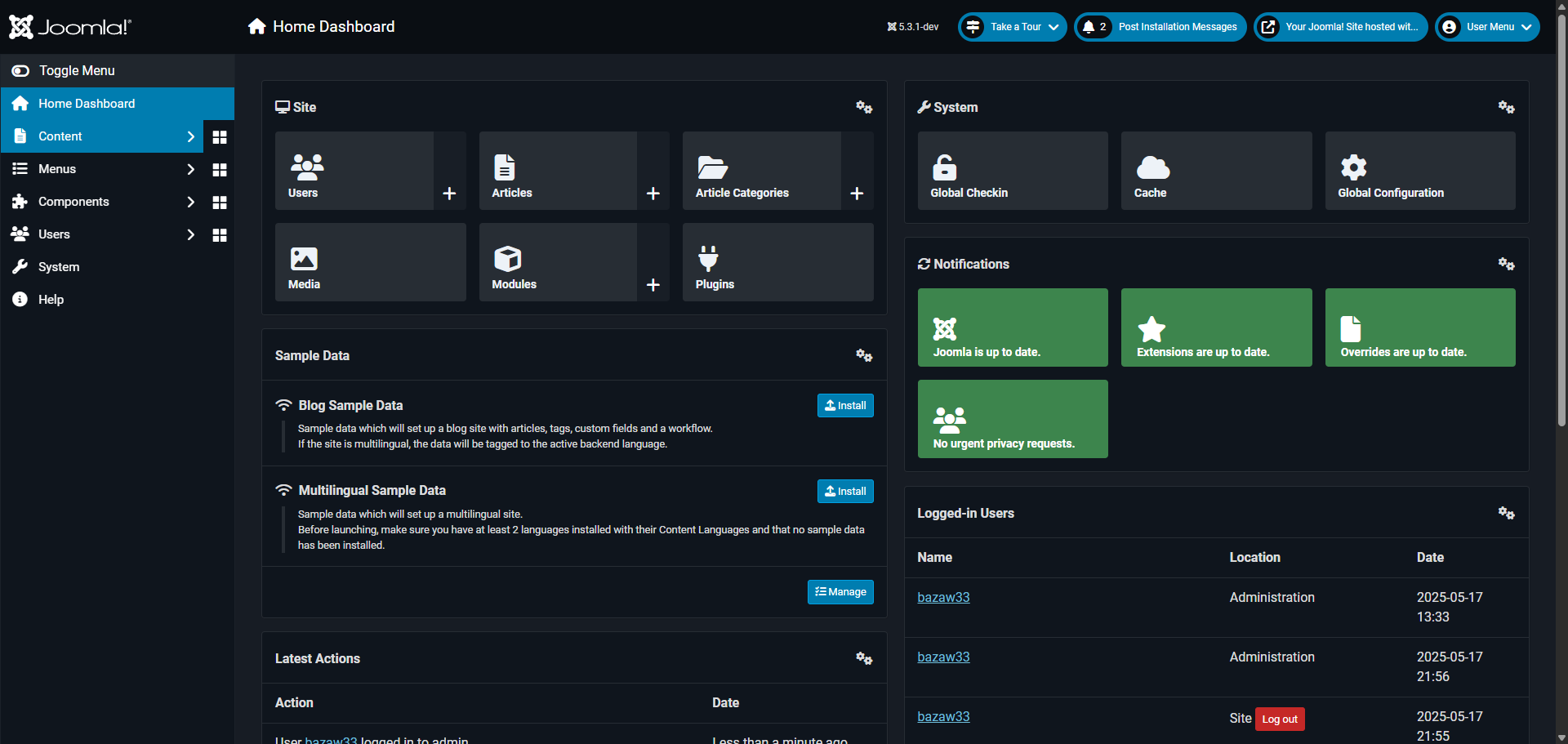
Start by exploring the 'Content' management area, where you'll control all your website articles.
Access your 'Articles', the core building blocks of your Joomla website content.
Click on the title of the article you want to edit.
Start editing your content.
Click 'Save & Close'.
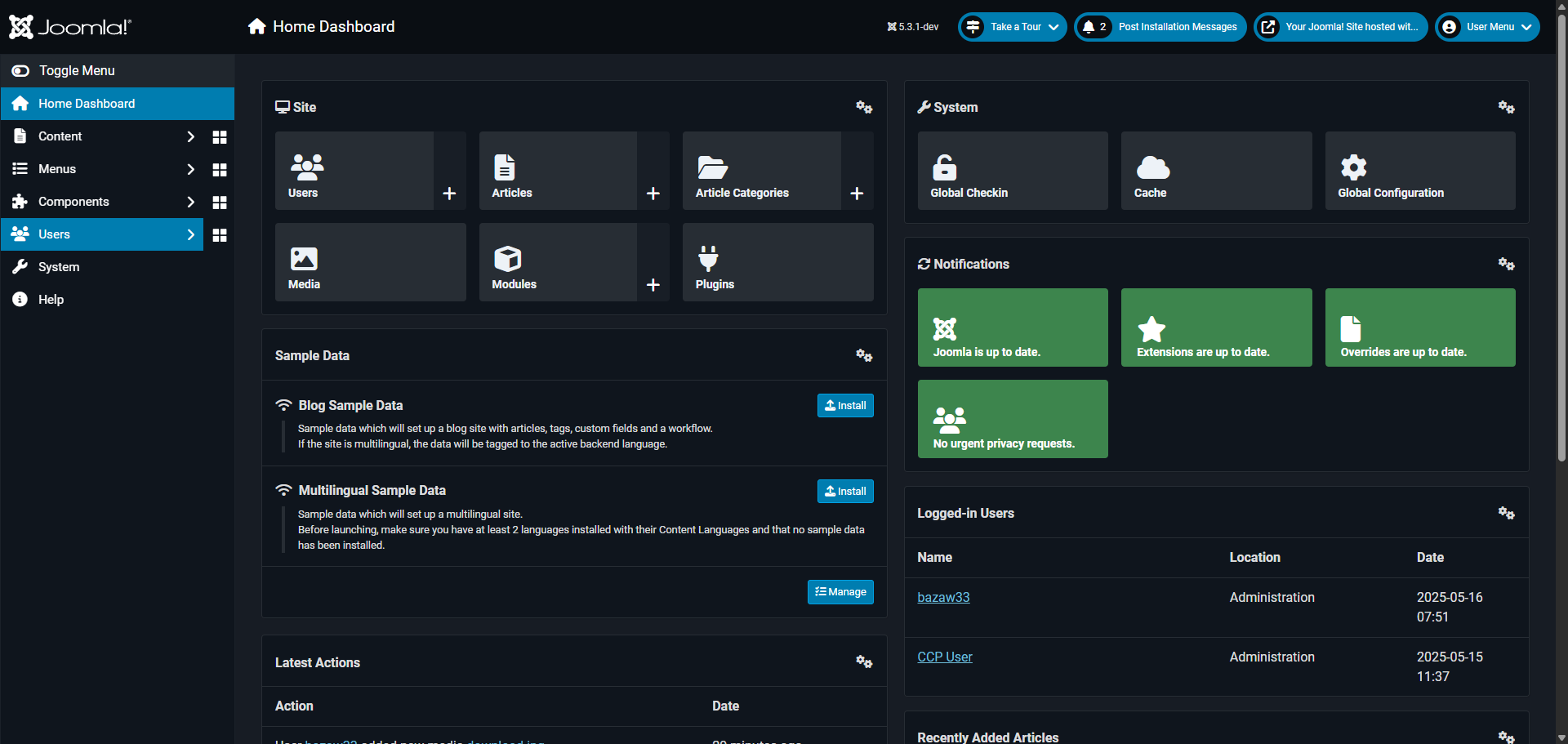
Now, explore 'Menus' to manage your site's navigation structure.
Access the 'Main Menu' configuration to modify your primary navigation links.
Select the page you want to edit.
Open a menu item to edit its name, link, or access level.
Select 'Save & Close' to commit your menu changes to make them live on your website.
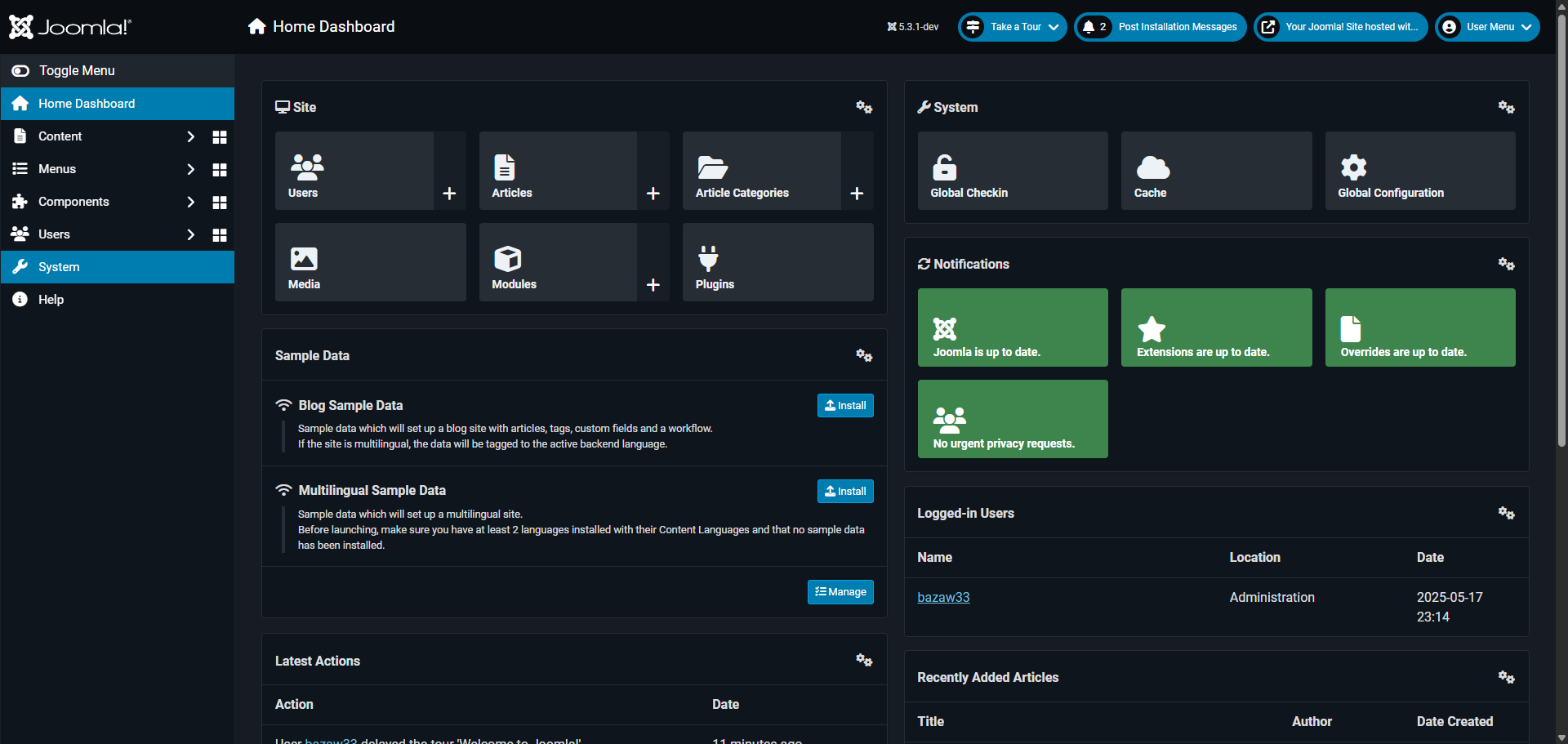
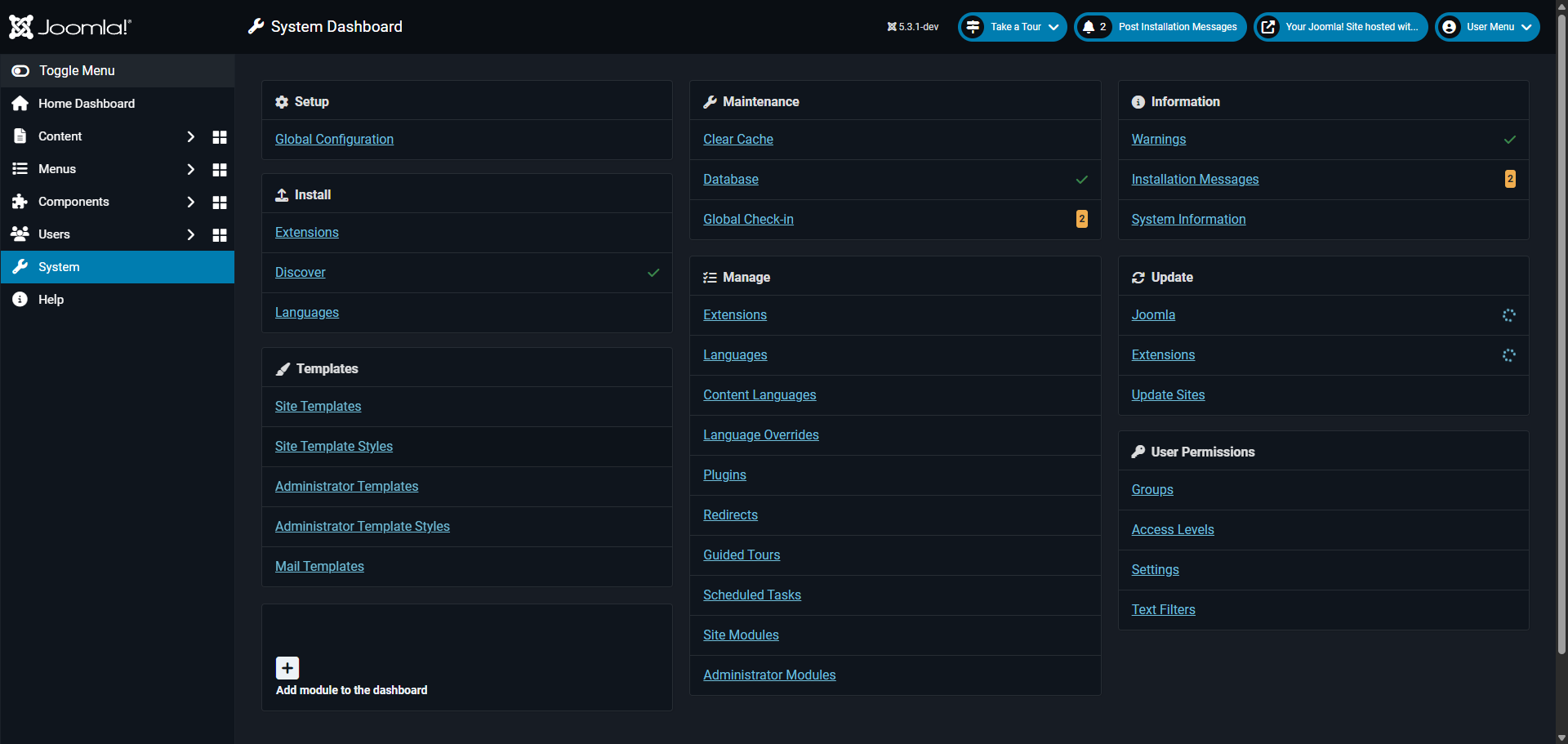
Access 'System' settings to manage the technical aspects of your Joomla site.
Manage 'Extensions' to enhance your site with additional functionality.
Upload your extension or install from the Joomla extensions directory.
Return to 'System' to access more configuration options.
Access 'Site Templates' to control the visual appearance of your website.
Select a template to customize colors, layouts, and design elements.
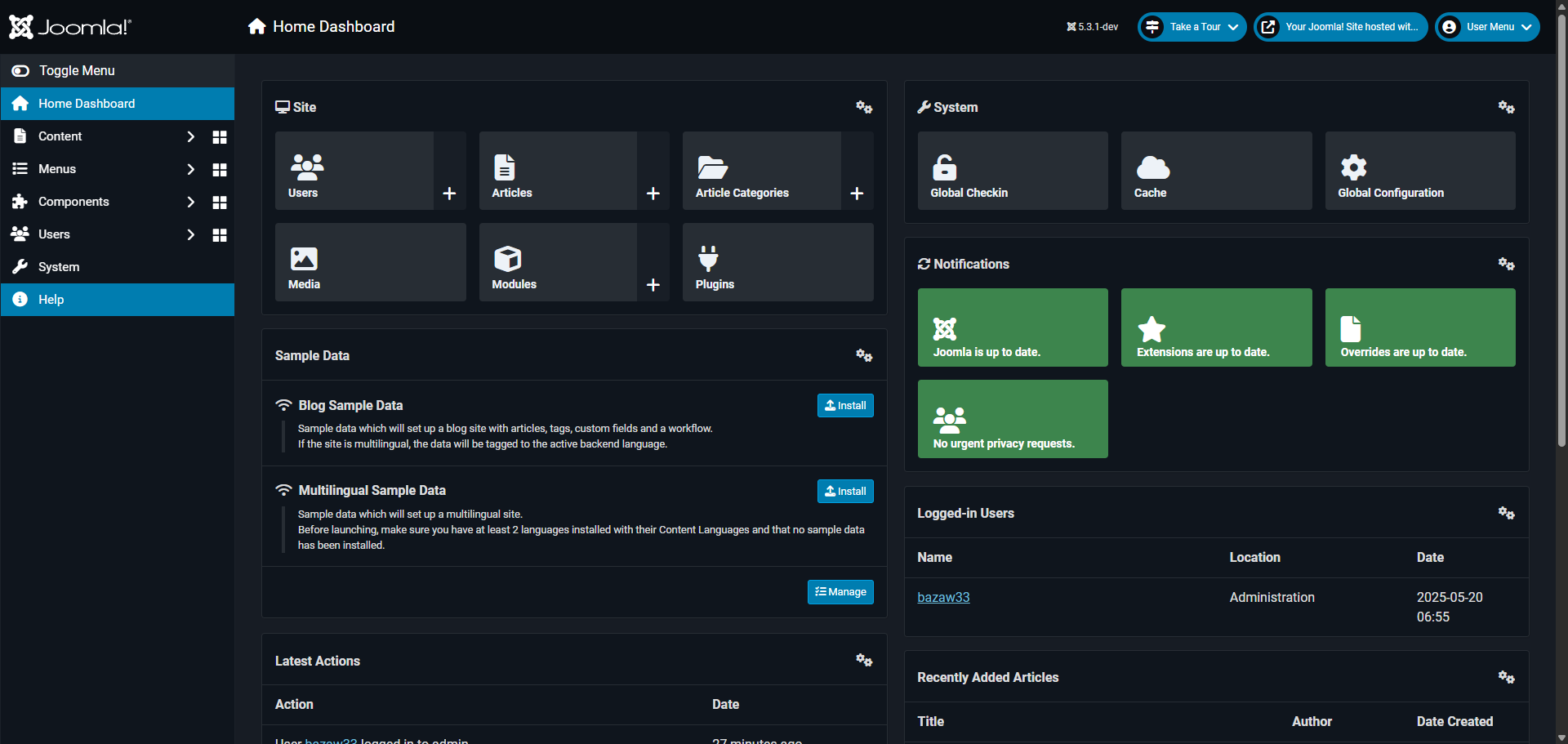
Access 'Maintenance' tools to keep your Joomla site running smoothly.
Select 'Clear Cache' to improve site performance by removing temporary files.
Select which cache types to clear for optimal performance.
After making changes, confirm cache clearing to complete the maintenance process by clicking 'Delete All' for the changes to reflect immediately.
Quick answer: To edit a Joomla site, explore Content to edit articles and save changes. Manage navigation in Menus, configure technical settings and extensions in System, and customize visuals via Site Templates. Finally, maintain performance by clearing the cache in Maintenance tools.
About this Joomla tutorial
Easily edit and manage your Joomla website by updating content, configuring menus, installing extensions, customizing templates, and clearing the cache. This guide shows how to edit a Joomla Site in 20 steps, starting with "Start by exploring the 'Content' management area, where you'll control all your website..." and finishing with "After making changes, confirm cache clearing to complete the maintenance process by cli...". The interactive demo above is a click-through copy of the real Joomla interface, so you can rehearse each step before doing it in your own account.
Frequently asked questions
How many steps does it take to edit a Joomla Site?
20 steps. Each one is listed in order above, and the demo highlights exactly where to click.
Can I try it without changing my own account?
Yes. Clicking through the demo doesn't touch your Joomla data or settings. Once you know the flow, repeat it in your own workspace.
This tutorial is filed under Joomla. Related guides: How to Edit a Page in Joomla, How to Edit CSS in Joomla and How to Edit Footer in Joomla. Last reviewed 05 Oct 2026.

Create your first interactive demo in minutes
No credit card required • Start building today