How to Edit Joomla Template
- George Apostolov
How to Edit Joomla Template: step-by-step guide
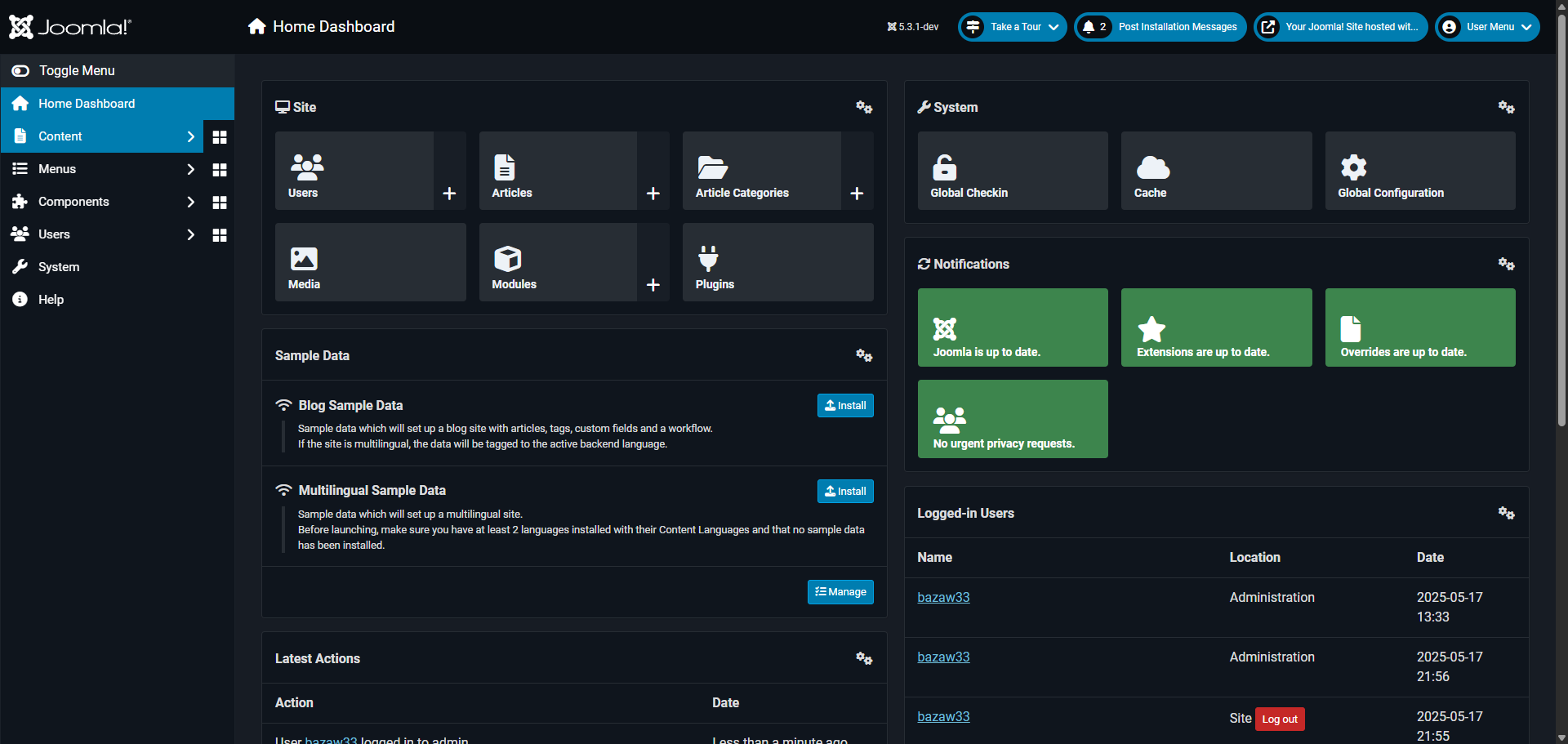
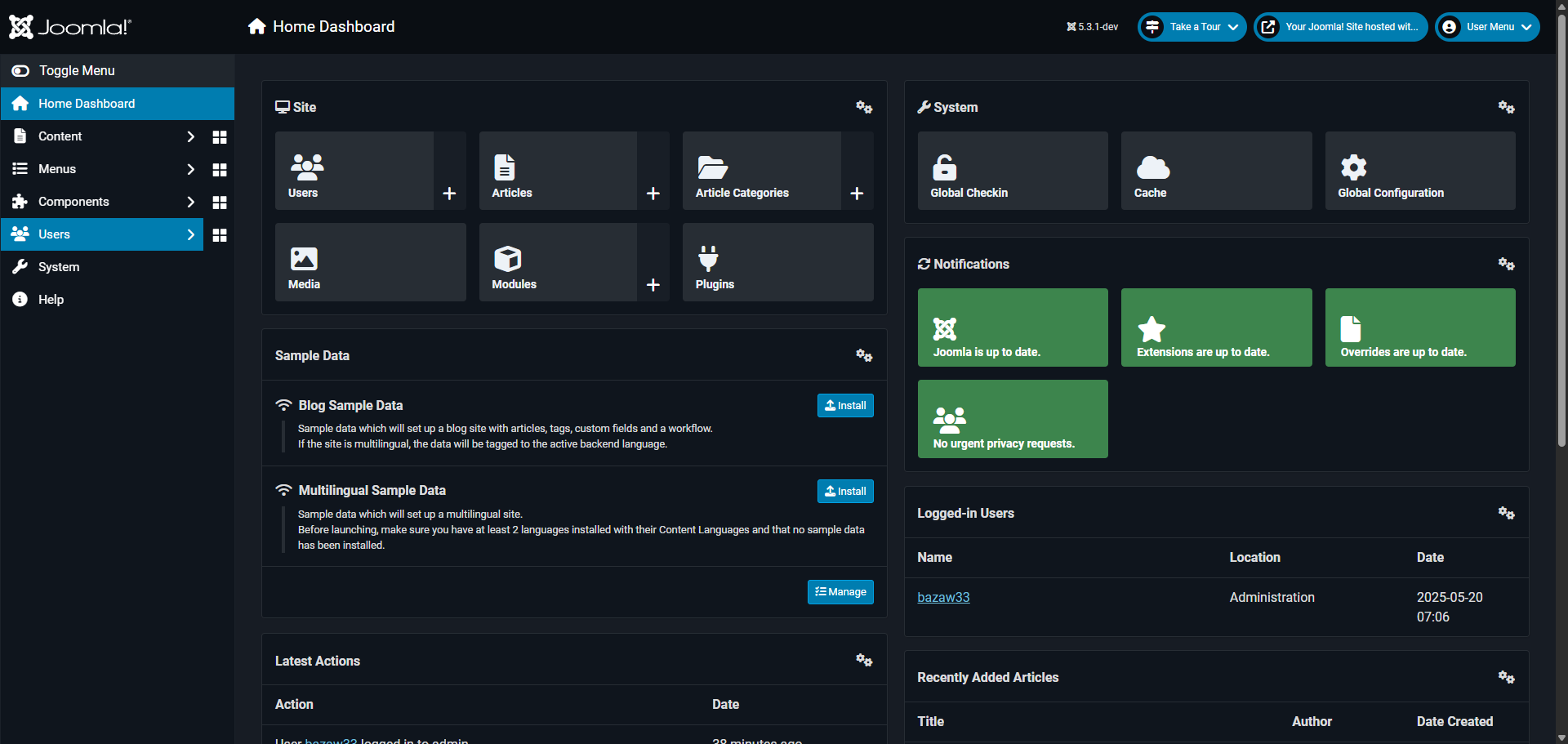
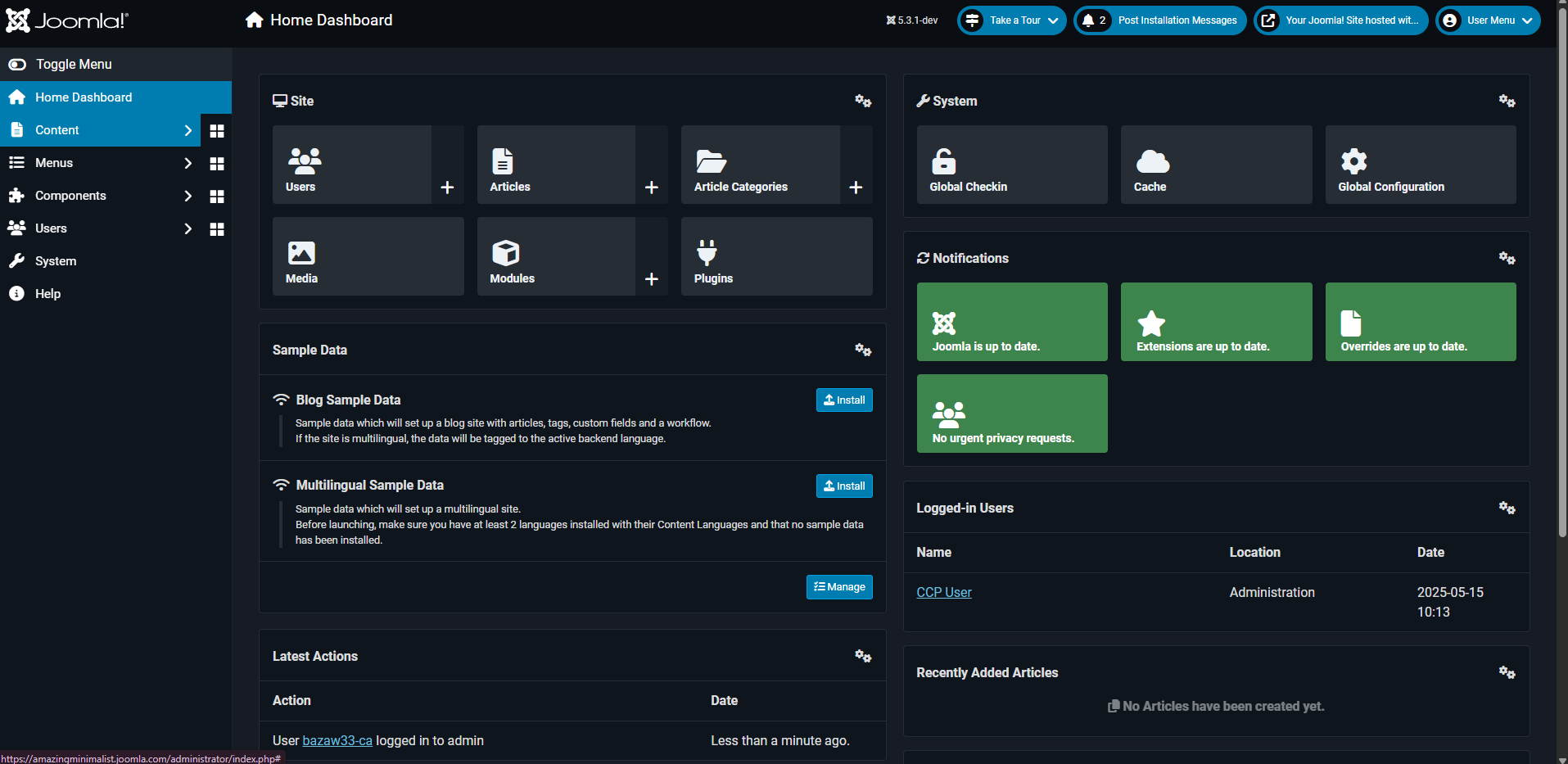
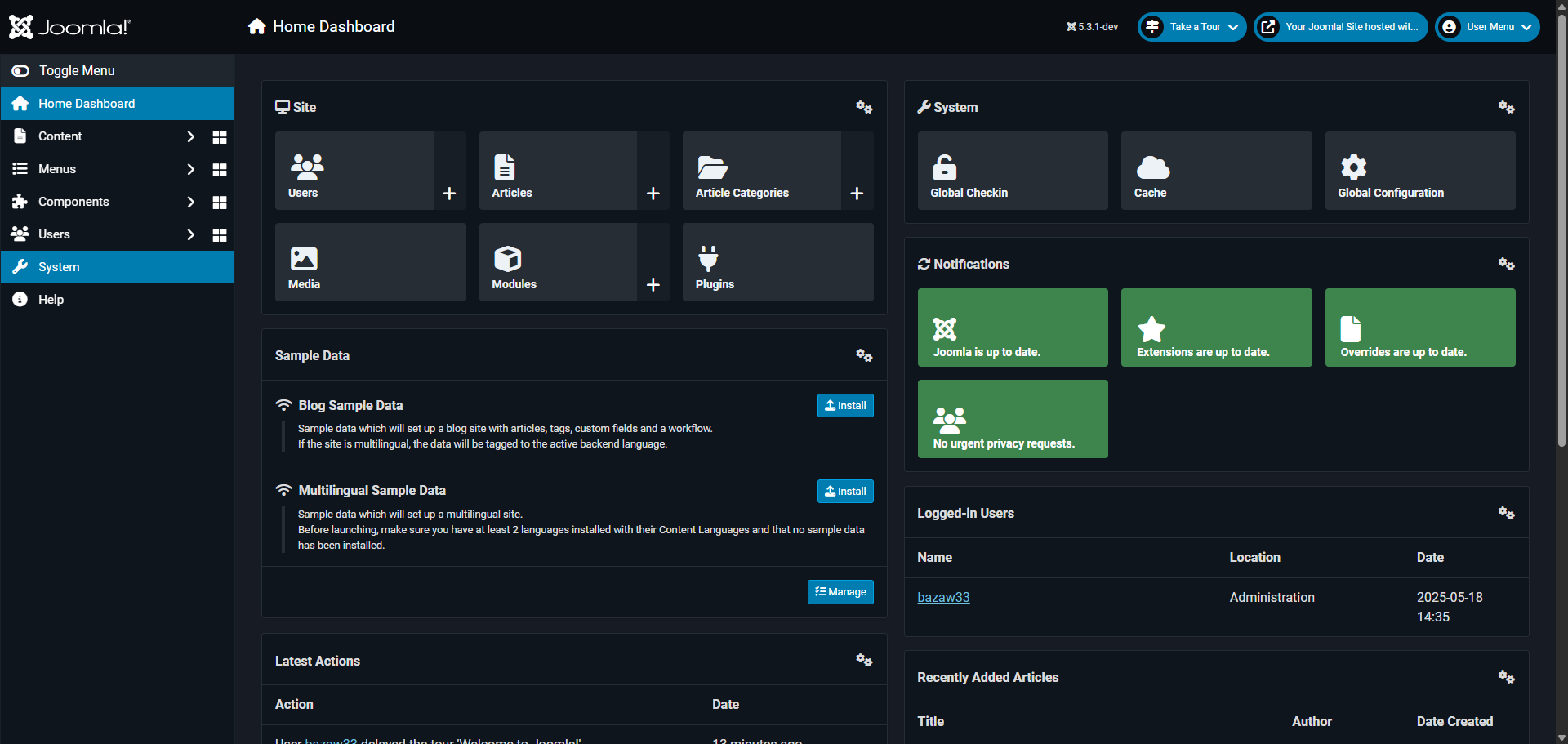
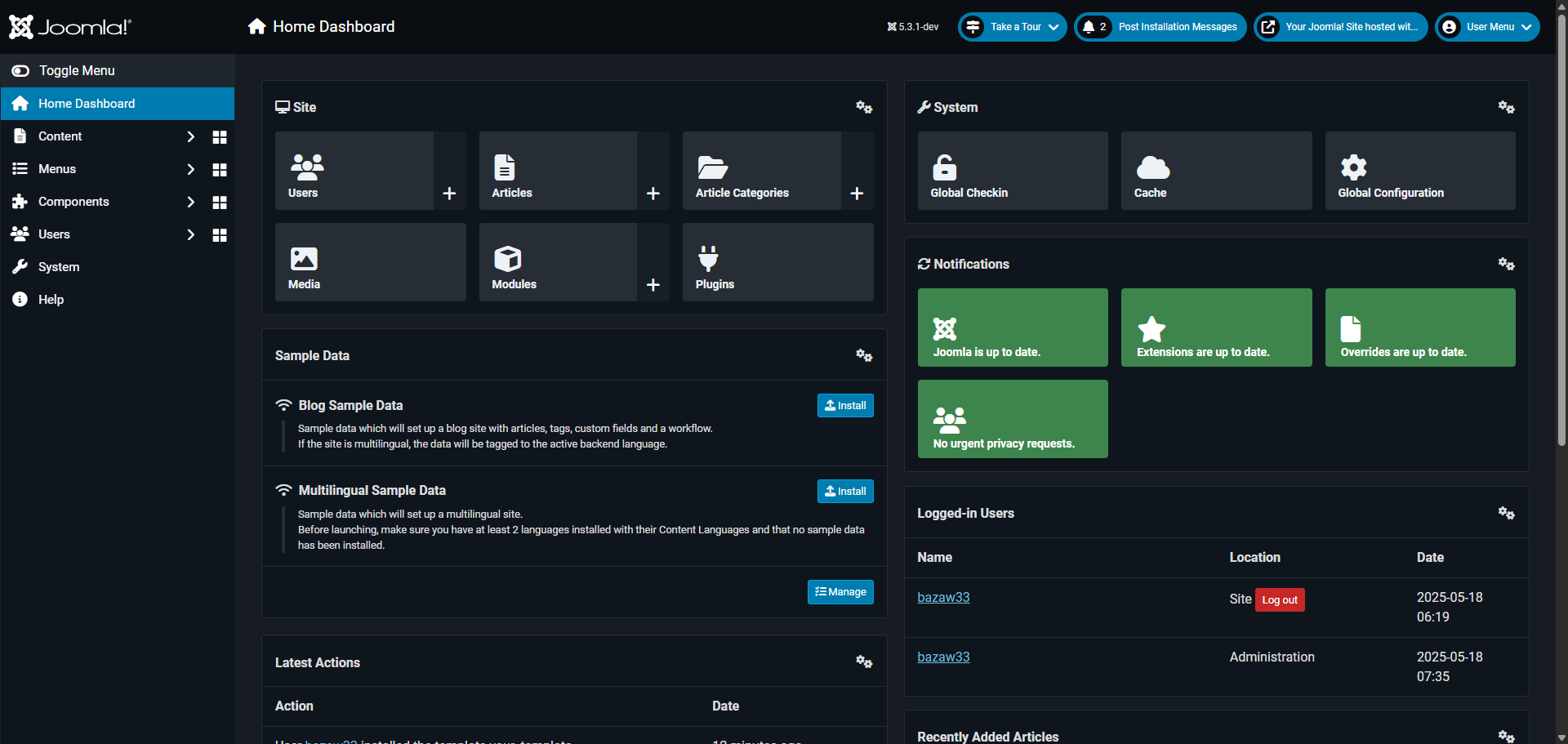
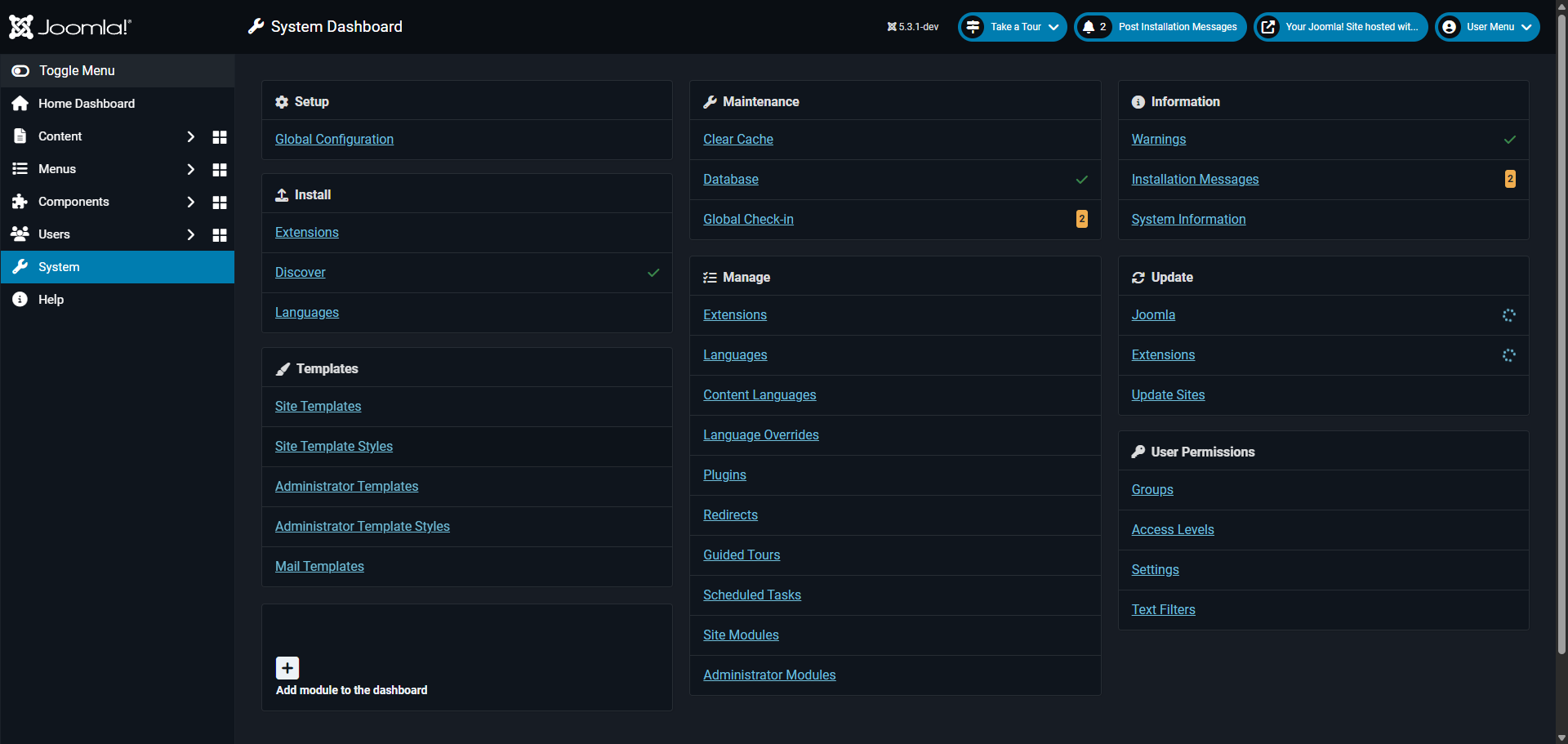
Open 'Site Template Styles' to customize your website's appearance and layout.
Select your preferred template you want to modify. This controls your site's overall design.
Access 'Template Options' to fine-tune your website's visual elements and functionality.
Inside the template settings panel, you can edit the layout, colors, fonts, and more without touching code.
Apply presets to instantly transform your site with a new coordinated color palette.
Customize your site structure in the 'Layout' section for optimal content placement.
Modify the title area to control how your page headings appear to visitors.
Return to 'Menu' management to continue enhancing your site navigation.
Expand your site navigation by creating a new menu item for visitors.
View your homepage to see how the updated menu structure looks in context.
Click 'Save' to confirm your contact information displays correctly for visitors to reach you easily.
Quick answer: To customize your Joomla website's appearance, open Site Template Styles, select a template, and access Template Options. Adjust the layout, colors, fonts, and presets in the settings panel. Customize site structure, modify the title area, manage menus, create menu items, view your homepage, and click Save.
About this Joomla tutorial
Modify your Joomla template layout, colors, fonts, and menus without coding by following this step-by-step customization guide. This guide shows how to edit Joomla Template in 11 steps, starting with "Open 'Site Template Styles' to customize your website's appearance and layout" and finishing with "Click 'Save' to confirm your contact information displays correctly for visitors to rea...". The interactive demo above is a click-through copy of the real Joomla interface, so you can rehearse each step before doing it in your own account.
Frequently asked questions
How many steps does it take to edit Joomla Template?
11 steps. Each one is listed in order above, and the demo highlights exactly where to click.
Can I try it without changing my own account?
Yes. Clicking through the demo doesn't touch your Joomla data or settings. Once you know the flow, repeat it in your own workspace.
This tutorial is filed under Joomla. Related guides: How to Edit Joomla Website Content, How to Edit the Contact Form in Joomla and How to Embed Video in Joomla. Last reviewed 05 Oct 2026.

Create your first interactive demo in minutes
No credit card required • Start building today