How to Implement Responsive Design in Bubble.io
- George Apostolov
How to Implement Responsive Design in Bubble.io: step-by-step guide
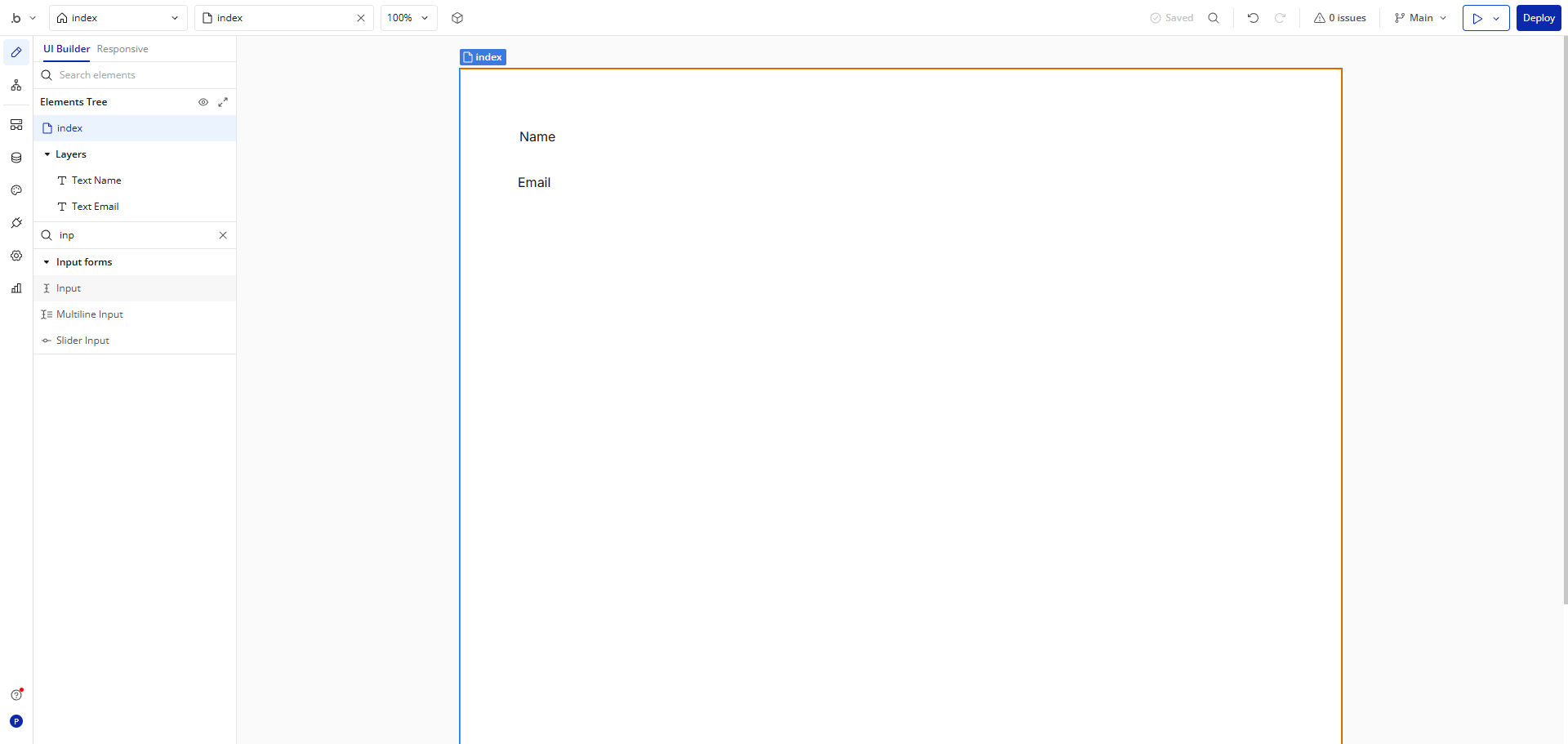
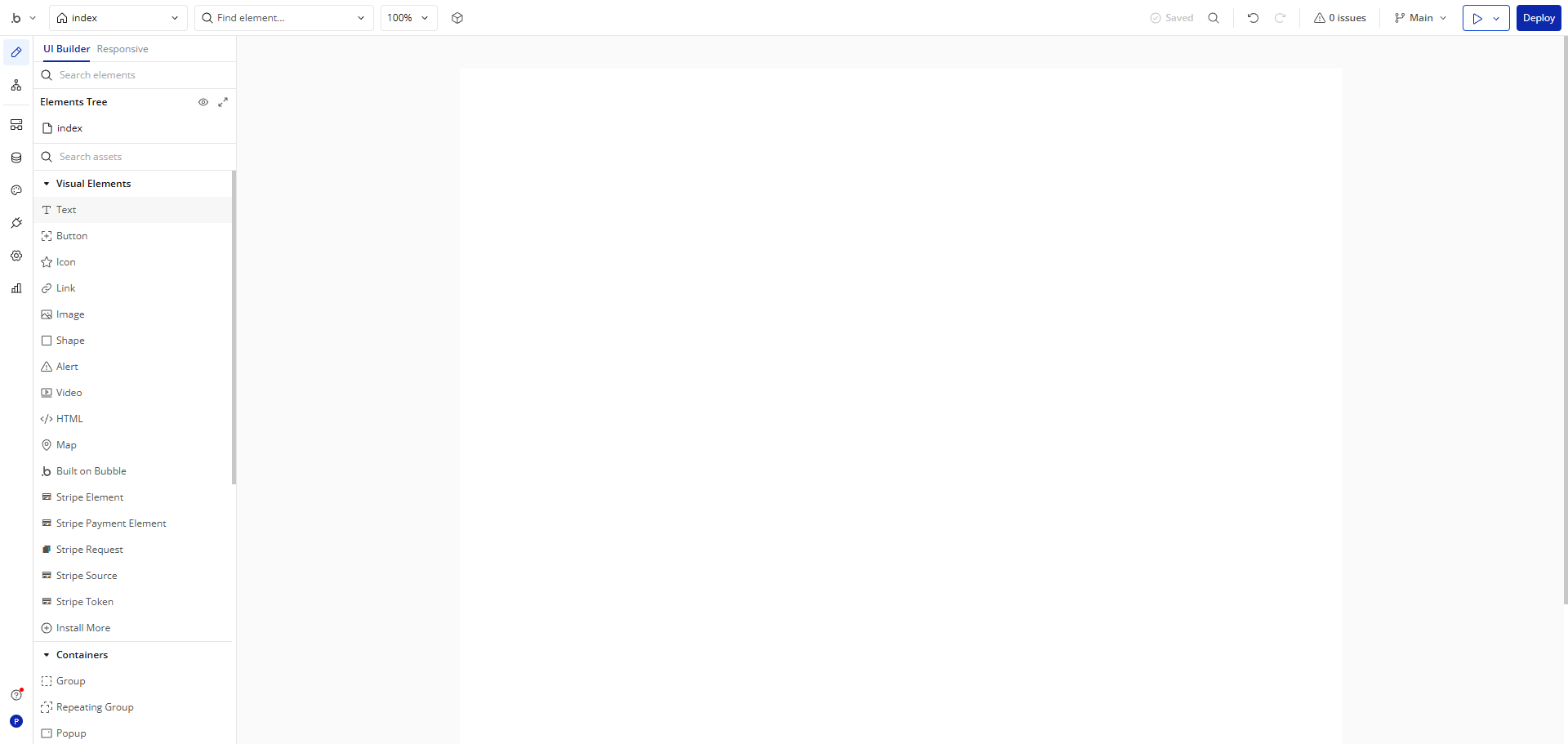
Start by accessing the design editor where you'll build your responsive layout.
Open the 'Layout' panel to access core building blocks for your page structure.
Go to the 'Container Layout'.
Choose the right 'Layout' in the 'Property Editor' for each group.
Set visibility options to control when elements appear and how they behave.
Access the element properties panel to customize your row's behavior.
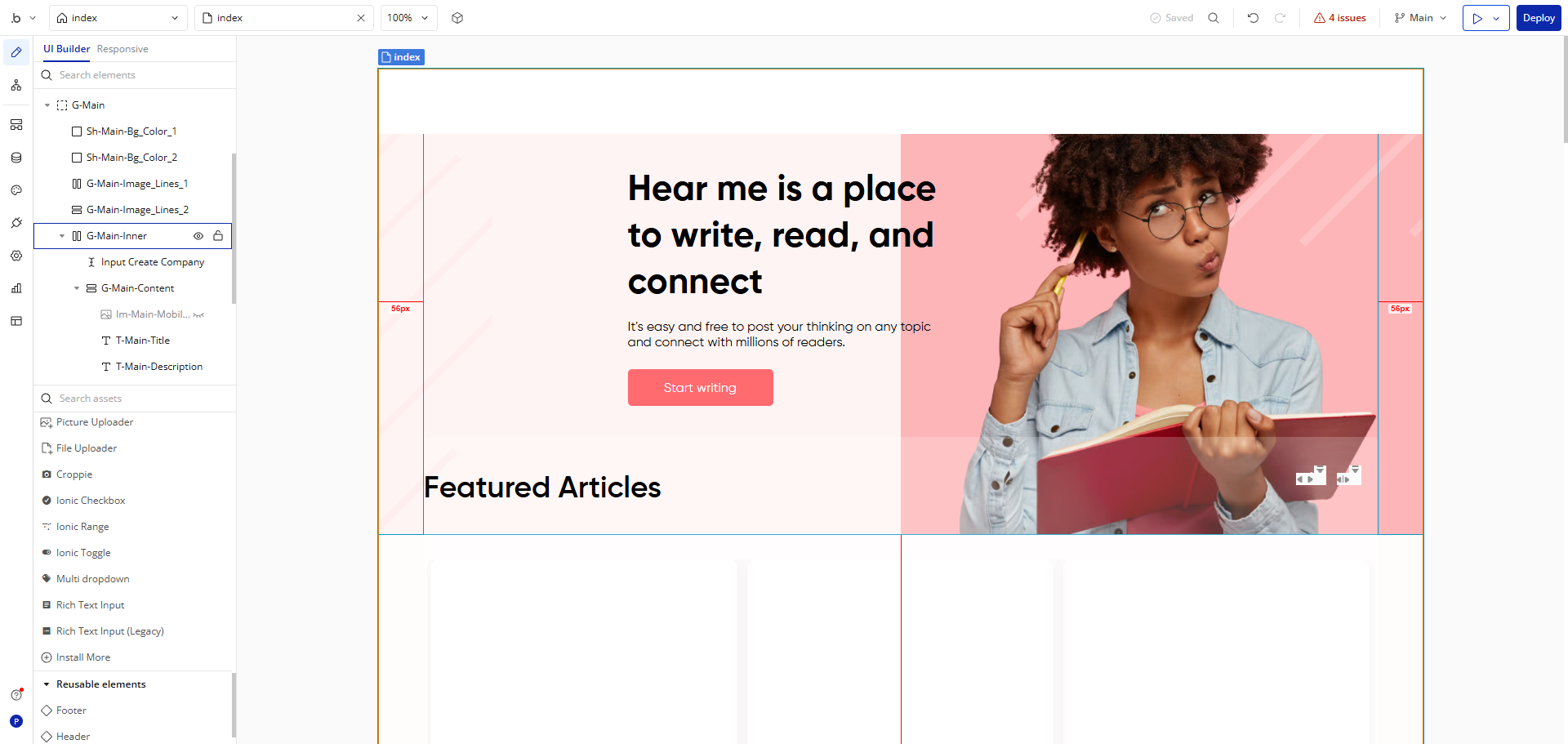
Navigate to the 'Responsive' tab to make your design work on all devices.
Adjust the responsive settings to control how elements adapt across screen sizes.
Select the 1200px breakpoint to customize how your site appears on desktop devices.
Adjust layout proportions for optimal desktop viewing experience.
Set custom positioning to control exactly where elements appear in your layout.
Review your responsive settings to ensure consistency across device types.
Preview your design to see how it will appear to your users.
Test interactions to ensure your responsive elements function correctly.
Click 'Deploy' to save your changes to preserve your responsive design work.
Quick answer: To implement responsive design in Bubble, access the design editor and layout panel, configure container layouts and element visibility, adjust responsive settings and breakpoints, customize desktop proportions and positioning, review settings, preview the design, test interactions, and click deploy.
About this Bubble tutorial
Build mobile-friendly layouts in Bubble by configuring container settings, adjusting breakpoints, and deploying your responsive design. This guide shows how to implement Responsive Design in Bubble.io in 15 steps, starting with "Start by accessing the design editor where you'll build your responsive layout" and finishing with "Click 'Deploy' to save your changes to preserve your responsive design work". The interactive demo above is a click-through copy of the real Bubble interface, so you can rehearse each step before doing it in your own account.
Frequently asked questions
How many steps does it take to implement Responsive Design in Bubble.io?
15 steps. Each one is listed in order above, and the demo highlights exactly where to click.
Can I try it without changing my own account?
Yes. Clicking through the demo doesn't touch your Bubble data or settings. Once you know the flow, repeat it in your own workspace.
This tutorial is filed under Bubble. Related guides: How to Implement Search Functionality in Bubble.io, How to Link Bubble to Google Sheets via Zapier and How to Remove the Scroll Bar in Bubble.io. Last reviewed 05 Oct 2026.

Create your first interactive demo in minutes
No credit card required • Start building today