How to Integrate Slack with Wachete
- George Apostolov
This guide is an interactive LiveDemo. Create interactive demos of your own product: Interactive demo software · Interactive customer onboarding guides · Start free
How to Integrate Slack with Wachete: step-by-step guide
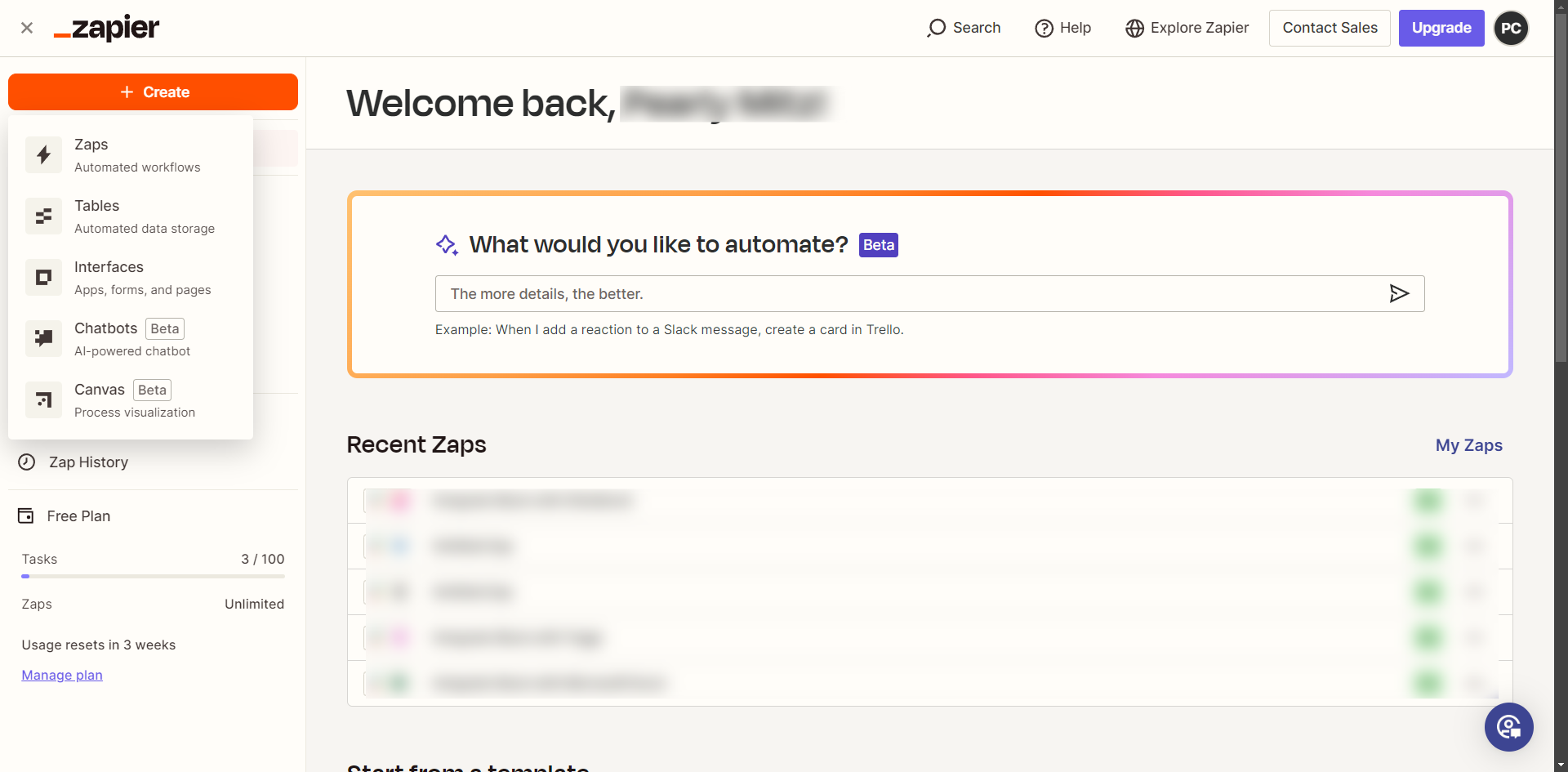
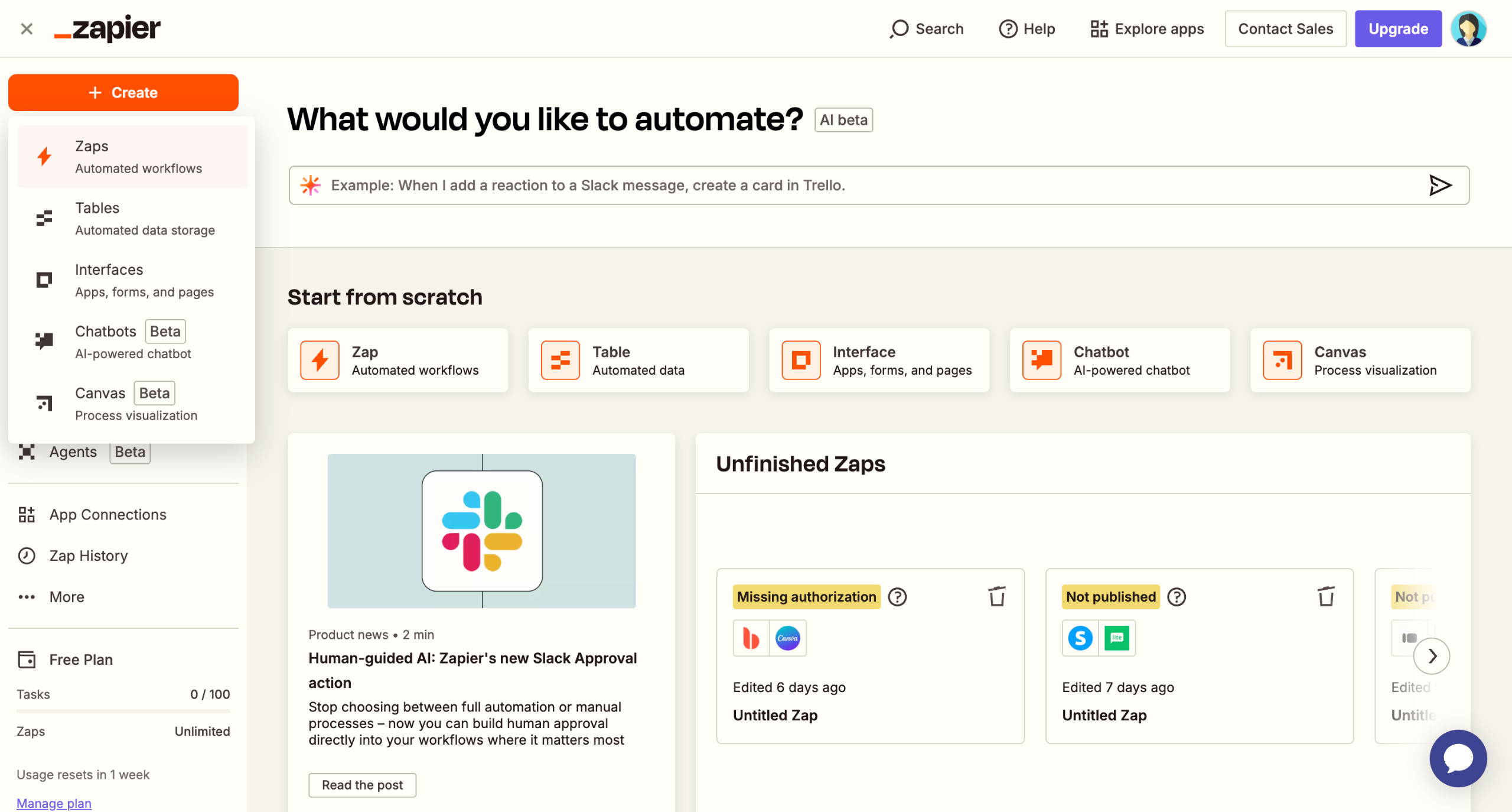
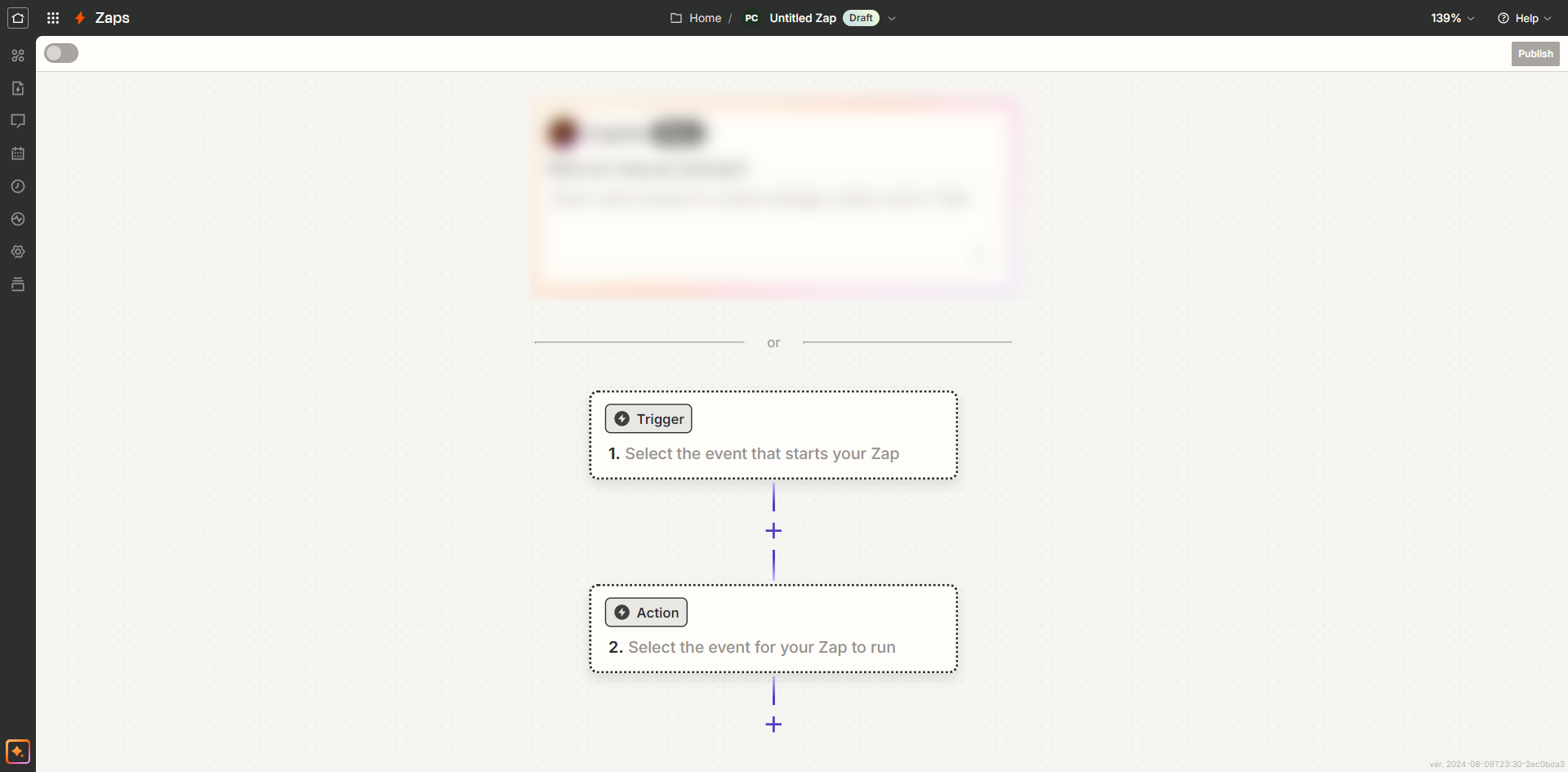
Create a Zap and click 'Trigger'.
Search and select 'Wachet' as the trigger app.
Choose a trigger event from the options below.
Log in and authorize Zapier to access your Wachete account.
Click 'Test trigger' and Zapier will pull sample data from Slack to ensure everything is set up correctly.
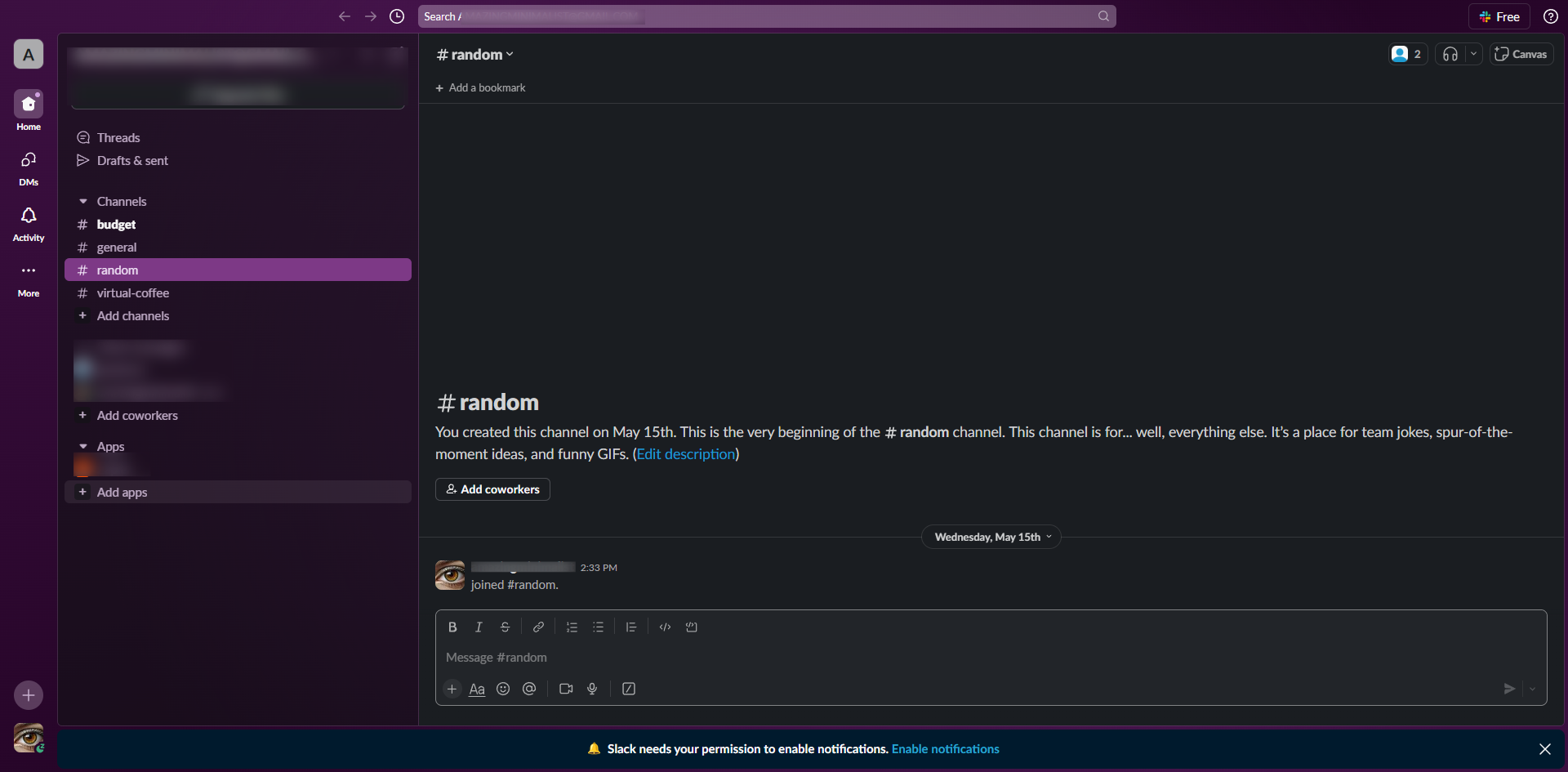
Search and select 'Slack' as the action app.
Select the event for your action app.
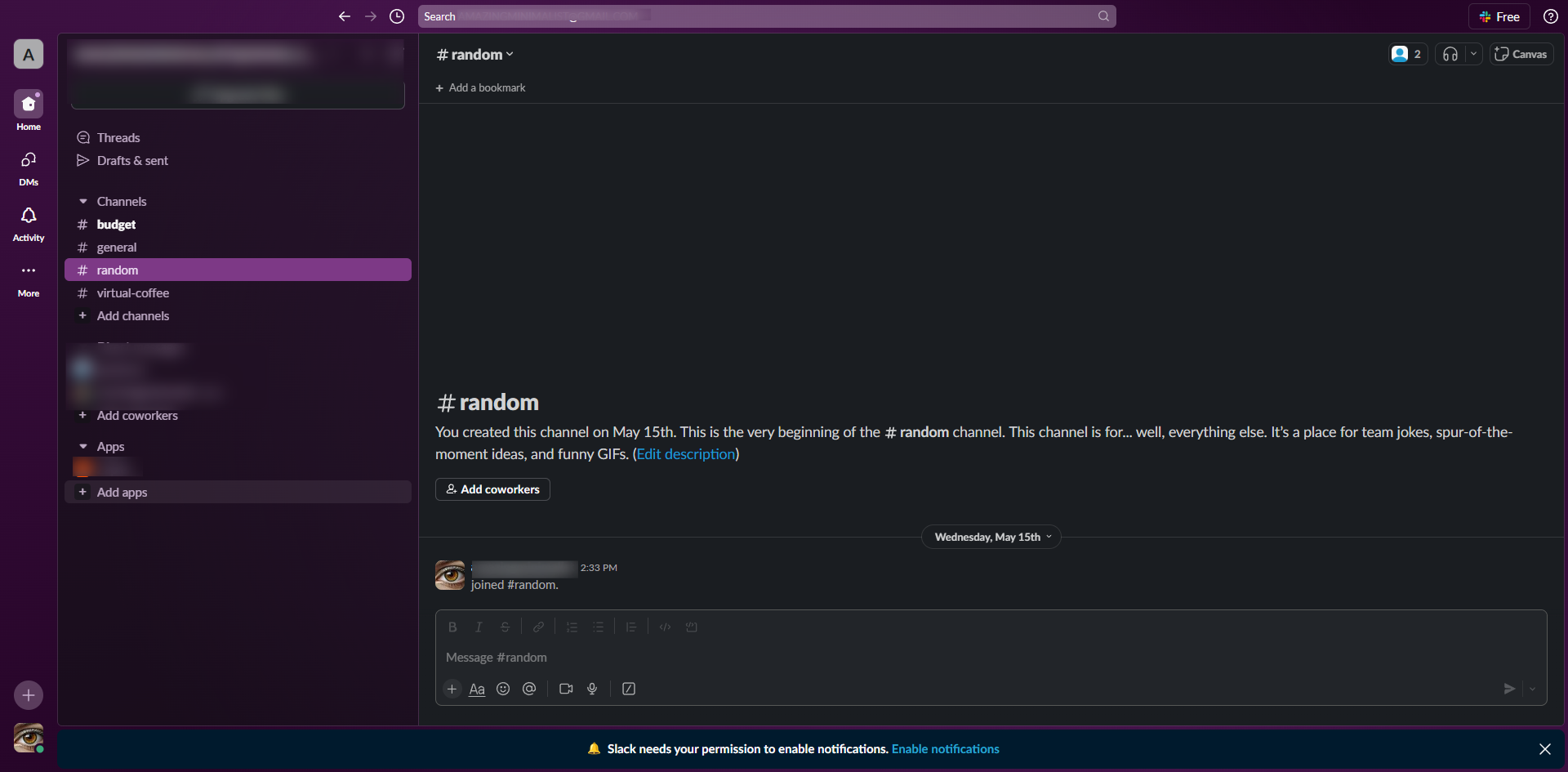
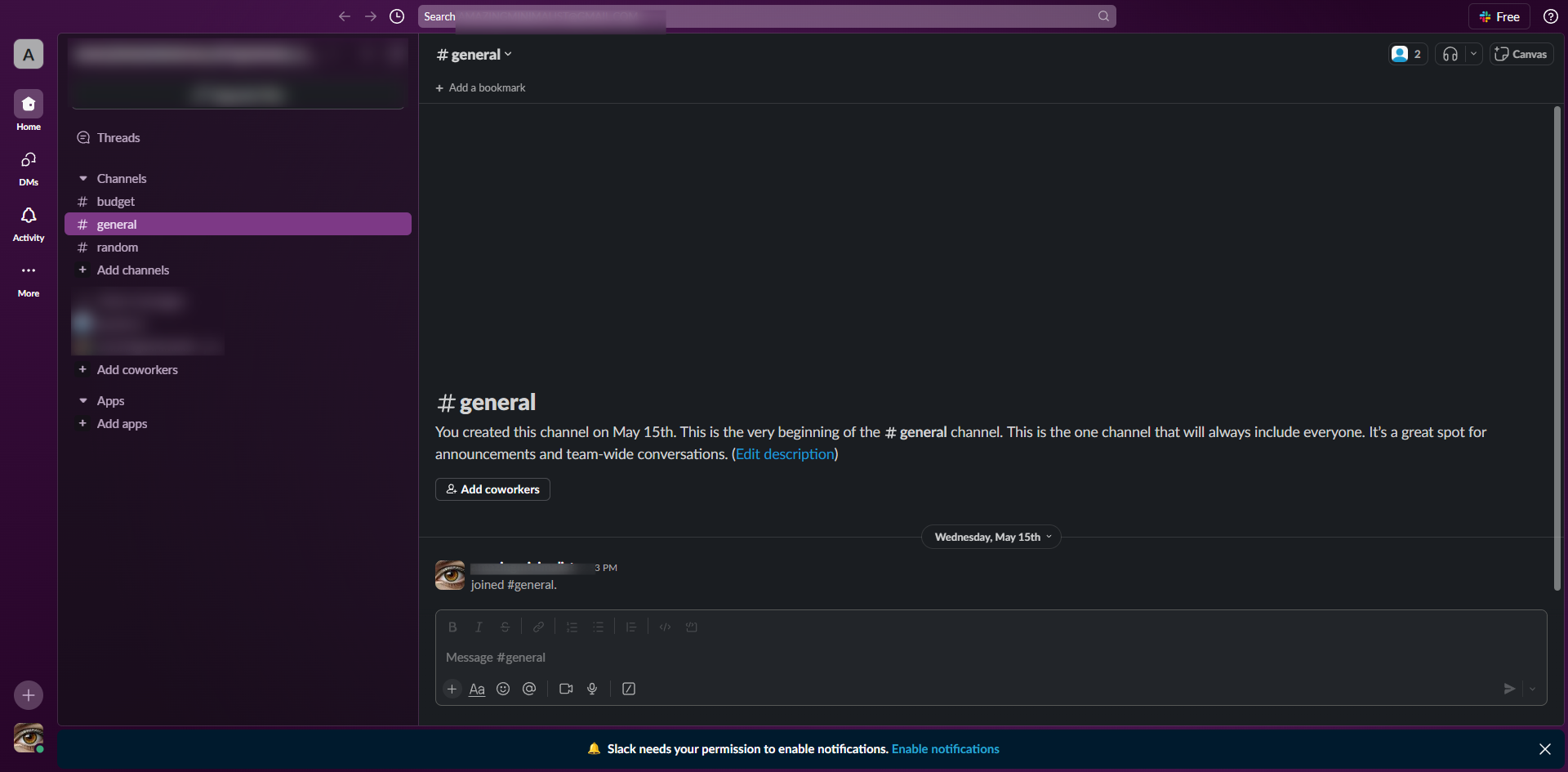
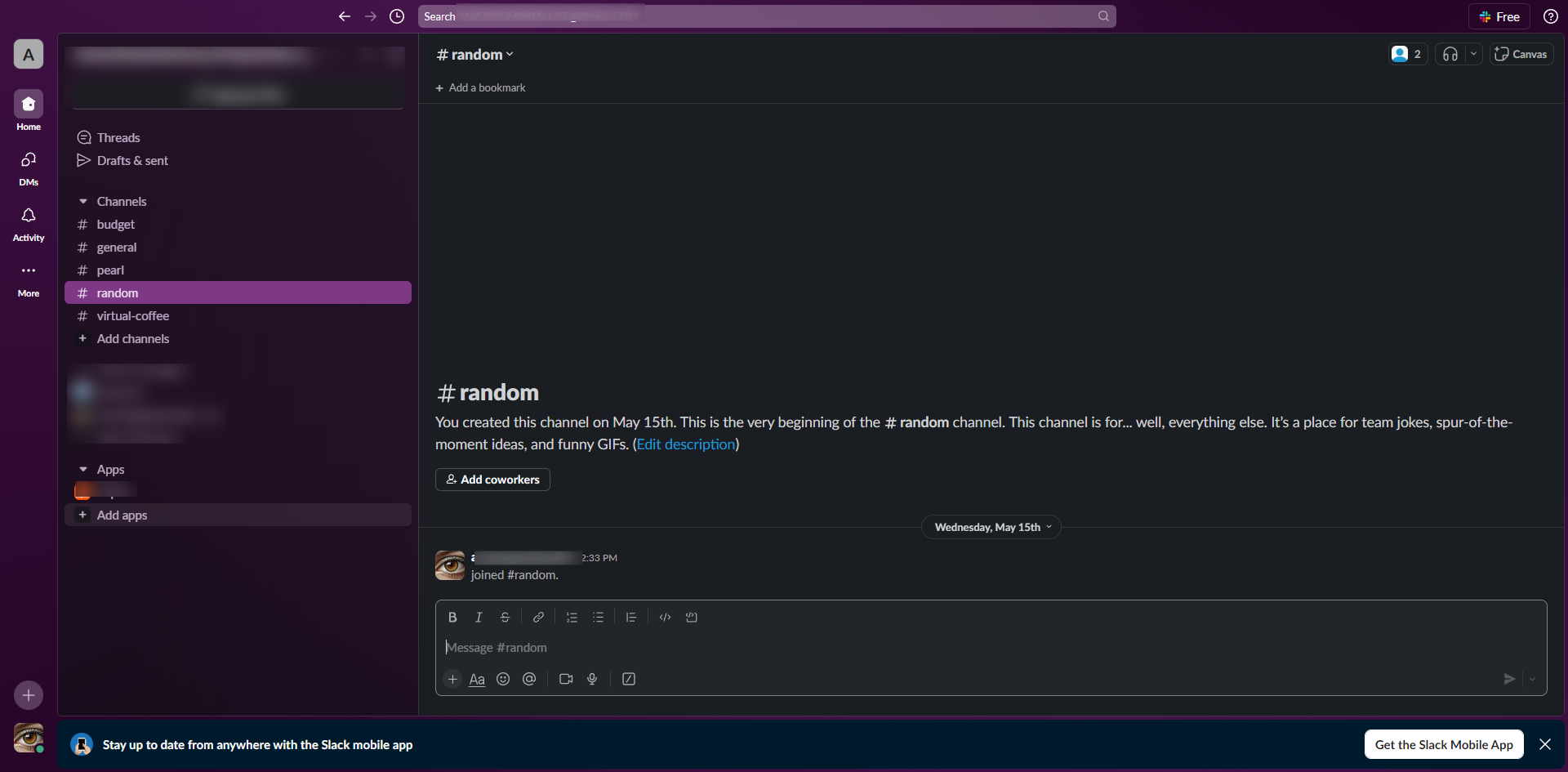
Log in and authorize Zapier to access your Slack account.
Map the data from Wachete to Slack such as email address and role. Click 'Continue'.
Click 'Test step'.
Rename your Zap by clicking the 'Untitled Zap' button.
Once everything is set up correctly, turn on your Zap to enable the integration by clicking 'Publish'.
Quick answer: To connect Slack with Wachete, create a Zap by selecting Wachete as the trigger app, logging in, and testing the trigger. Then, choose Slack as the action app, log in, map the data from Wachete to Slack, test the step, rename the Zap, and turn it on by clicking Publish.
About this Slack tutorial
Integrate Wachete with Slack using Zapier by setting up triggers and actions, mapping data, and publishing your automated workflow. This guide shows how to integrate Slack with Wachete in 12 steps, starting with "Create a Zap and click 'Trigger'" and finishing with "Once everything is set up correctly, turn on your Zap to enable the integration by clic...". The interactive demo above is a click-through copy of the real Slack interface, so you can rehearse each step before doing it in your own account.
Frequently asked questions
How many steps does it take to integrate Slack with Wachete?
12 steps. Each one is listed in order above, and the demo highlights exactly where to click.
Can I try it without changing my own account?
Yes. Clicking through the demo doesn't touch your Slack data or settings. Once you know the flow, repeat it in your own workspace.
This tutorial is filed under Slack. Related guides: How to Integrate Slack with Webex Call, How to Integrate Slack with Webex Meetings and How to Integrate Slack with Webflow. Last reviewed 05 Oct 2026.

Create your first interactive demo in minutes
No credit card required • Start building today