How to Make a Poll Klaviyo
- George Apostolov
How to Make a Poll Klaviyo: step-by-step guide
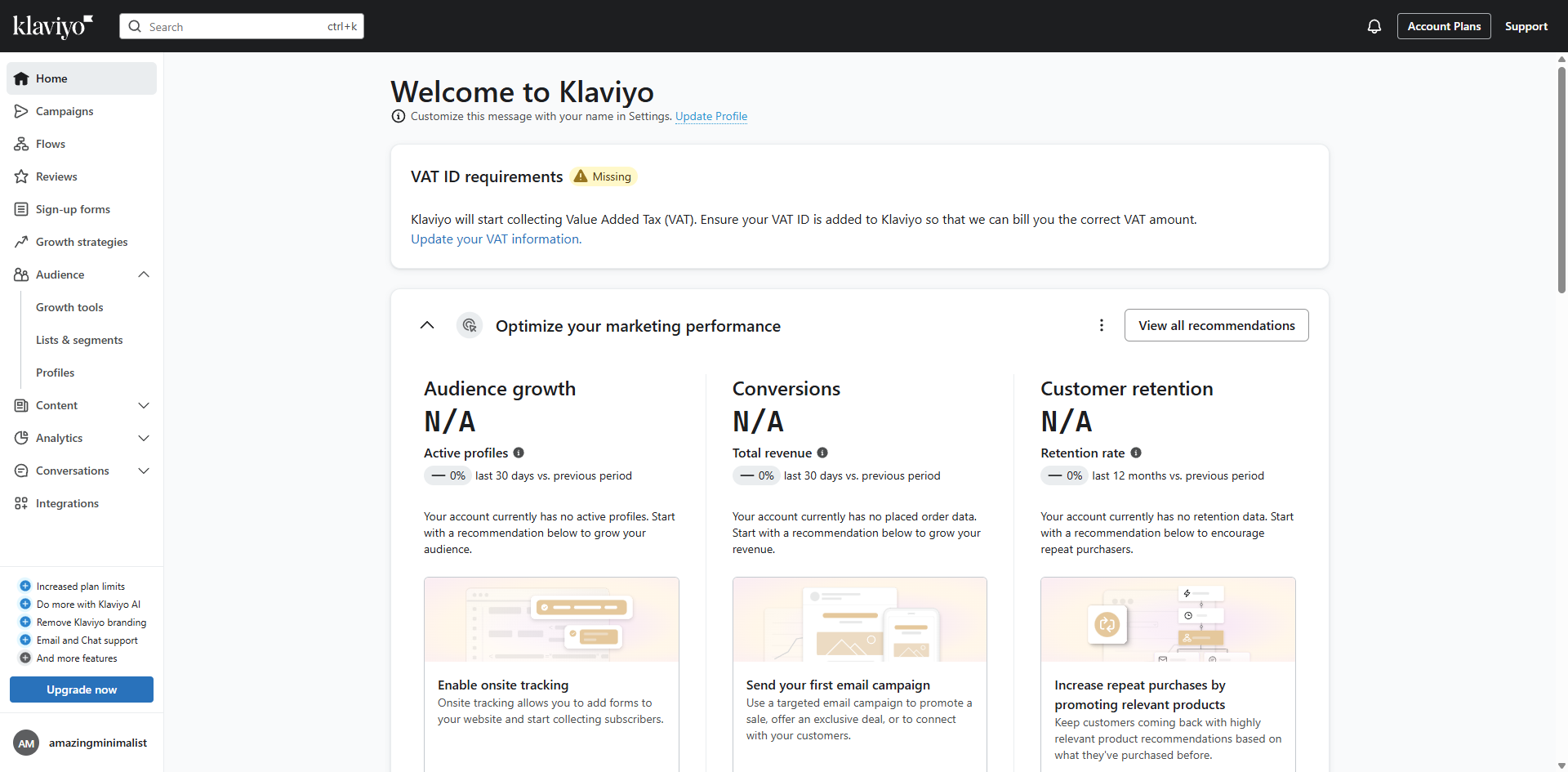
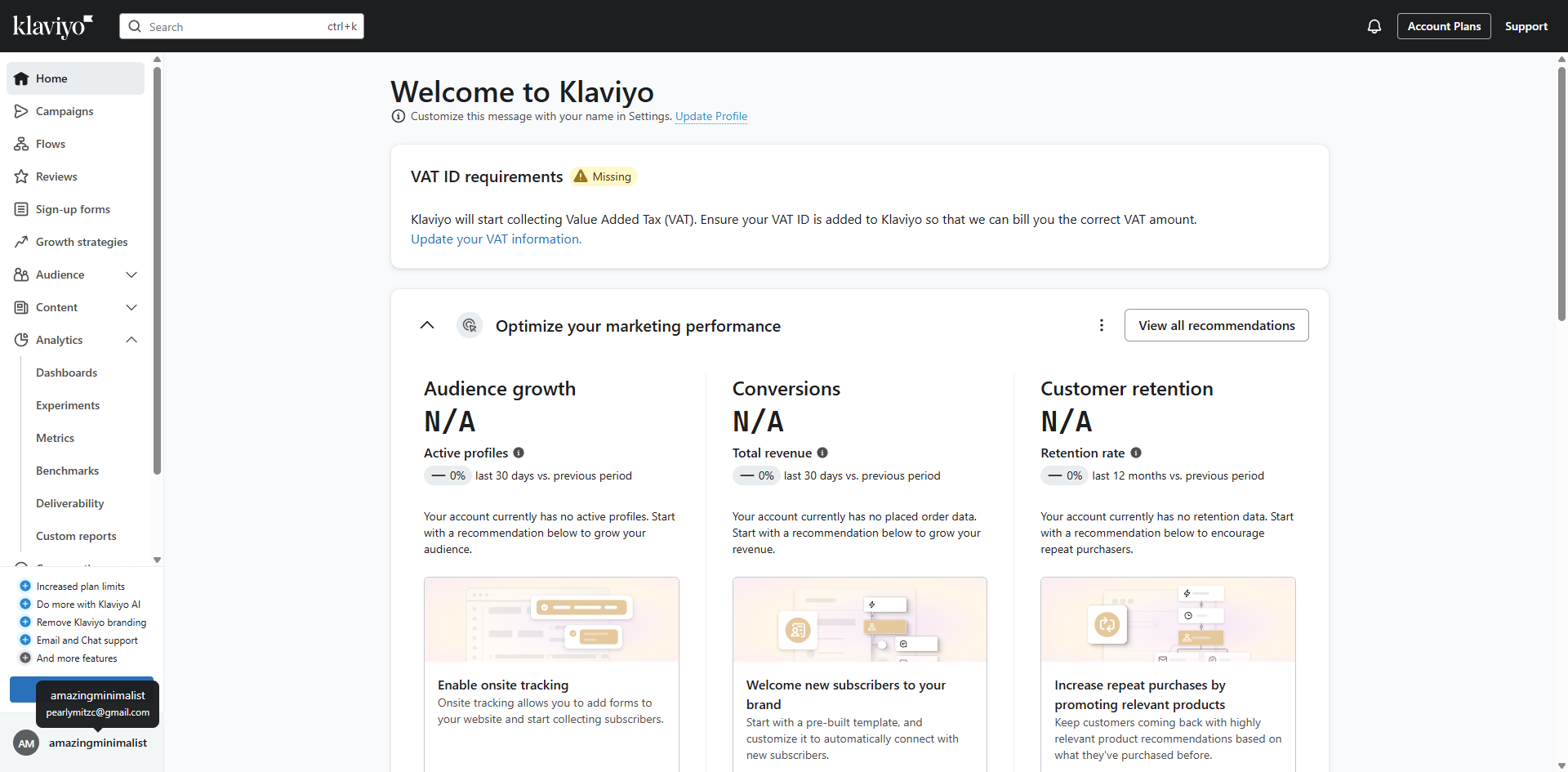
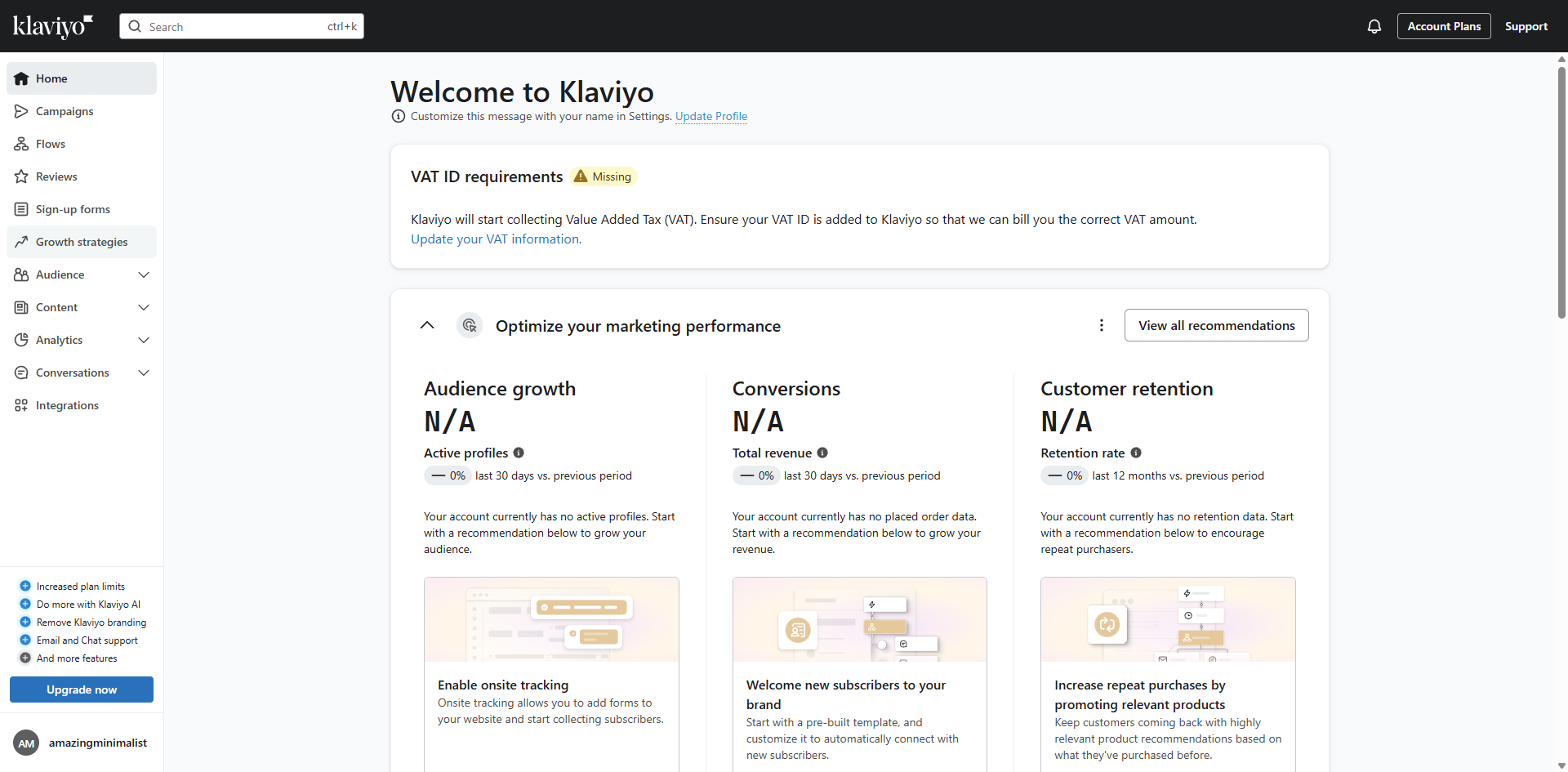
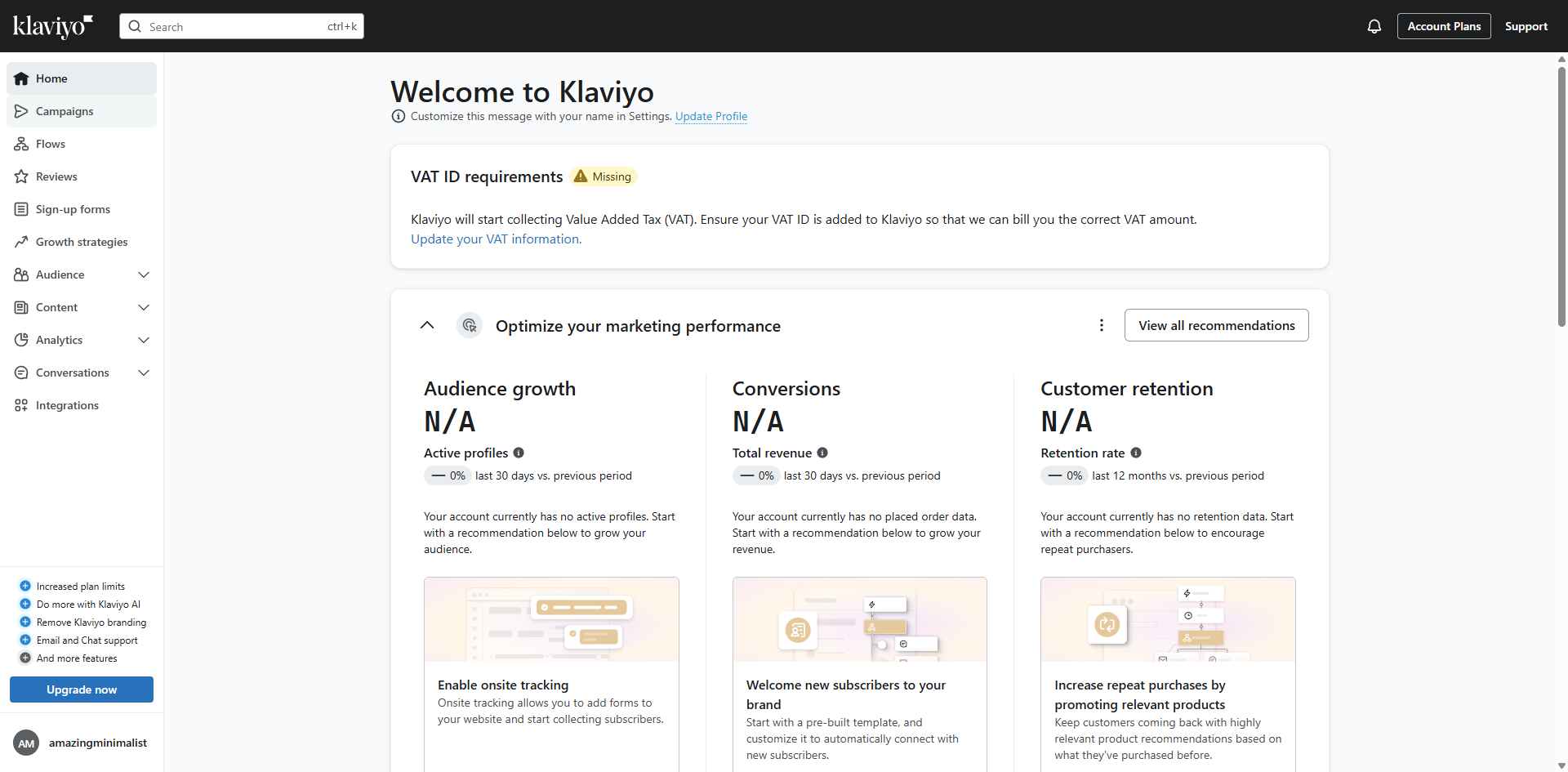
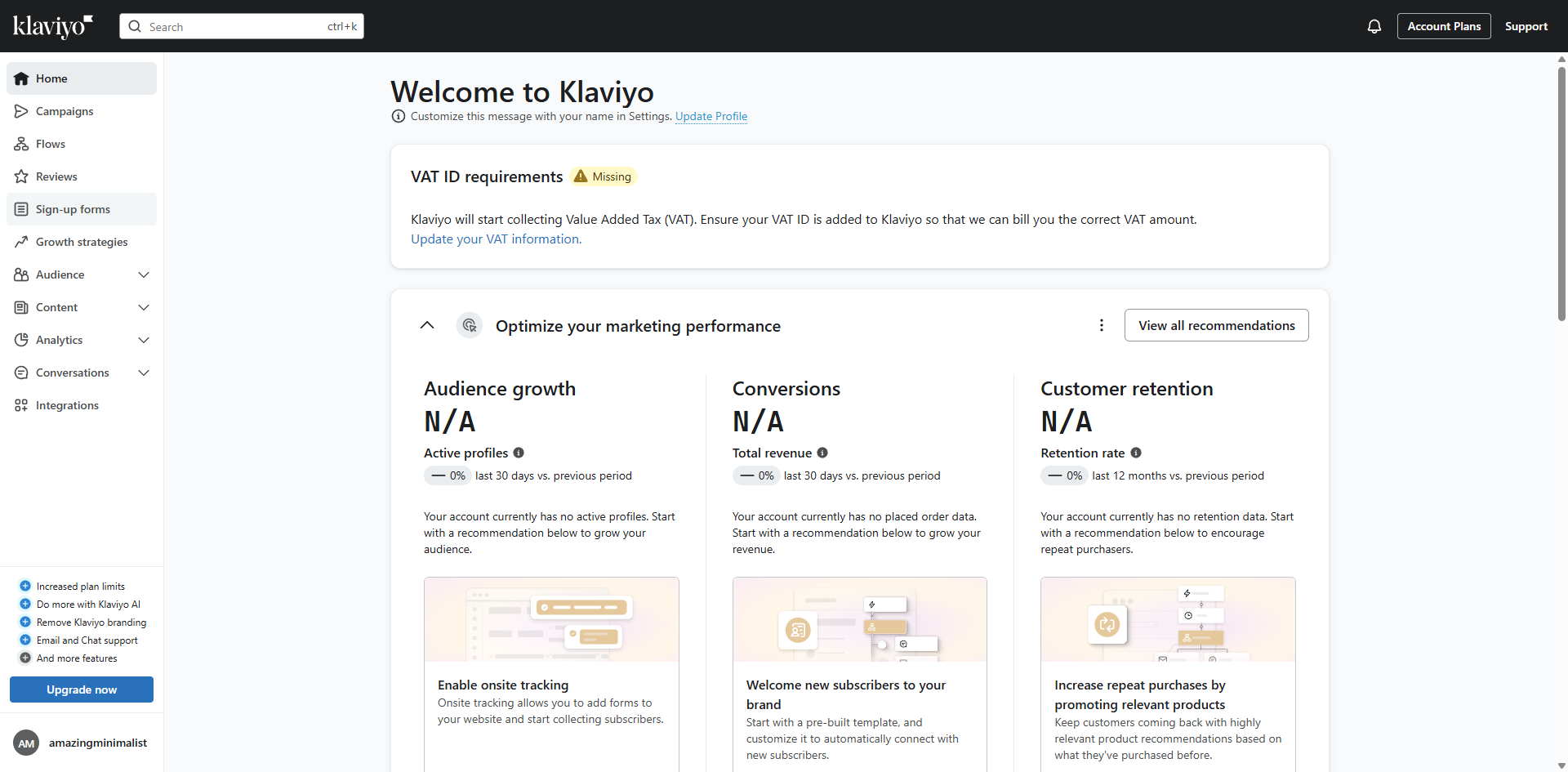
Navigate to 'Sign-up forms' to start building your email marketing database.
Click 'Create blank form' to start with a blank canvas to fully customize your sign-up form.
Give your form a descriptive name to easily identify it later.
Select which subscriber list will receive these form submissions.
Choose your desired form type from the available options.
Click 'Save and design'.
Customize your form's appearance to match your brand identity.
Adjust the layout elements to create your perfect form structure.
Add your brand logo or promotional image to build credibility.
Click 'Add blocks' to enhance your form with strategic content blocks that drive action.
Add a call-to-action button to prompt visitor engagement.
Customize your button's design to increase click-through rates.
Include hidden fields to capture additional subscriber data.
Apply contrasting colors to make your CTAs unmissable.
Click 'Publish' to make your form live and start collecting subscribers immediately.
Quick answer: To make a poll in Klaviyo, navigate to Sign-up forms, create a blank form, name it, select a subscriber list, choose the form type, and click Save and design. Customize its appearance, layout, and images, then add blocks, CTAs, and hidden fields before clicking Publish.
About this Klaviyo tutorial
Build and publish interactive sign-up forms with custom blocks and calls to action in Klaviyo to start collecting subscribers. This guide shows how to make a Poll Klaviyo in 15 steps, starting with "Navigate to 'Sign-up forms' to start building your email marketing database" and finishing with "Click 'Publish' to make your form live and start collecting subscribers immediately". The interactive demo above is a click-through copy of the real Klaviyo interface, so you can rehearse each step before doing it in your own account.
Frequently asked questions
How many steps does it take to make a Poll Klaviyo?
15 steps. Each one is listed in order above, and the demo highlights exactly where to click.
Can I try it without changing my own account?
Yes. Clicking through the demo doesn't touch your Klaviyo data or settings. Once you know the flow, repeat it in your own workspace.
This tutorial is filed under Klaviyo. Related guides: How to Manually Add an Email to a Segment Klaviyo, How to Mass Delete Profiles in Klaviyo and How to Merge Lists in Klaviyo. Last reviewed 05 Oct 2026.

Create your first interactive demo in minutes
No credit card required • Start building today