How to Manage Contact Groups in SendGrid
- George Apostolov
How to Manage Contact Groups in SendGrid: step-by-step guide
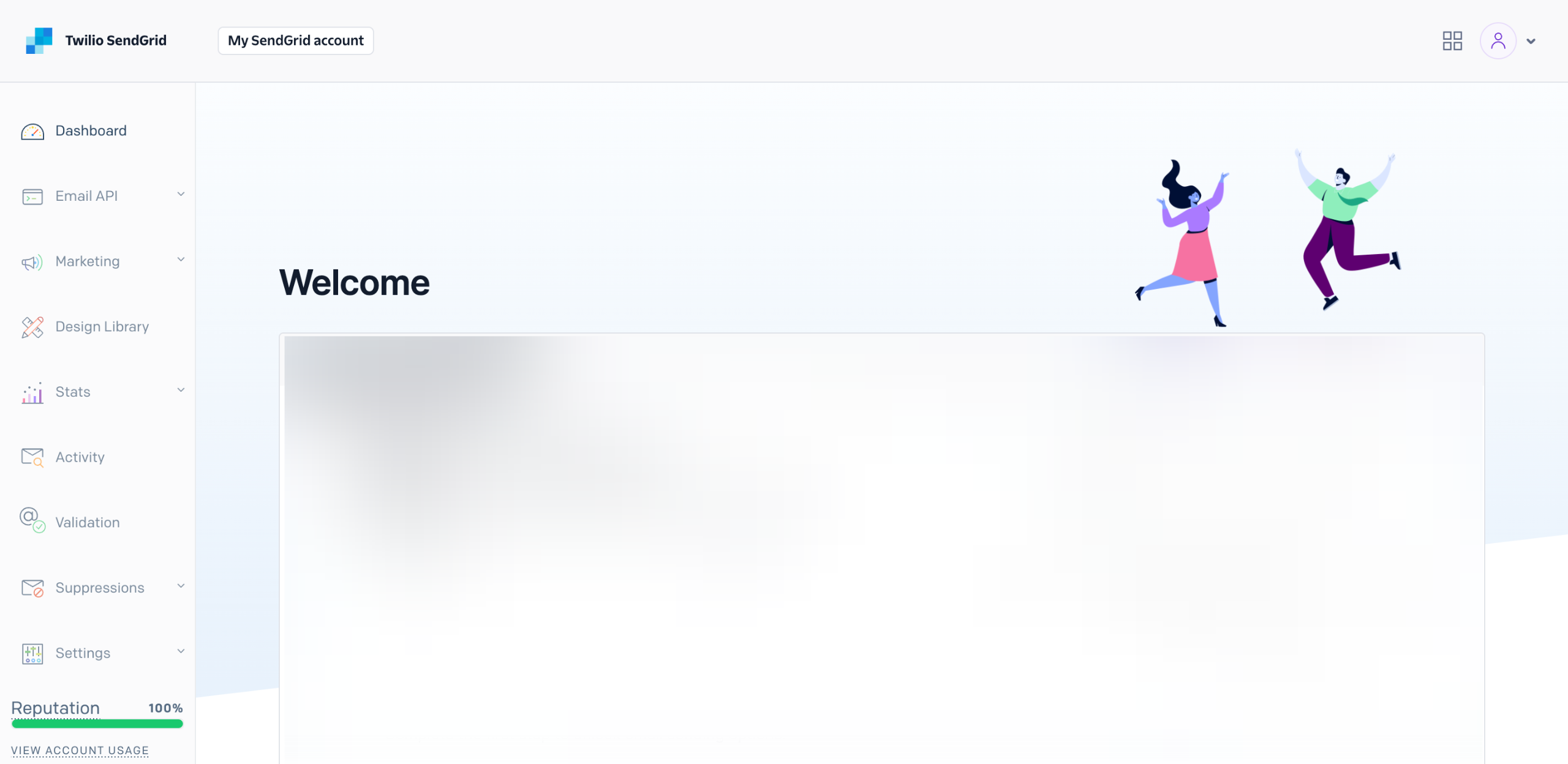
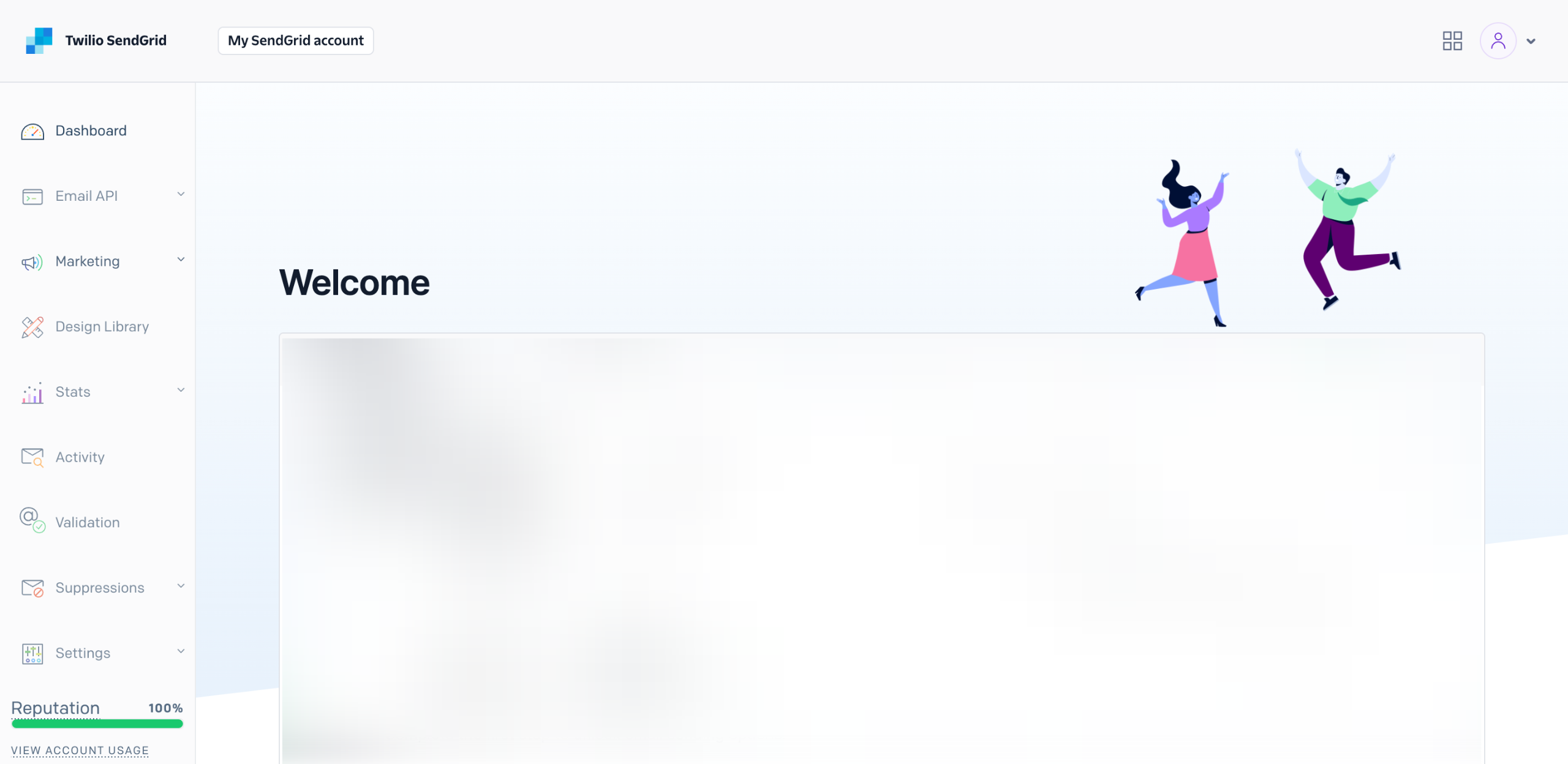
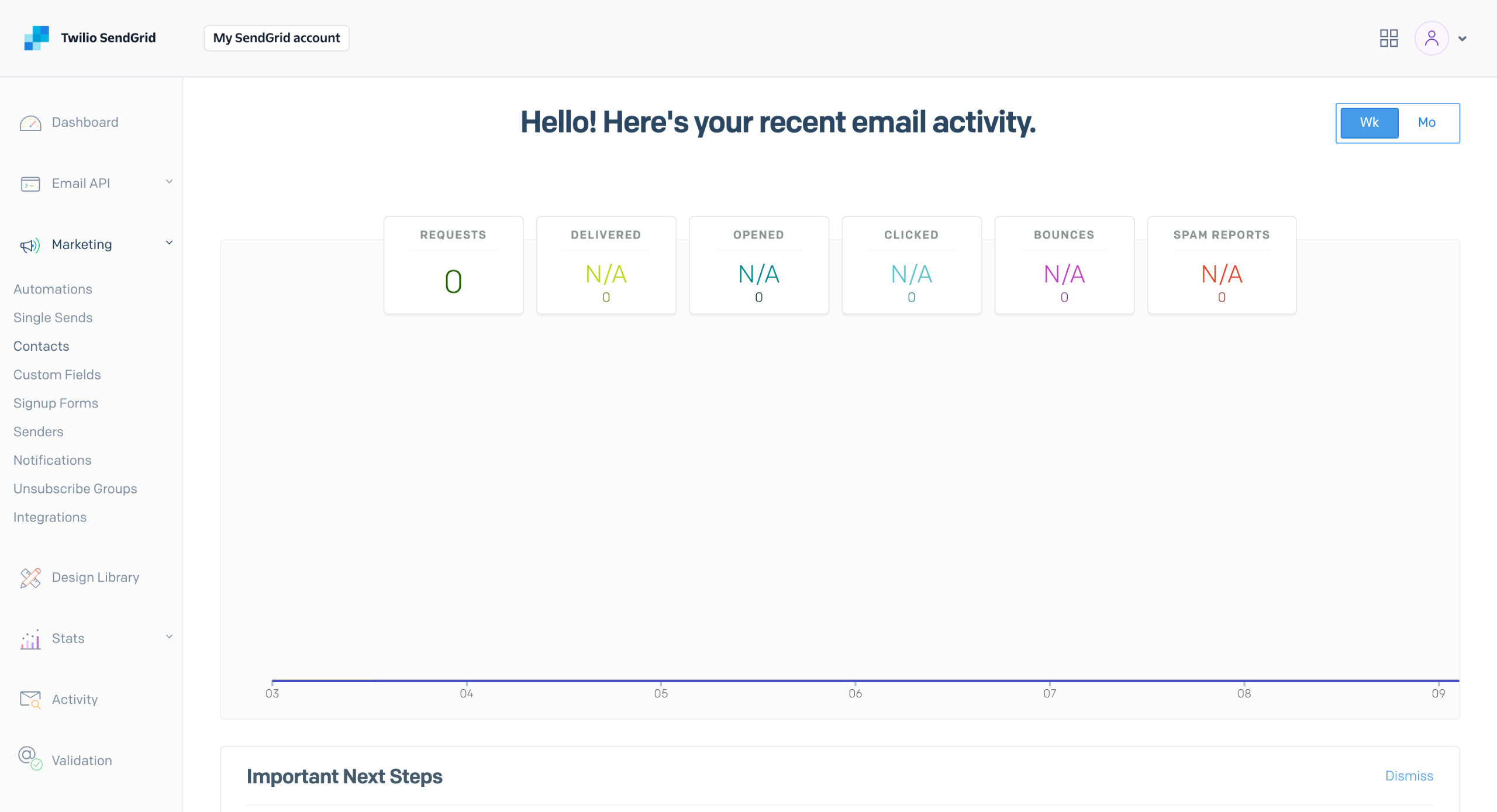
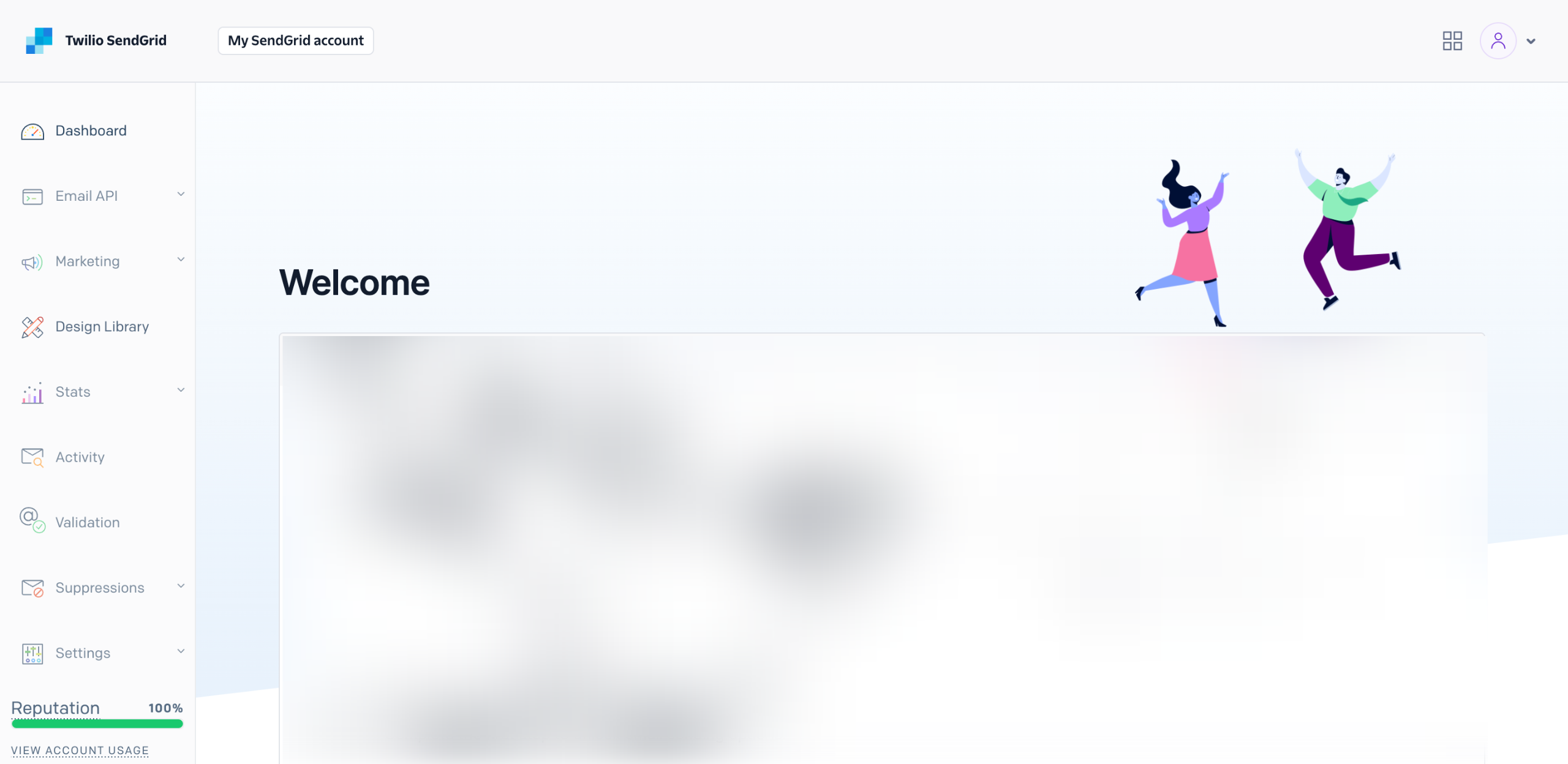
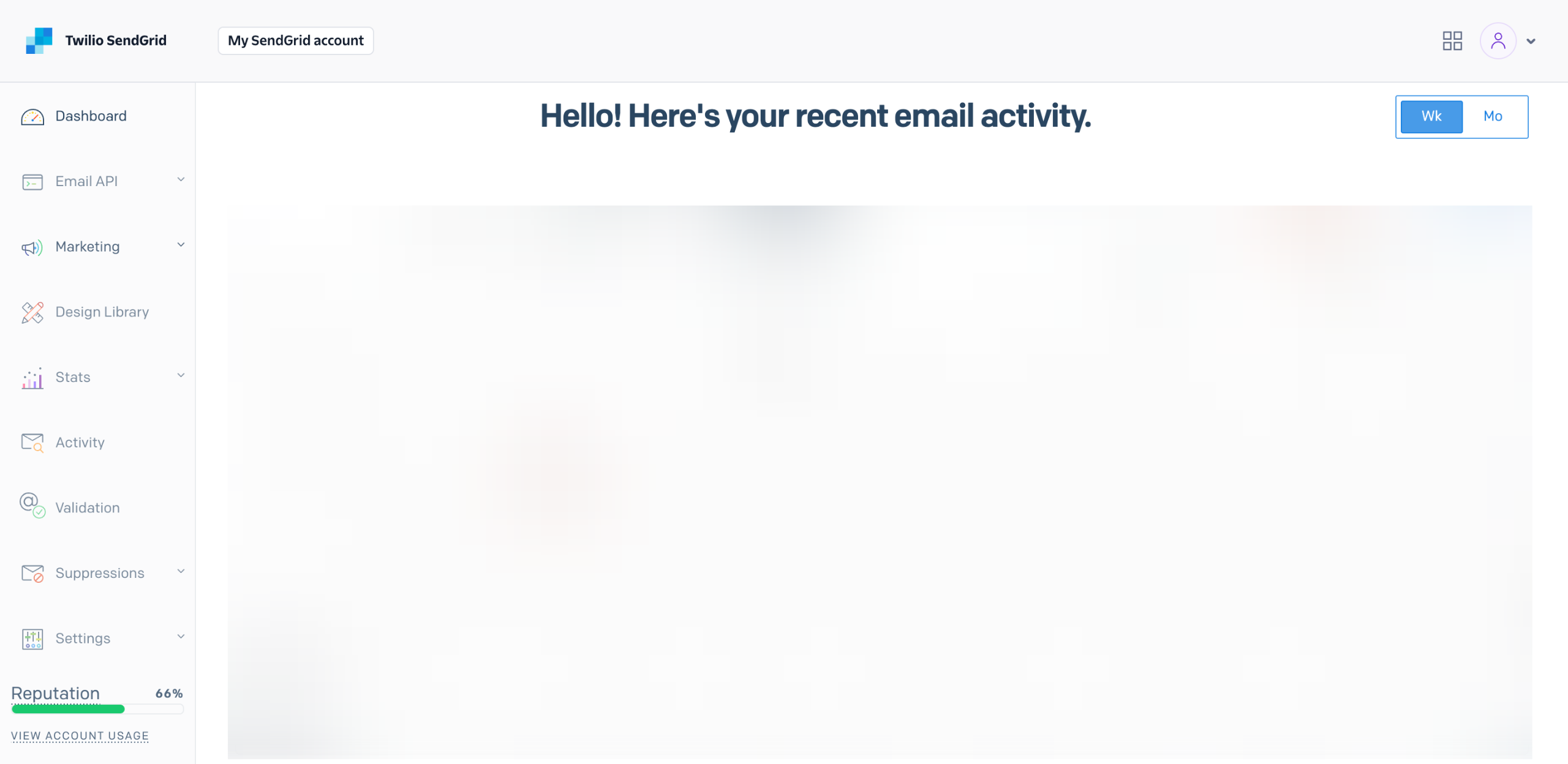
On SendGrid's main dashboard, head over to the left-side panel and click 'Marketing'.
Choose 'Contacts' from the list of options.
After that, click 'Create' at the top-right corner.
Tap 'New Segment' to proceed.
Following that, come up with a unique 'Segment Name' and enter it into the provided input field.
As for the contact selection, click 'Segment an Existing List' and then choose the list that contains the group of contacts you wish to manage.
Under the Targeting section, tap the 'Field' menu and select one from the given choices.
Next, specify your preferred operator. Click its drop-down menu and select one from the available options.
Lastly, enter a custom input into the 'Value' field to complete the condition.
If you need more filters, tap 'Add Condition' and repeat the same series of steps.
Once done, click 'Save Segment'.
After completing these steps, the selected list will be segmented to help you manage this group of contacts more effectively.
Quick answer: To manage contact groups in SendGrid, navigate to Marketing and select Contacts. Click Create, choose New Segment, and enter a unique Segment Name. Select an existing list, configure targeting conditions using fields, operators, and values, add more filters if needed, and save the segment to effectively organize your contacts.
About this SendGrid tutorial
Easily organize and filter your audience by creating segments in SendGrid with custom conditions and targeted rules. This guide shows how to manage Contact Groups in SendGrid in 12 steps, starting with "On SendGrid's main dashboard, head over to the left-side panel and click 'Marketing'" and finishing with "After completing these steps, the selected list will be segmented to help you manage th...". The interactive demo above is a click-through copy of the real SendGrid interface, so you can rehearse each step before doing it in your own account.
Frequently asked questions
How many steps does it take to manage Contact Groups in SendGrid?
12 steps. Each one is listed in order above, and the demo highlights exactly where to click.
Can I try it without changing my own account?
Yes. Clicking through the demo doesn't touch your SendGrid data or settings. Once you know the flow, repeat it in your own workspace.
This tutorial is filed under SendGrid. Related guides: How to Manage the Email Frequency in SendGrid, How to Organize Contacts in SendGrid for Free and How to organize email campaigns on sendgrid. Last reviewed 05 Oct 2026.

Create your first interactive demo in minutes
No credit card required • Start building today