How to Navigate the Coda Interface
- George Apostolov
How to Navigate the Coda Interface: step-by-step guide
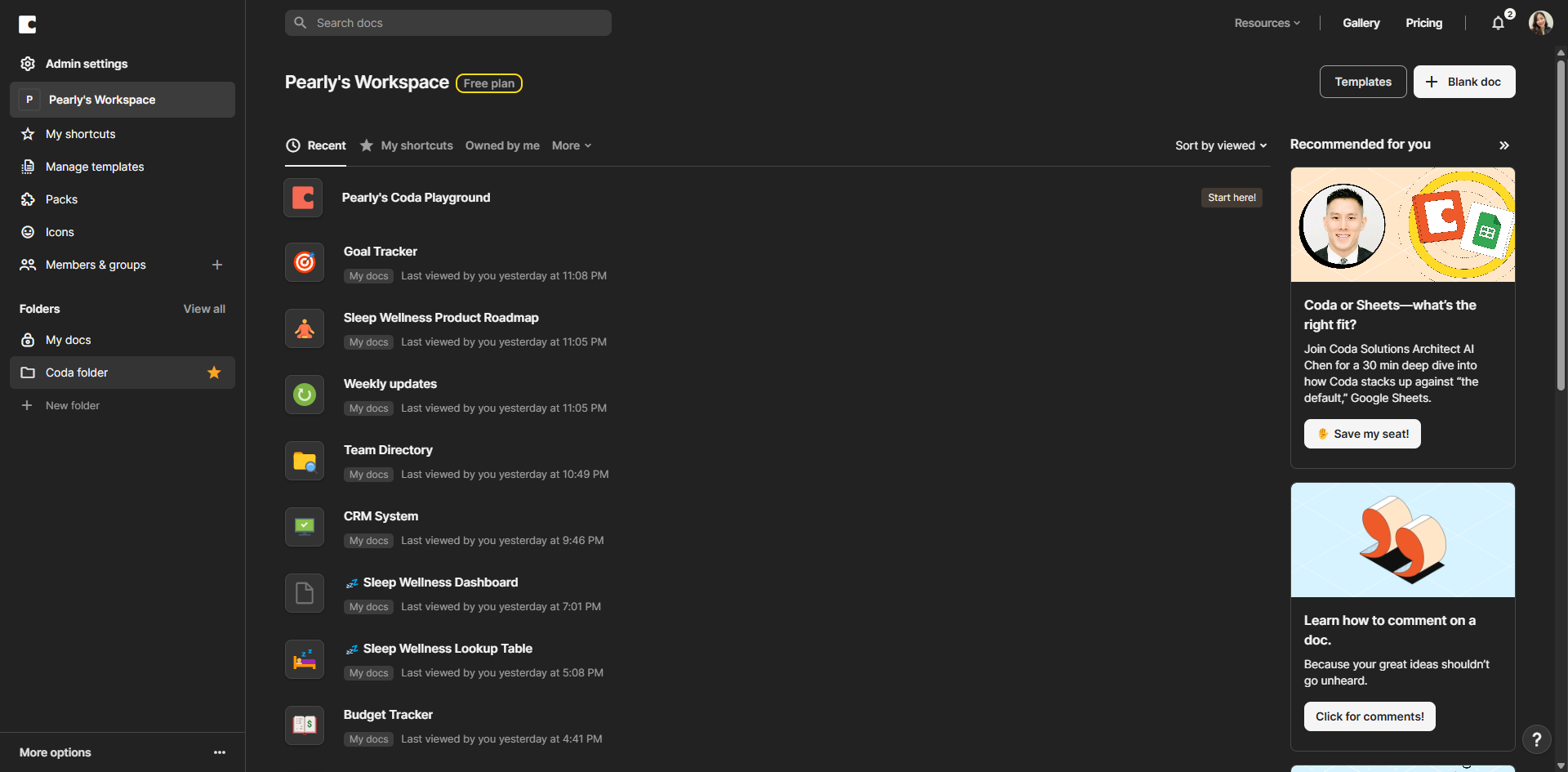
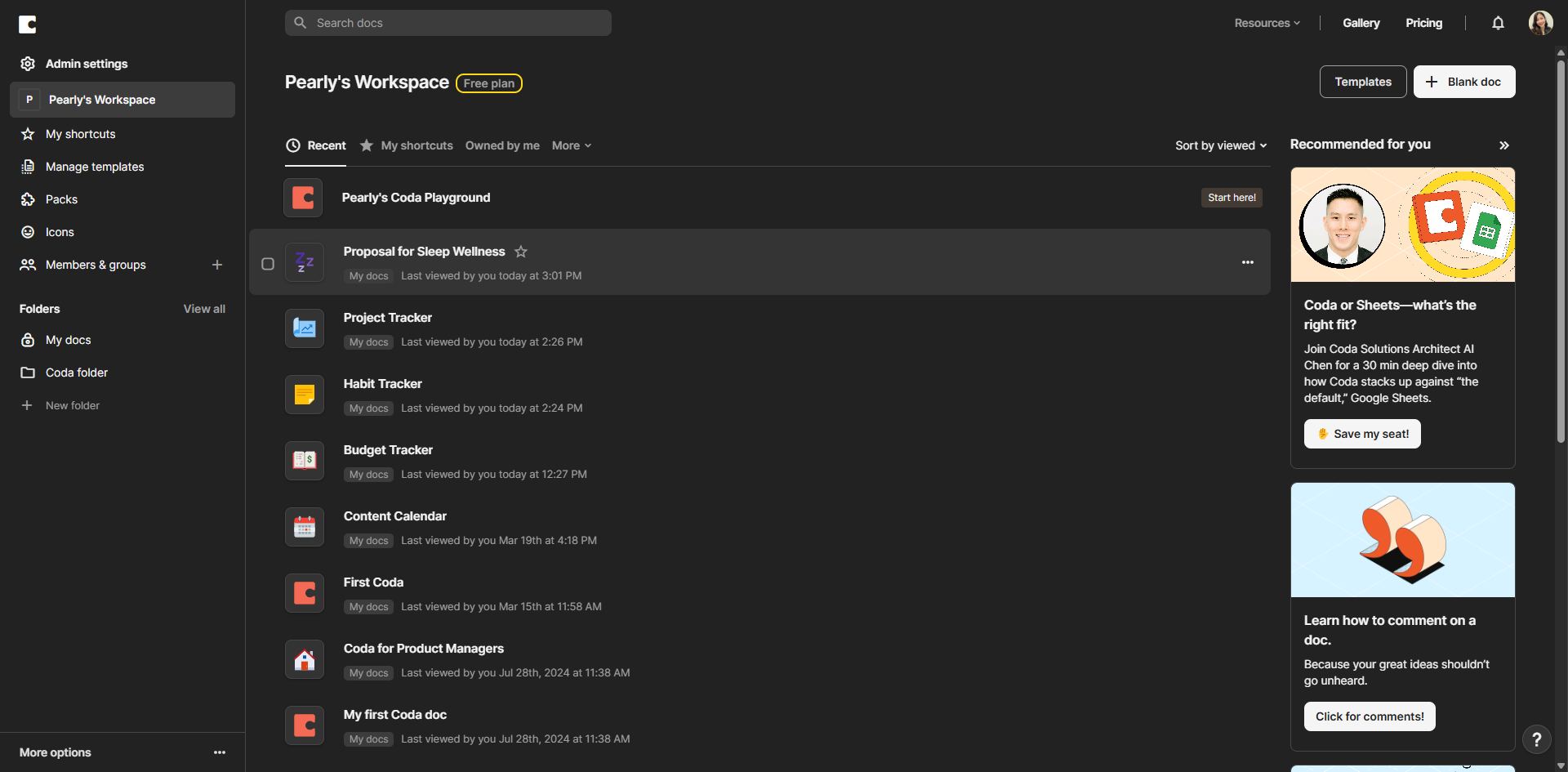
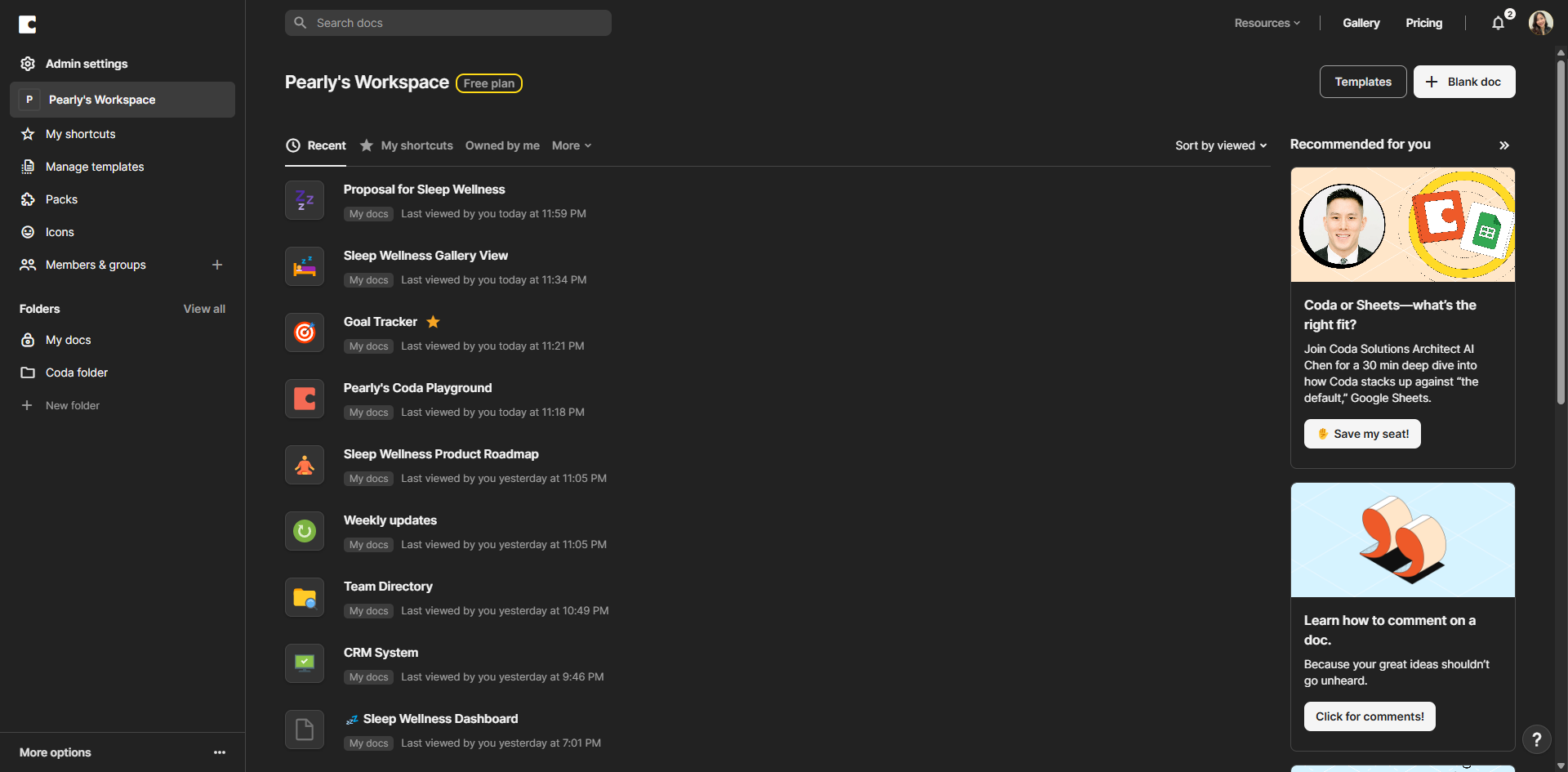
On your Coda homepage, you'll find all your documents and templates organized in one place.
Click on a workspace to access all your team docs and collaborative projects.
Use 'Folders' to keep your work neatly organized and make collaboration smoother.
Use the search bar to locate docs by name or content.
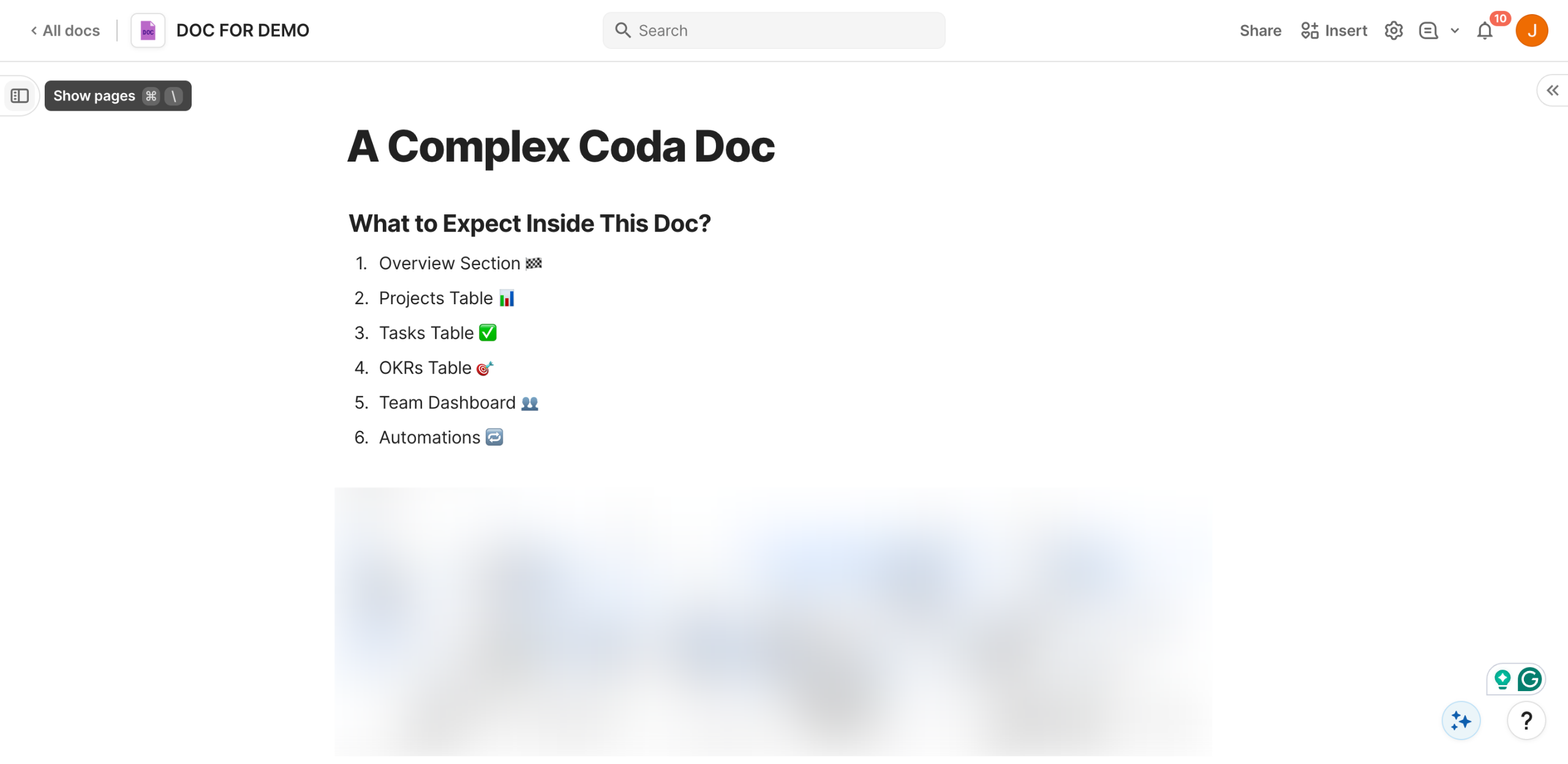
Let's open a Coda document to explore what's inside.
On the left panel, that's where you'll find all your pages and subpages for easy navigation.
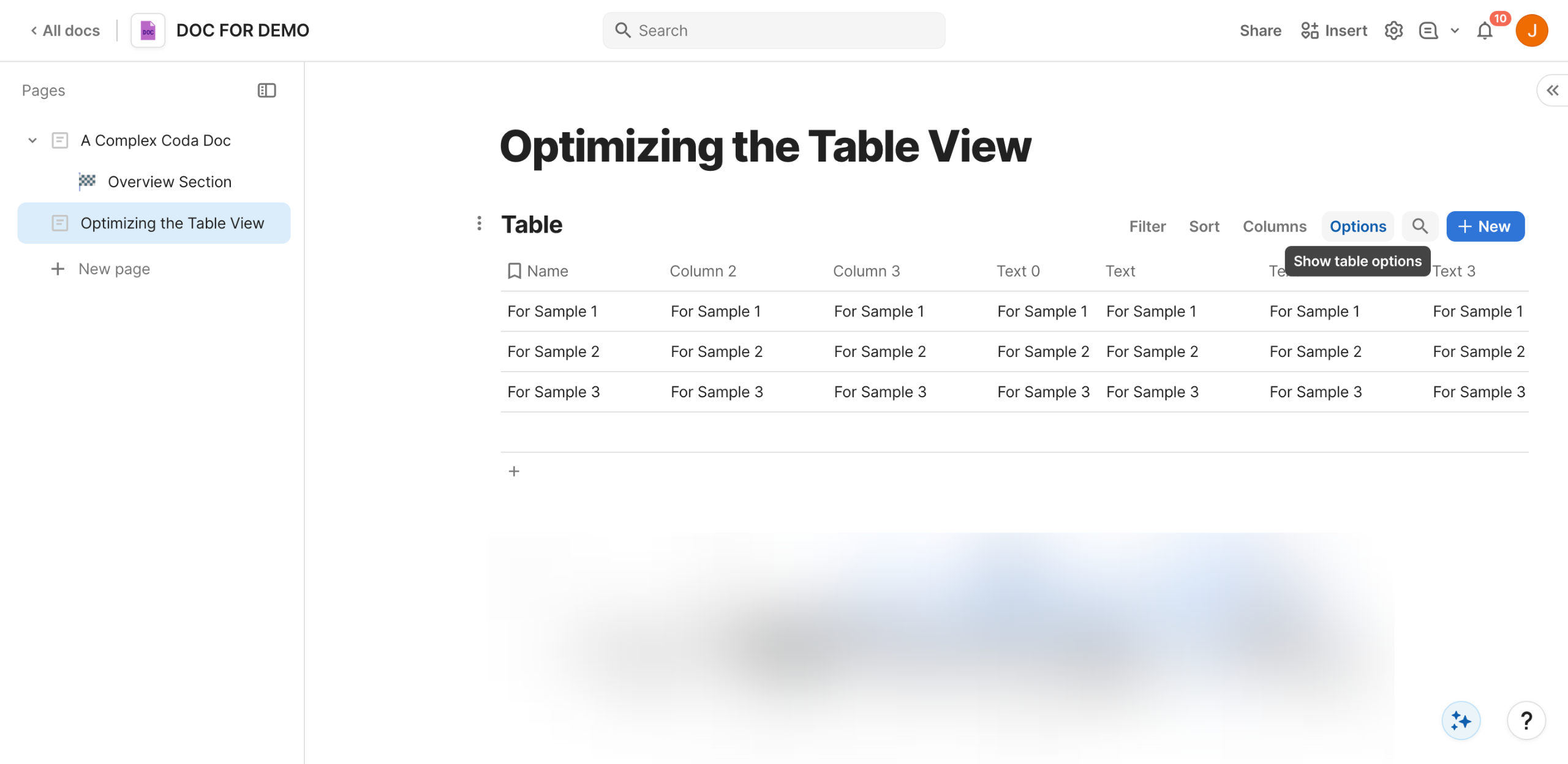
Click the '+ New page' button to create one.
Keep your sidebar tidy by collapsing sections you're not currently using.
Change your doc's name by clicking directly on the title.
Click 'Share' to invite teammates or adjust permissions.
Fine-tune your sharing settings to control exactly who can view or edit your document.
The top bar contains settings and additional document options you might need.
Customize your page layout and settings to match your specific workflow needs.
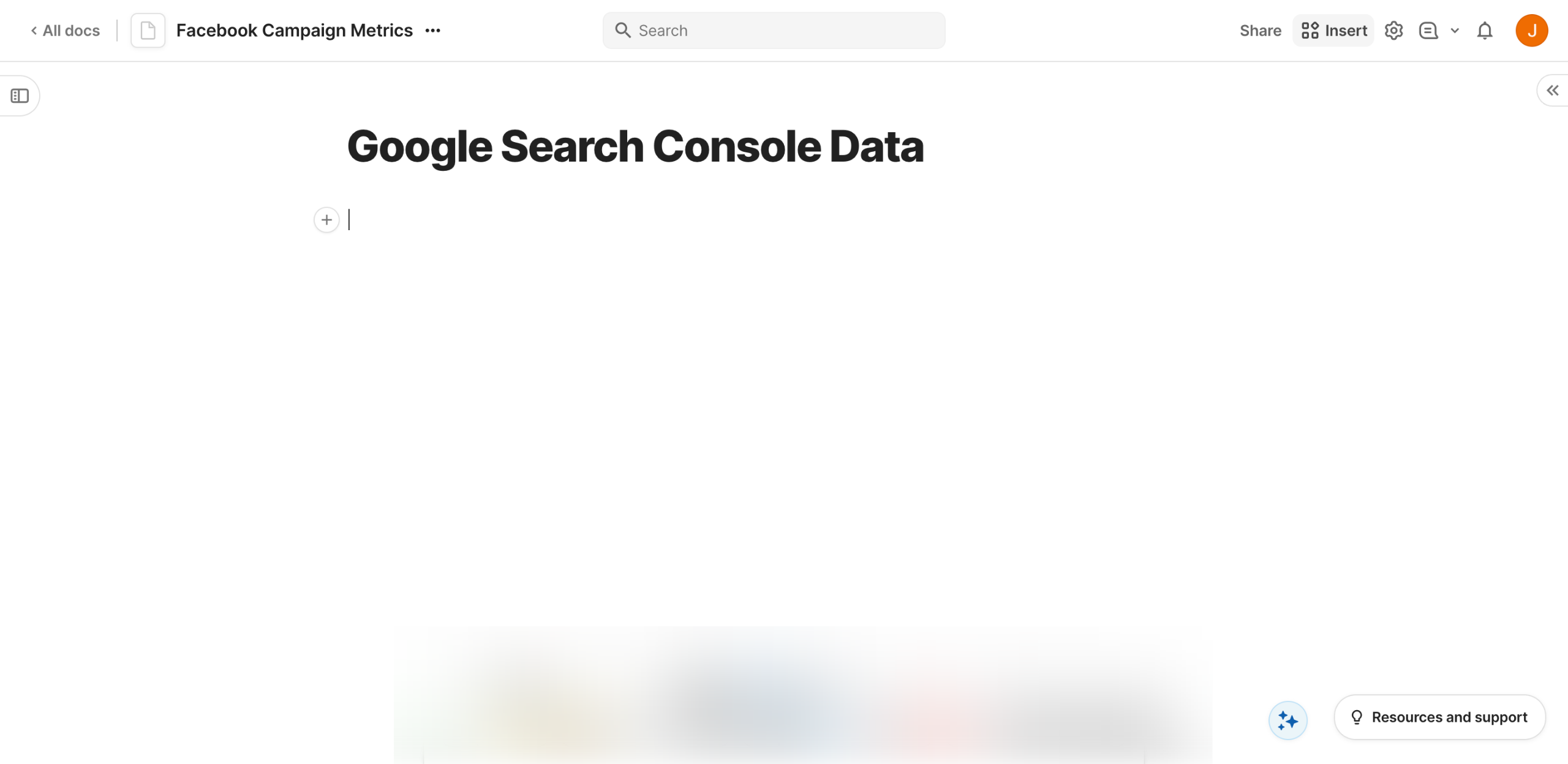
Type / anywhere to bring up shortcuts for tables, formulas, and more.
Quick answer: To navigate the Coda interface, find all documents on your homepage, click a workspace, use folders to organize work, and search by name. Open a document to use the left panel for pages, create new pages, collapse sidebar sections, change titles, share and adjust permissions, use the top bar for settings, and type / for shortcuts.
About this Coda tutorial
Master the Coda interface by organizing workspaces, managing pages, adjusting sharing permissions, and using layout shortcuts. This guide shows how to navigate the Coda Interface in 14 steps, starting with "On your Coda homepage, you'll find all your documents and templates organized in one place" and finishing with "Type / anywhere to bring up shortcuts for tables, formulas, and more". The interactive demo above is a click-through copy of the real Coda interface, so you can rehearse each step before doing it in your own account.
Frequently asked questions
How many steps does it take to navigate the Coda Interface?
14 steps. Each one is listed in order above, and the demo highlights exactly where to click.
Can I try it without changing my own account?
Yes. Clicking through the demo doesn't touch your Coda data or settings. Once you know the flow, repeat it in your own workspace.
This tutorial is filed under Coda. Related guides: How to Optimize Large Tables in Coda, How to Organize Complex Coda Docs and How to Organize Your Coda Workspace. Last reviewed 05 Oct 2026.

Create your first interactive demo in minutes
No credit card required • Start building today