How to Remove the Payment Advice Cut-Away From Invoices in Xero
- George Apostolov
How to Remove the Payment Advice Cut-Away From Invoices in Xero: step-by-step guide
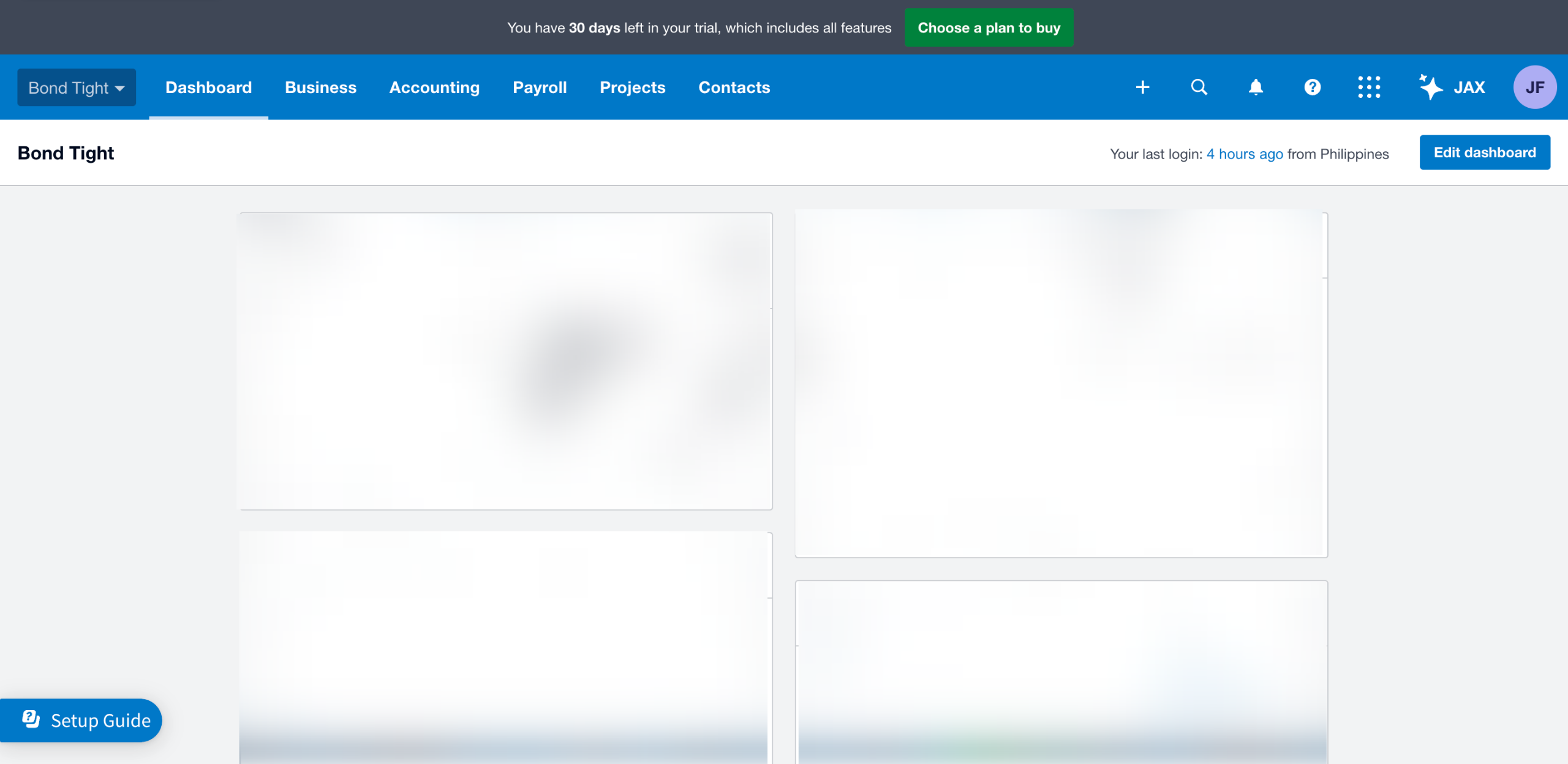
On Xero's main dashboard, go to the top-left corner and click the 'Company' tab.
Select 'Settings' from the list of options.
After that, find and tap the 'Invoice Settings' option.
Tap 'Options' in the top-right corner of the template panel.
Subsequently, click 'Edit' to continue.
Find 'Show Payment Advice Cut-away' and then unmark the checkbox beside it.
Alternatively, you may also delete the default content inside the 'Terms & Payment Advice (Invoice and Statement)' field and leave it blank.
Once done, tap 'Save' to apply the changes.
After completing these steps, the payment advice cut-away from your Xero invoice will be removed automatically.
Quick answer: To remove the payment advice cut-away in Xero, navigate to Company Settings, select Invoice Settings, and edit your template. Unmark the checkbox for Show Payment Advice Cut-away or clear the terms field, then save your changes to apply them.
About this Xero tutorial
Remove the payment advice cut-away from your invoices in Xero by updating your template settings. This guide shows how to remove the Payment Advice Cut-Away From Invoices in Xero in 9 steps, starting with "On Xero's main dashboard, go to the top-left corner and click the 'Company' tab" and finishing with "After completing these steps, the payment advice cut-away from your Xero invoice will b...". The interactive demo above is a click-through copy of the real Xero interface, so you can rehearse each step before doing it in your own account.
Frequently asked questions
How many steps does it take to remove the Payment Advice Cut-Away From Invoices in Xero?
9 steps. Each one is listed in order above, and the demo highlights exactly where to click.
Can I try it without changing my own account?
Yes. Clicking through the demo doesn't touch your Xero data or settings. Once you know the flow, repeat it in your own workspace.
This tutorial is filed under Xero. Related guides: How to Resend an Invoice in Xero, How to Reset the Demo Company in Xero and How to Restore a Voided Invoice in Xero. Last reviewed 05 Oct 2026.

Create your first interactive demo in minutes
No credit card required • Start building today