How to Resolve Conflicts in GitHub
- George Apostolov
This guide is an interactive LiveDemo. Create interactive demos of your own product: Interactive demo software · Interactive customer onboarding guides · Start free
How to Resolve Conflicts in GitHub: step-by-step guide
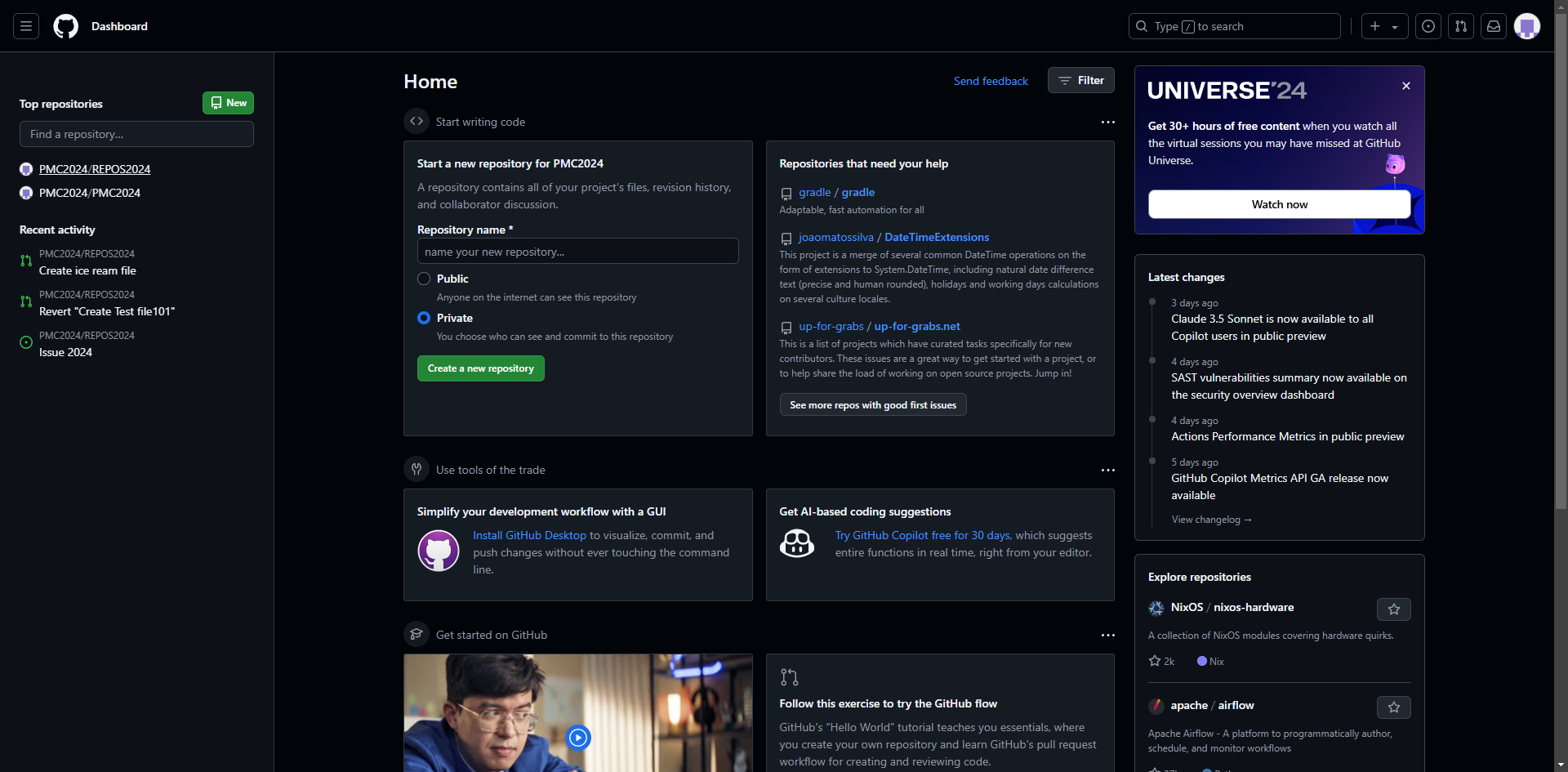
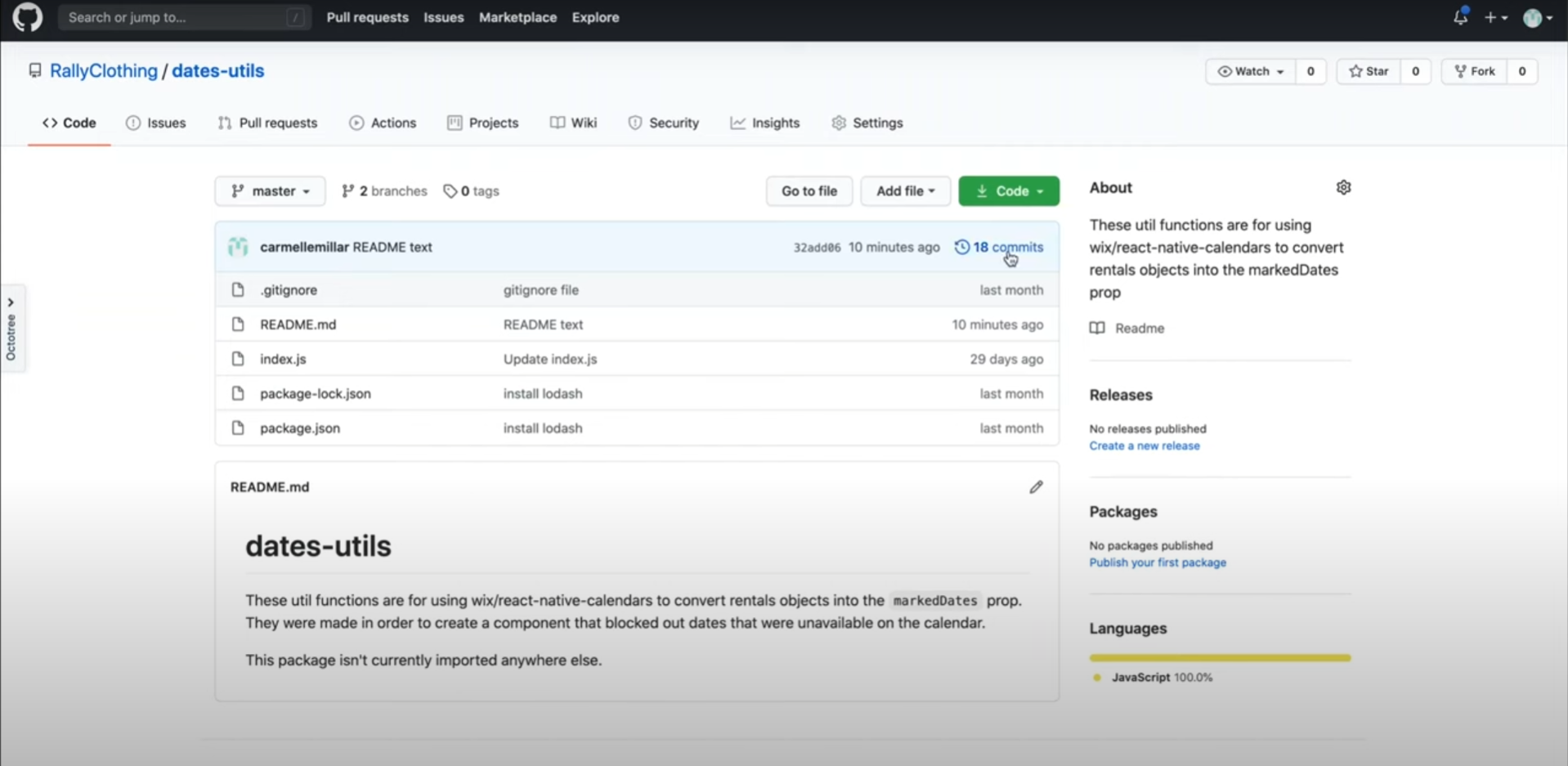
Go to your current repository with existing conflicts.
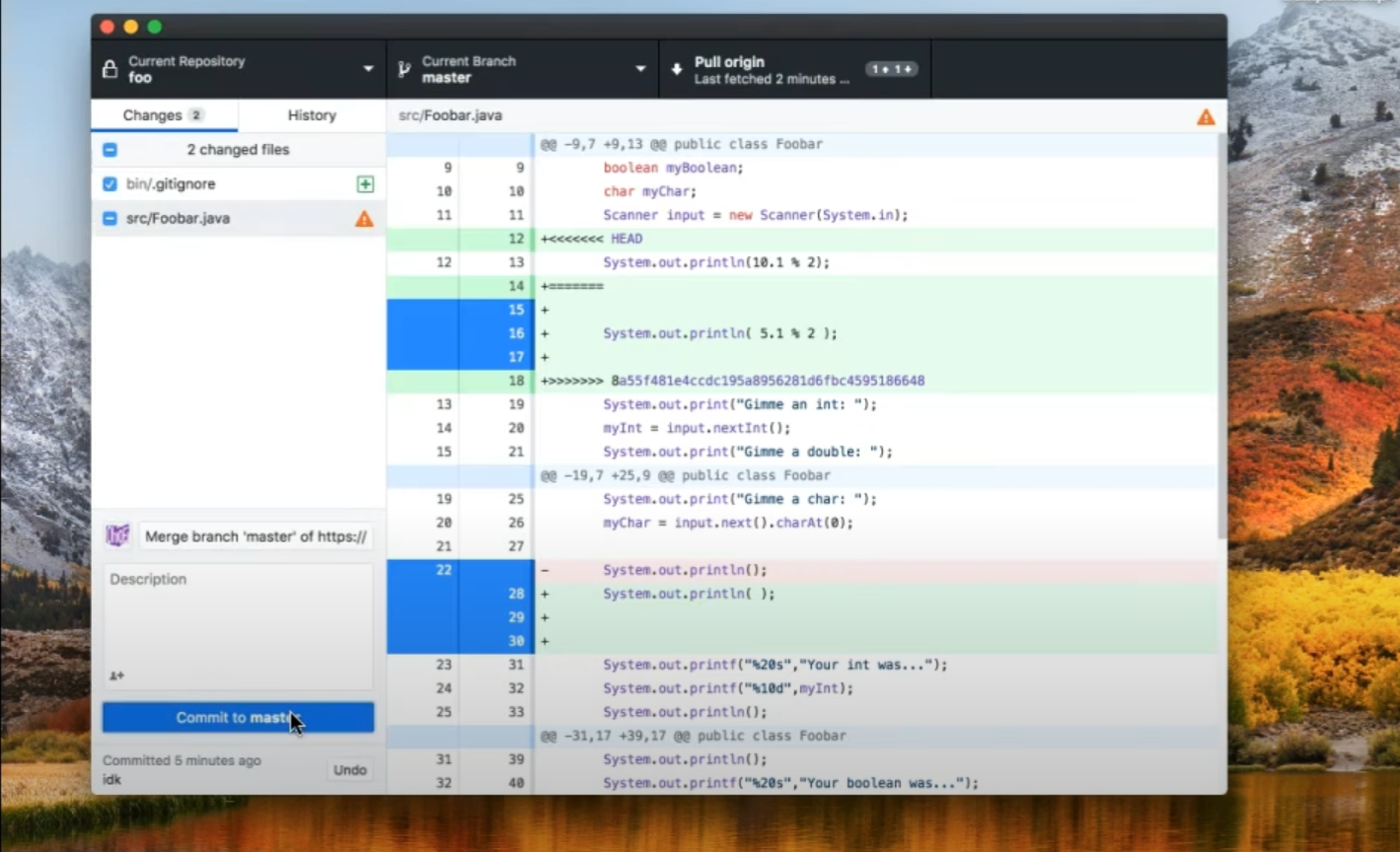
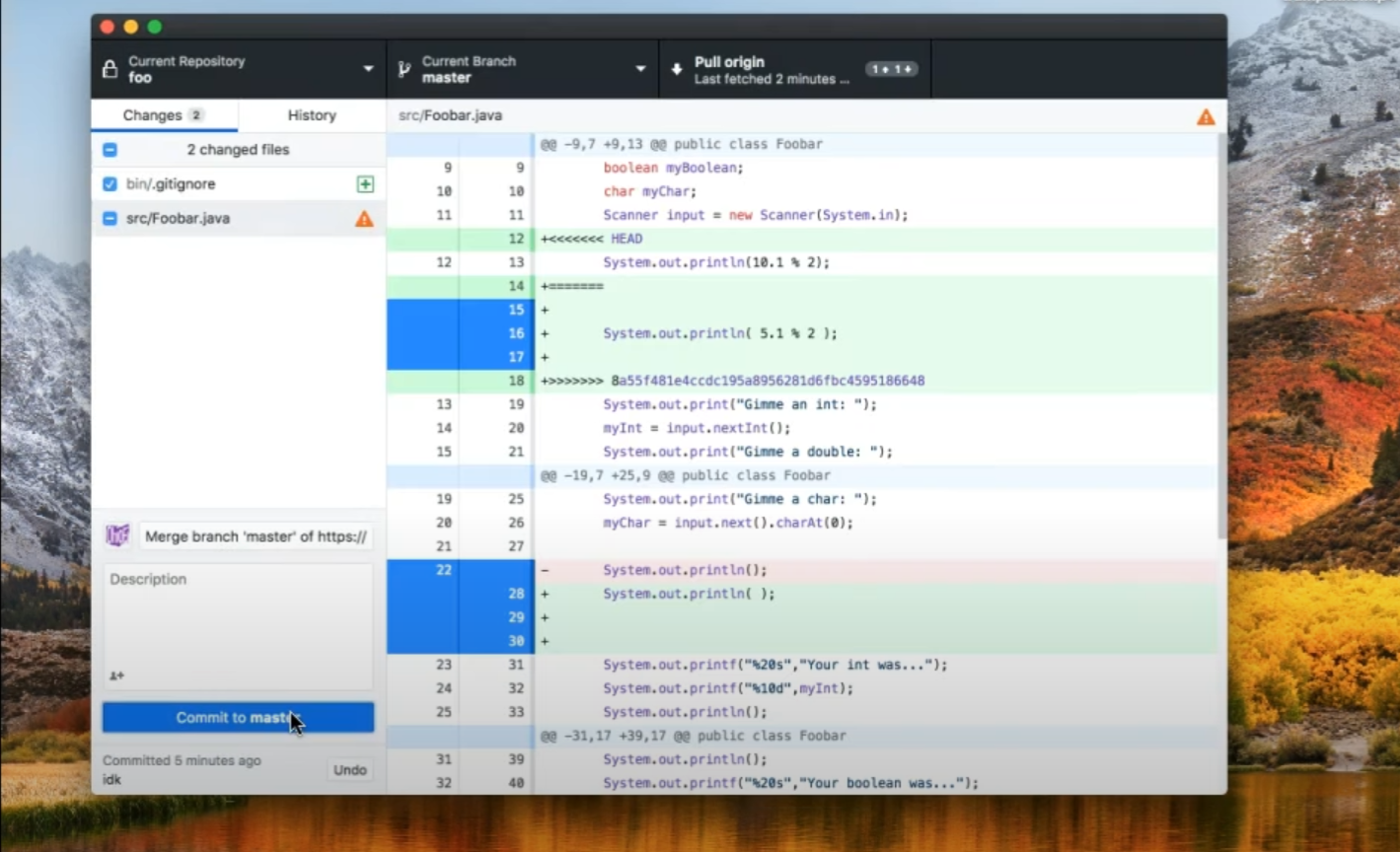
Click on the numbers that you don't want to keep. Choose which changes to keep or combine them manually.
This file also has a conflict but you can just uncheck the file and click on the 'Discharge Changes' option.
Click on the 'Discard Changes' button.
Click 'Commit to master'.
Click on the changed file and click 'Discard Changes'.
Click on the 'Discard Changes' button.
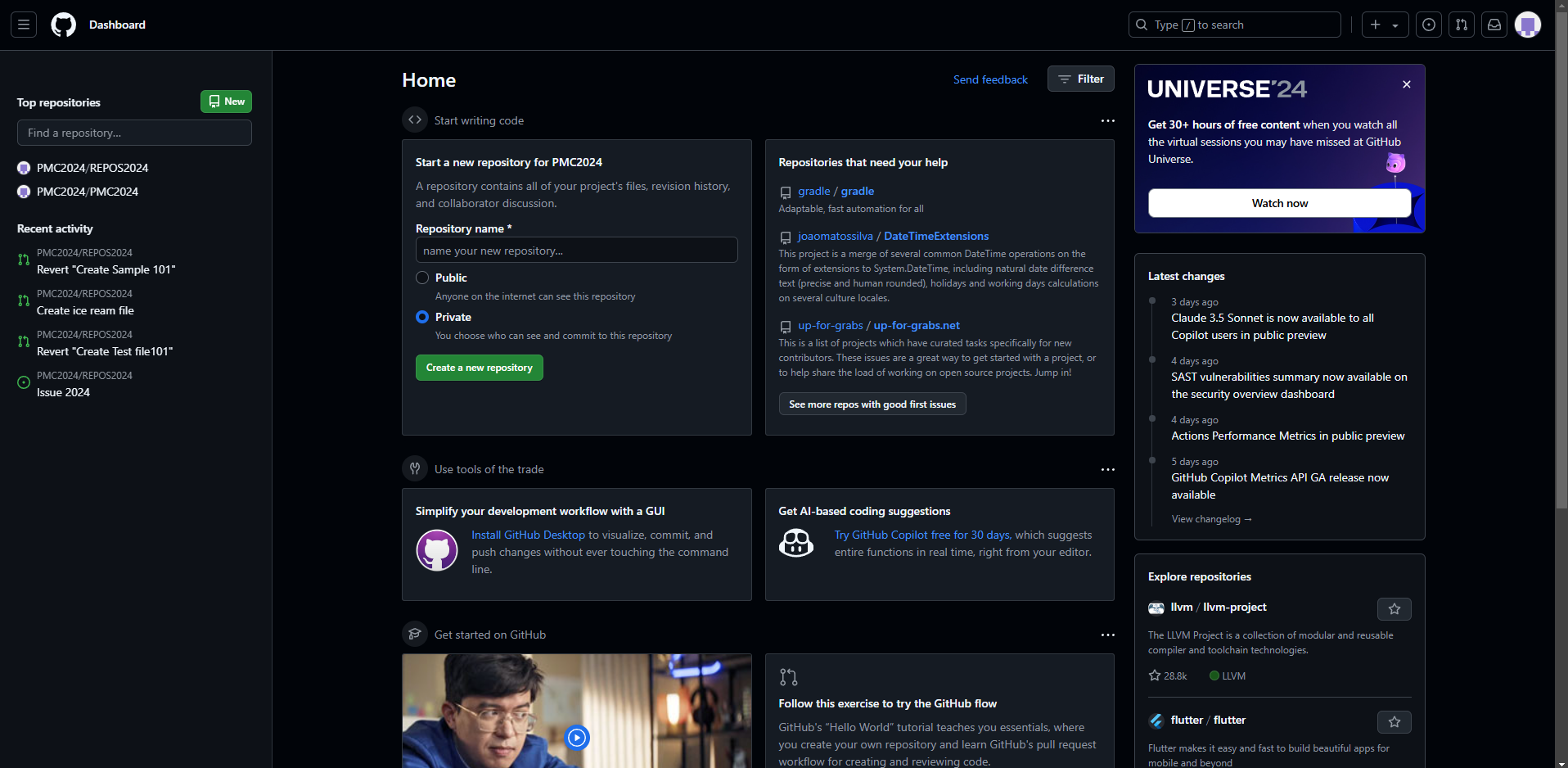
Click on the 'Push origin' to save the changes.
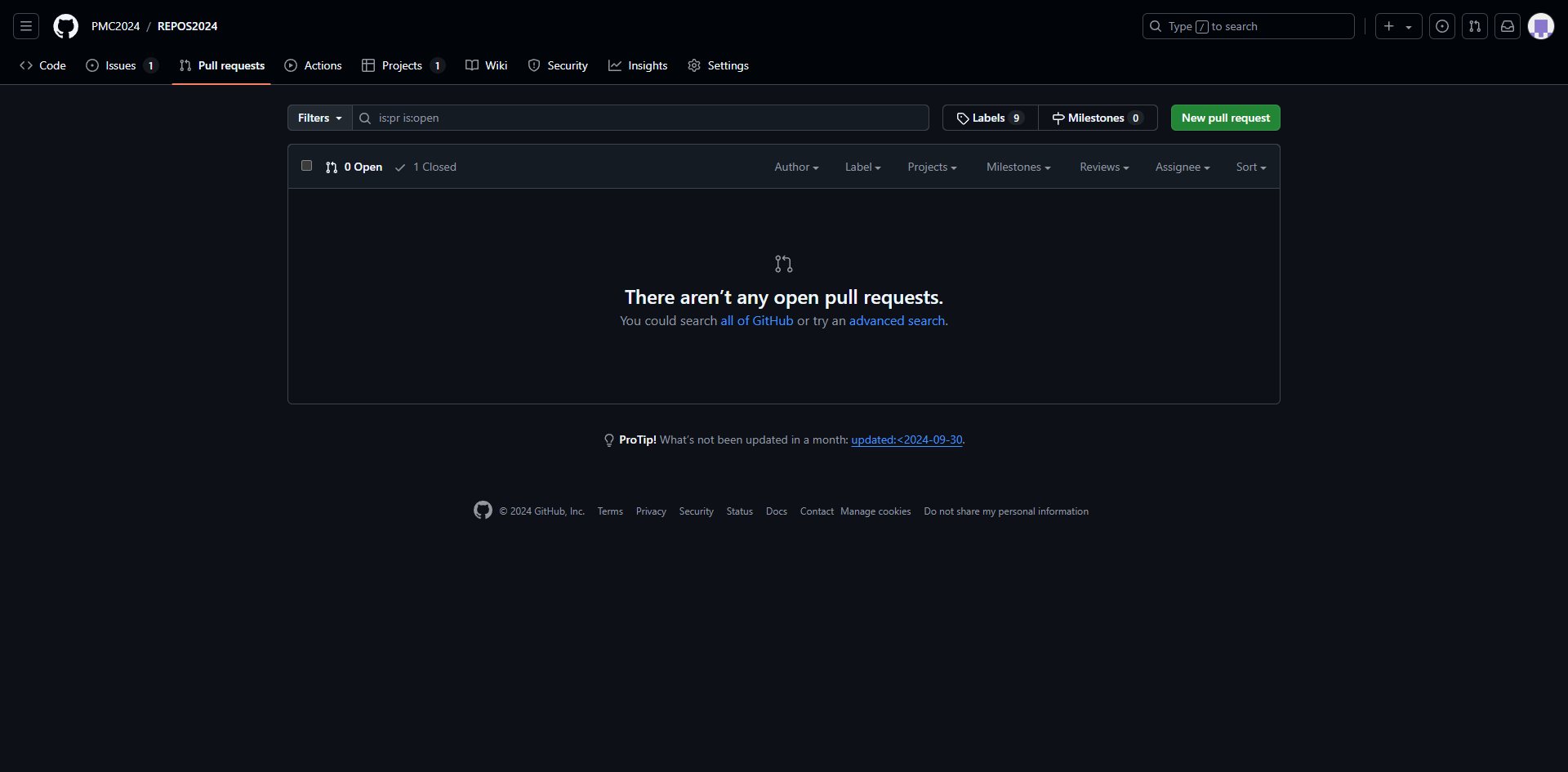
Click 'Open this repository'.
Open the file and check everything.
After resolving conflicts and pushing the changes, it's always a good idea to test the functionality of your code to ensure everything works as expected.
Quick answer: To resolve conflicts in GitHub, go to your repository, select changes to keep or combine manually, discard unwanted changes, commit to the master branch, and push the origin to save your work before testing the code functionality.
About this GitHub tutorial
Fix merge issues efficiently in GitHub by resolving conflicts, discarding unwanted changes, committing to master, and pushing updates. This guide shows how to resolve Conflicts in GitHub in 11 steps, starting with "Go to your current repository with existing conflicts" and finishing with "After resolving conflicts and pushing the changes, it's always a good idea to test the...". The interactive demo above is a click-through copy of the real GitHub interface, so you can rehearse each step before doing it in your own account.
Frequently asked questions
How many steps does it take to resolve Conflicts in GitHub?
11 steps. Each one is listed in order above, and the demo highlights exactly where to click.
Can I try it without changing my own account?
Yes. Clicking through the demo doesn't touch your GitHub data or settings. Once you know the flow, repeat it in your own workspace.
This tutorial is filed under GitHub. Related guides: How to Resolve Merge Conflicts in GitHub, How to Restore Deleted Branch in Github and How to Revert a Commit in Github. Last reviewed 05 Oct 2026.

Create your first interactive demo in minutes
No credit card required • Start building today