How to Set Up LinkedIn Business Manager
- George Apostolov
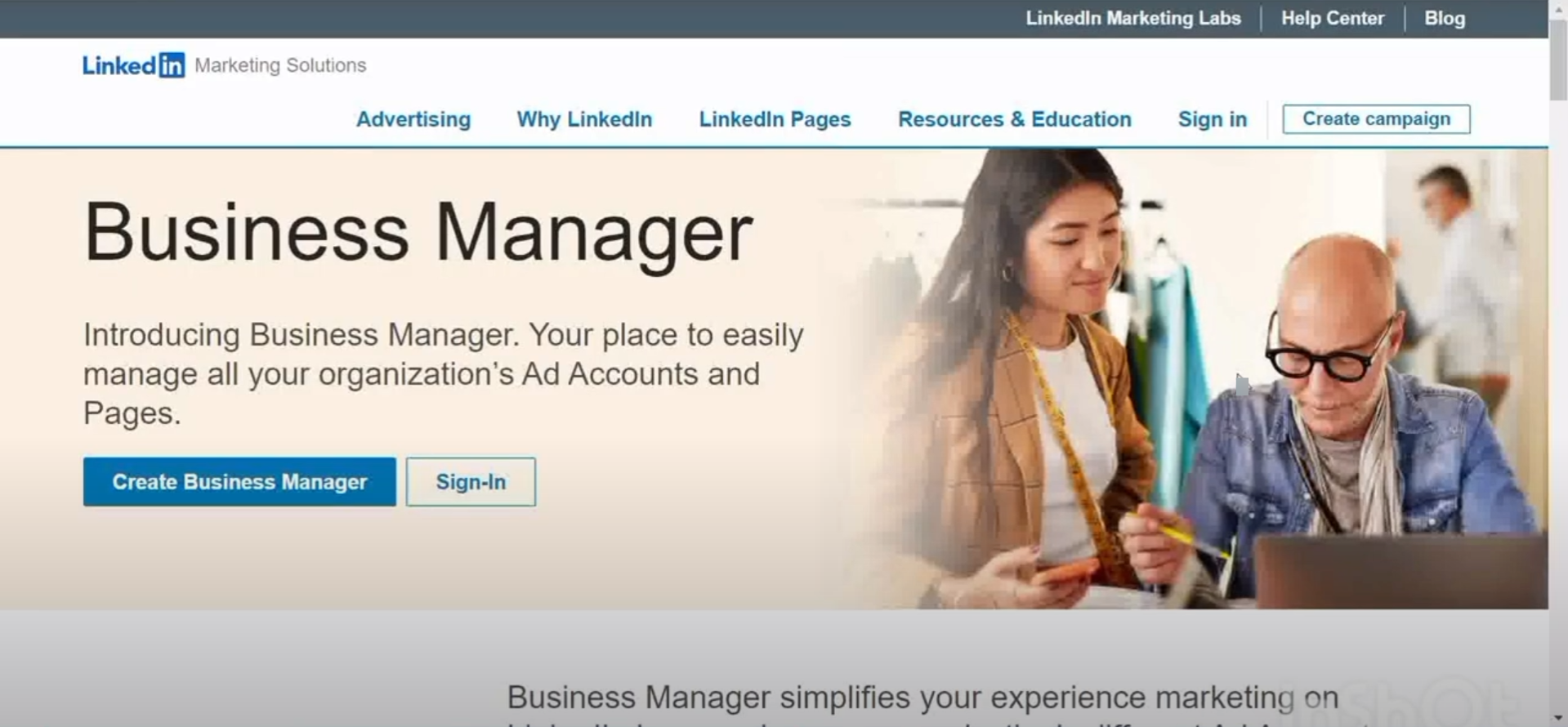
How to Set Up LinkedIn Business Manager: step-by-step guide
Click 'Create Business Manager'.
Enter the official name of your business.
Use a business email that can be used for communications.
Click 'Create'.
Go to your email and open the email from LinkedIn. Click 'Accept invitation'.
Select 'Agree & Confirm'.
Click 'Open Business Manager'.
Go to the 'Accounts' tab and select 'Pages'.
Click 'Add page'.
Select 'Add page'.
Search for a page to add in the empty field and click on it.
Agree to the terms by checking the checkbox.
After checking the box, click 'Add'.
Go to 'Accounts' and select 'Ad Accounts'.
Click 'Add accounts'.
Choose to 'Claim Ownership' to an ad account.
Enter the account name or ID and follow the verification steps. Click 'Add'.
Once the ad account has been added, click 'Got it'.
Navigate to the 'Partners' tab.
Enter the Business Manage ID and click 'Add partner'.
Quick answer: To set up your account on LinkedIn, click Create Business Manager, enter your business details, and verify via email. Then, navigate to the Accounts tab to add pages and ad accounts by searching and confirming ownership, and finally, add partners using their Business Manage ID in the Partners tab.
About this LinkedIn tutorial
Establish your LinkedIn Business Manager by creating your account, linking pages and ad accounts, and adding partners with these straightforward steps. This guide shows how to set Up LinkedIn Business Manager in 20 steps, starting with "Click 'Create Business Manager'" and finishing with "Enter the Business Manage ID and click 'Add partner'". The interactive demo above is a click-through copy of the real LinkedIn interface, so you can rehearse each step before doing it in your own account.
Frequently asked questions
How many steps does it take to set Up LinkedIn Business Manager?
20 steps. Each one is listed in order above, and the demo highlights exactly where to click.
Can I try it without changing my own account?
Yes. Clicking through the demo doesn't touch your LinkedIn data or settings. Once you know the flow, repeat it in your own workspace.
This tutorial is filed under LinkedIn. Related guides: How to Set Up LinkedIn Campaign Manager, How to Share LinkedIn Profile and How to Stop LinkedIn Connection Requests. Last reviewed 05 Oct 2026.

Create your first interactive demo in minutes
No credit card required • Start building today