How to Use Wrike for Project Management
- George Apostolov
How to Use Wrike for Project Management: step-by-step guide
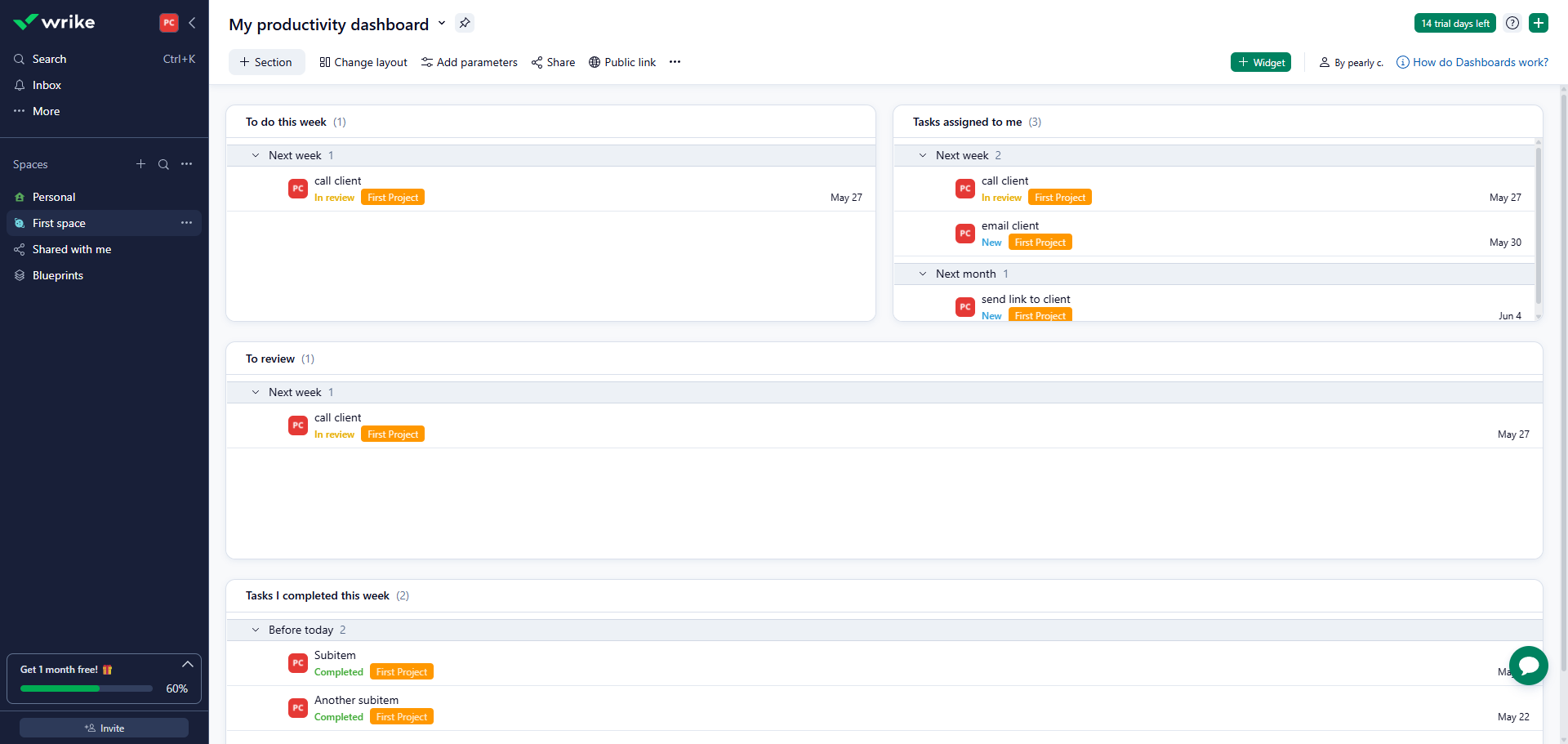
Begin by exploring your first workspace, where all your projects and team collaboration happen.
Inside each space, create 'Projects' and 'Folders' for different initiatives or categories.
Set up your first task to start breaking down project deliverables.
Break down complex work with subtasks for better progress tracking.
Create a subtask to manage specific components of the email client.
Delegate responsibilities to team members for clear ownership.
Confirm task details to notify assignees and update your project plan.
Sort your task view by date to visualize upcoming deadlines.
Expand your project with additional tasks for comprehensive coverage.
Customize task details to match your team's specific workflow needs.
Add another task to build out your complete project roadmap.
View all tasks to get a comprehensive overview of your project status.
Switch to 'Gantt chart' view to visualize project timelines and dependencies.
Adjust timeline dependencies to optimize your project schedule.
Incorporate comments to facilitate discussion and feedback on deliverables.
Click 'Send' to share your update to keep stakeholders informed of project progress.
Mention specific users to ensure they're notified about this update.
Click 'Add files' to attach relevant documents to provide context and resources.
Click 'Share' to share project progress with clients for transparent communication.
Generate a shareable link for quick project access across teams and click 'Copy link'.
Quick answer: To use Wrike for project management, begin by exploring your workspace, creating projects and folders, setting up tasks and subtasks, delegating responsibilities, sorting by date, switching to Gantt chart view, adjusting dependencies, incorporating comments, attaching files, and sharing project progress.
About this tutorial
Manage projects efficiently in the app by organizing tasks, tracking timelines with Gantt charts, collaborating via comments, and sharing updates. This guide shows how to use Wrike for Project Management in 20 steps, starting with "Begin by exploring your first workspace, where all your projects and team collaboration..." and finishing with "Generate a shareable link for quick project access across teams and click 'Copy link'". The interactive demo above is a click-through copy of the real product interface, so you can rehearse each step before doing it in your own account.
Frequently asked questions
How many steps does it take to use Wrike for Project Management?
20 steps. Each one is listed in order above, and the demo highlights exactly where to click.
Can I try it without changing my own account?
Yes. Clicking through the demo doesn't touch your data or settings. Once you know the flow, repeat it in your own workspace.

Create your first interactive demo in minutes
No credit card required • Start building today