How To Use Zendesk
- George Apostolov
How To Use Zendesk: step-by-step guide
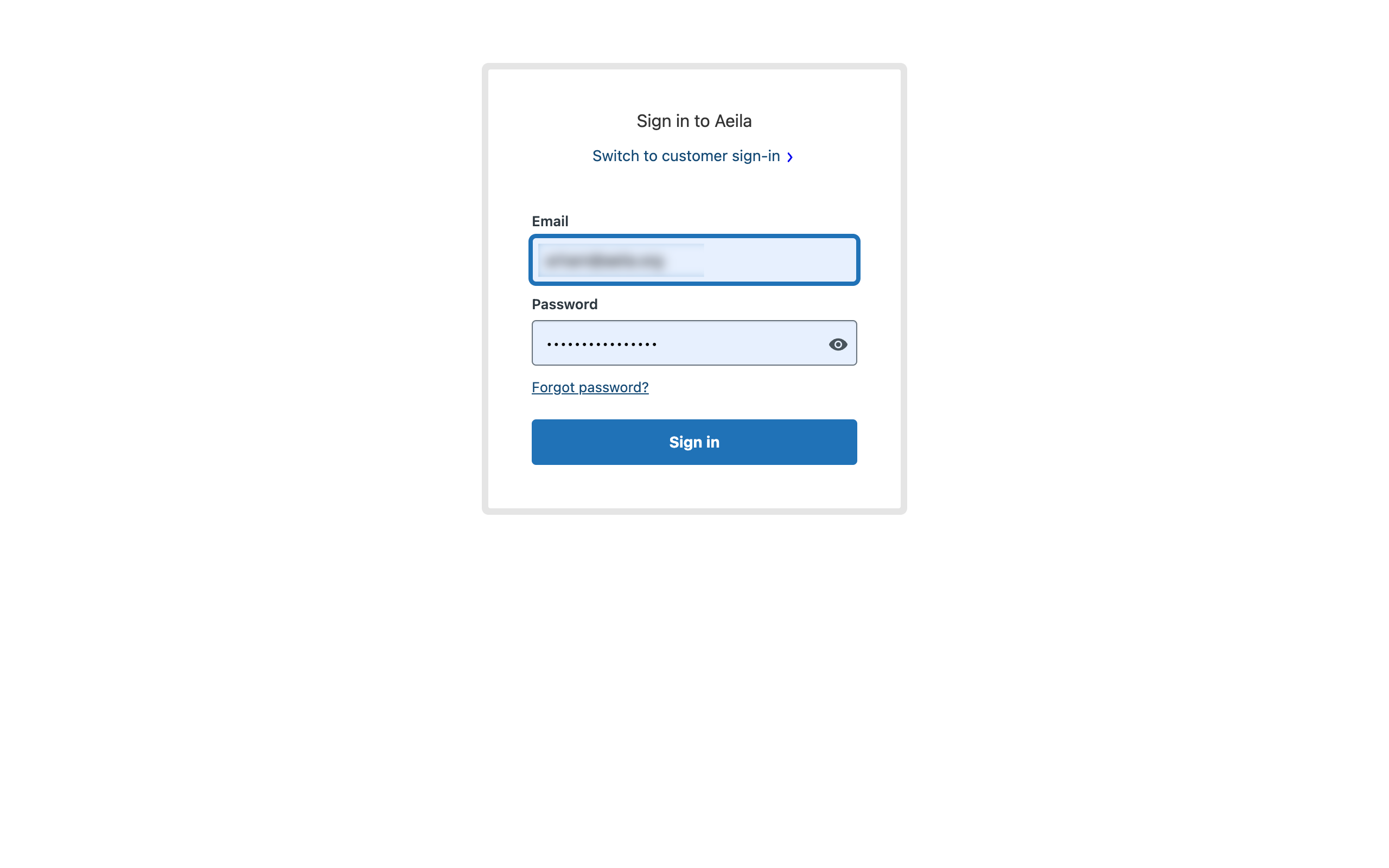
Begin by creating an account and signing in.
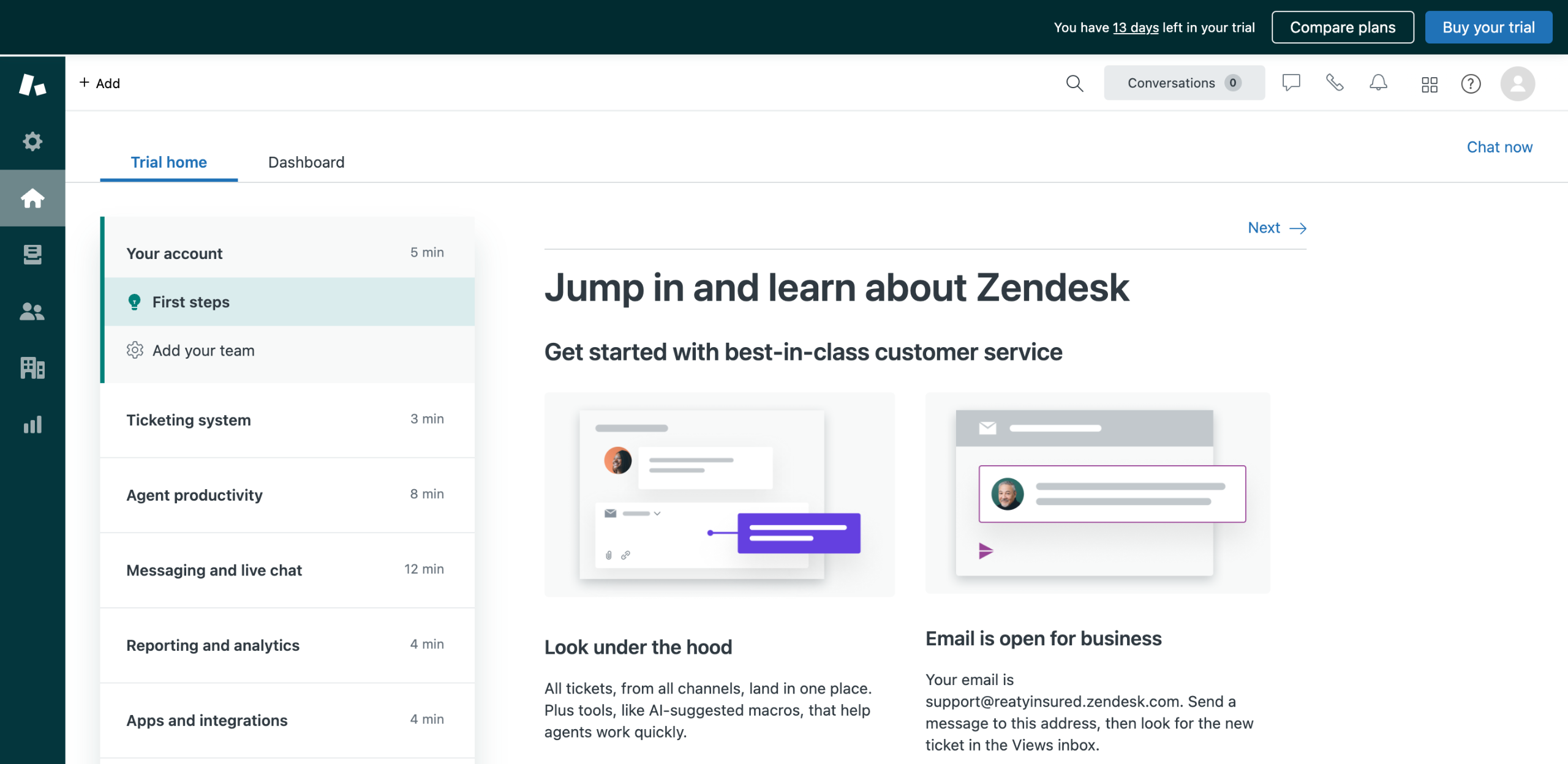
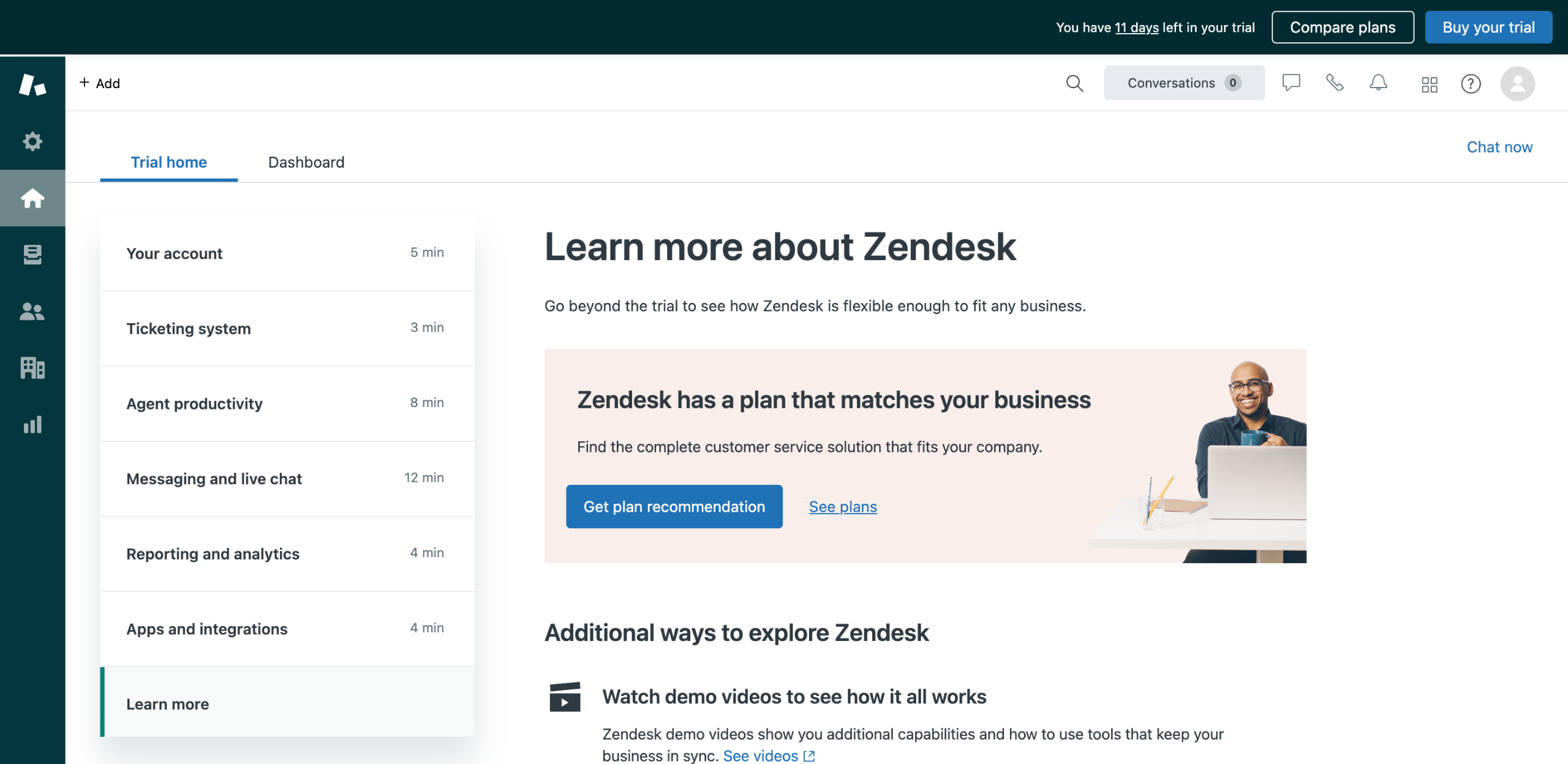
On a new account you will be immediately met with a guide with all the basics of Zendesk, go through it for an overview.
Your left sidebar will contain tabs for different sections, the people icon is for Users.
You will find a complete list of all your current users here. Click to view details.
Additional details will contain all the information related to this user such as Tickets, Contact, etc.
Back on the sidebar, the building icon is for Organizations.
These are the organizations currently added to your account, if you add more you can manage multiple at the same time!
The icon below the Home is for Views.
This page allows you to view all your items using views or filters to quickly find or sort the relevant ones.
The graph icon is for Reports which utilizes tools to create insights and reports about your organization. And the icon is simply the Settings.
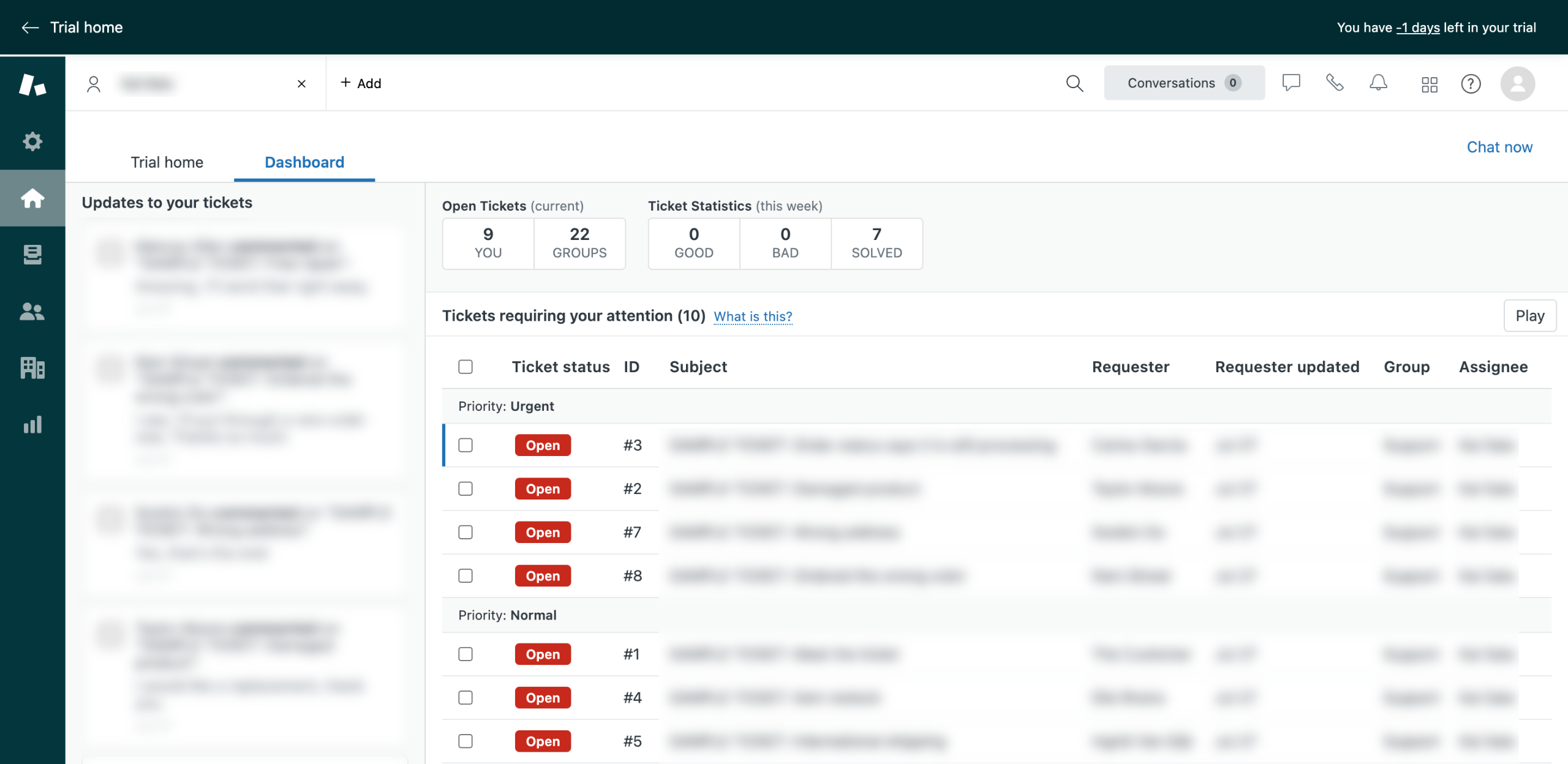
Back on your homepage, you will find a dashboard tab.
The dashboard contains important tickets and items that require you attention.
Additionally if you ever need more help or guides about certain things, go to the Profile Icon on the top right.
You can quickly access multiple options for help via the menu.
Or directly click on the (?) icon.
Which you can use to search for guides and videos on any topic. And with that you can get started on using Zendesk and learning more!
Quick answer: To use Zendesk, create an account, review the initial basics guide, and navigate the left sidebar to manage users, organizations, views, and reports. Check the homepage dashboard for important tickets, and use the profile or question icon in the top right to access help, guides, and videos.
About this Zendesk tutorial
Master Zendesk basics by managing users, viewing organizations, organizing items, checking the dashboard, and finding guides. This guide shows how to use Zendesk in 16 steps, starting with "Begin by creating an account and signing in" and finishing with "Which you can use to search for guides and videos on any topic. And with that you can g...". The interactive demo above is a click-through copy of the real Zendesk interface, so you can rehearse each step before doing it in your own account.
Frequently asked questions
How many steps does it take to use Zendesk?
16 steps. Each one is listed in order above, and the demo highlights exactly where to click.
Can I try it without changing my own account?
Yes. Clicking through the demo doesn't touch your Zendesk data or settings. Once you know the flow, repeat it in your own workspace.
This tutorial is filed under Zendesk. Related guides: How to Whitelist an Email Address in Zendesk, Integrate Zendesk customer support with Zapier workflows and Klaviyo Zendesk Integration. Last reviewed 05 Oct 2026.

Create your first interactive demo in minutes
No credit card required • Start building today