How to Use Xero for Small Businesses
- George Apostolov
How to Use Xero for Small Businesses: step-by-step guide
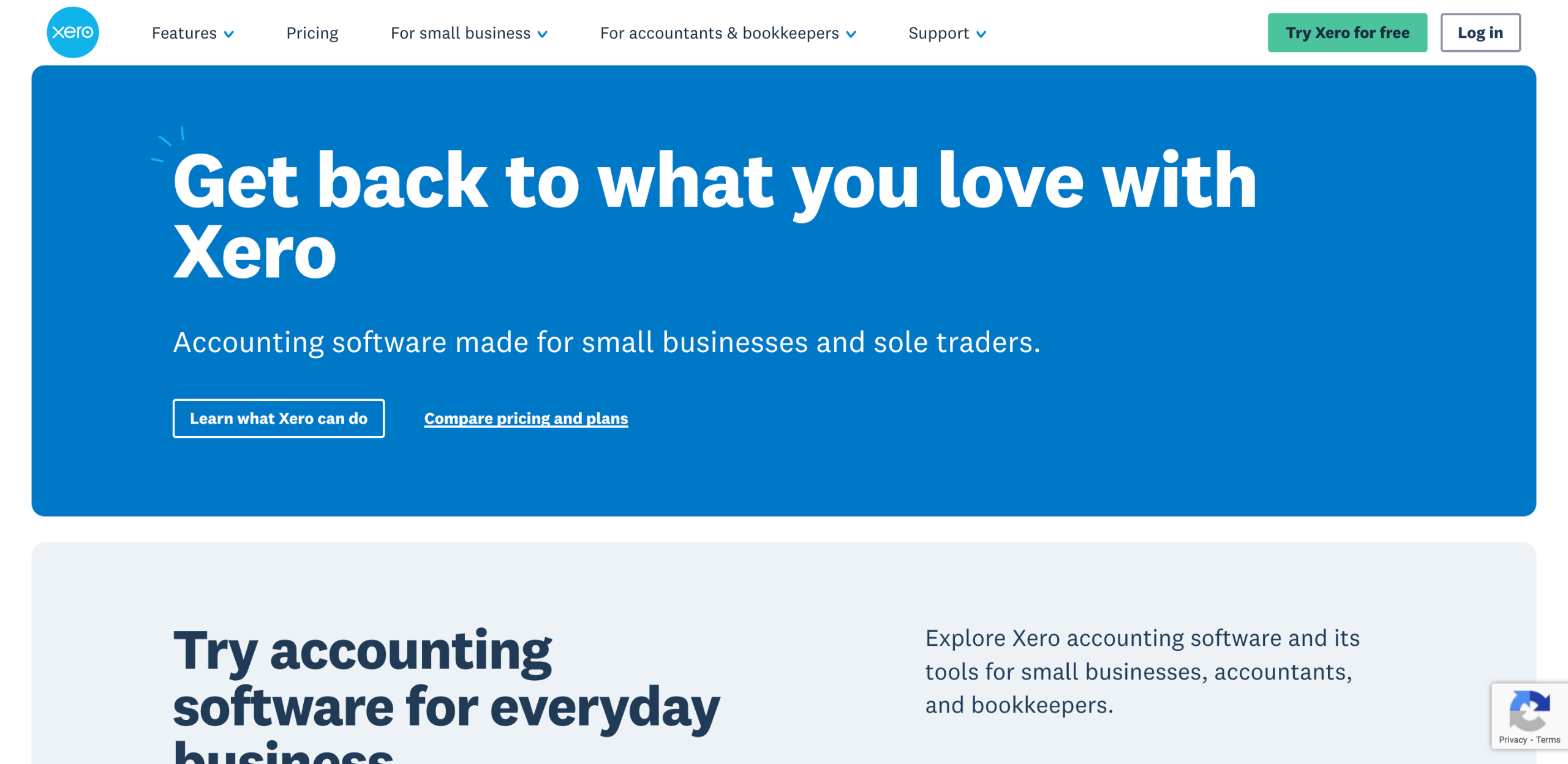
On Xero's main web page, go to the top-right corner and click 'Try Xero For Free'.
After that, provide the required information to create a Xero account. Enter them one by one into their respective input fields.
Once done, review your input and click 'Next: Confirmation'.
Open the confirmation email sent by Xero, then tap the 'Yes, It's Me- Let's Get Started' button inside.
Subsequently, enter your preferred password into the provided input field and click 'Activate Your Account'.
Fill out the input fields with the required information related to your business.
Once done, review your input and click 'Start Trial'.
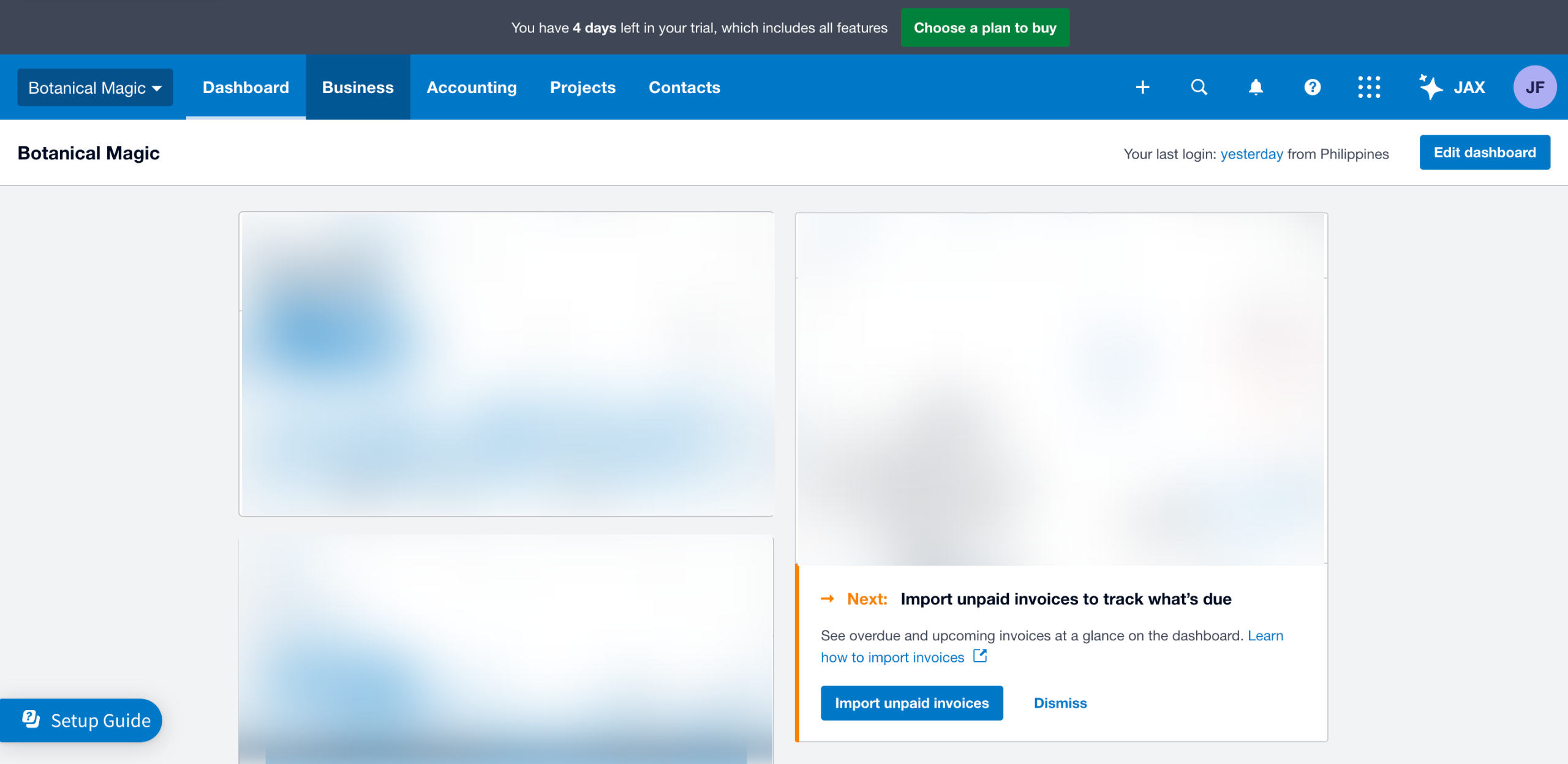
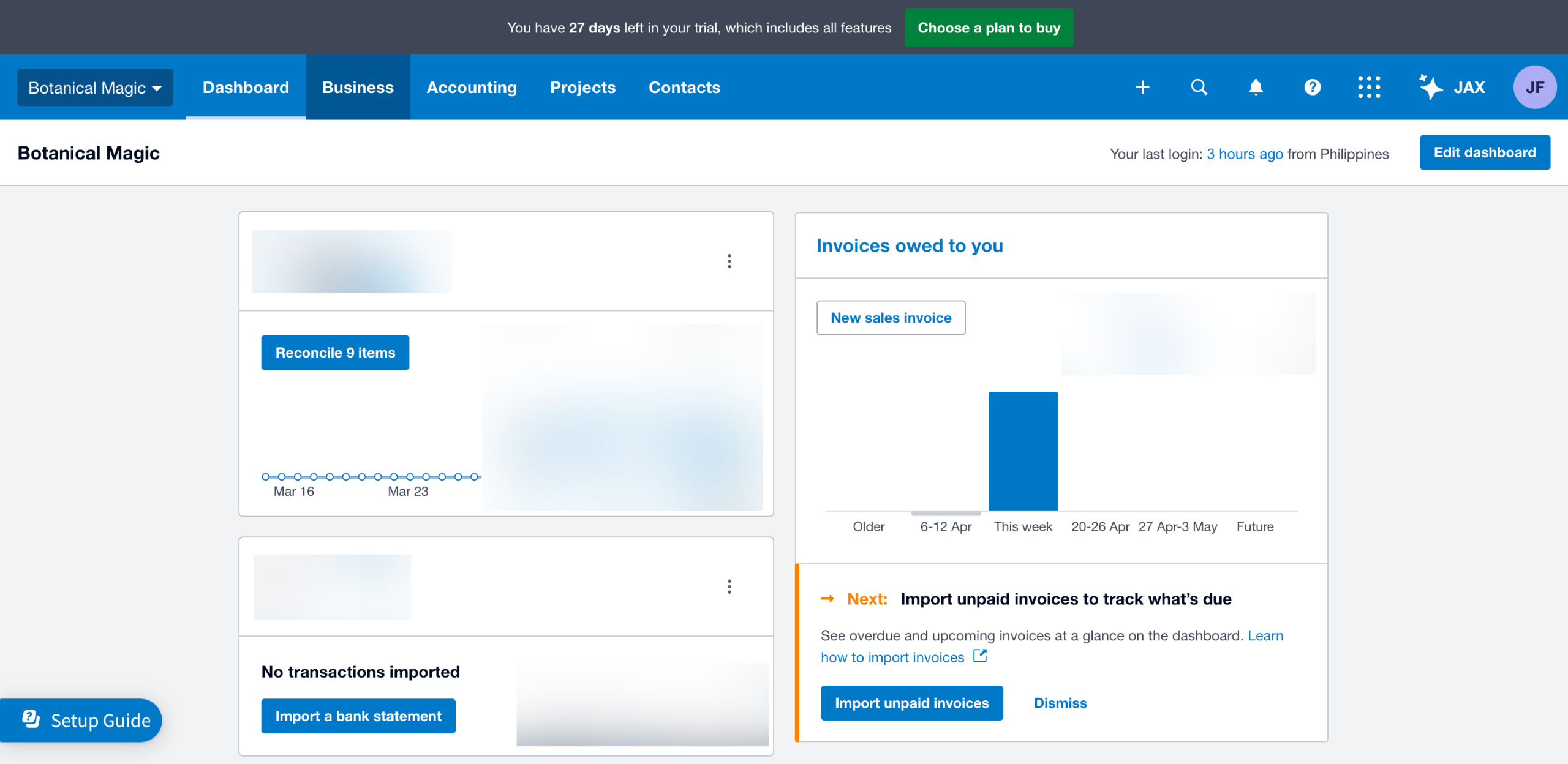
After completing these steps, your new Xero account will be activated instantly. You can now use its features to manage the financial records of your small business.
Quick answer: To use Xero for small businesses, sign up for a free trial on the website, create your account, and confirm via email. Next, set your password, enter your business details, and start the trial to immediately activate your account and access financial management features.
About this Xero tutorial
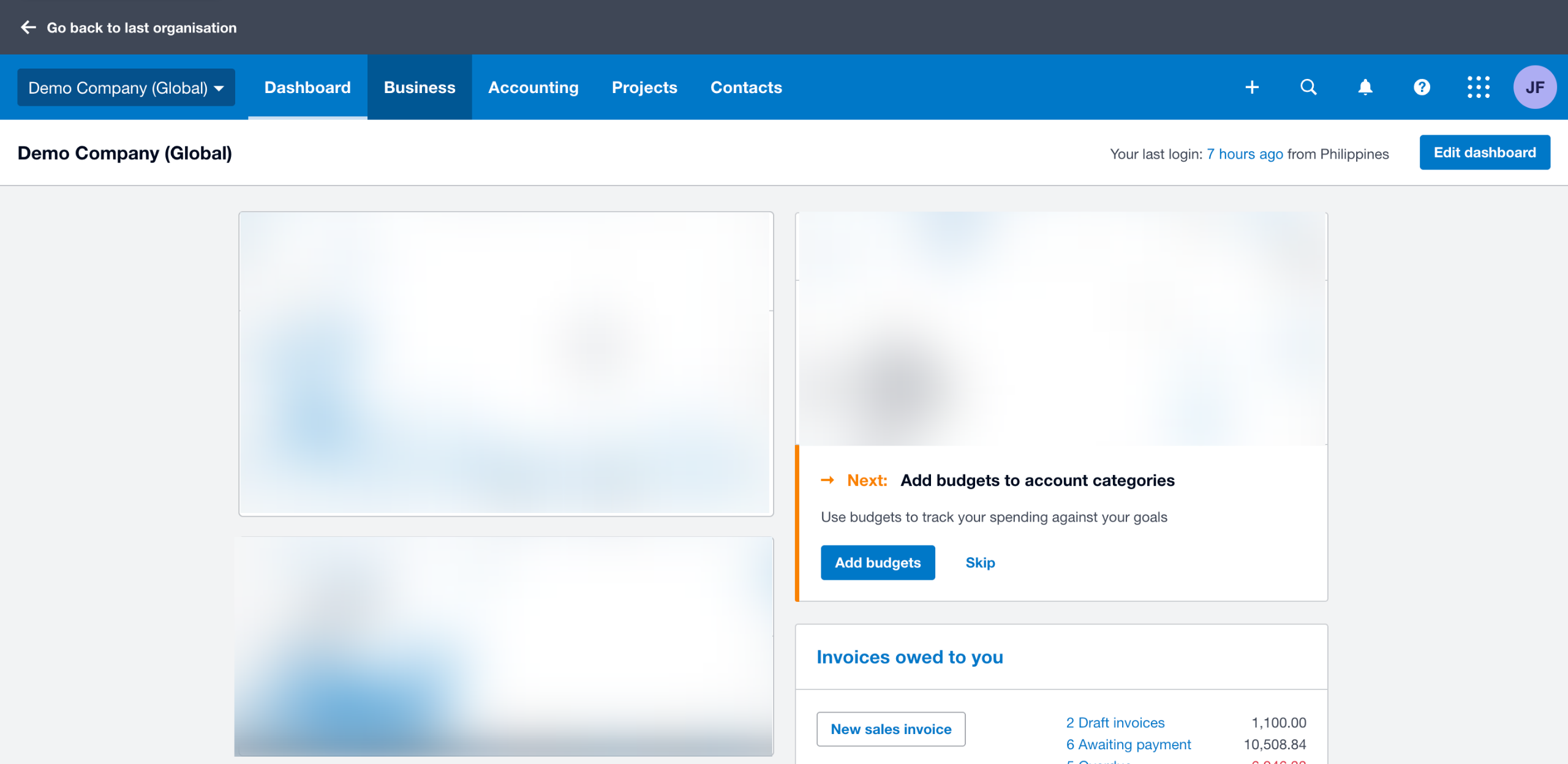
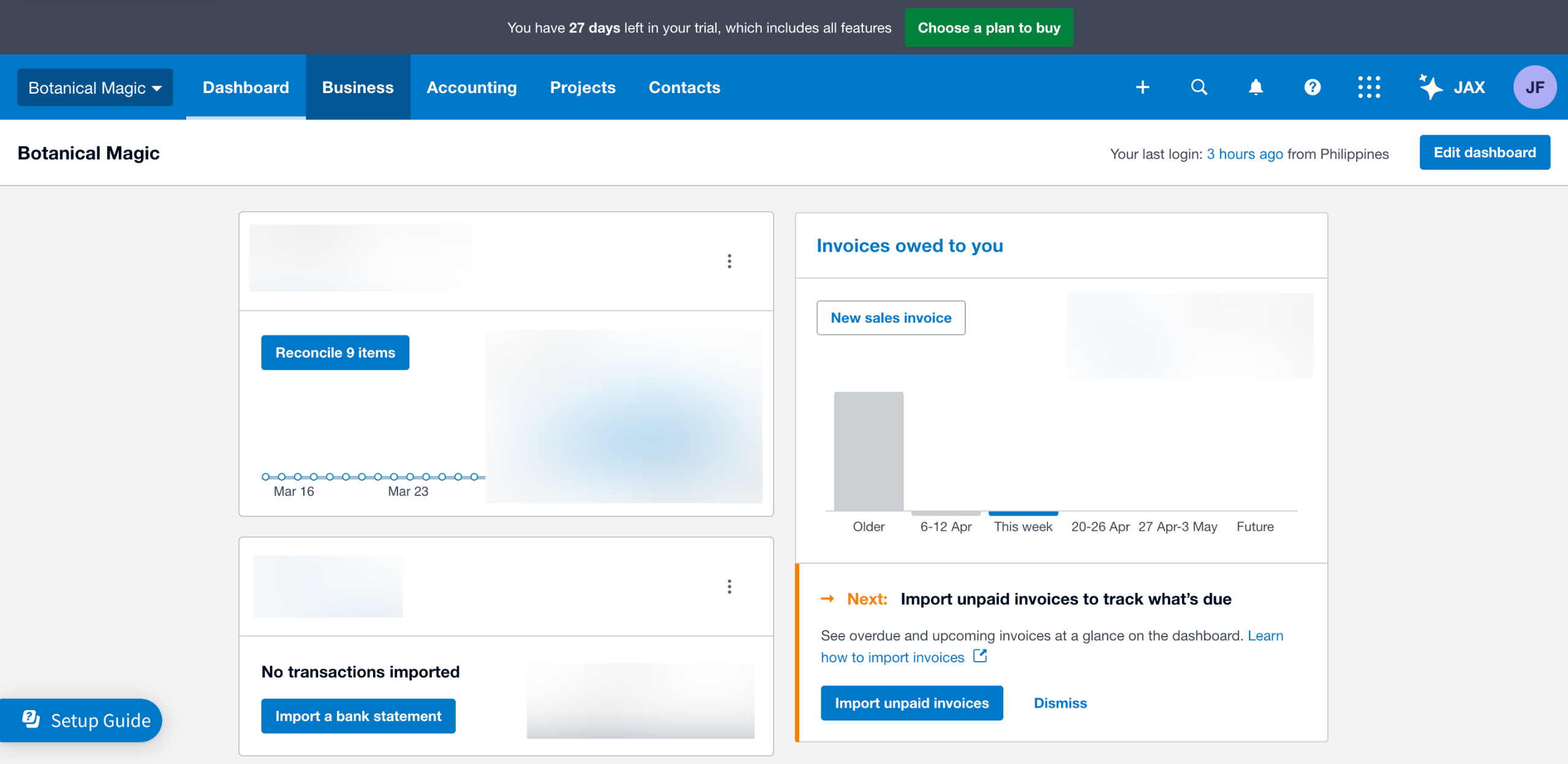
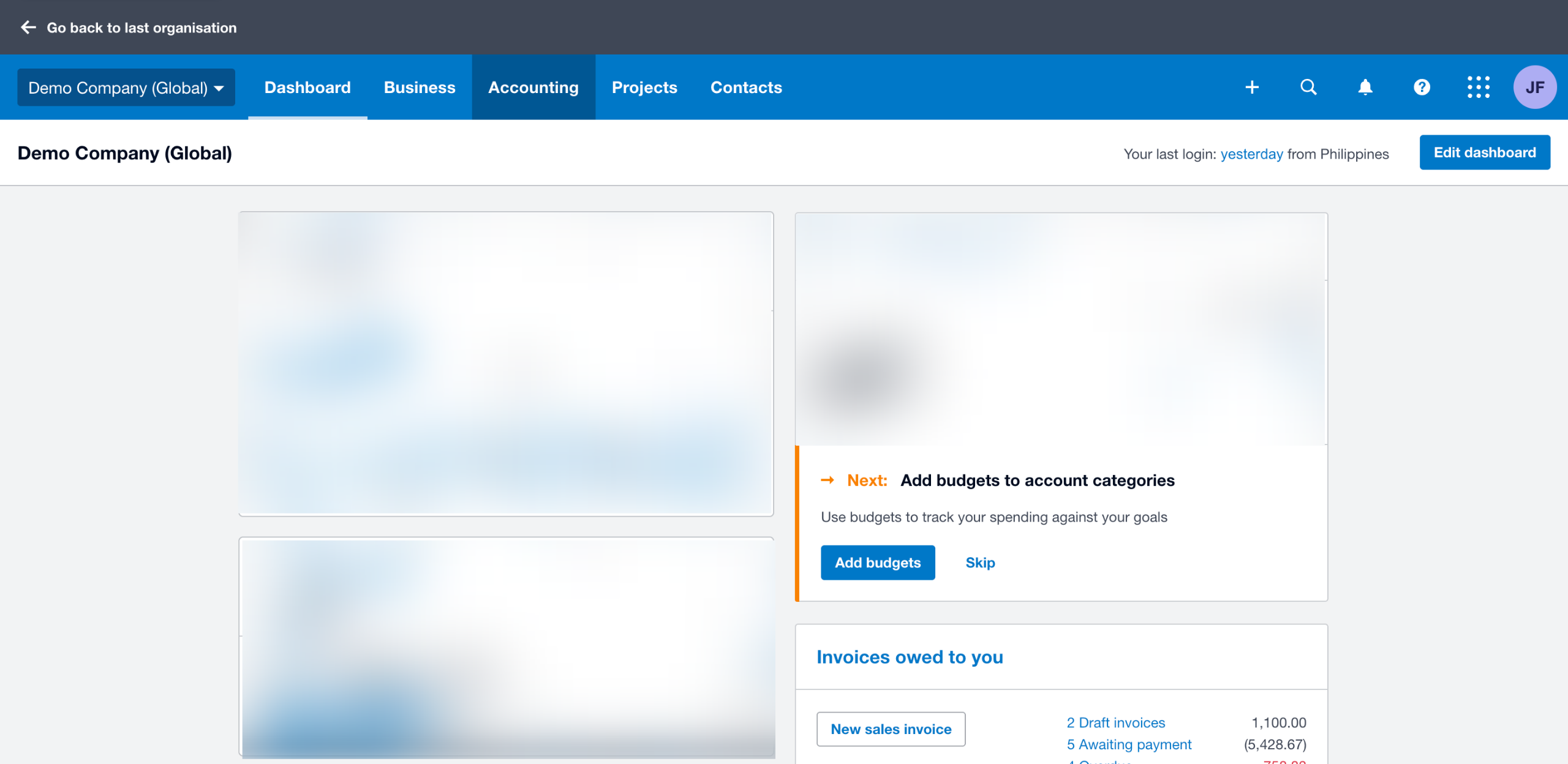
Activate your Xero account by signing up, confirming via email, and entering your business details to start managing your financial records. This guide shows how to use Xero for Small Businesses in 8 steps, starting with "On Xero's main web page, go to the top-right corner and click 'Try Xero For Free'" and finishing with "After completing these steps, your new Xero account will be activated instantly. You ca...". The interactive demo above is a click-through copy of the real Xero interface, so you can rehearse each step before doing it in your own account.
Frequently asked questions
How many steps does it take to use Xero for Small Businesses?
8 steps. Each one is listed in order above, and the demo highlights exactly where to click.
Can I try it without changing my own account?
Yes. Clicking through the demo doesn't touch your Xero data or settings. Once you know the flow, repeat it in your own workspace.
This tutorial is filed under Xero. Related guides: How to View the Voided Invoices in Xero, How to Write Off a Bad Debt in Xero and How to Write Off Accounts Payable in Xero. Last reviewed 05 Oct 2026.

Create your first interactive demo in minutes
No credit card required • Start building today