How to Bulk Add Tags to Existing Contacts Keap
- George Apostolov
This guide is an interactive LiveDemo. Create interactive demos of your own product: Interactive demo software · Interactive customer onboarding guides · Start free
How to Bulk Add Tags to Existing Contacts Keap: step-by-step guide
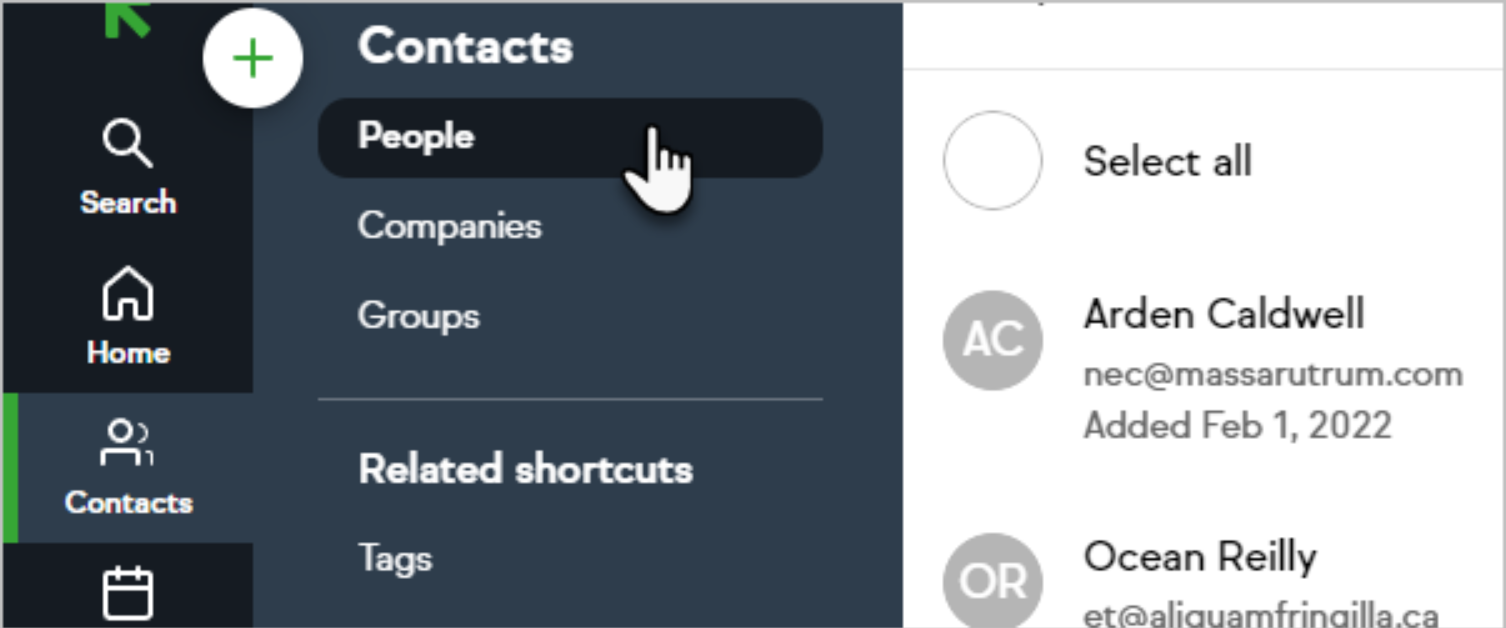
From the left-hand menu, click on 'Contacts' and select 'People'.
From the 'Contacts' page, click 'Select all'.
Click 'Tag' at the bottom of the screen.
Choose the tag you want to add.
Click 'Apply Tag'.
Quick answer: To bulk add tags to existing contacts in Keap, click Contacts and select People from the left-hand menu. Next, click Select all on the Contacts page, select Tag at the bottom of the screen, and choose the tag you want to add. Finally, click Apply Tag.
About this tutorial
Apply tags to multiple contacts at once in the app by selecting everyone, choosing your tag, and applying it with just a few clicks. This guide shows how to bulk Add Tags to Existing Contacts Keap in 5 steps, starting with "From the left-hand menu, click on 'Contacts' and select 'People'" and finishing with "Click 'Apply Tag'". The interactive demo above is a click-through copy of the real product interface, so you can rehearse each step before doing it in your own account.
Frequently asked questions
How many steps does it take to bulk Add Tags to Existing Contacts Keap?
5 steps. Each one is listed in order above, and the demo highlights exactly where to click.
Can I try it without changing my own account?
Yes. Clicking through the demo doesn't touch your data or settings. Once you know the flow, repeat it in your own workspace.

Create your first interactive demo in minutes
No credit card required • Start building today