How to Create Headings in SurveyMonkey
- George Apostolov
How to Create Headings in SurveyMonkey: step-by-step guide
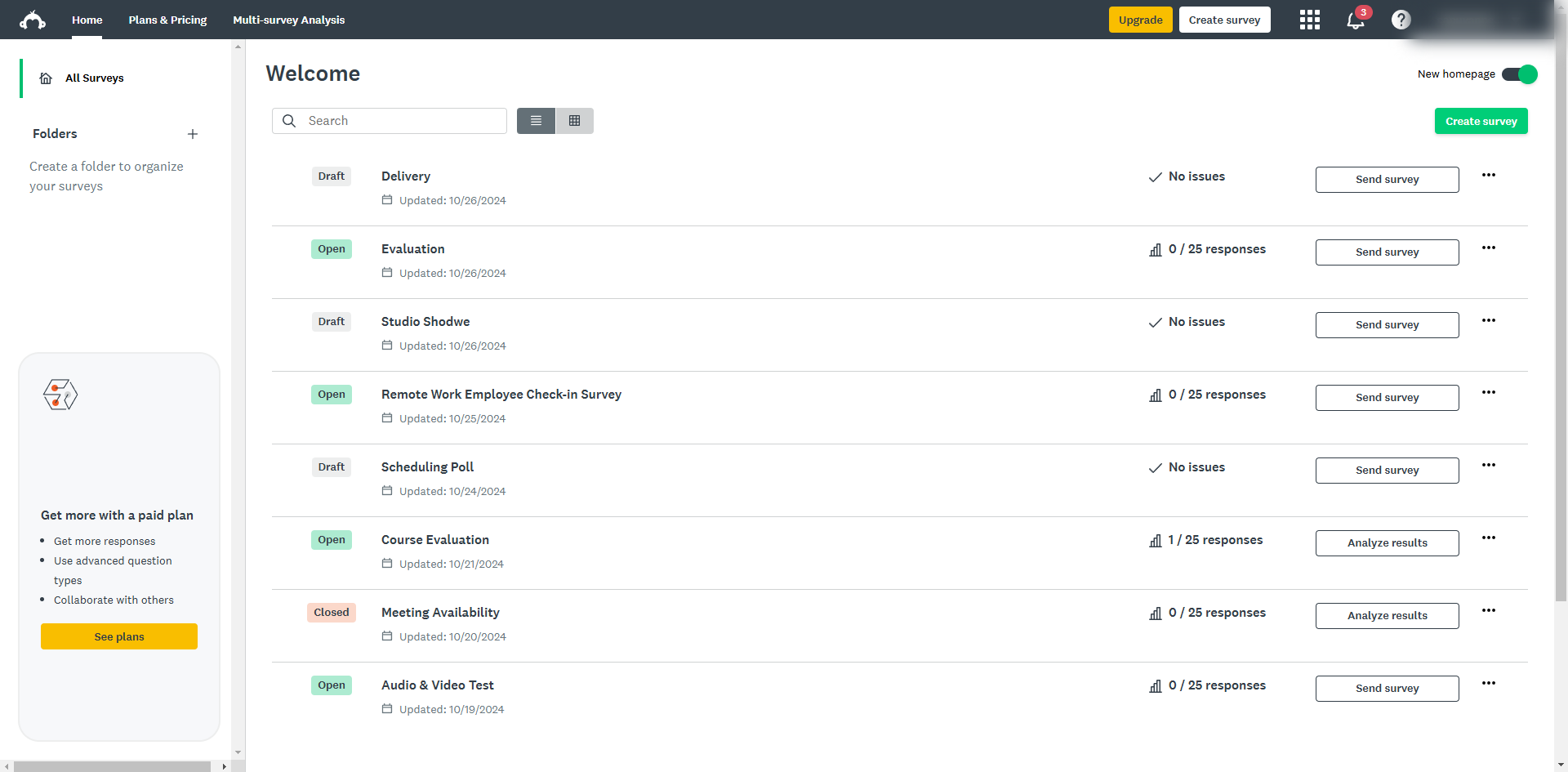
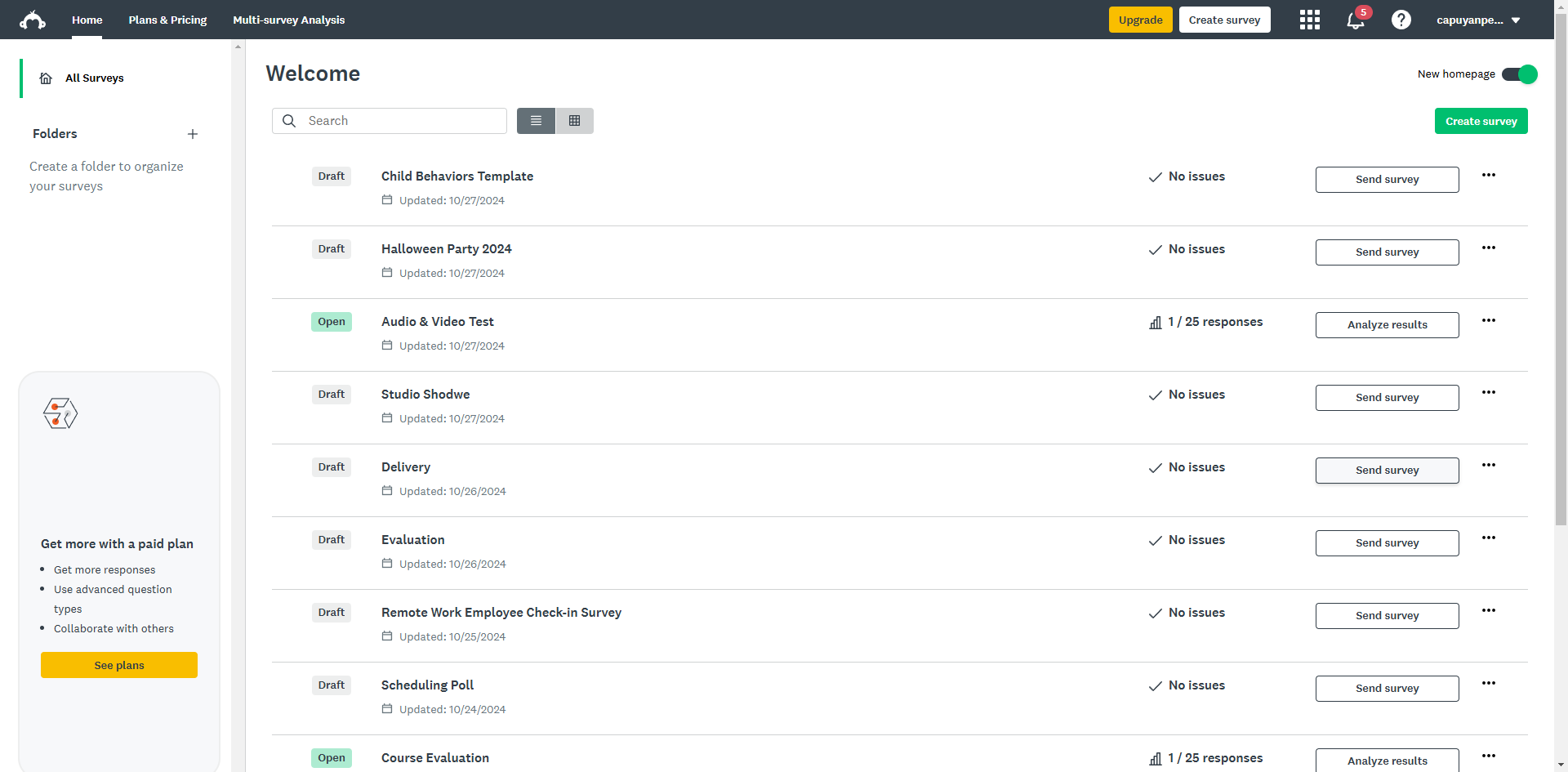
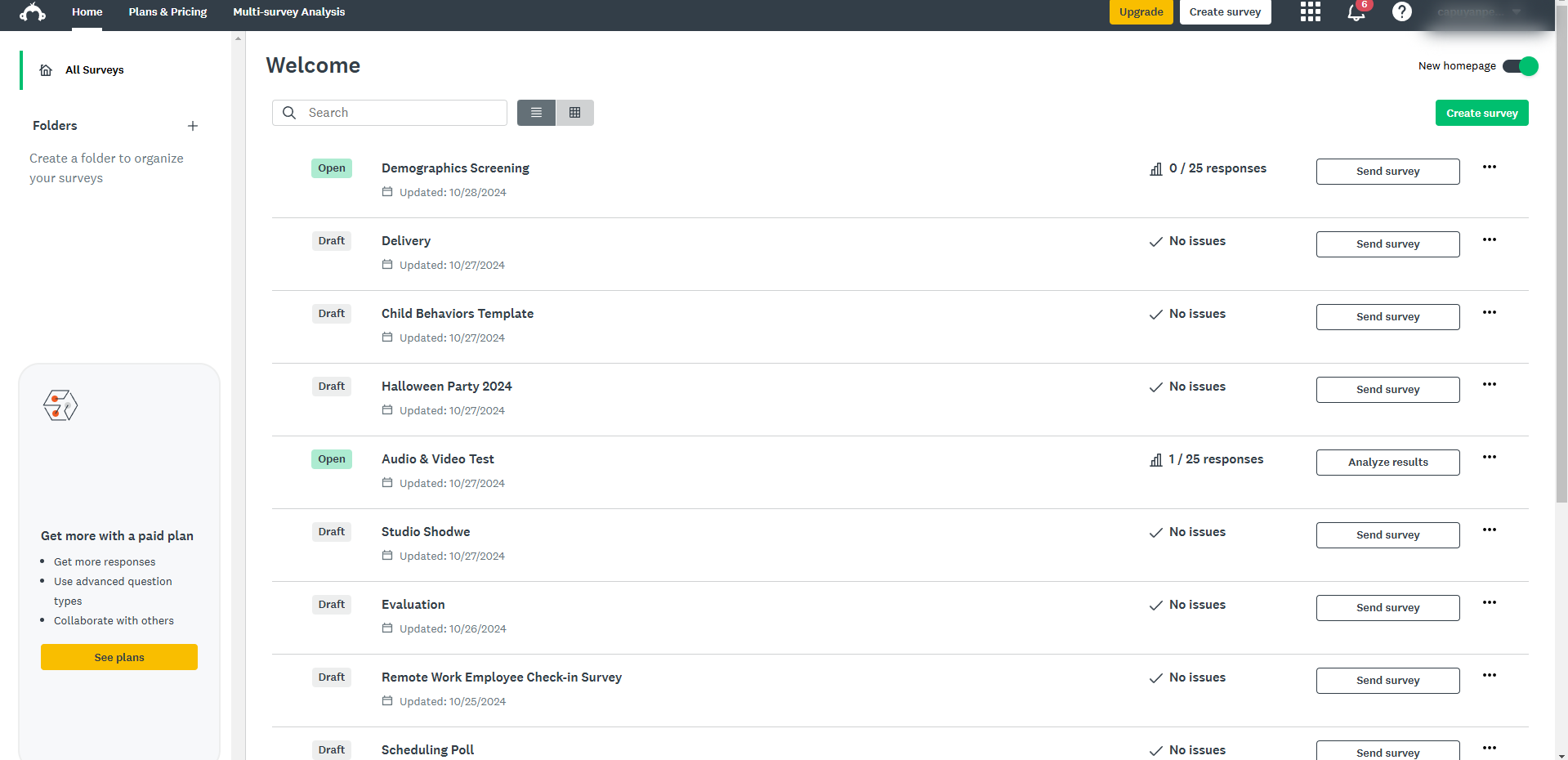
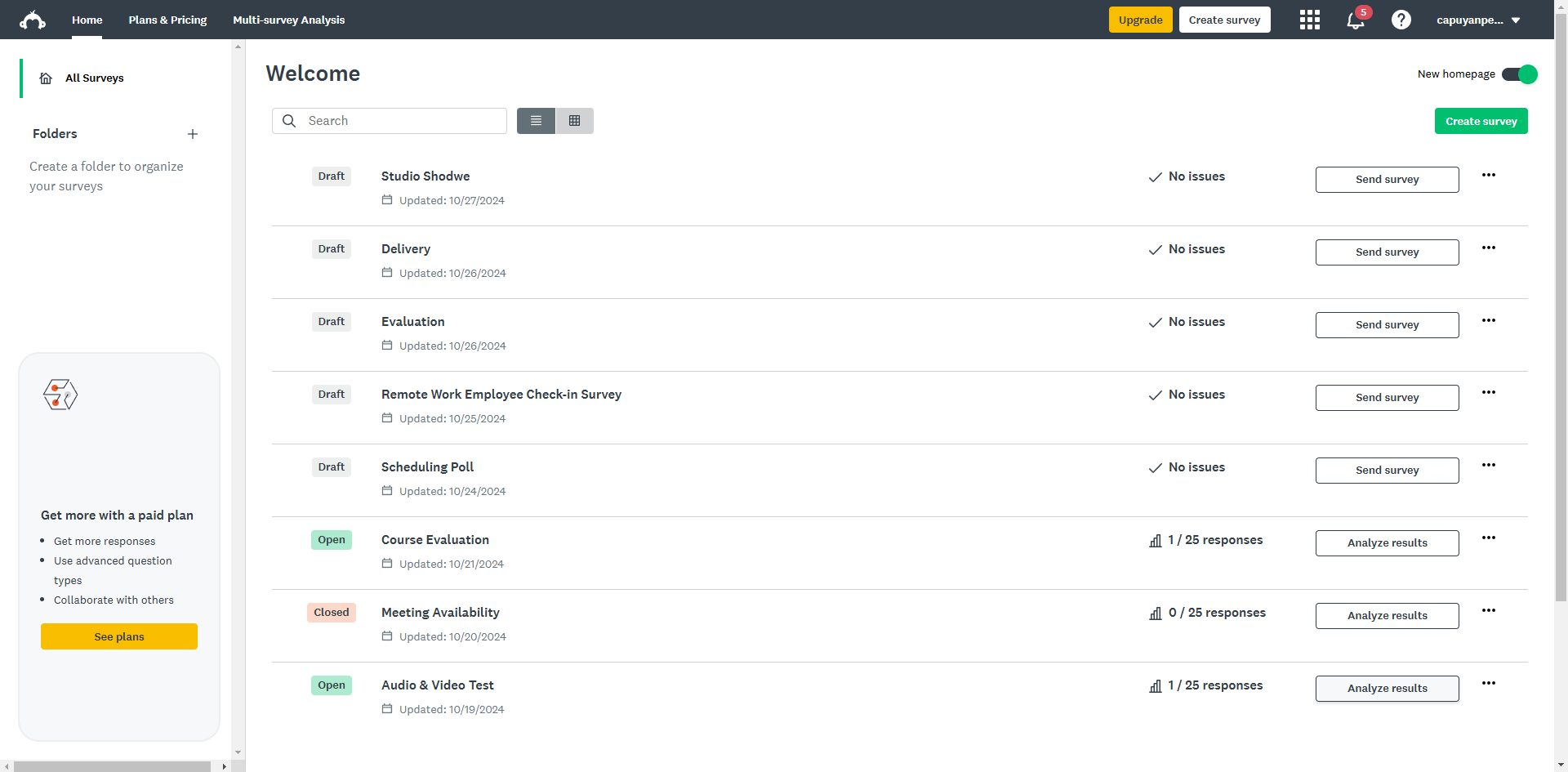
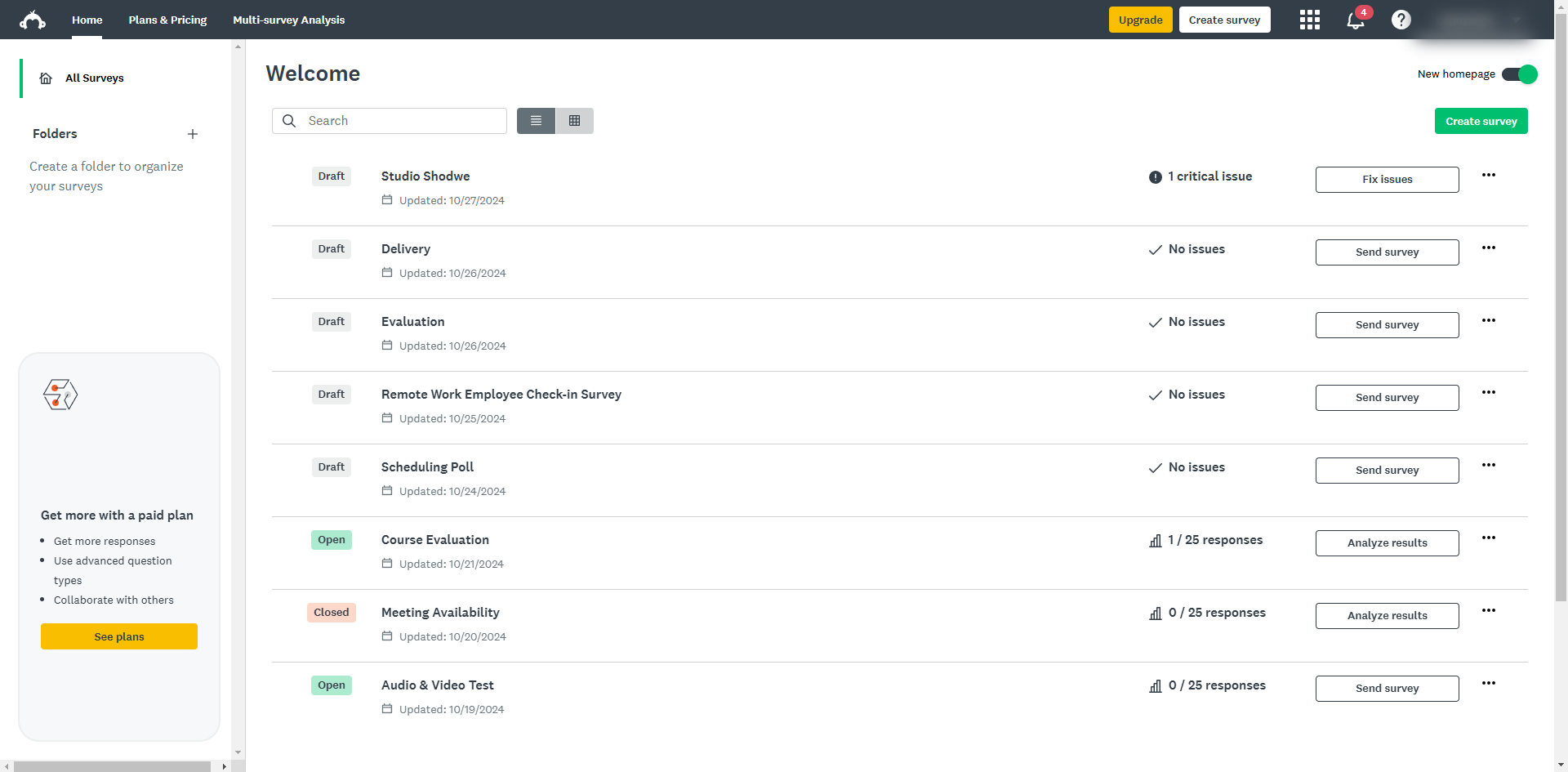
Navigate to your desired survey and click on the ellipsis icon next to the survey title.
From the drop-down menu, select 'Edit survey'.
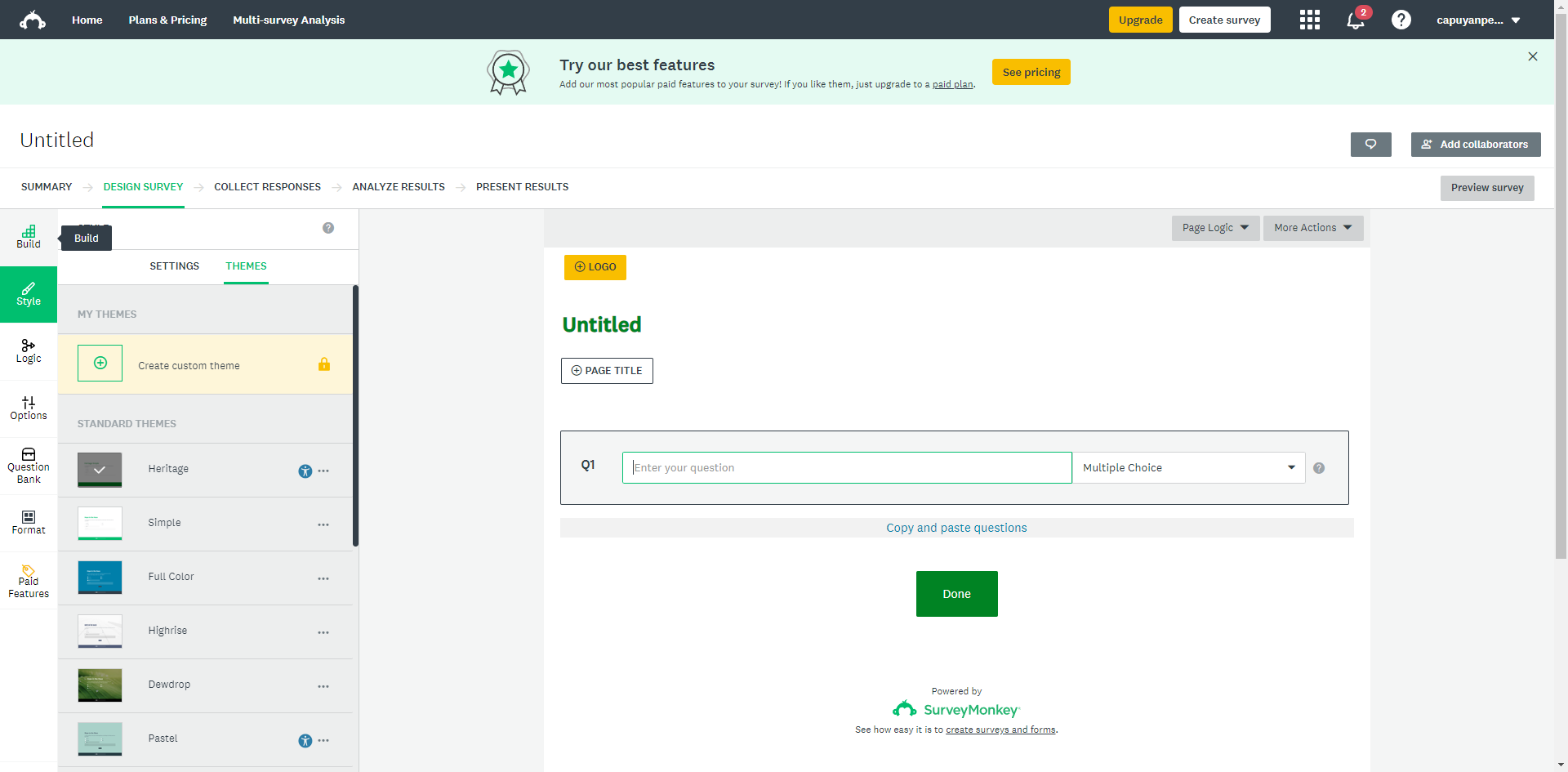
In the 'Design Survey' section, navigate to 'Options' from the side menu bar.
Look for the 'Page title' option and slide it to the right to enable the option.
Once the page title has been added, click 'Edit'.
In the 'Page title' field, enter your heading.
Highlight the heading.
For headings, you might use 'Bold or Uppercase Text' to make them more prominent using the 'Rich text Editor'.
Once you have entered and formatted your heading, click 'Save' to add it to your survey.
Click 'Preview survey'.
That's it! By following these steps, creating headings with clear sections can significantly improve the user experience for your survey respondents!
Quick answer: To create headings in SurveyMonkey, edit your survey, enable the page title option in the Design Survey section, enter your heading in the page title field, format it using the rich text editor, save it, and preview your survey.
About this SurveyMonkey tutorial
Improve your survey layout by adding clear headings. Follow this step-by-step guide to enable, format, and save page titles in SurveyMonkey. This guide shows how to create Headings in SurveyMonkey in 11 steps, starting with "Navigate to your desired survey and click on the ellipsis icon next to the survey title" and finishing with "That's it! By following these steps, creating headings with clear sections can signific...". The interactive demo above is a click-through copy of the real SurveyMonkey interface, so you can rehearse each step before doing it in your own account.
Frequently asked questions
How many steps does it take to create Headings in SurveyMonkey?
11 steps. Each one is listed in order above, and the demo highlights exactly where to click.
Can I try it without changing my own account?
Yes. Clicking through the demo doesn't touch your SurveyMonkey data or settings. Once you know the flow, repeat it in your own workspace.
This tutorial is filed under SurveyMonkey. Related guides: How to Create Net Promoter Score in SurveyMonkey, How to Create Survey on SurveyMonkey with Email Address Required and How to Create Survey on SurveyMonkey with Tracking Email. Last reviewed 05 Oct 2026.

Create your first interactive demo in minutes
No credit card required • Start building today