How to pin a team in teams?
- George Apostolov
This guide is an interactive LiveDemo. Create interactive demos of your own product: Interactive demo software · Interactive customer onboarding guides · Start free
How to pin a team in teams?: step-by-step guide
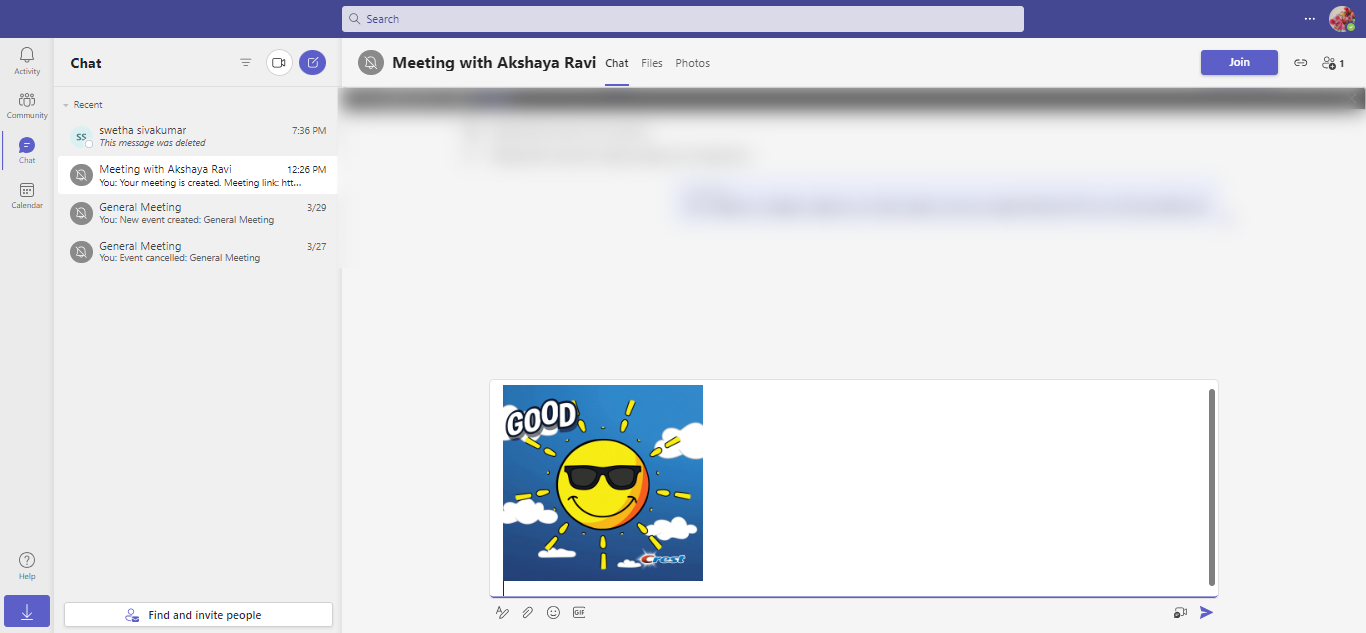
Click on the team you'd like to pin from the top
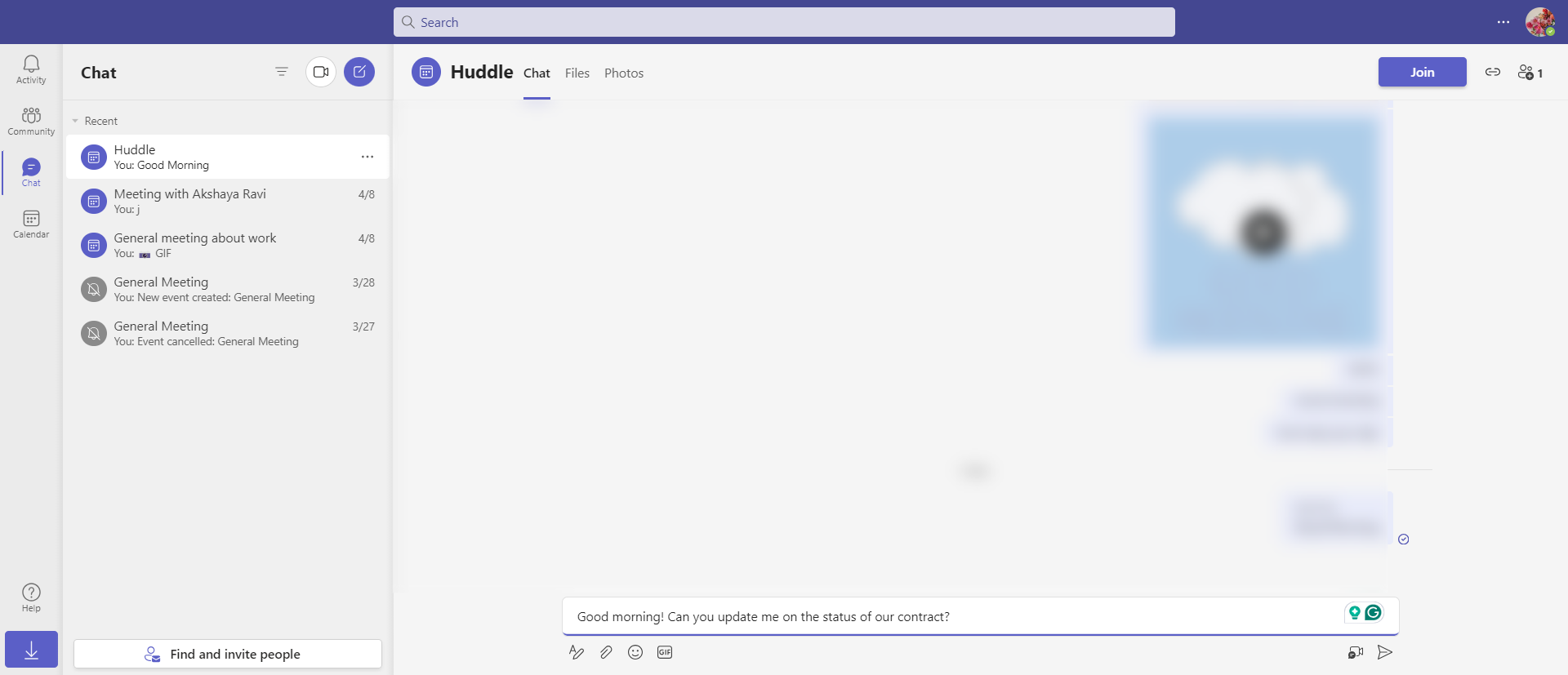
Click on 'More options'
Select the 'Pin' option
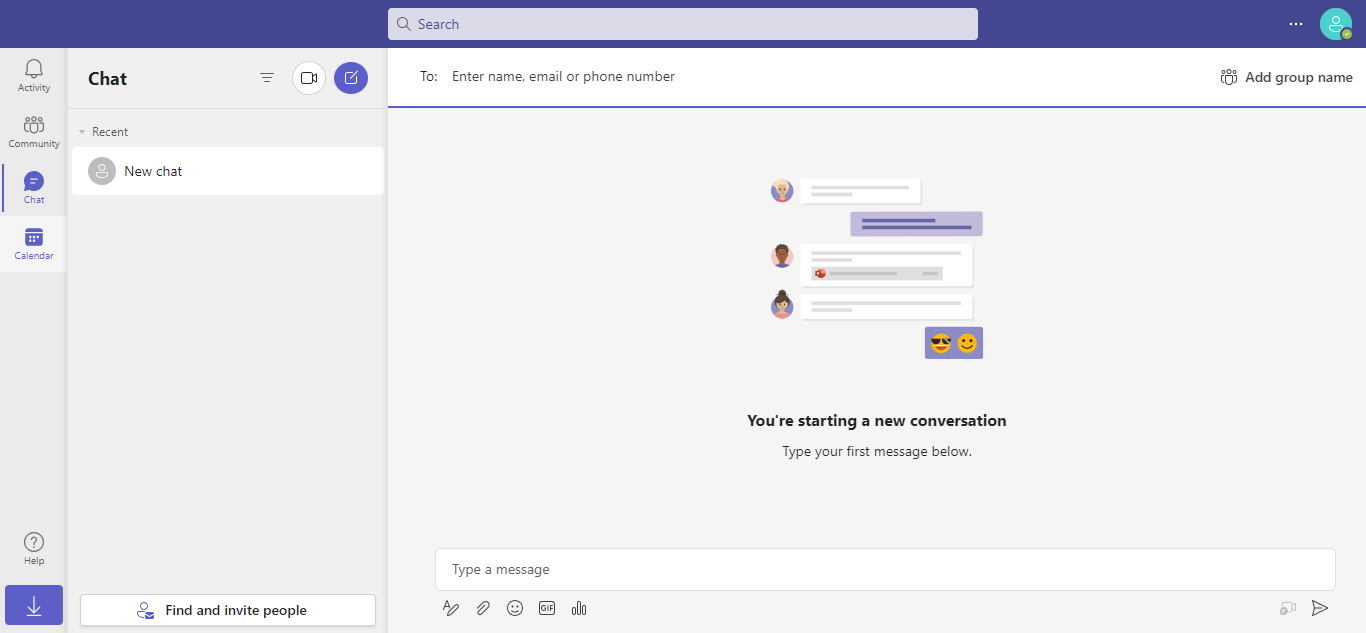
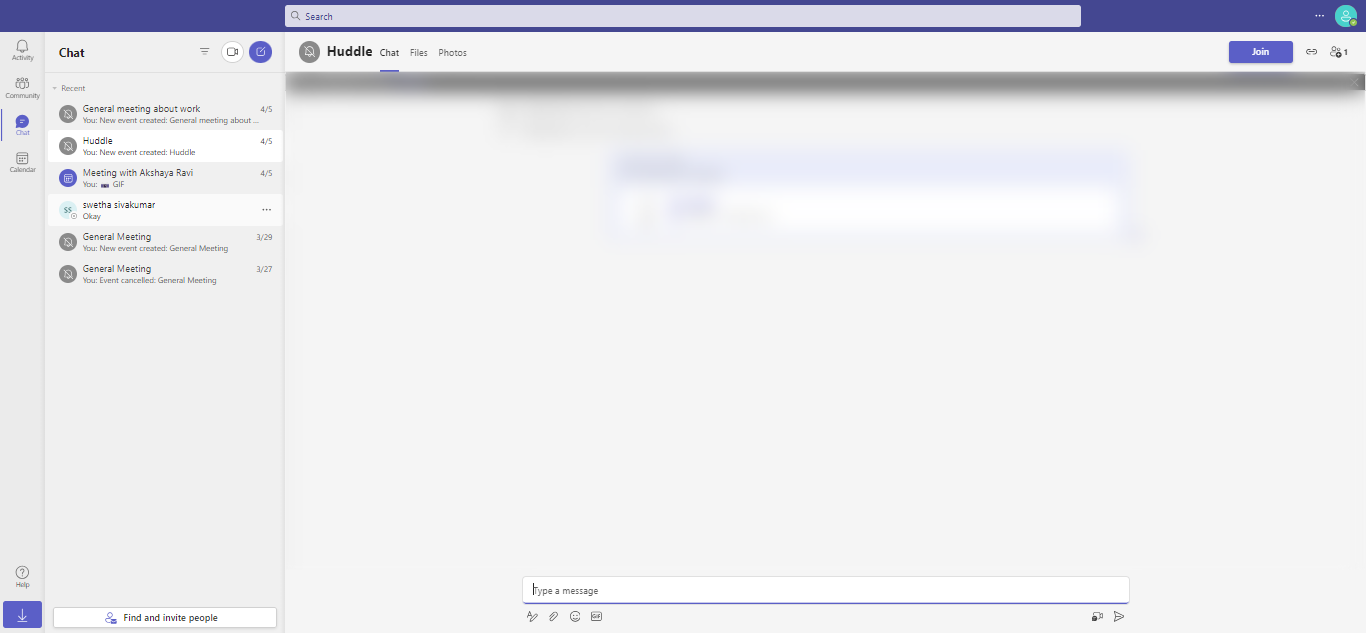
This is how it appears
Quick answer: To pin a team in Microsoft Teams, first click on the team you'd like to pin from the top. Next, click on 'More options'. Then, select the 'Pin' option to complete the process and see how it appears.
About this Microsoft Teams tutorial
Pin important groups quickly in Microsoft Teams by selecting the team, opening more options, and choosing the pin feature. This guide shows how to pin a team in teams? in 4 steps, starting with "Click on the team you'd like to pin from the top" and finishing with "This is how it appears". The interactive demo above is a click-through copy of the real Microsoft Teams interface, so you can rehearse each step before doing it in your own account.
Frequently asked questions
How many steps does it take to pin a team in teams??
4 steps. Each one is listed in order above, and the demo highlights exactly where to click.
Can I try it without changing my own account?
Yes. Clicking through the demo doesn't touch your Microsoft Teams data or settings. Once you know the flow, repeat it in your own workspace.
This tutorial is filed under Microsoft Teams. Related guides: How to ping someone on teams?, How to record a teams meeting? and How to request control in teams?. Last reviewed 05 Oct 2026.

Create your first interactive demo in minutes
No credit card required • Start building today