How to Connect Microsoft Forms to Excel Using Power Automate
- George Apostolov
This guide is an interactive LiveDemo. Create interactive demos of your own product: Interactive demo software · Interactive customer onboarding guides · Start free
How to Connect Microsoft Forms to Excel Using Power Automate: step-by-step guide
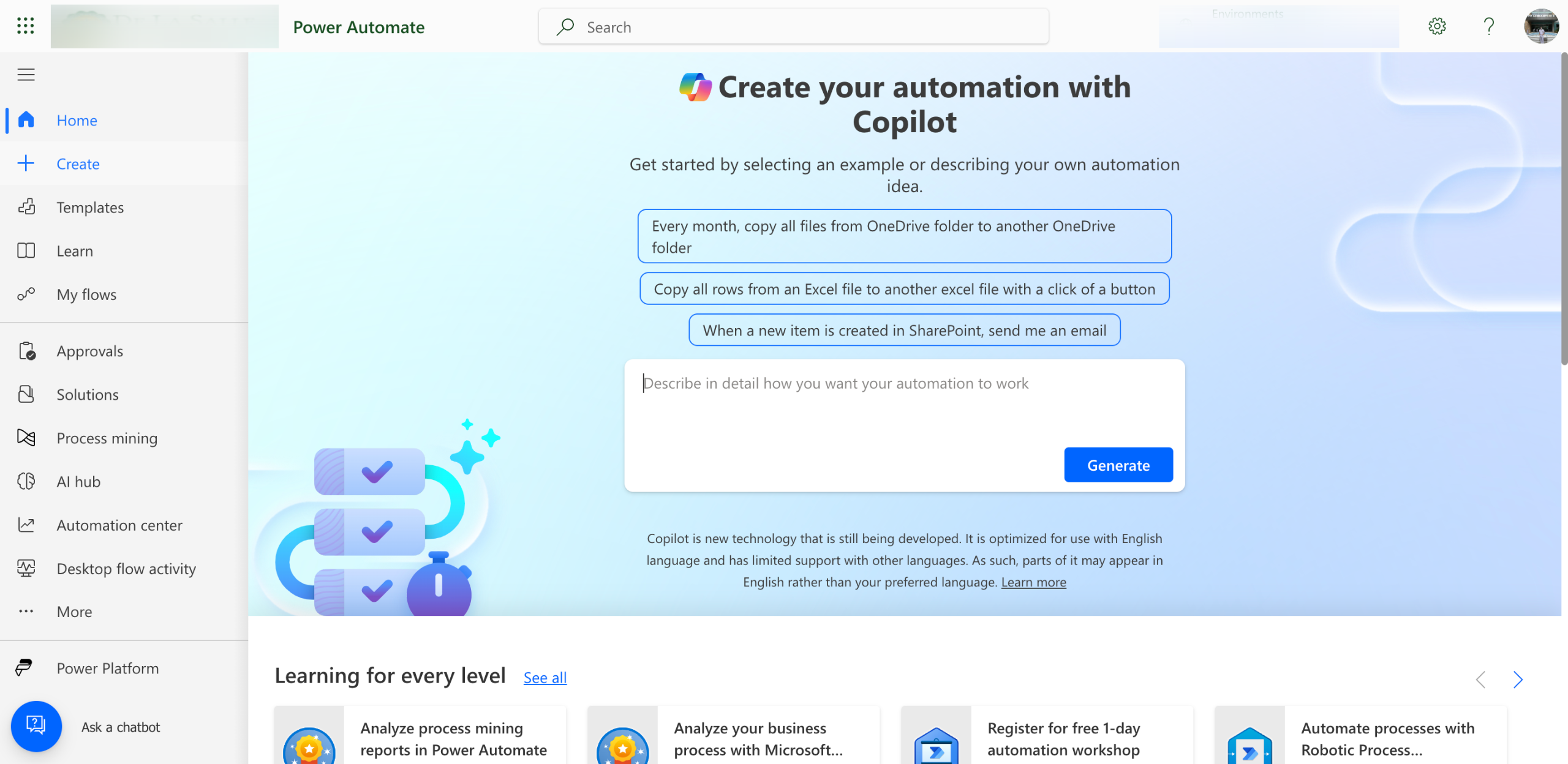
Inside the main dashboard of Power Automate, navigate to the left-side panel and click 'Create'.
Select 'Automated Cloud Flow' from the available options.
After that, come up with a unique Flow Name and enter it into the provided input field.
Next, search for 'Forms' and then choose the corresponding Trigger you prefer to use.
Once done, tap 'Create' to proceed.
Click the 'Trigger' tab afterwards to set up the parameters properly.
Subsequently, click the 'Form ID' and choose the Microsoft form you prefer to use.
Following that, click the 'Add' icon to configure the Action.
Choose 'Excel Online' from the given options.
Next, select the Action you wish to use.
One by one, configure the parameters according to your liking. Simply provide your preferred Location, Document Library, File, and Name.
Once done, tap 'Save' to save and activate your customized flow.
After completing these steps, your Microsoft Forms will be integrated instantly with Microsoft Excel.
Quick answer: To connect Microsoft Forms to Excel using Power Automate, create an automated cloud flow, select a Forms trigger, configure the Form ID, add an Excel Online action, set the required file parameters, and save the flow to instantly integrate your forms with Excel.
About this Microsoft tutorial
Integrate Microsoft Forms with Excel instantly by building an automated cloud flow in Power Automate with custom trigger and action settings. This guide shows how to connect Microsoft Forms to Excel Using Power Automate in 13 steps, starting with "Inside the main dashboard of Power Automate, navigate to the left-side panel and click..." and finishing with "After completing these steps, your Microsoft Forms will be integrated instantly with Mi...". The interactive demo above is a click-through copy of the real Microsoft interface, so you can rehearse each step before doing it in your own account.
Frequently asked questions
How many steps does it take to connect Microsoft Forms to Excel Using Power Automate?
13 steps. Each one is listed in order above, and the demo highlights exactly where to click.
Can I try it without changing my own account?
Yes. Clicking through the demo doesn't touch your Microsoft data or settings. Once you know the flow, repeat it in your own workspace.
This tutorial is filed under Microsoft, Excel and Automation. Related guides: How to Connect Microsoft Office to PandaDoc, How to Connect Microsoft To Do to Todoist Using Zapier and Salesforce dynamics crm integration. Last reviewed 05 Oct 2026.

Create your first interactive demo in minutes
No credit card required • Start building today