How to Use Mailchimp to Send Mass Email
- George Apostolov
How to Use Mailchimp to Send Mass Email: step-by-step guide
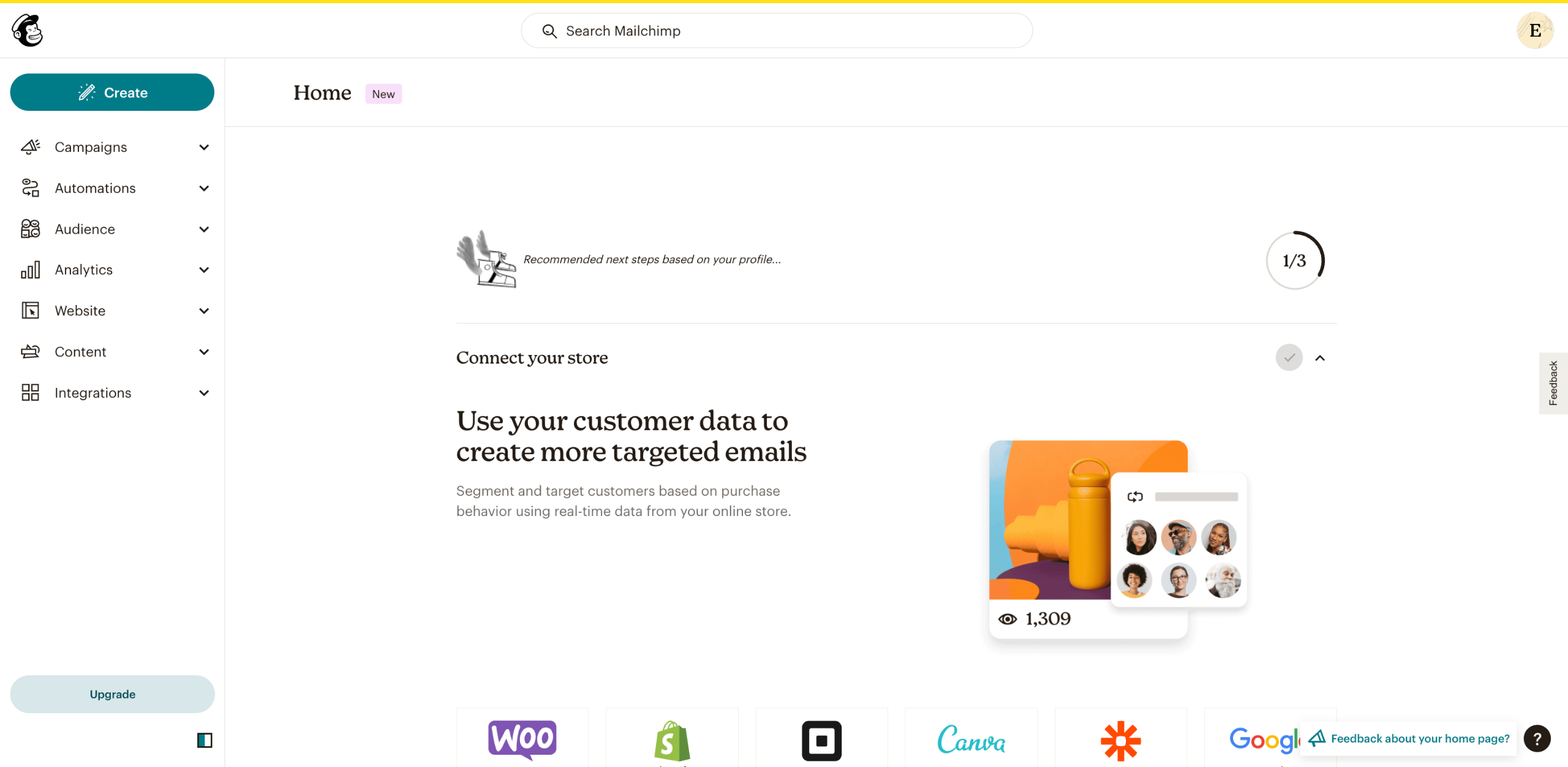
Go to Create to get started with your email.
Pick the type of email you want to create. You can pick between Regular, Plain text, or Template.
Enter your Internal email name and click Begin.
Click on Add Recipients in the To section.
Select the Audience you wish to send your mail to.
In the Send to drop-down menu, select the Segments and Tags you wish to target with your mail.
In the Do not send to menu, you also have the option to remove a specific segment or tag from the recipient list.
To save your preferences, click on Save.
Add your recipients from the list or go to Import contacts to upload new ones. CLICK HERE to learn how to import new contacts in Mailchimp.
To proceed: In the From option, specify the sender details. In the Sender option, specify the subject and preview text of your email. In the Send time option, pick the time you wish to send out your email. In the Content option, design your email.
To Add A Social Post To Your Email, you can connect to Facebook, X (formerly Twitter), and/or Instagram.
Pick the Settings & Tracking details for your email and hit Send at the top right corner of your screen.
Quick answer: To send mass email in Mailchimp, go to Create, pick the email type, and enter an internal name. Add recipients and select your audience, segments, and tags, then save preferences. Specify sender details, subject, preview text, send time, design content, configure settings, and hit Send.
About this Mailchimp tutorial
Send mass emails efficiently in Mailchimp by selecting your audience, designing the content, and configuring settings and send times. This guide shows how to use Mailchimp to Send Mass Email in 12 steps, starting with "Go to Create to get started with your email" and finishing with "Pick the Settings & Tracking details for your email and hit Send at the top right corne...". The interactive demo above is a click-through copy of the real Mailchimp interface, so you can rehearse each step before doing it in your own account.
Frequently asked questions
How many steps does it take to use Mailchimp to Send Mass Email?
12 steps. Each one is listed in order above, and the demo highlights exactly where to click.
Can I try it without changing my own account?
Yes. Clicking through the demo doesn't touch your Mailchimp data or settings. Once you know the flow, repeat it in your own workspace.
This tutorial is filed under Mailchimp. Related guides: How to Use Mailchimp with Gmail?, Integrate Mailchimp and Calendly for event registration and Integrate Mailchimp signup forms into Notion pages. Last reviewed 05 Oct 2026.

Create your first interactive demo in minutes
No credit card required • Start building today