How to Create a Survey on SurveyMonkey
- George Apostolov
This guide is an interactive LiveDemo. Create interactive demos of your own product: Interactive demo software · Interactive customer onboarding guides · Start free
How to Create a Survey on SurveyMonkey: step-by-step guide
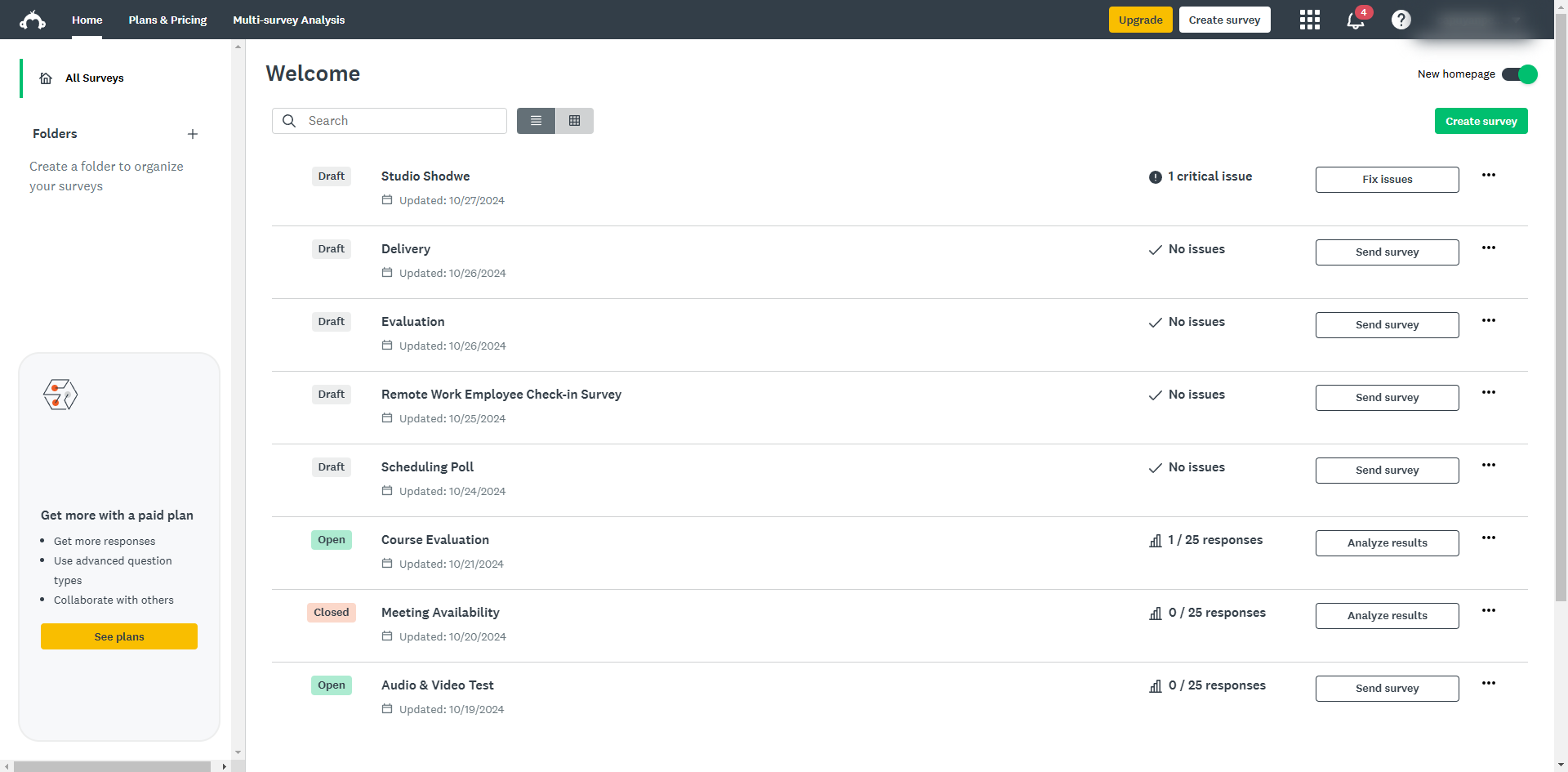
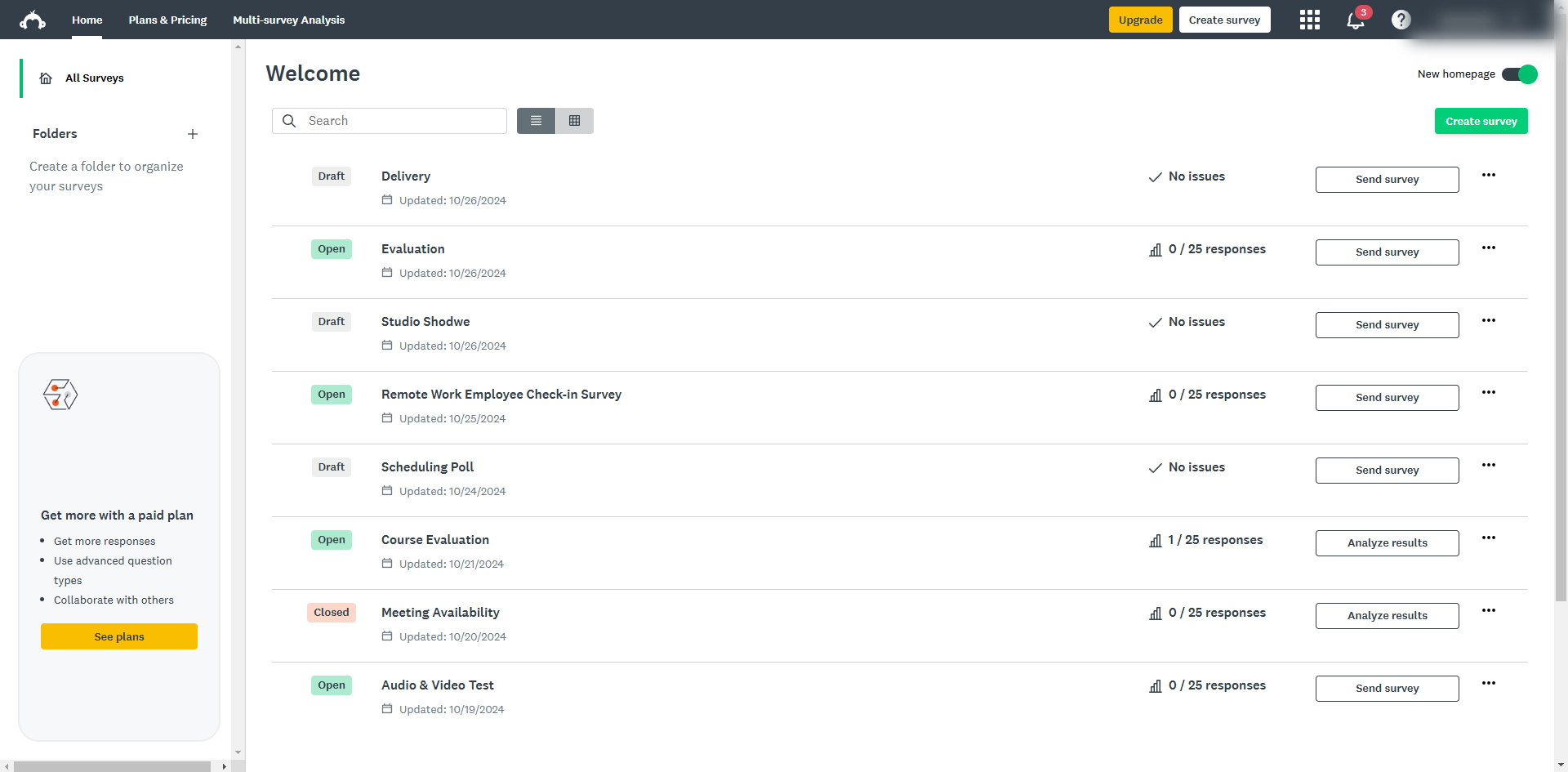
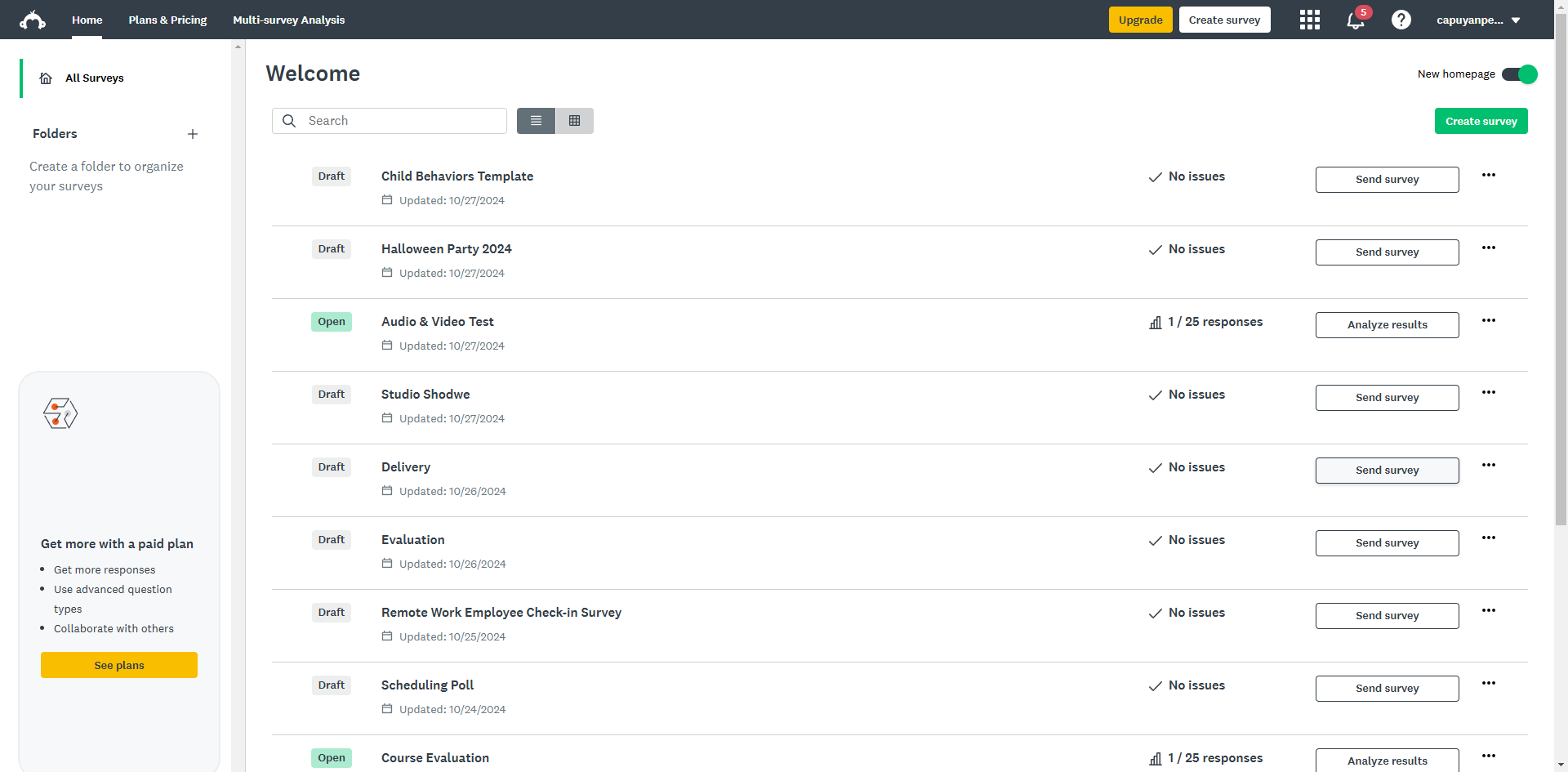
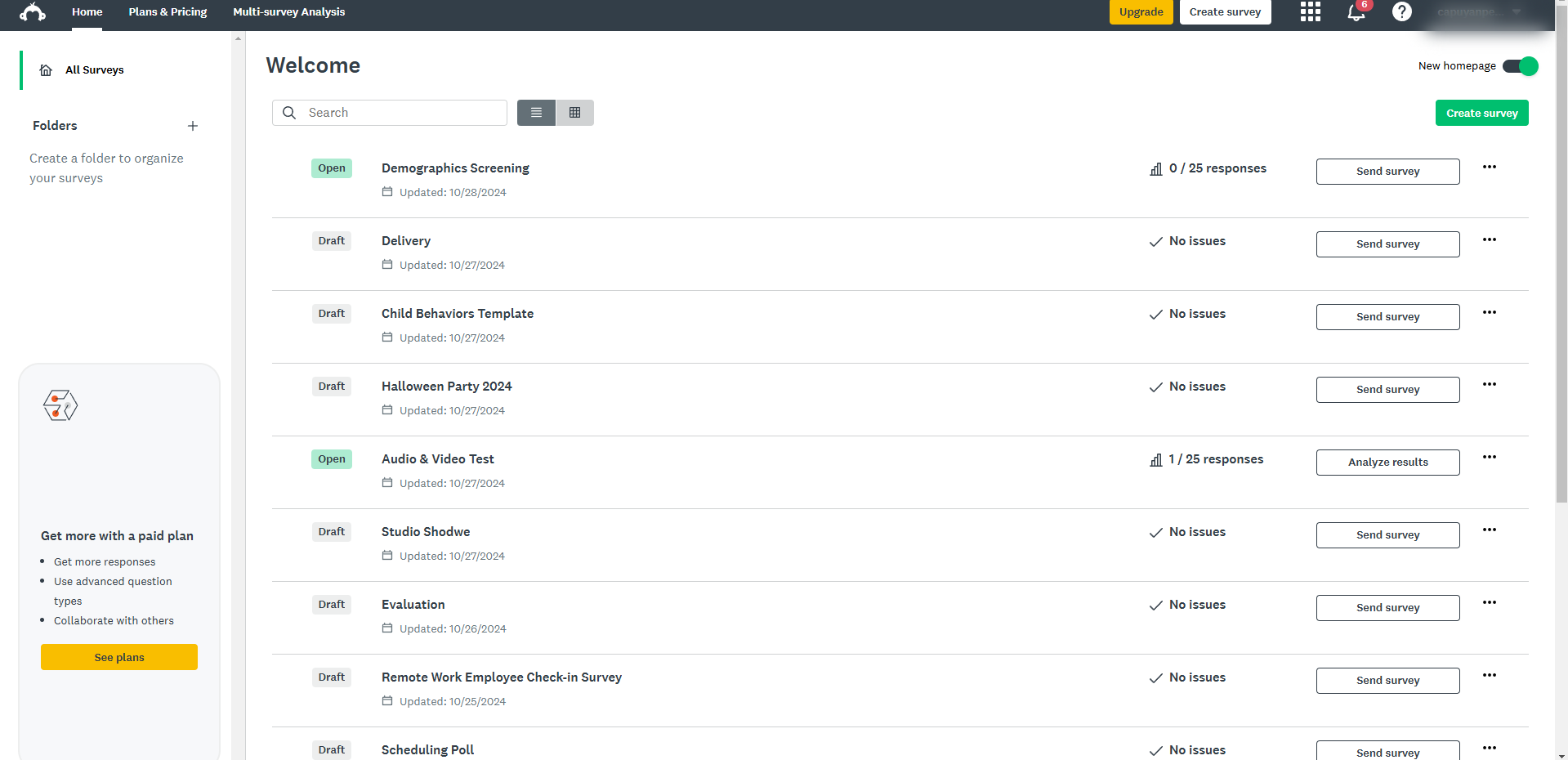
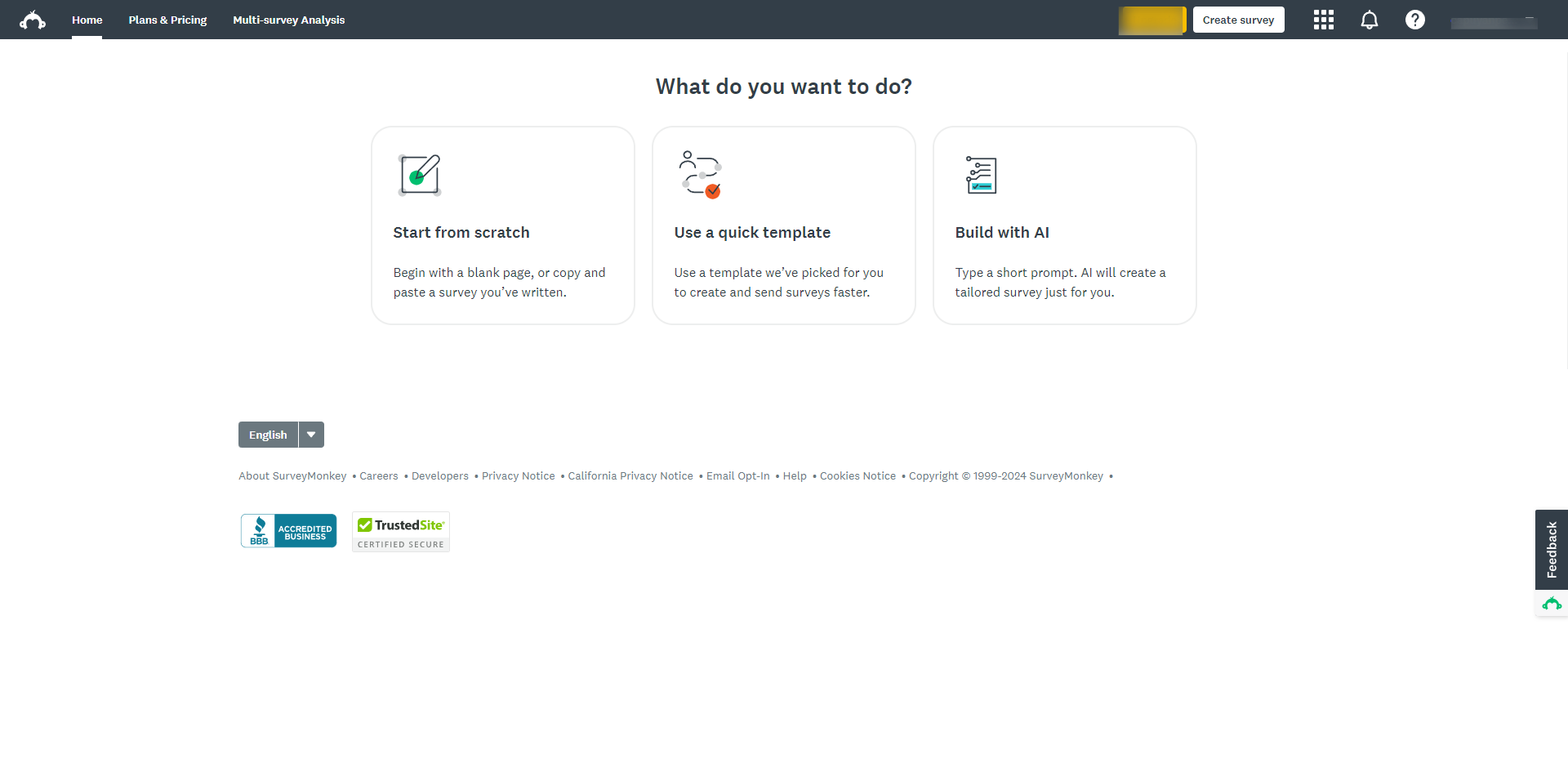
Once logged in, click on 'Create Survey' usually found on the top right corner of the dashboard.
Choose a survey creation option.
Once you have selected your starting point, select a prompt from the choices.
Click the airplane icon to send and proceed.
Your survey will be automatically generated and click 'Continue' to make changes.
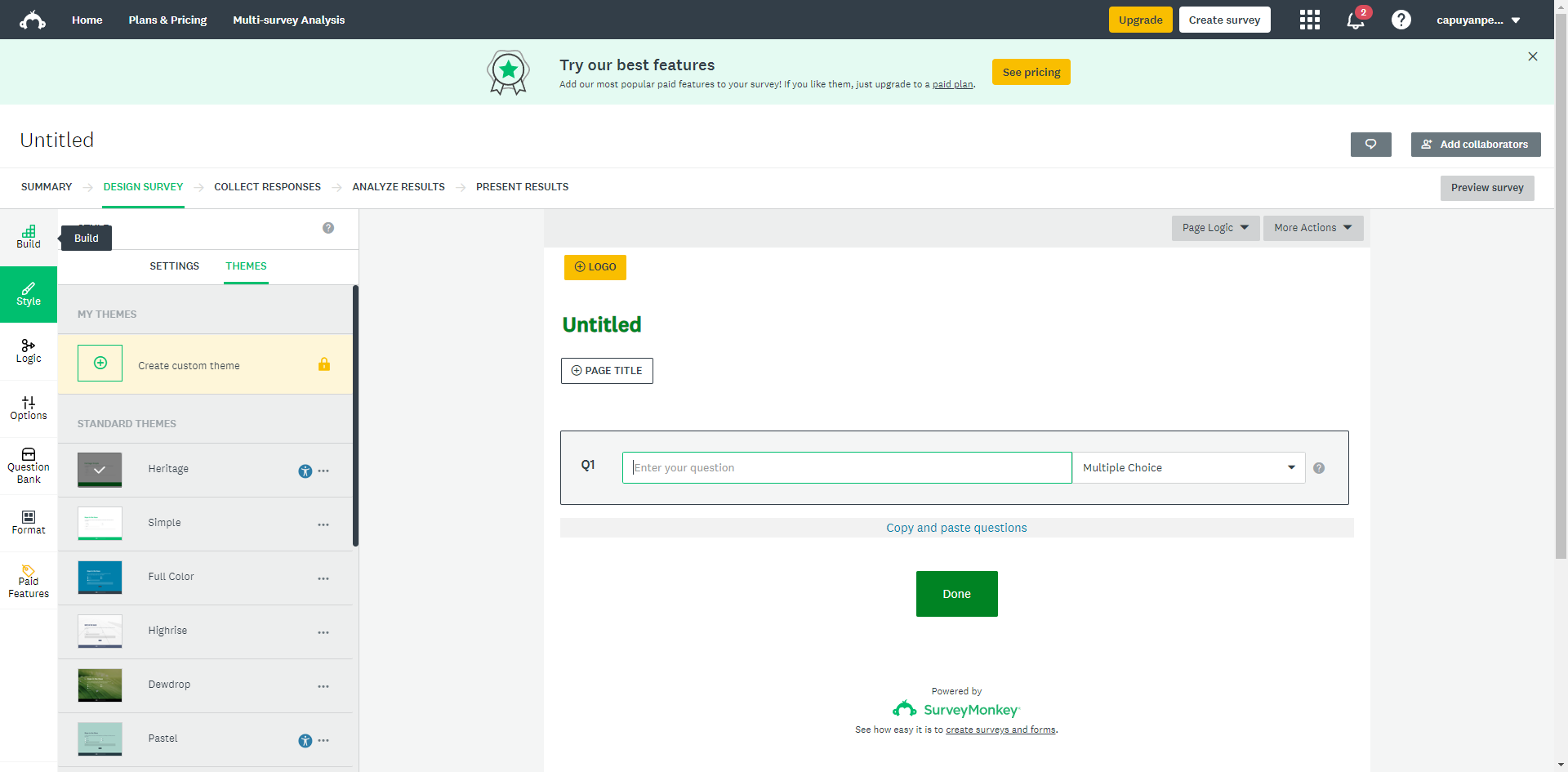
Give your survey a clear, descriptive title to help you and respondents understand its purpose.
After choosing an option, you’ll be taken to the survey builder. Go to the 'Build' option.
Click the 'Options' tab to customize survey settings.
Before publishing, click 'Preview' to see how your survey will look and function for respondents. This helps ensure everything is working as expected.
After designing the survey, click 'Next' to set up how you want to collect responses.
Once you're ready to send out your survey, choose a collector to get responses.
You can generate a 'survey link' to share with respondents or distribute it via email, social media and website embed.
Once responses are collected, go to the 'Analyze Results' tab to view charts, summaries, and individual responses.
Now, your survey is live and ready to collect responses.
Quick answer: To create a survey in SurveyMonkey, log in and click 'Create Survey', choose an option and prompt, click the airplane icon, and click 'Continue'. Title your survey, use the 'Build' and 'Options' tabs to design and customize, preview it, click 'Next', and choose a collector like a survey link to gather responses.
About this SurveyMonkey tutorial
Build, customize, and publish your feedback forms easily with this step-by-step guide on making a survey using SurveyMonkey. This guide shows how to create a Survey on SurveyMonkey in 14 steps, starting with "Once logged in, click on 'Create Survey' usually found on the top right corner of the d..." and finishing with "Now, your survey is live and ready to collect responses". The interactive demo above is a click-through copy of the real SurveyMonkey interface, so you can rehearse each step before doing it in your own account.
Frequently asked questions
How many steps does it take to create a Survey on SurveyMonkey?
14 steps. Each one is listed in order above, and the demo highlights exactly where to click.
Can I try it without changing my own account?
Yes. Clicking through the demo doesn't touch your SurveyMonkey data or settings. Once you know the flow, repeat it in your own workspace.
This tutorial is filed under SurveyMonkey. Related guides: How to Create Headings in SurveyMonkey, How to Create Net Promoter Score in SurveyMonkey and How to Create Survey on SurveyMonkey with Email Address Required. Last reviewed 05 Oct 2026.

Create your first interactive demo in minutes
No credit card required • Start building today