Remove Watermark
The free Startup plan shows a LiveDemo watermark. Any paid plan (Pro, Growth, Business) can remove it.
Demos
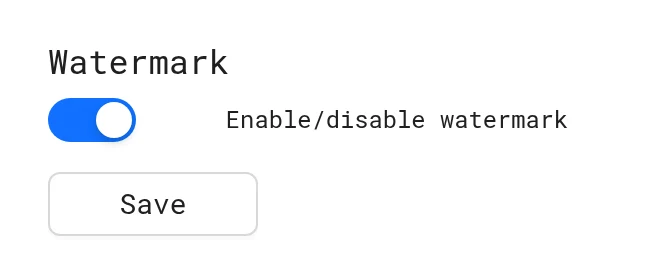
In the editor, open Design & Settings → Misc → Watermark and uncheck Enable/disable watermark. Click Save.
Your own watermark
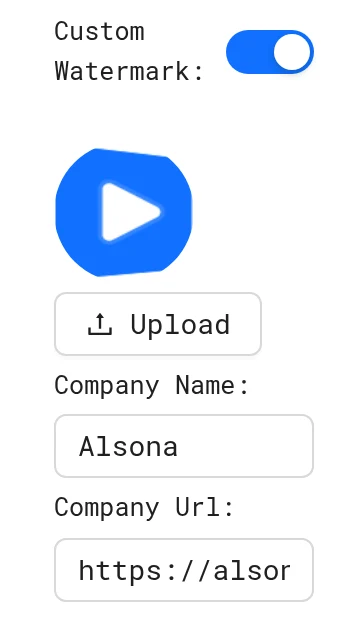
Open Design & Settings → Theme → Custom Watermark, Upload your logo and set Company Name and Company Url. Viewers who click it go to your site.
AI Demo Agent

In the agent editor, open Share → Settings and turn off Show Powered by LiveDemo.
Full whitelabel
Whitelabel is a paid option on the Business plan, including for self-hosted instances. A custom domain is part of the Growth plan. They are not part of the free self-hosted version. Contact us for pricing.
Start here
- Introduction: LiveDemo is an interactive demo platform: capture any web app with a Chrome extension, edit it, share it, track engagement and let an AI Demo Agent give demos.
- Quick Start: Create your first LiveDemo in four steps: install the Chrome extension, capture a workflow, edit it and share or embed it.
- Use Cases: Recipes for using LiveDemo interactive demos: website product tours, sales outreach, help center guides, customer onboarding, product launches and AI-led inbound demos.
- Create Your Account: Sign up for LiveDemo with Google or email, answer the onboarding questions and get to your first interactive demo. Email verification is optional.
- Install Chrome Extension: Install the free LiveDemo Chrome extension from the Chrome Web Store to capture interactive demos of any web app or website.
- Install Desktop App: Download the LiveDemo desktop recorder for Mac or Windows to record desktop apps and anything outside the browser.
- Install Figma Plugin: Install the LiveDemo App plugin from the Figma Community to turn your Figma designs into interactive product demos.
- Glossary: Definitions of the terms used in LiveDemo: LiveDemo, screen, step, pointer, hotspot, popup, transition, workspace, AI Demo Agent, session, lead and more.