Export in GIF or Video
Turn your LiveDemo into an MP4 video and an animated GIF. Available on paid plans.
- In the editor, click Share and open Video & GIF.
- Click Generate.
- Wait up to 5 minutes. We email you the download links when they're ready.
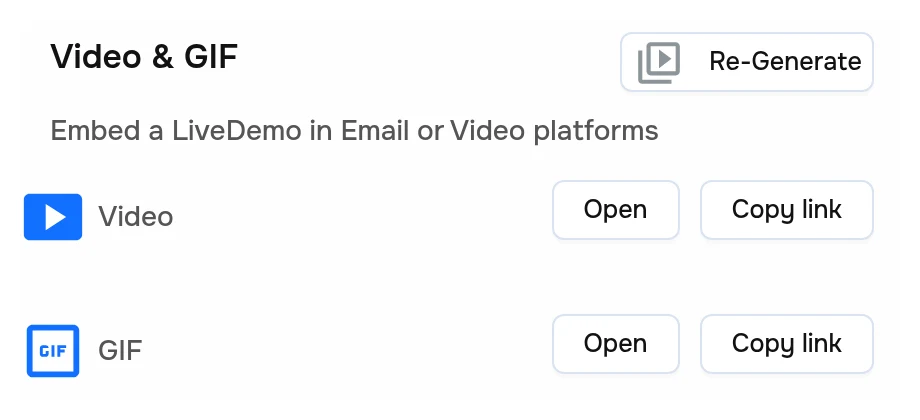
The links also appear in Share → Video & GIF, with Open and Copy link buttons for each file.
After editing the demo, click Re-Generate to export it again.
What you get
| File | Details |
|---|---|
Video (.mp4) | The demo played step by step, recorded at 60 fps in high resolution |
GIF (.gif) | 860 px wide, 10 fps. Good for emails and READMEs |
Tip: add voiceover before exporting to get a narrated video.
Next: Remove Watermark
More in Share
- Share your public LiveDemo: Publish your LiveDemo and share a public link so prospects and customers can explore the interactive demo without signing up.
- Public & Private Access: Control who can view your LiveDemo with the Public access switch, and what viewers see when a demo is private.
- Custom Links: Create a LiveDemo link per prospect or campaign with its own variable values, so one demo shows each viewer their own name.
- Custom Domain: Share LiveDemos and AI Demo Agents from your own subdomain, like demos.acme.com, with one CNAME record and automatic HTTPS.
- Preview & Fullscreen: Preview your LiveDemo as viewers see it and present it fullscreen on a sales call or at an event.
- Embed on website: Embed your LiveDemo on your website, landing pages or help center with a responsive iframe snippet.
- URL Parameters: Control where an embedded LiveDemo starts, autoplay, audio, custom links and personalization with URL parameters.
- Embed Events: Listen to step changes from an embedded LiveDemo and move it to any step from your page with postMessage.
- Embed in WordPress: Add an interactive LiveDemo to a WordPress page or post with a Custom HTML block, in the block editor or Elementor.
- Embed in Webflow: Add an interactive LiveDemo to a Webflow page or CMS collection with a Code Embed element.
- Embed in Framer: Add an interactive LiveDemo to a Framer site with the Embed component.
- Embed in Wix: Add an interactive LiveDemo to a Wix site with the Embed HTML element.
- Embed in Squarespace: Add an interactive LiveDemo to a Squarespace page with a Code block.
- Embed in HubSpot Pages: Add an interactive LiveDemo to HubSpot landing pages, website pages, blog posts and knowledge base articles.
- Embed in Notion: Add an interactive LiveDemo to a Notion page for internal docs, onboarding wikis and public Notion sites.
- Embed in Zendesk & Help Centers: Add interactive LiveDemos to Zendesk Guide, Intercom, HelpScout and other help center articles.
- Embed in React & Next.js: Add an interactive LiveDemo to a React or Next.js app with a small responsive iframe component and listen to step events.
- Share on Medium: Share your LiveDemo in Medium articles so readers can try your product right inside the post.
- Share on X (Twitter): Share your LiveDemo on X (Twitter) with a link preview that drives followers into the interactive demo.
- Share into email platforms: Add your LiveDemo to marketing and sales emails with a preview image that links readers straight into the interactive demo.