Voice & avatar
Both are set in the agent's Persona tab. Click Save persona after changes.
Voice
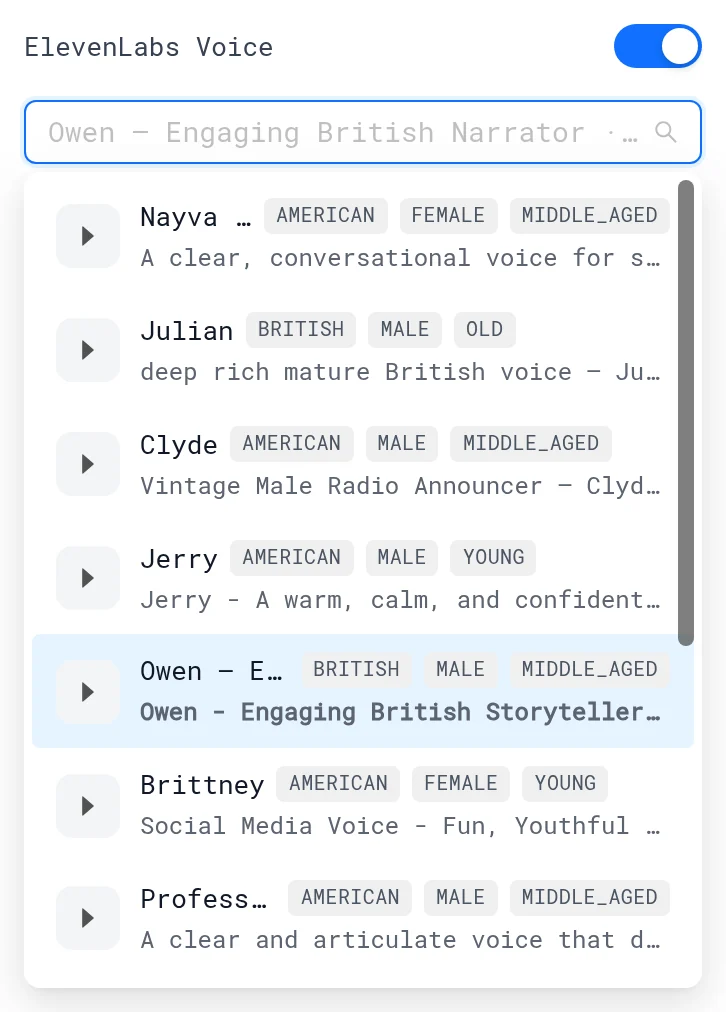
- Turn on ElevenLabs Voice.
- Pick a voice in Pick a voice. Search by name and click play to listen.
The agent then speaks its answers.
Avatar
A video face for the agent. The avatar only speaks when voice is on.
Avatar credits
Growth includes 1000 avatar credits a month per workspace. 1000 credits is 60 minutes of live avatar time, and only one live avatar session runs at a time. Other visitors see a still image and hear the voice. When the credits run out, every visitor gets that still image until the month resets. You will be able to purchase more avatar session credits.
Credits used this month show next to the Avatar switch on the Persona tab, and under Settings → Integrations → Avatar API keys.
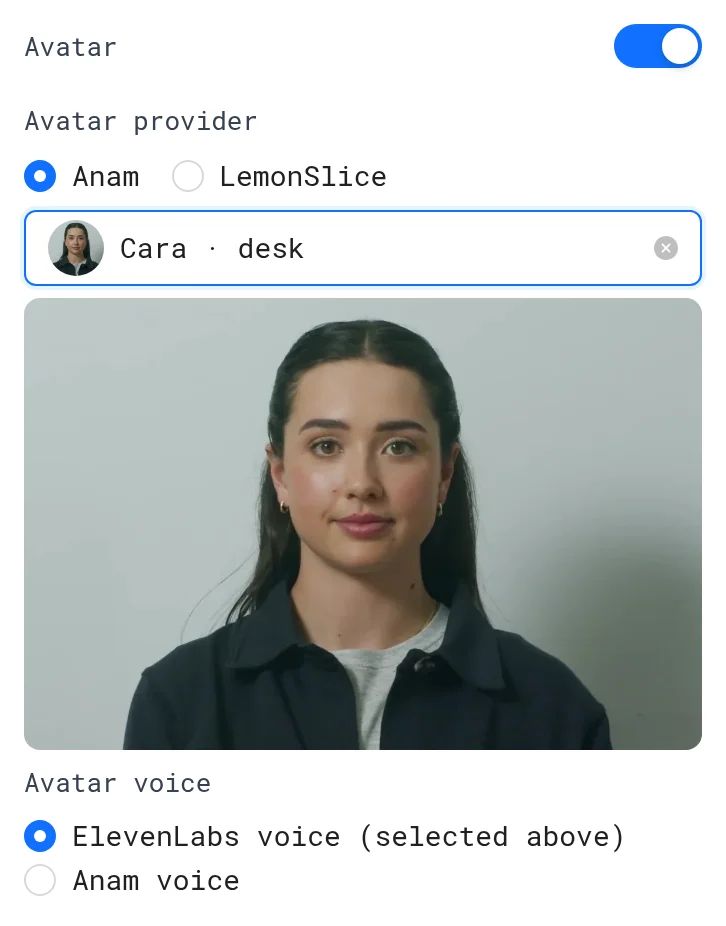
- Turn on Avatar.
- Choose an Avatar provider: Anam or LemonSlice.
- Pick an avatar in Pick an avatar.
| Provider | Voice |
|---|---|
| Anam | Under Avatar voice, use the ElevenLabs voice (selected above) or an Anam voice |
| LemonSlice | Lip-syncs the ElevenLabs voice |
Create an avatar from a photo (LemonSlice)
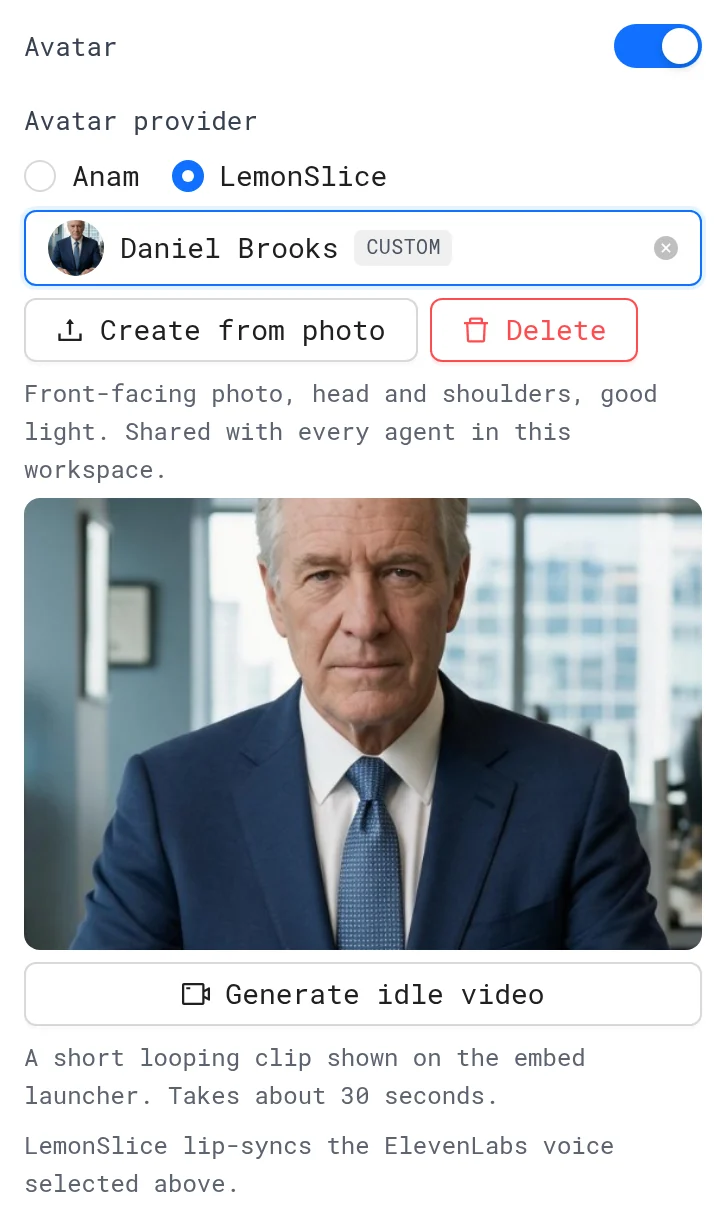
- Set Avatar provider to LemonSlice.
- Click Create from photo and pick a JPG, PNG or WebP. Use a front-facing, head-and-shoulders photo in good light.
- Wait about 10 seconds while LemonSlice frames the photo ("Avatar created. Save persona to use it").
- Click Generate idle video for a short looping clip on the embed launcher (about 30 seconds). Check it with Show idle video.
Custom avatars are shared with every agent in the workspace. Delete removes it from all of them.
Use your own provider accounts
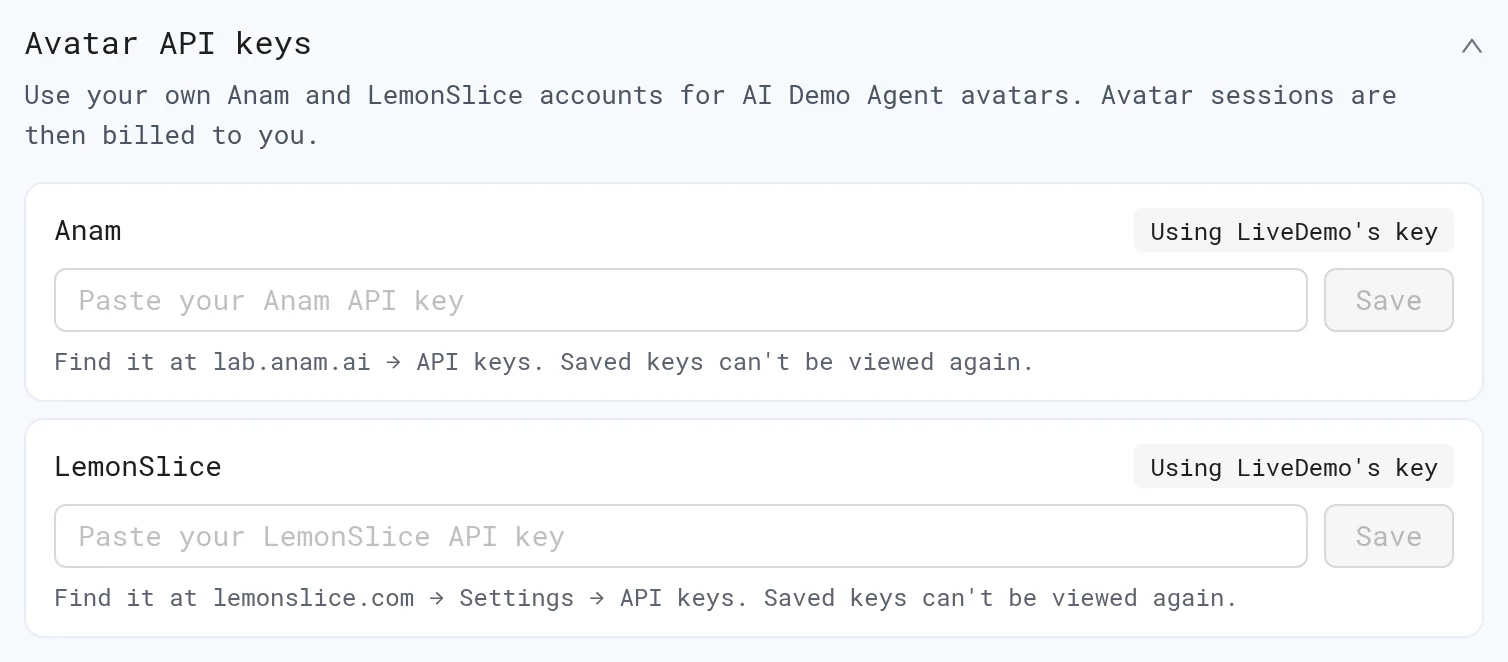
On the Growth plan, the workspace Admin can add Anam and LemonSlice API keys under Settings → Integrations → Avatar API keys. Sessions on your own keys are unlimited and billed to your accounts. That usage is still tracked in credits and does not count toward the 1000. See Create an AI Demo Agent.
Tips
- Use the photo of a real teammate (with their permission) for a personal touch, or a stock avatar for a neutral one.
- Voice and avatar make the agent feel like a call. For a quick text chat, leave both off.
Next: Lead capture
More in AI Demo Agent
- Create an AI Demo Agent: Create an AI Demo Agent that answers buyer questions from your knowledge, opens the right LiveDemo, qualifies visitors and books meetings.
- Persona: Set your AI Demo Agent's welcome message, starter questions and extra instructions so it sounds like your best sales rep.
- Demos, Theme & History: Pick which demos the AI Demo Agent can open, set its theme, and undo or revert changes with version history.
- Knowledge: Teach the AI Demo Agent from your whole website, documents, FAQs and sales calls, see exactly what it reads, and fill the gaps.
- Crawl Your Website: Crawl your marketing site, docs or help center into the AI Demo Agent's knowledge and keep it up to date automatically.
- Knowledge Gaps: See the questions your AI Demo Agent couldn't answer, grouped by topic, and turn them into FAQ answers in one click.
- Lead Capture: Ask visitors for their name and email before the chat, capture emails during the conversation, or identify logged-in users from your site.
- Qualification & Booking: Let the AI Demo Agent ask your qualification questions, decide who is qualified with your own rules, and book meetings inside the demo.
- Personalized Demos: Show every prospect a demo with their own company name, first name and logo, from an agent link or your website.
- Conversation Insights: Every AI Demo Agent conversation gets a summary, topics, buying intent, unanswered questions and an optional recap email to the visitor.
- Summary Emails: Email AI Demo Agent visitors a recap of their conversation automatically, from LiveDemo or your own SMTP server.
- Recap Page: Every AI Demo Agent session gets a private, shareable recap page that visitors forward to their team, and you see who opened it.
- Website Widget: Put the AI Demo Agent on your website as a chat bubble, email pill, smart search bar, button or inline iframe, with different behaviour per page.
- Page Rules: Show a different teaser, starter questions or auto-open per page, or hide the AI Demo Agent widget on pages like checkout.
- JavaScript API: Open, close and identify visitors in the AI Demo Agent widget from your own code, and listen to lead, demo and booking events.
- Webhooks & Slack: Send AI Demo Agent leads, qualified visitors, bookings and conversation summaries to Slack, Zapier or your own endpoint with signed webhooks.