Single sign-on (SAML)
Your team signs in with your identity provider (IdP). People from your verified email domains join your workspace on their first login. Available on the Growth plan. Only the workspace Admin can set it up.
Open Settings → Security & domain → Single sign-on (SAML).
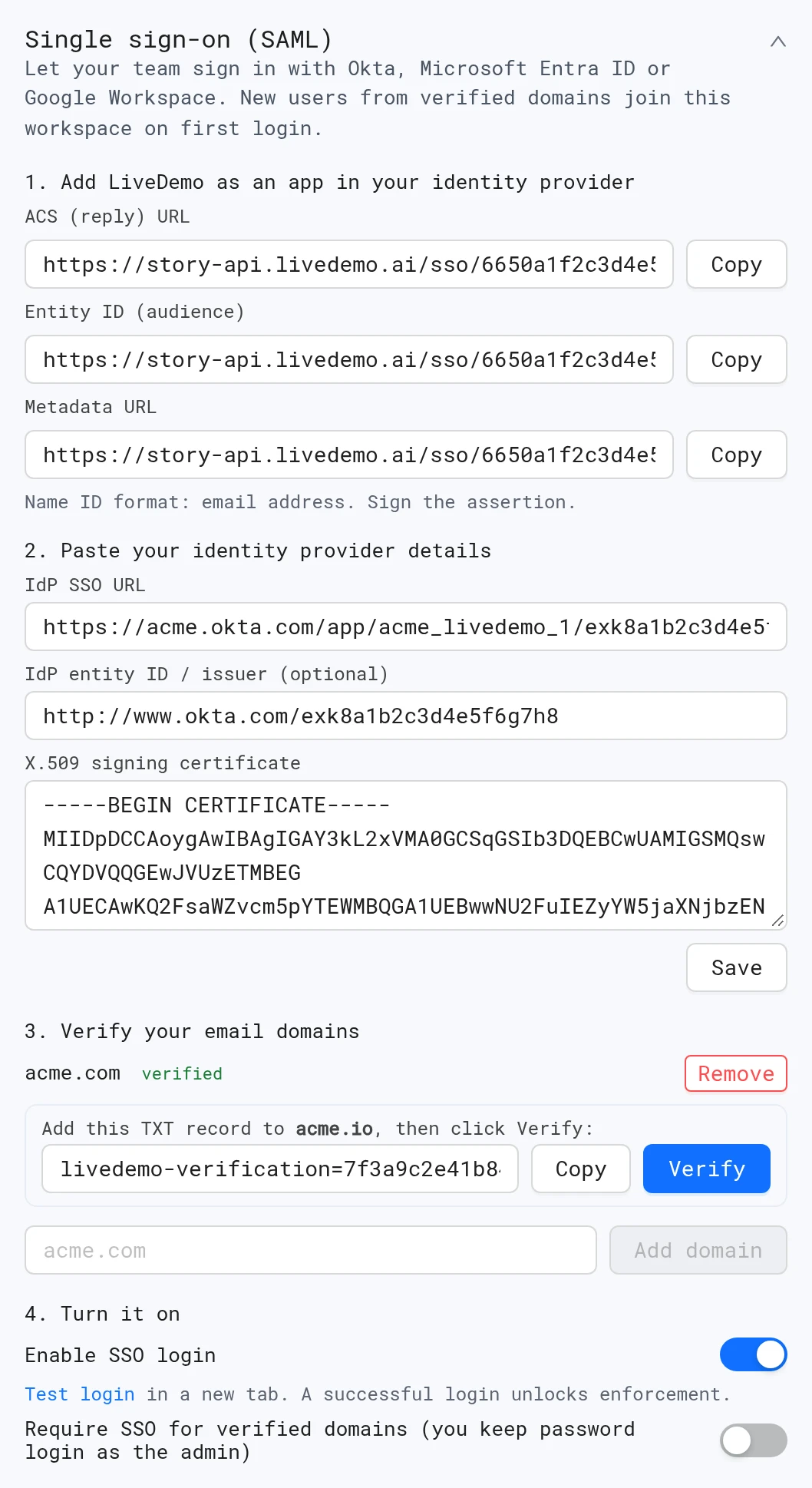
1. Add LiveDemo to your identity provider
Create a SAML app in your IdP and copy these values from LiveDemo with Copy:
| LiveDemo shows | In your IdP |
|---|---|
| ACS (reply) URL | Single sign-on URL / Reply URL / ACS URL |
| Entity ID (audience) | Audience URI / Identifier (Entity ID) |
| Metadata URL | Optional, for IdPs that import metadata |
Set the Name ID format to email address and sign the assertion.
Okta
- Applications → Create App Integration → SAML 2.0.
- Paste the ACS URL into Single sign-on URL and the Entity ID into Audience URI (SP Entity ID).
- Set Name ID format to EmailAddress and Application username to Email.
- Finish, assign people or groups, and open Sign On → View SAML setup instructions.
Microsoft Entra ID
- Enterprise applications → New application → Create your own application (non-gallery).
- Single sign-on → SAML. Under Basic SAML Configuration, set Identifier (Entity ID) and Reply URL.
- Make sure the Unique User Identifier claim is the user's email.
- Download Certificate (Base64) and copy the Login URL. Assign users.
Google Workspace
- Admin console → Apps → Web and mobile apps → Add app → Add custom SAML app.
- Copy the SSO URL and download the Certificate.
- Set ACS URL and Entity ID, and Name ID format to EMAIL with Basic Information → Primary email.
- Turn the app on for your users.
2. Paste your identity provider details
| Field | From your IdP |
|---|---|
| IdP SSO URL | Sign-on / Login URL. Must start with https:// |
| IdP entity ID / issuer (optional) | Issuer / Identity Provider Issuer |
| X.509 signing certificate | The certificate, including -----BEGIN CERTIFICATE----- |
Click Save ("Identity provider saved").
3. Verify your email domains
- Enter your domain, such as
acme.com, and click Add domain. - Add the TXT record LiveDemo shows to that domain at your DNS provider. It looks like
livedemo-verification=7f3a…. - Click Verify. DNS can take a few minutes.
Only people with an email on a verified domain can sign in with SSO. A domain can belong to one workspace only.
4. Turn it on
- Turn on Enable SSO login.
- Click Test login and sign in through your IdP in the new tab.
- Optional: turn on Require SSO for verified domains. It unlocks after one successful test login.
How your team signs in
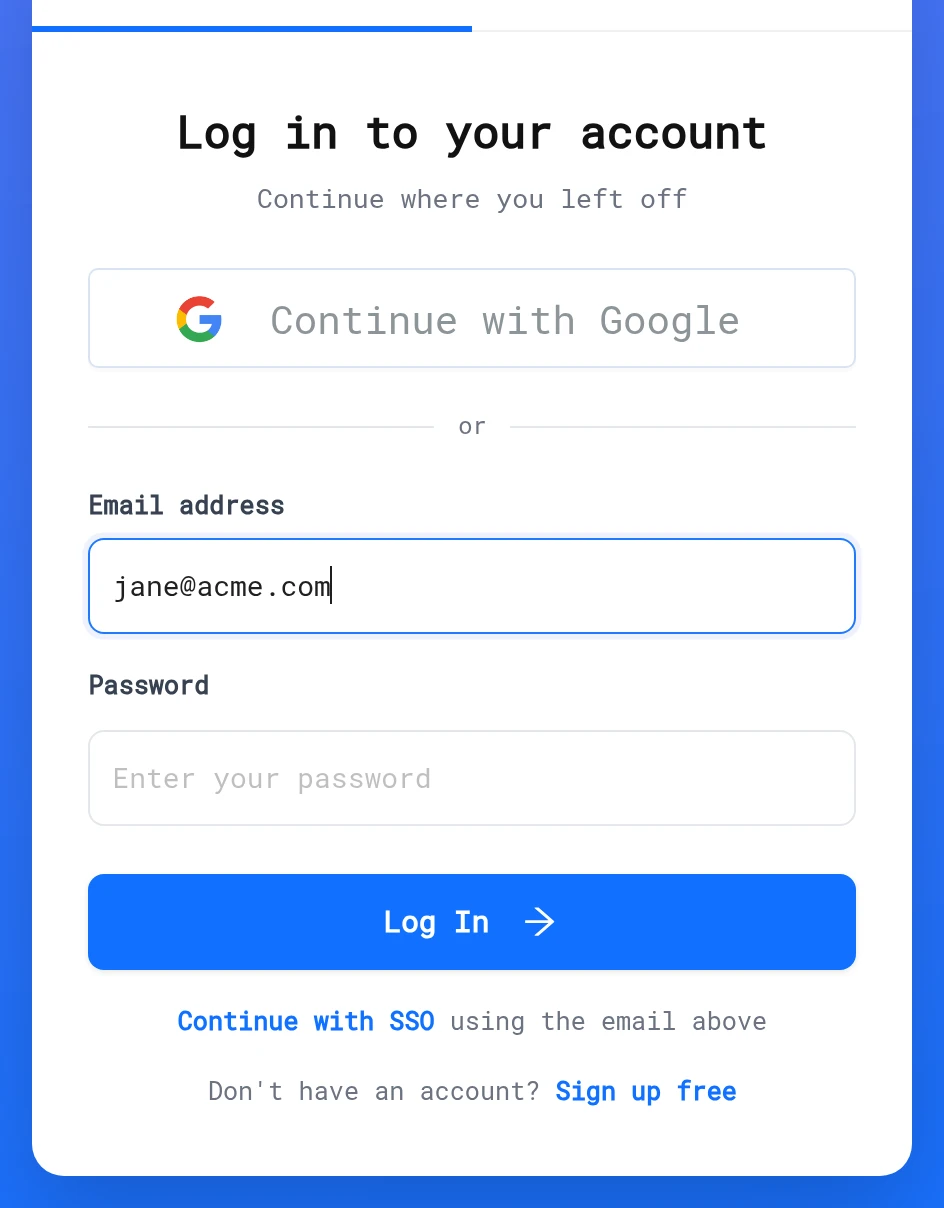
On app.livedemo.ai/login, enter your work email and click Continue with SSO. You're sent to your IdP and back, signed in.
- New people get an account on their first login and join the workspace.
- With Require SSO on, password, Google and sign-up for your domains go to the IdP instead.
- Sign in from LiveDemo, not from the app tile in your IdP. IdP-initiated login isn't supported.
Break-glass access
The workspace Admin can always sign in with password or Google, even with Require SSO on. Keep that account safe in case your IdP or certificate breaks.
Changing the IdP SSO URL or certificate turns Require SSO off until you run Test login again. Removing the last domain turns SSO off.
Troubleshooting
| Message | Fix |
|---|---|
| "Single sign-on is not set up for this email domain" | Verify the domain and turn on Enable SSO login |
| "Your email domain is not verified for this workspace" | The IdP sent an email on another domain. Check the Name ID or email attribute |
| "TXT record not found on … yet" | Wait for DNS and click Verify again |
| "Single sign-on failed. Ask your admin to check the SSO setup." | Check the certificate, the ACS URL and that the assertion is signed |
SCIM provisioning isn't supported, so removing someone in your IdP doesn't remove them from the workspace. See Team & workspaces.
Next: Security & privacy
More in Account
- Team & Workspaces: Invite teammates to your LiveDemo workspace, understand Admin and Collaborator roles, and switch, create or delete workspaces.
- Plans & Features: Which LiveDemo features are included in the Startup, Pro, Growth and Business plans.
- Billing: Upgrade your LiveDemo plan, start a free trial, add creators, manage your card and invoices, and cancel a subscription.
- Security & Privacy: What the LiveDemo Chrome extension can access and why, what the demo player tracks, where data is stored, GDPR requests and self-hosting.
- Self-Hosting: Run the open-source LiveDemo stack on your own servers with Docker Compose, and when to choose managed self-hosting instead.