Session replays
Watch what a viewer did in your demo: where they clicked, where they waited and where they left. Available on paid plans.
Watch one
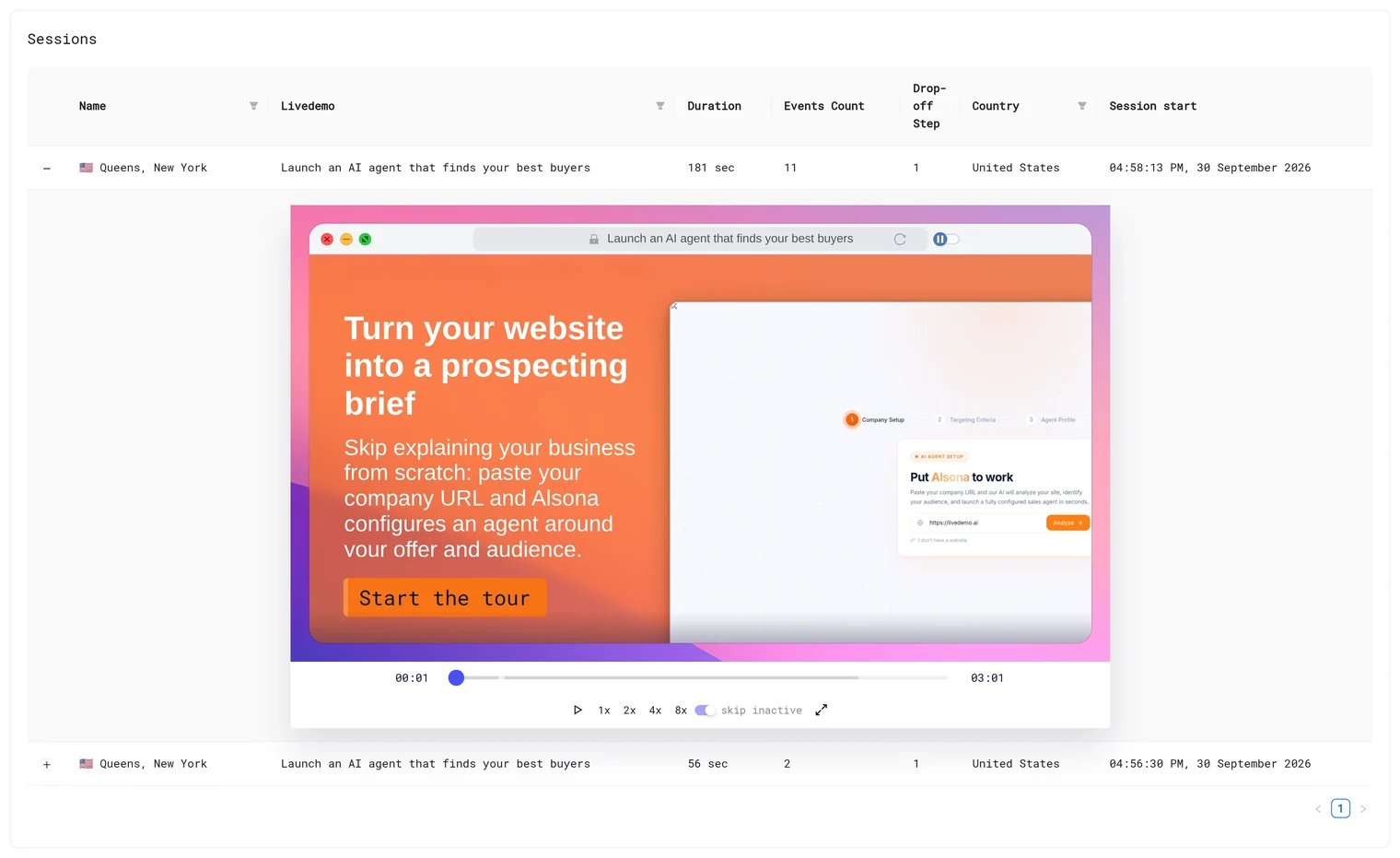
- Open Analytics → Sessions and click a demo.
- In the Sessions table, expand a session.
- The replay plays below the row.
On the free plan the row says "Upgrade to unlock Session Recordings".
What to look for
- Clicks outside the hotspot: viewers expect something else to be clickable. Move the hotspot or add a step.
- Long pauses on a step: the text is too long or unclear.
- The step where they left: compare with Drop-off Step across sessions.
- A lead who watched every step twice: a hot lead for sales.
AI Demo Agent replays
Agent conversations have their own replays and transcripts in Analytics → AI Agents. See Conversation Insights.
Privacy
Replays show actions inside the demo only, not the rest of the viewer's screen. Viewers with Do Not Track on, and excluded IPs, aren't recorded. See Security & privacy.
Next: Leads
More in Analytics
- Analytics Overview: See how viewers engage with your LiveDemos and AI Demo Agents: views, completion, drop-off, sessions and leads.
- Sessions: Understand LiveDemo views, unique users, engagement, completion and drop-off per demo and per viewing session.
- Leads: See every lead captured by LiveDemo forms and AI Demo Agents, and export them to CSV.
- Exclude Internal Traffic: Stop your own team's views from counting in LiveDemo analytics with excluded IP addresses.
- Google Analytics: Send LiveDemo demo views, completions, leads and AI Demo Agent events to Google Analytics 4, server-side or from your own website.
- Segment: Send LiveDemo demo and AI Demo Agent events to Segment as track calls, server-side or from your own website, and on to any Segment destination.