How to edit a LiveDemo
Open Demos, then click a demo to open the editor.
The editor
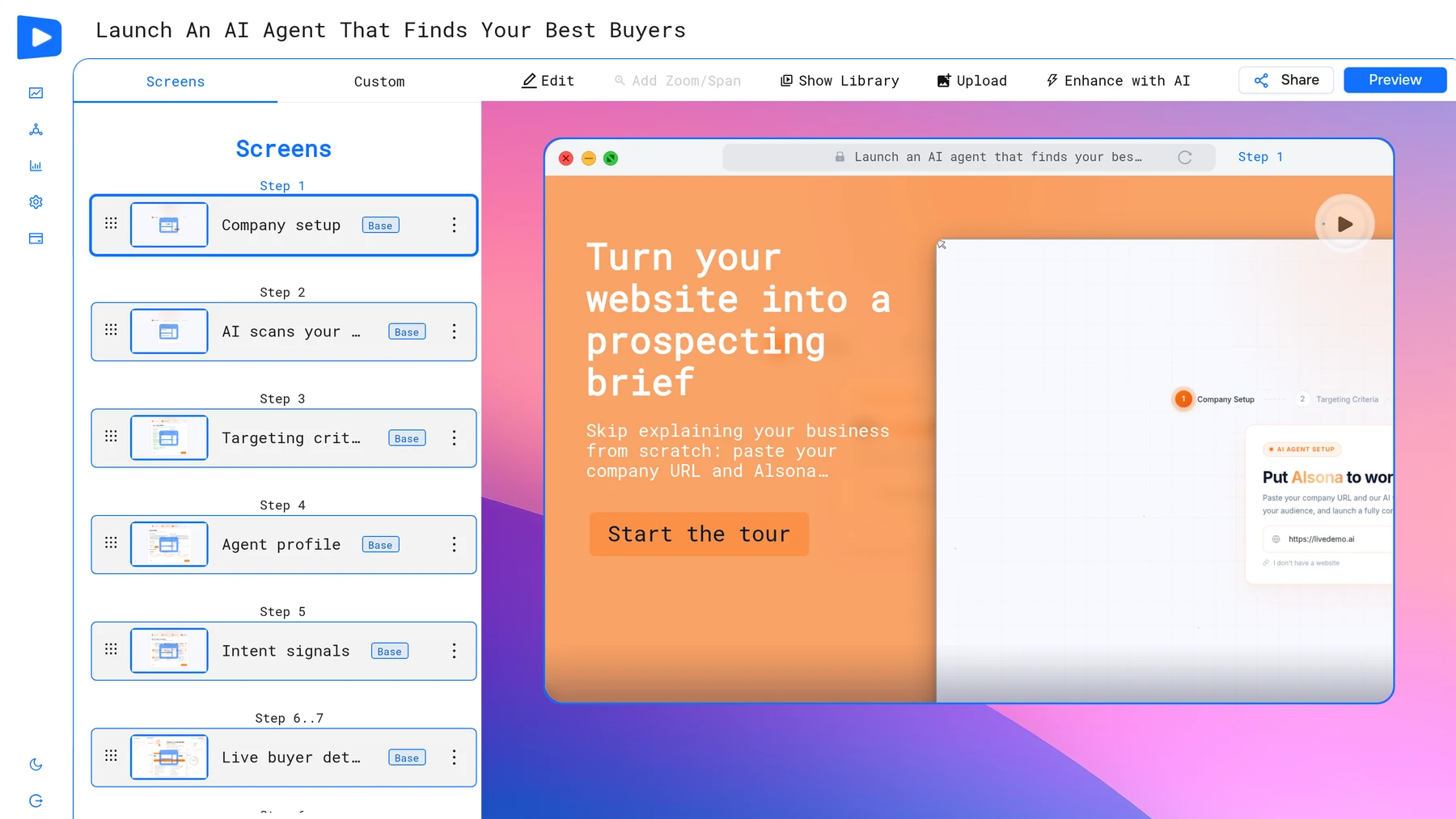
| Area | What it does |
|---|---|
| Screens tab (left) | Every captured screen and its steps. Add, reorder and delete steps here |
| Design & Settings tab (left) | Demo-wide settings: Theme, Background, Music, Misc, Variables, Security |
| Toolbar (top of the screen) | Edit page text and images, Add Zoom/Span, Enhance with AI, Show Library |
| Preview (header) | Opens the demo in a new tab, as viewers see it |
| Share (header) | Publish, copy the link, embed, export video or GIF |
Saving
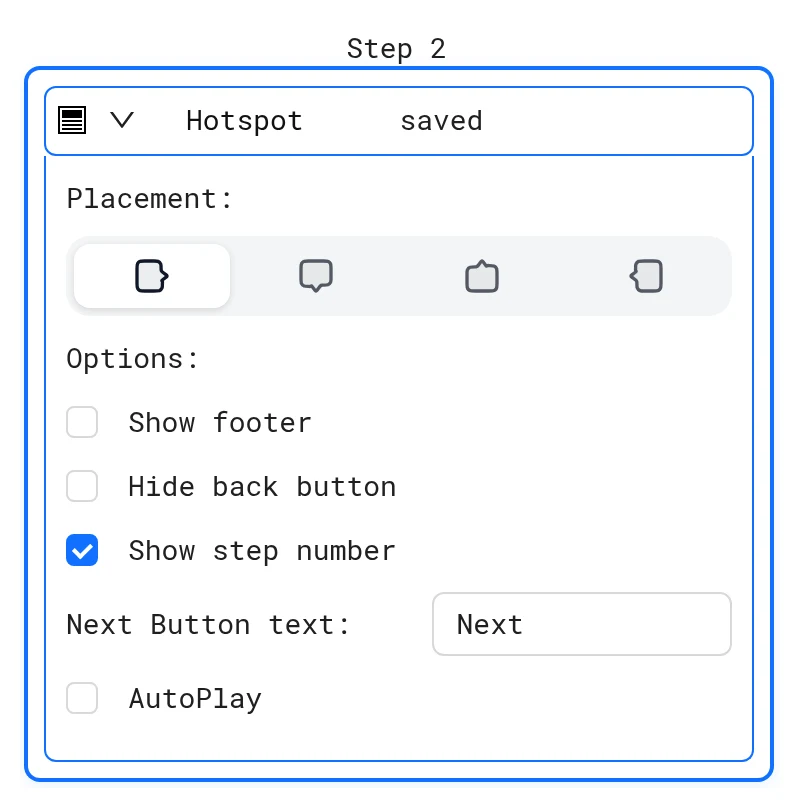
There is no Save button for steps. Changes save automatically about a second after you stop typing (saving... → saved). Panels in the Design & Settings tab have their own Save button.
Keyboard shortcuts
| Shortcut | Action |
|---|---|
Ctrl/Cmd + Z | Undo |
Ctrl/Cmd + Shift + Z or Ctrl/Cmd + Y | Redo |
Ctrl/Cmd + B / I / U | Bold, italic, underline in step text |
Ctrl/Cmd + backtick | Inline code in step text |
← / → | Previous / next step in the preview (also works for viewers) |
Esc | Close the element picker |
Undo and redo don't apply while you're typing in a text field.
Edit page content (HTML demos)
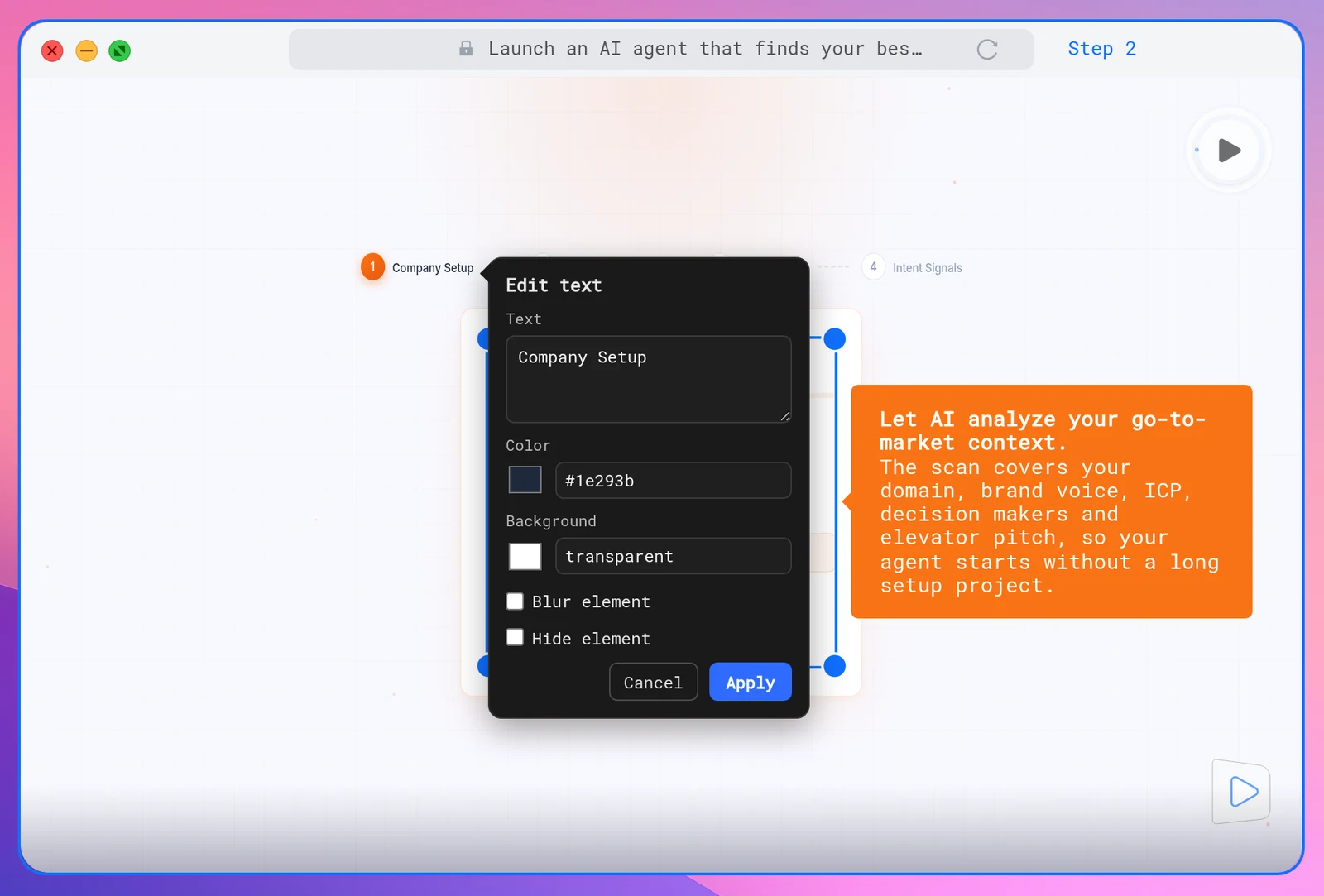
In an HTML demo, click Edit in the toolbar, then click any element on the page:
- Edit text to change copy, numbers or names
- Edit image or Replace image to swap a picture
- Blur element to hide sensitive data
- Hide element to remove it
Click Done when you're finished.
Next steps
When it looks right, share your LiveDemo.
More in Edit a LiveDemo
- Screens: Rename, reorder, duplicate and delete screens in the LiveDemo editor, add screens from the library or by upload, and understand screen types.
- Steps: Add, reorder, duplicate and delete the steps of your LiveDemo so the interactive demo follows the exact flow you want buyers to see.
- Pointer & Hotspot Steps: Guide viewers with pointer steps (an animated cursor) or hotspot steps (a pulsing dot), and set their placement and options in LiveDemo.
- Step Text & Buttons: Format tooltip text, personalize it with variables, change the Next button label and footer, and write step copy that converts.
- Transitions: Add the pointer click or hotspot that moves viewers from one screen of a LiveDemo to the next.
- Popup: Add popups to your LiveDemo to introduce a feature, explain a step or capture leads with a form inside the interactive demo.
- Popup Buttons & Effects: Add call-to-action buttons to LiveDemo popups: go to the next step, jump to a screen or open a website, with colors and attention effects.
- Lead Forms: Add a lead capture form to a LiveDemo: fields, required answers, dropdowns, captcha, placement tips and where submissions go.
- Embed Popups: Use an Embed popup to put a Calendly or Cal.com calendar, a Typeform, a video or any HTML embed inside your LiveDemo.
- Branching: Build a choose-your-own-path LiveDemo with popup buttons that jump to different screens, for different personas or features.
- Zoom: Use zoom in the LiveDemo editor to focus viewers on the important part of a screen and make small UI details readable.
- Video Screens: Speed up video screens, add zooms on the timeline and turn video frames into screenshot screens in the LiveDemo editor.
- Voiceover: Add AI voiceover to your LiveDemo so each step of the interactive demo is narrated for viewers.
- AI Text: Use Enhance with AI to rewrite every step of your LiveDemo into a clear, contextual guide in one click.
- Autoplay: Turn on autoplay to play your LiveDemo step by step automatically, like a video, while keeping it interactive.
- Edit Page Content: Change copy, numbers, colors and images on captured HTML screens in LiveDemo without recording again.
- Blur & Hide Data: Blur or hide emails, names, revenue and other sensitive data in your LiveDemo before you share it.
- Design: Customize the look of your LiveDemo: brand colors, fonts, hotspots and tooltip styles that match your product and website.
- Theme: Match your LiveDemo to your brand with tooltip and button colors, a Google font, tooltip arrows, hover glow and footer button style.
- Background: Frame your LiveDemo on a solid color, gradient or wallpaper, with padding and blur, for a polished look on your website.
- Music: Play a preset track or your own audio behind your LiveDemo, trim long files and set the volume.
- Misc Settings: Turn on completion confetti, remove the browser wrapper, show navigation tabs, use a large custom cursor and control the watermark in LiveDemo.
- Variables: Add variables such as company or first name to a LiveDemo and fill them per prospect with custom links, so each viewer sees their own name.
- Content Security Policy: Add Content Security Policy directives so embeds, fonts and images from other domains load inside your LiveDemo.