Google Analytics
There are two ways to get LiveDemo events into GA4. You can use both.
| Way | Plan | Best for |
|---|---|---|
| Server-side | Growth | Share links, agent pages and numbers ad blockers can't drop |
| From your website | All | Embeds, tied to your visitor's own GA session |
Server-side GA4
LiveDemo sends events straight to GA4 with the Measurement Protocol.
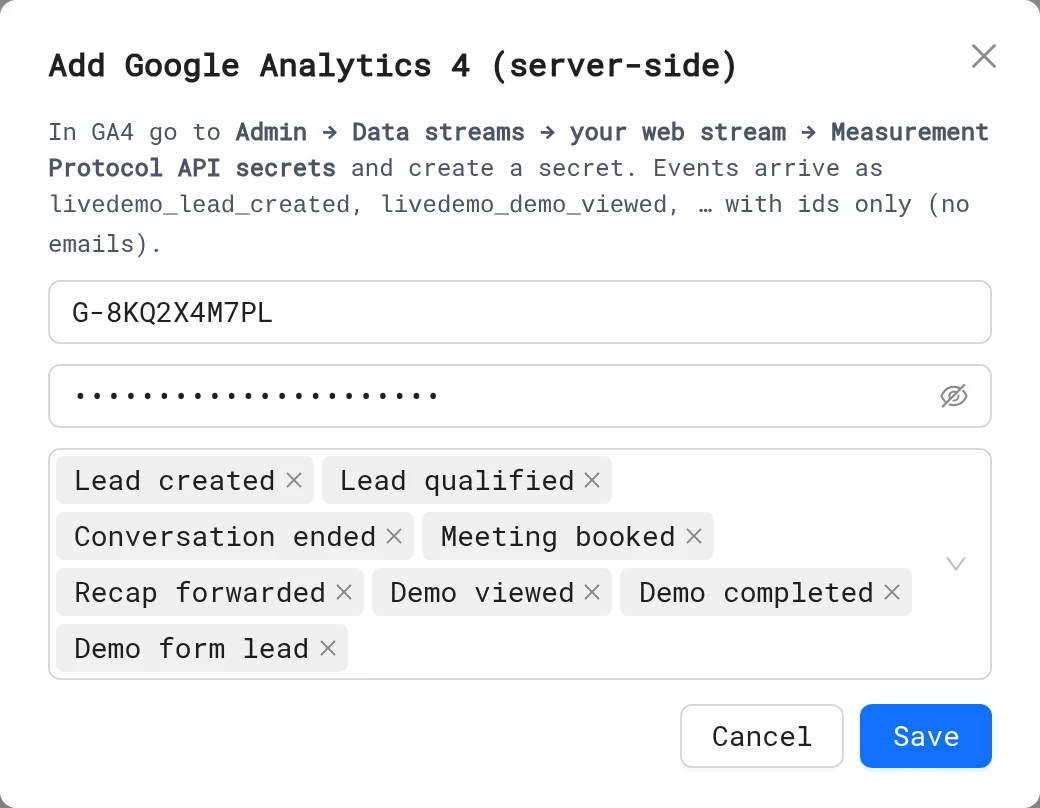
- In GA4, go to Admin → Data streams, open your web stream and copy the Measurement ID (
G-…). - On the same page, open Measurement Protocol API secrets and click Create. Copy the secret.
- In LiveDemo, open Settings → Webhooks, Slack & server-side analytics and click Add GA4.
- Paste the Measurement ID and the Measurement Protocol API secret.
- Keep all events or remove the ones you don't want, then click Save ("GA4 connected").
- Click Send test. You'll see "Delivered (HTTP …)". Check Realtime or DebugView in GA4.
Only the workspace Admin on the Growth plan can add it. The secret is stored encrypted.
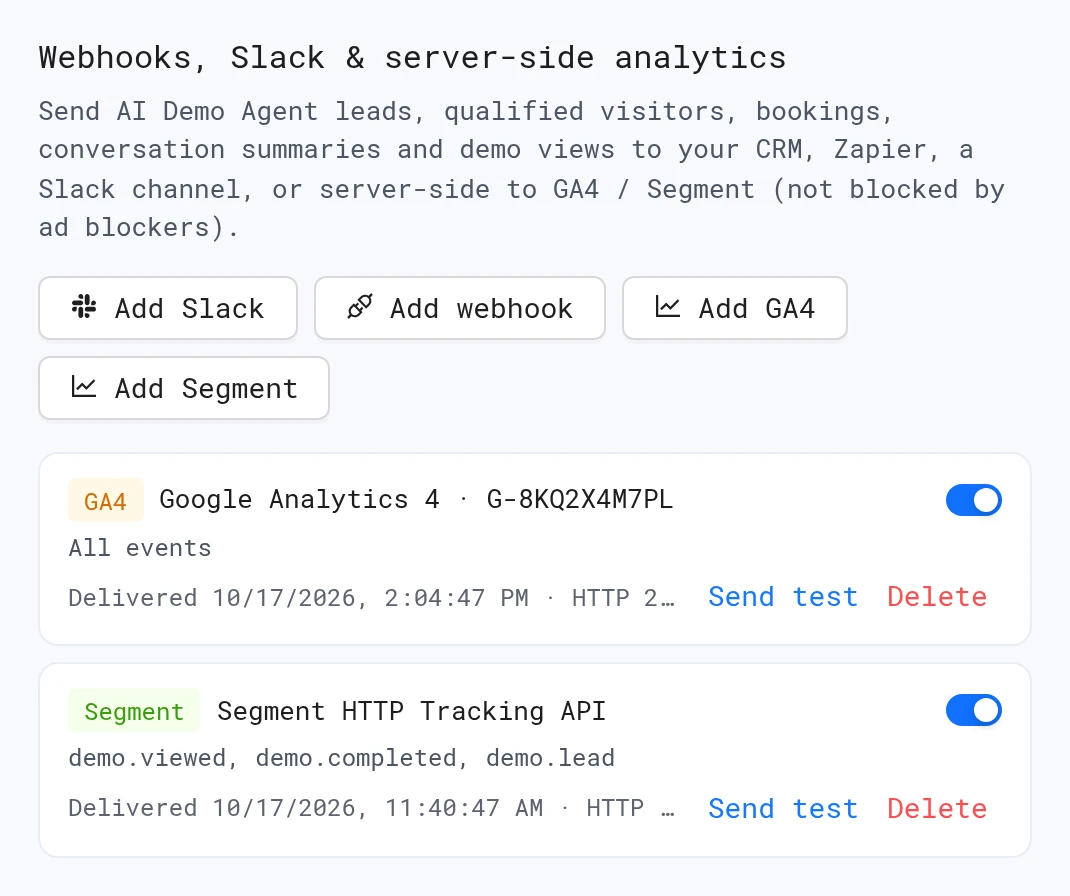
Each destination shows its last delivery or error. Turn it off with the switch, or Delete it.
Events
| In the list | GA4 event name |
|---|---|
| Demo viewed | livedemo_demo_viewed |
| Demo completed | livedemo_demo_completed |
| Demo form lead | livedemo_demo_lead |
| Lead created (AI Demo Agent) | livedemo_lead_created |
| Lead qualified | livedemo_lead_qualified |
| Conversation ended | livedemo_session_ended |
| Meeting booked | livedemo_meeting_booked |
| Recap forwarded | livedemo_recap_viewed |
Parameters, when known: session_id, demo_id, demo_name, agent_id, agent_name, intent, qualified, demos_opened and country. Names and emails are never sent.
Server-side events use the LiveDemo session as the GA client, so they show up as their own users in GA4, not joined to your website visitor. To join them, use the browser method below.
From your website
With the AI Demo Agent widget
If your page has the widget script, events are forwarded to your own analytics automatically:
- to
gtag()if it exists, otherwise todataLayer(Google Tag Manager) - and to Segment's
analytics.track()if it exists
This includes demos the agent opens. Turn it off with data-analytics="off" on the script tag.
With a plain embed
Embedded demos post every event to your page. Forward them with a few lines:
window.addEventListener('message', (event) => {
    if (event.origin !== 'https://story-api.livedemo.ai') return
    if (event.data?.type !== 'livedemo:event') return
    gtag('event', event.data.name, event.data.properties)
})
For Google Tag Manager, use window.dataLayer.push({ event: event.data.name, ...event.data.properties }) instead.
| Browser event | When | Properties |
|---|---|---|
livedemo_demo_view | The demo loads | demo_id, demo_name, step_count |
livedemo_step_view | Every step | plus step_number |
livedemo_demo_complete | The last step, once | demo_id, step_number, step_count |
livedemo_cta_click | A button or link opens a URL | url |
livedemo_lead_captured | A lead form is submitted | form_id (never the email) |
The AI Demo Agent widget also sends livedemo_agent_open, livedemo_agent_demo_open, livedemo_agent_calendar_open, livedemo_meeting_booked, livedemo_cta_click and livedemo_lead_captured.
In GA4, register parameters such as demo_name and step_number as custom dimensions to report on them.
Next: Segment
More in Analytics
- Analytics Overview: See how viewers engage with your LiveDemos and AI Demo Agents: views, completion, drop-off, sessions and leads.
- Sessions: Understand LiveDemo views, unique users, engagement, completion and drop-off per demo and per viewing session.
- Session Replays: Replay exactly how a viewer moved through your LiveDemo, step by step, to find confusing steps and hot leads.
- Leads: See every lead captured by LiveDemo forms and AI Demo Agents, and export them to CSV.
- Exclude Internal Traffic: Stop your own team's views from counting in LiveDemo analytics with excluded IP addresses.
- Segment: Send LiveDemo demo and AI Demo Agent events to Segment as track calls, server-side or from your own website, and on to any Segment destination.