Pointer & hotspot steps
Both steps point at an element and show a tooltip. They differ in how they draw attention:
| Pointer | Hotspot | |
|---|---|---|
| What viewers see | An animated cursor that moves to the element and clicks it | A pulsing dot on the element |
| Best for | Showing a sequence of clicks, like a video | Letting viewers click themselves |
| Autoplay | No | Yes |
Add one
In the Screens tab, hover between two steps and click Add pointer click or Add hotspot.
Position it
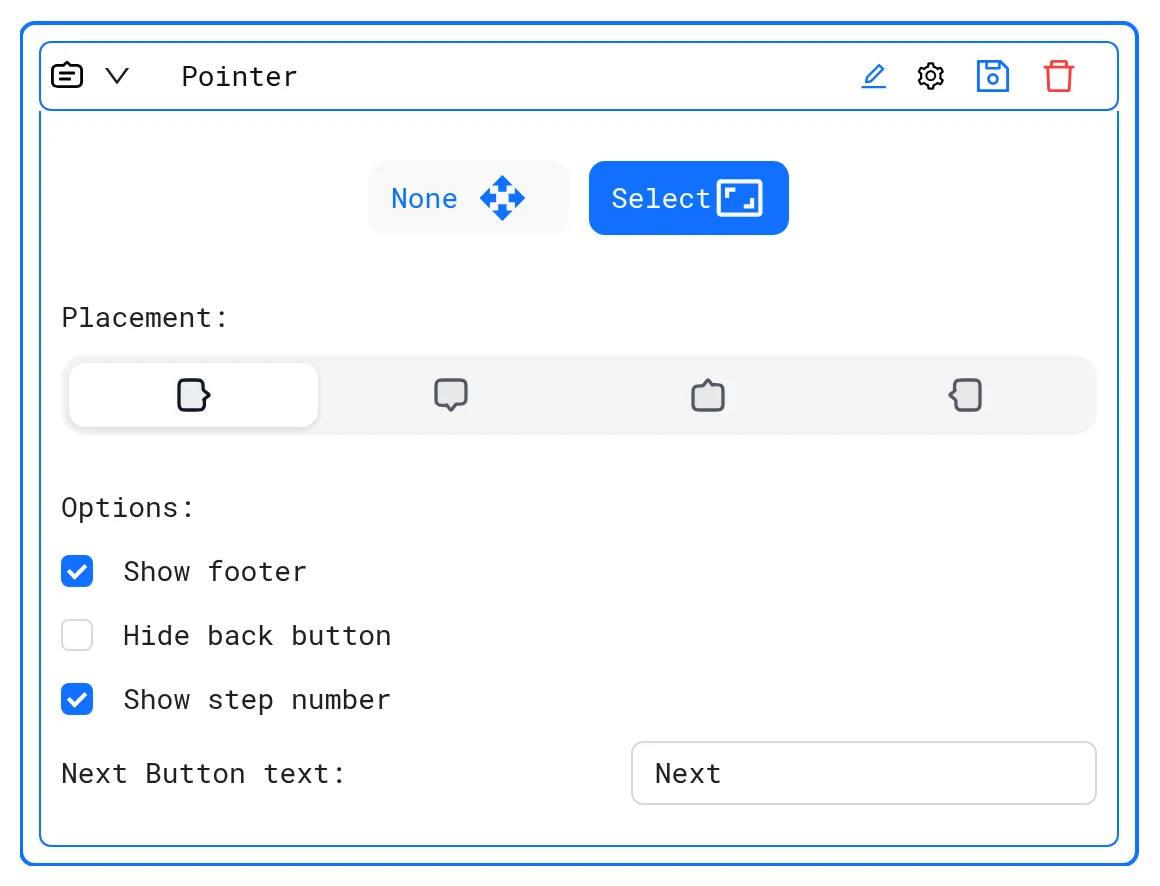
Drag the dot or cursor onto the element in the preview. Then open the step's settings (gear icon):
- Placement: where the tooltip sits: left, top, bottom or right of the element. Default: left.
- Pointer only: Select (default) lets you click the target element. Pick chooses it again, Cancel stops picking, and None shows the tooltip with no element.
Options
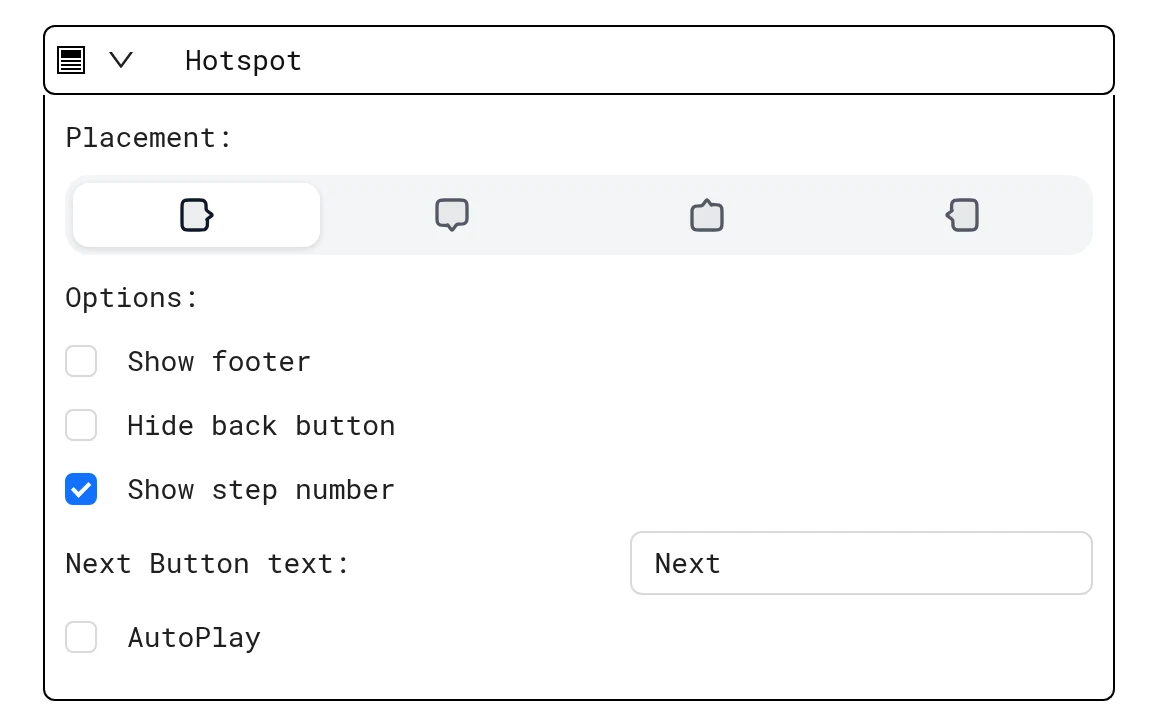
| Option | What it does |
|---|---|
| Show footer | Shows the button row under the text |
| Hide back button | Removes Back on this step |
| Show step number | Shows the step number in the tooltip |
| Next Button text | Label of the next button. Default: Next |
| AutoPlay | Hotspots only. See Autoplay |
Tooltip colors, font, arrow and glow come from the demo Theme.
Write the text
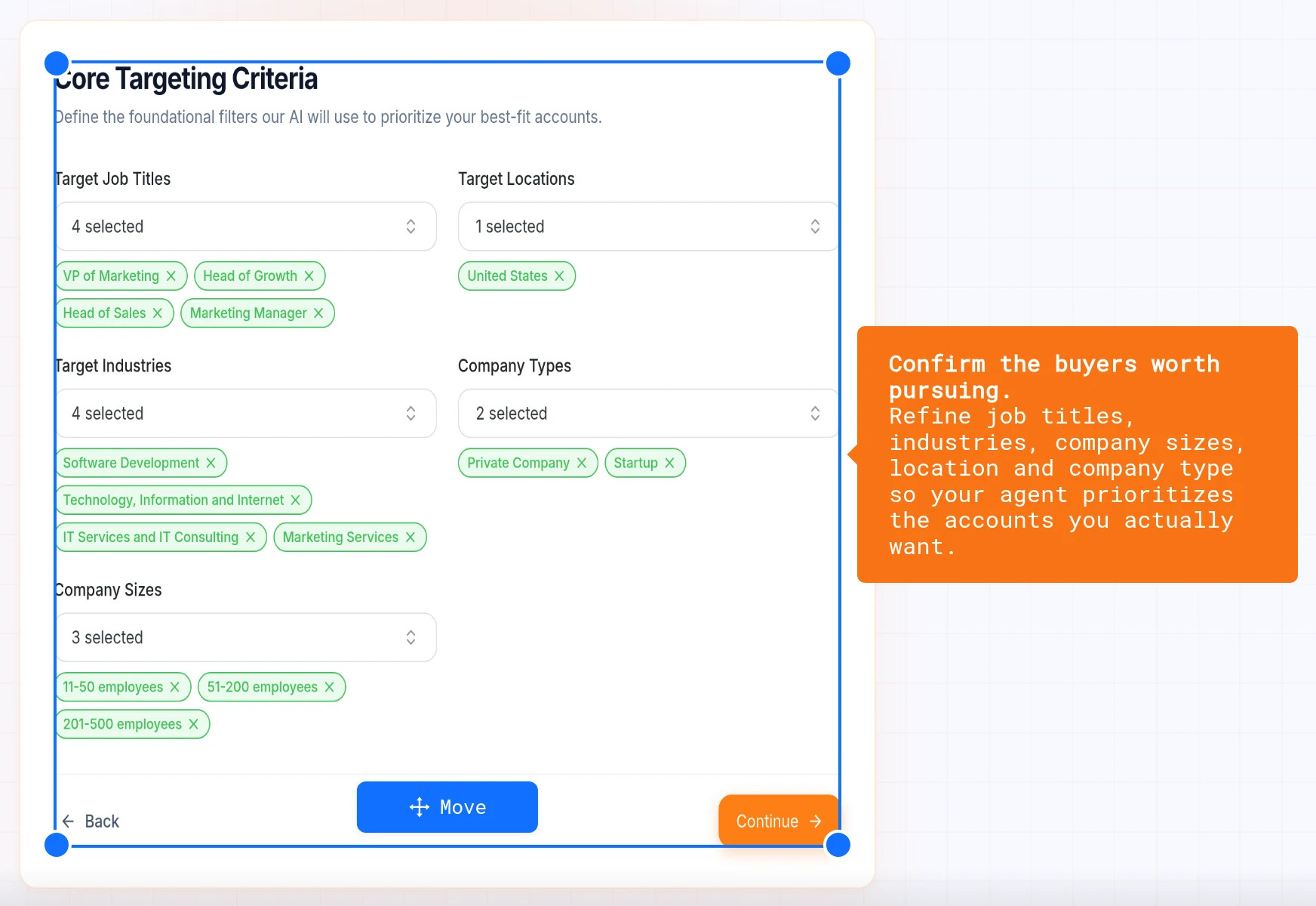
Click the tooltip text to edit it. See Step text & buttons.
Next: Step text & buttons
More in Edit a LiveDemo
- How to edit a LiveDemo: Learn how to open a captured LiveDemo in the editor and change steps, text, design, zoom, popups and voiceover before you publish.
- Screens: Rename, reorder, duplicate and delete screens in the LiveDemo editor, add screens from the library or by upload, and understand screen types.
- Steps: Add, reorder, duplicate and delete the steps of your LiveDemo so the interactive demo follows the exact flow you want buyers to see.
- Step Text & Buttons: Format tooltip text, personalize it with variables, change the Next button label and footer, and write step copy that converts.
- Transitions: Add the pointer click or hotspot that moves viewers from one screen of a LiveDemo to the next.
- Popup: Add popups to your LiveDemo to introduce a feature, explain a step or capture leads with a form inside the interactive demo.
- Popup Buttons & Effects: Add call-to-action buttons to LiveDemo popups: go to the next step, jump to a screen or open a website, with colors and attention effects.
- Lead Forms: Add a lead capture form to a LiveDemo: fields, required answers, dropdowns, captcha, placement tips and where submissions go.
- Embed Popups: Use an Embed popup to put a Calendly or Cal.com calendar, a Typeform, a video or any HTML embed inside your LiveDemo.
- Branching: Build a choose-your-own-path LiveDemo with popup buttons that jump to different screens, for different personas or features.
- Zoom: Use zoom in the LiveDemo editor to focus viewers on the important part of a screen and make small UI details readable.
- Video Screens: Speed up video screens, add zooms on the timeline and turn video frames into screenshot screens in the LiveDemo editor.
- Voiceover: Add AI voiceover to your LiveDemo so each step of the interactive demo is narrated for viewers.
- AI Text: Use Enhance with AI to rewrite every step of your LiveDemo into a clear, contextual guide in one click.
- Autoplay: Turn on autoplay to play your LiveDemo step by step automatically, like a video, while keeping it interactive.
- Edit Page Content: Change copy, numbers, colors and images on captured HTML screens in LiveDemo without recording again.
- Blur & Hide Data: Blur or hide emails, names, revenue and other sensitive data in your LiveDemo before you share it.
- Design: Customize the look of your LiveDemo: brand colors, fonts, hotspots and tooltip styles that match your product and website.
- Theme: Match your LiveDemo to your brand with tooltip and button colors, a Google font, tooltip arrows, hover glow and footer button style.
- Background: Frame your LiveDemo on a solid color, gradient or wallpaper, with padding and blur, for a polished look on your website.
- Music: Play a preset track or your own audio behind your LiveDemo, trim long files and set the volume.
- Misc Settings: Turn on completion confetti, remove the browser wrapper, show navigation tabs, use a large custom cursor and control the watermark in LiveDemo.
- Variables: Add variables such as company or first name to a LiveDemo and fill them per prospect with custom links, so each viewer sees their own name.
- Content Security Policy: Add Content Security Policy directives so embeds, fonts and images from other domains load inside your LiveDemo.