Design
All design settings live in the Design & Settings tab of the editor. They apply to the whole demo. Click Save in each panel.
Theme
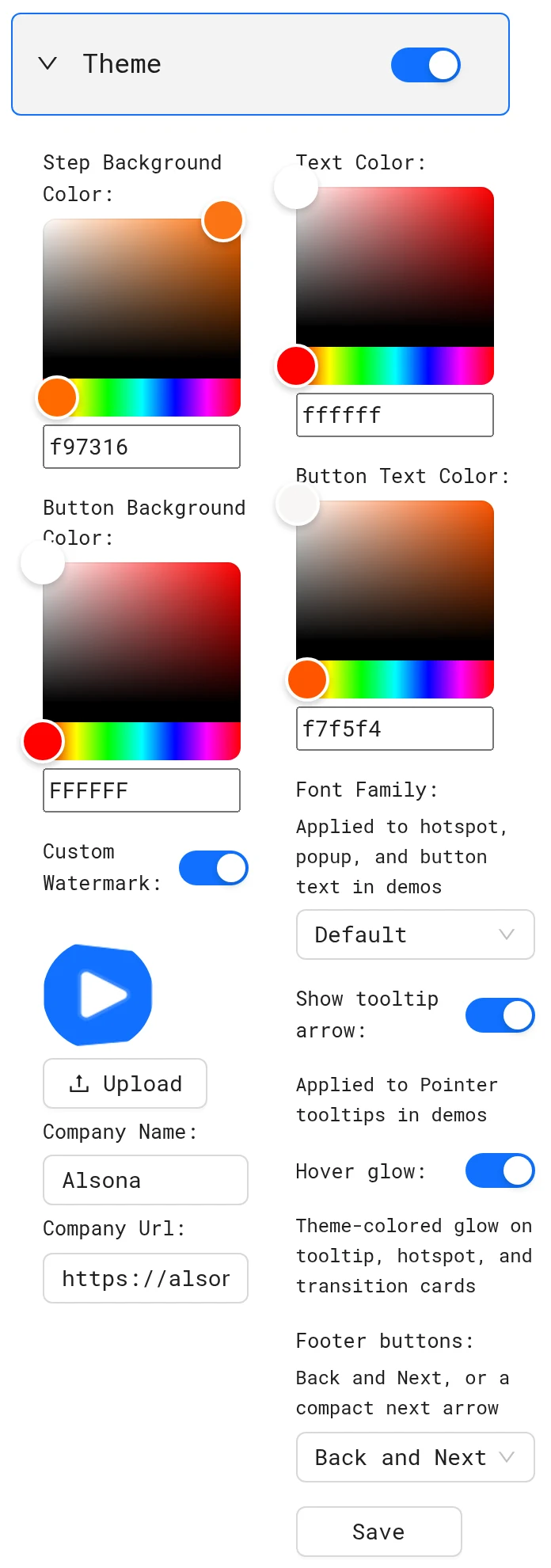
| Setting | Default |
|---|---|
| Step Background Color | #1070ff |
| Text Color | #FFFFFF |
| Button Background Color | #1070ff |
| Button Text Color | #FFFFFF |
| Font Family | Default, or any Google font |
| Show tooltip arrow | On (pointer tooltips) |
| Hover glow | On |
| Footer buttons | Back and Next, or Next Arrow |
| Custom Watermark | Your logo, company name and URL |
Background
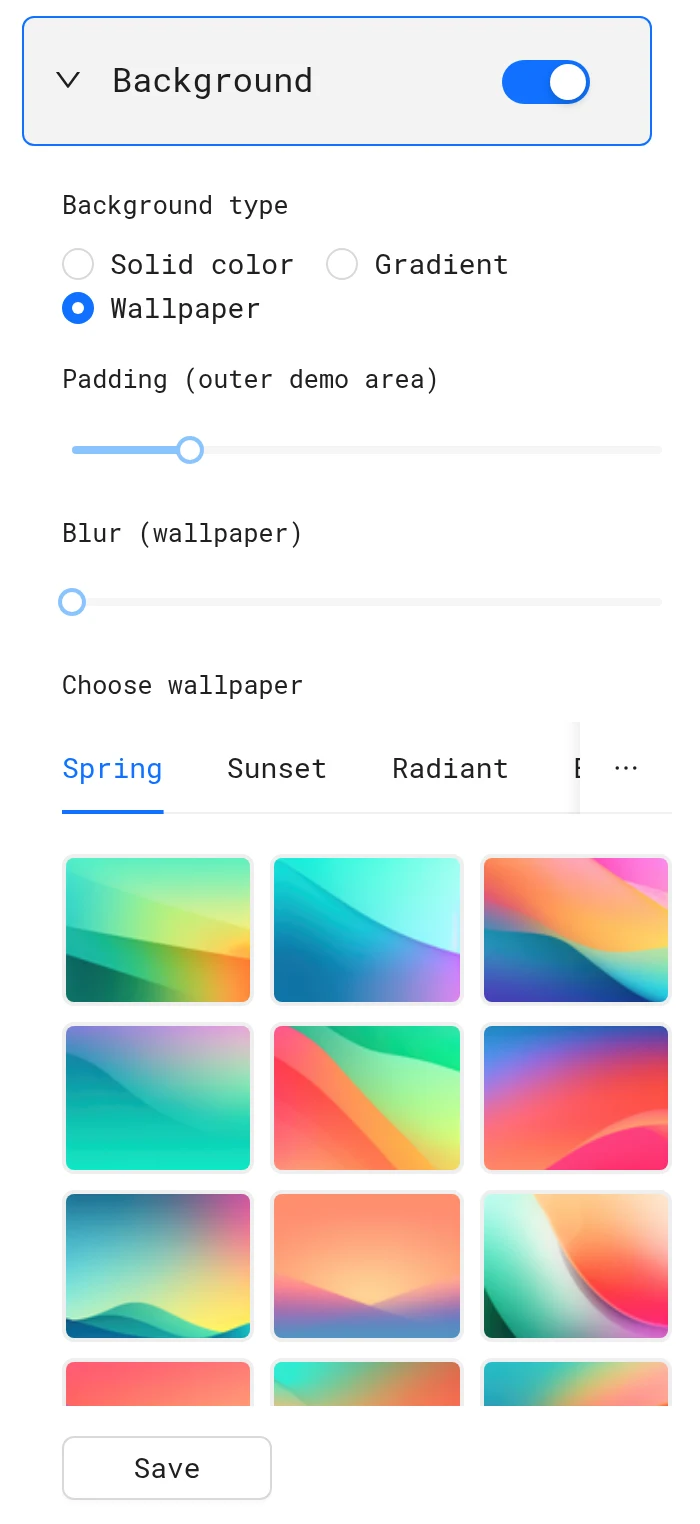
Put the demo on a Solid color, Gradient or Wallpaper. Set Padding (0–120 px) and wallpaper Blur (0–24).
Music
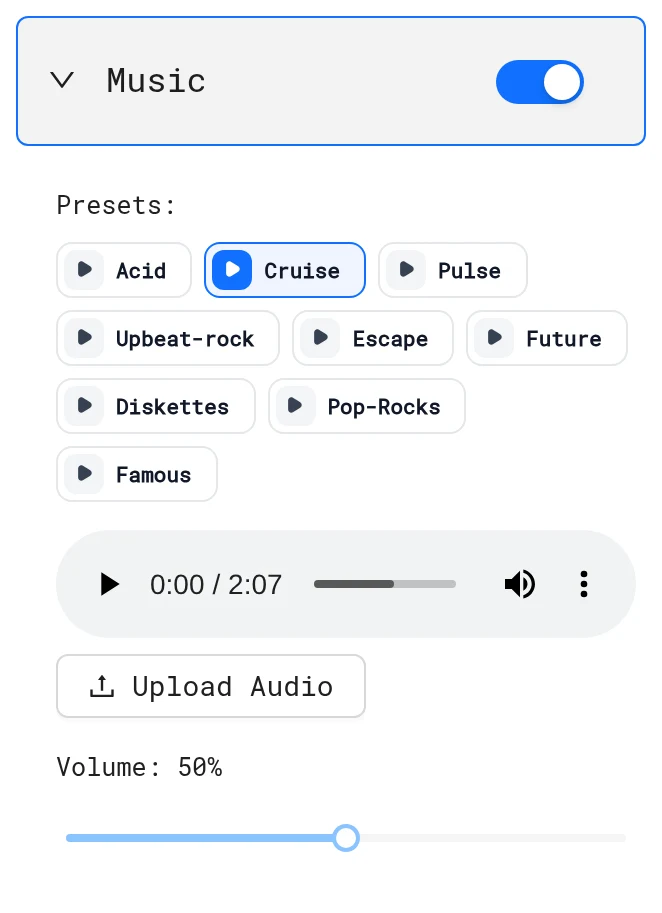
Pick a background track or Upload Audio (up to 5 MB), and set the volume.
Misc
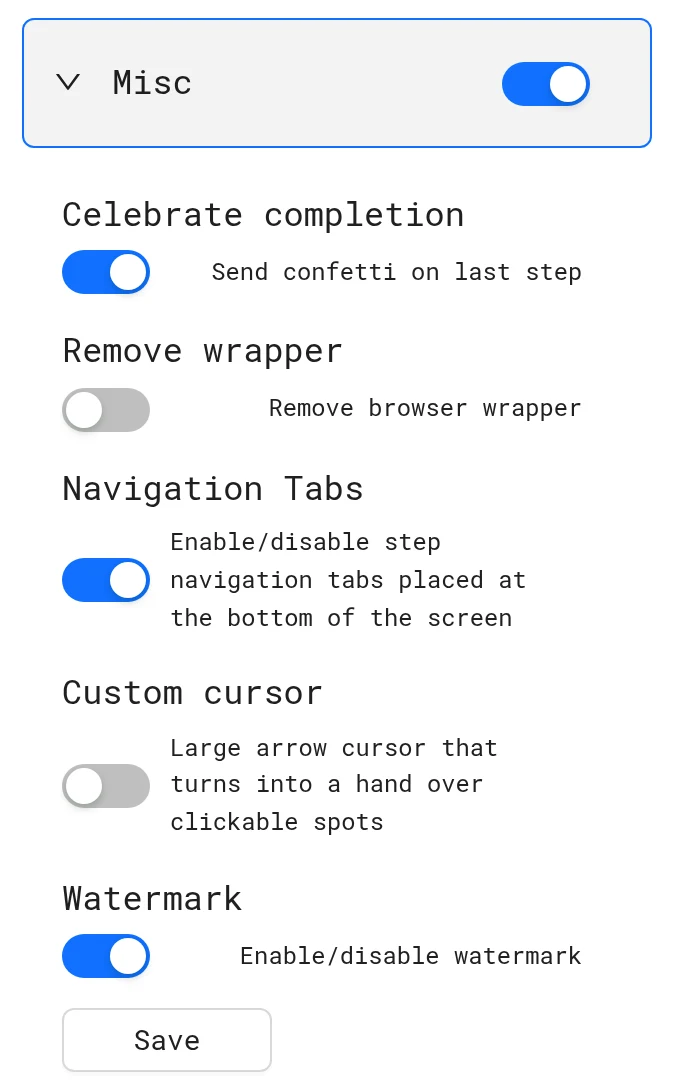
- Remove wrapper: hide the browser frame around the screens.
- Navigation Tabs: show step navigation tabs at the bottom of the screen.
- Celebrate completion: send confetti on the last step.
- Custom cursor: a large arrow cursor that turns into a hand over clickable spots.
- Watermark: see Remove Watermark.
Variables
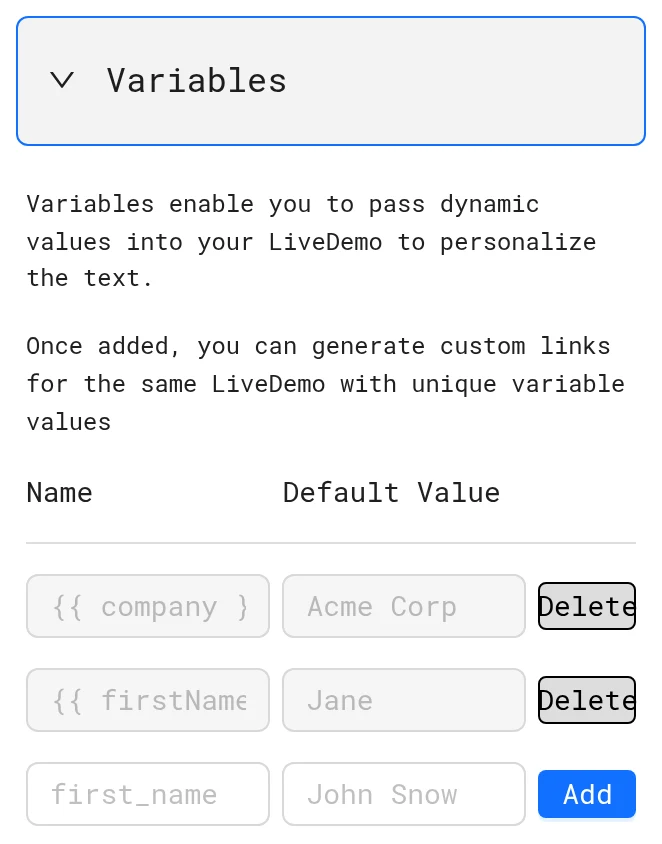
Personalize text with variables (paid plans). In Design & Settings → Variables, add a Name and a Default Value, then write {{ name }} in any step or popup text.
Each custom link can set its own value, such as the prospect's company.
Next: Popup
More in Edit a LiveDemo
- How to edit a LiveDemo: Learn how to open a captured LiveDemo in the editor and change steps, text, design, zoom, popups and voiceover before you publish.
- Screens: Rename, reorder, duplicate and delete screens in the LiveDemo editor, add screens from the library or by upload, and understand screen types.
- Steps: Add, reorder, duplicate and delete the steps of your LiveDemo so the interactive demo follows the exact flow you want buyers to see.
- Pointer & Hotspot Steps: Guide viewers with pointer steps (an animated cursor) or hotspot steps (a pulsing dot), and set their placement and options in LiveDemo.
- Step Text & Buttons: Format tooltip text, personalize it with variables, change the Next button label and footer, and write step copy that converts.
- Transitions: Add the pointer click or hotspot that moves viewers from one screen of a LiveDemo to the next.
- Popup: Add popups to your LiveDemo to introduce a feature, explain a step or capture leads with a form inside the interactive demo.
- Popup Buttons & Effects: Add call-to-action buttons to LiveDemo popups: go to the next step, jump to a screen or open a website, with colors and attention effects.
- Lead Forms: Add a lead capture form to a LiveDemo: fields, required answers, dropdowns, captcha, placement tips and where submissions go.
- Embed Popups: Use an Embed popup to put a Calendly or Cal.com calendar, a Typeform, a video or any HTML embed inside your LiveDemo.
- Branching: Build a choose-your-own-path LiveDemo with popup buttons that jump to different screens, for different personas or features.
- Zoom: Use zoom in the LiveDemo editor to focus viewers on the important part of a screen and make small UI details readable.
- Video Screens: Speed up video screens, add zooms on the timeline and turn video frames into screenshot screens in the LiveDemo editor.
- Voiceover: Add AI voiceover to your LiveDemo so each step of the interactive demo is narrated for viewers.
- AI Text: Use Enhance with AI to rewrite every step of your LiveDemo into a clear, contextual guide in one click.
- Autoplay: Turn on autoplay to play your LiveDemo step by step automatically, like a video, while keeping it interactive.
- Edit Page Content: Change copy, numbers, colors and images on captured HTML screens in LiveDemo without recording again.
- Blur & Hide Data: Blur or hide emails, names, revenue and other sensitive data in your LiveDemo before you share it.
- Theme: Match your LiveDemo to your brand with tooltip and button colors, a Google font, tooltip arrows, hover glow and footer button style.
- Background: Frame your LiveDemo on a solid color, gradient or wallpaper, with padding and blur, for a polished look on your website.
- Music: Play a preset track or your own audio behind your LiveDemo, trim long files and set the volume.
- Misc Settings: Turn on completion confetti, remove the browser wrapper, show navigation tabs, use a large custom cursor and control the watermark in LiveDemo.
- Variables: Add variables such as company or first name to a LiveDemo and fill them per prospect with custom links, so each viewer sees their own name.
- Content Security Policy: Add Content Security Policy directives so embeds, fonts and images from other domains load inside your LiveDemo.