Exclude internal traffic
Your team opens demos all the time while building and presenting them. Keep those views out of your numbers.
Excluded IP addresses
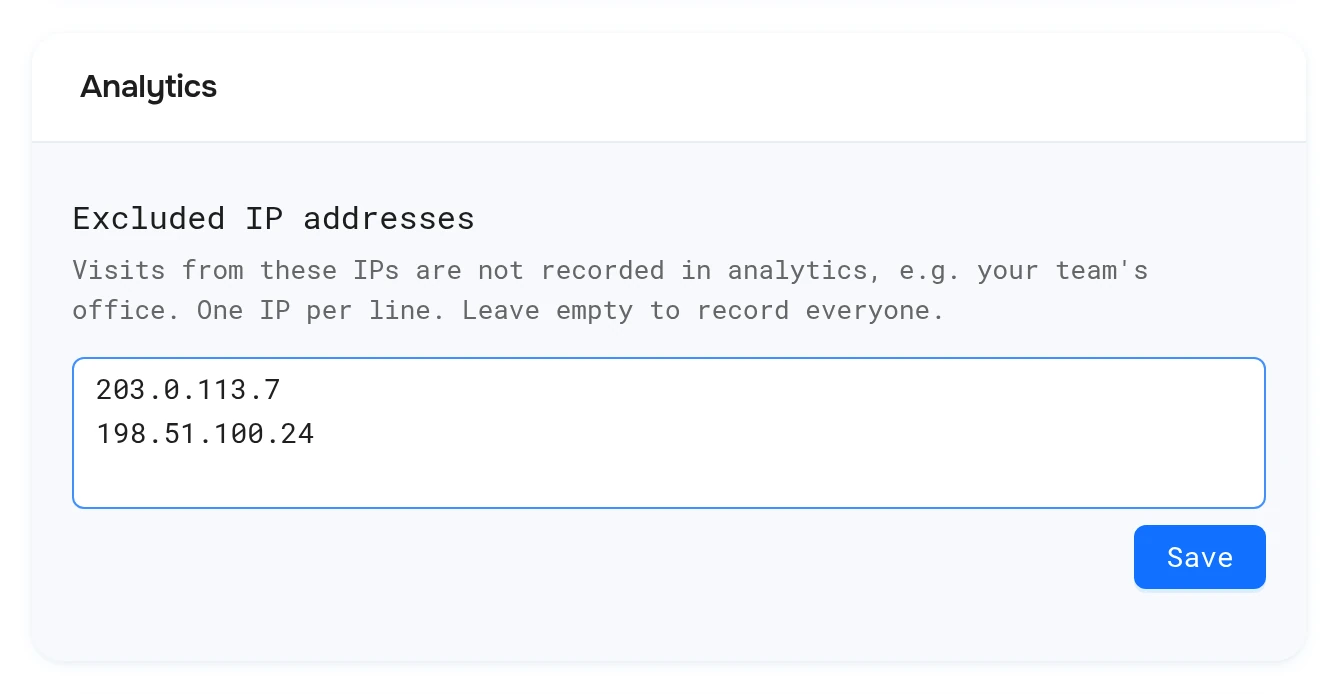
- Open Settings and scroll to Analytics.
- Under Excluded IP addresses, enter one IP per line, such as your office IP.
- Click Save. You'll see "Excluded IPs saved".
Visits from these IPs aren't recorded, for demos and AI Demo Agents. Only the workspace Admin can change the list ("Only the workspace admin can change this list").
Find your IP by searching "what is my IP" in your browser.
Other ways
- Add
sessionDisabledto the embedsrcon internal pages. See URL parameters. - Viewers whose browser sends Do Not Track are never recorded.
Notes
- Exclusions apply from the moment you save. Past sessions stay.
- Home IPs change. Remote teams can turn on Do Not Track in their browser instead.
Next: Google Analytics
More in Analytics
- Analytics Overview: See how viewers engage with your LiveDemos and AI Demo Agents: views, completion, drop-off, sessions and leads.
- Sessions: Understand LiveDemo views, unique users, engagement, completion and drop-off per demo and per viewing session.
- Session Replays: Replay exactly how a viewer moved through your LiveDemo, step by step, to find confusing steps and hot leads.
- Leads: See every lead captured by LiveDemo forms and AI Demo Agents, and export them to CSV.
- Google Analytics: Send LiveDemo demo views, completions, leads and AI Demo Agent events to Google Analytics 4, server-side or from your own website.
- Segment: Send LiveDemo demo and AI Demo Agent events to Segment as track calls, server-side or from your own website, and on to any Segment destination.