Embed on website
- Publish the demo (Share → Public access).
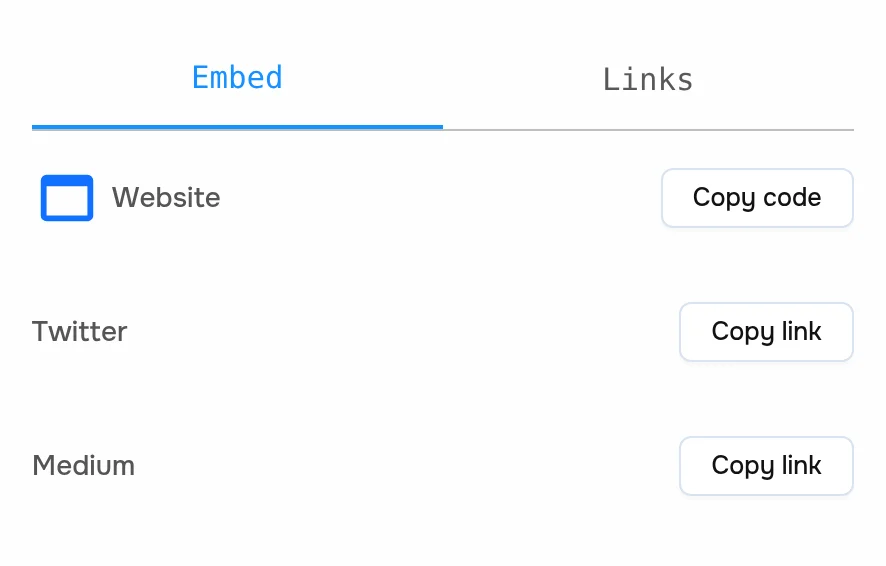
- Open Share → Embed and click Copy code next to Website.
- Paste the code into your page's HTML (in Webflow, WordPress or Framer use an Embed / Custom HTML block).
The code is a responsive iframe. It keeps the demo's aspect ratio at any width:
<div style="position: relative; padding-bottom: calc(56.25% + 41px); height: 0;">
  <iframe src="https://story-api.livedemo.ai/workspaces/WORKSPACE_ID/stories/DEMO_ID/preview?step=1&embed" frameBorder="0" loading="lazy"
          webkitallowfullscreen mozallowfullscreen allowFullScreen
          style="position: absolute; top: 0; left: 0; width: 100%; height: 100%; border-radius: 6px;"></iframe>
</div>
URL options
Add these to the iframe src:
| Parameter | Effect |
|---|---|
step=1 | Step to start on |
autoplay=true | Play automatically. See Autoplay |
autoplayDelay=3 | Seconds per step when autoplaying |
disableAudio=true | Mute voiceover and background music |
link=LINK_ID | Use the variable values of a custom link |
Embed on popular platforms
Copy the Website code first, then:
| Platform | Where to paste it |
|---|---|
| WordPress | Add a Custom HTML block |
| Webflow | Drag in an Embed element (Code Embed) |
| Framer | Insert an Embed component and choose HTML |
| Wix | Add → Embed Code → Embed HTML, then choose Code |
| Squarespace | Add a Code block |
| HubSpot pages and blog | In a rich text module, Insert → Embed, or use a custom HTML module |
| Notion | Type /embed and paste the src URL from the code (the https://story-api.livedemo.ai/... part) |
| Zendesk Guide | Open the article's Source code view and paste the code. If the iframe is stripped, ask your admin to allow story-api.livedemo.ai in Guide's embed settings |
| React / Next.js | Paste the code into JSX. It already uses frameBorder and allowFullScreen |
| Plain HTML | Paste it where the demo should appear |
If a platform doesn't allow iframes (most email tools, some help centers), share the link or a GIF/video export instead.
Listen to demo events
The embedded demo sends a message to your page every time the viewer reaches a step:
window.addEventListener('message', (event) => {
    if (event.origin !== 'https://story-api.livedemo.ai') return
    if (event.data && event.data.type === 'step_index_changed') {
        const { stepNumber } = event.data.state // starts at 1
        // e.g. send it to Google Analytics, or detect the last step
    }
})
You can also move the demo to a step from your page:
document.querySelector('iframe').contentWindow.postMessage({ type: 'changeStep', stepNumber: 3 }, '*')
Troubleshooting
- Blank iframe: check that Public access is on.
- Blocked by your site's Content Security Policy: allow
story-api.livedemo.aiinframe-src. - Demo loads external content that is blocked: allow the domain under Design & Settings → Security → Additional Content Security Policy. See Content Security Policy.
More fixes in Troubleshooting.
Next: Share on Medium
More in Share
- Share your public LiveDemo: Publish your LiveDemo and share a public link so prospects and customers can explore the interactive demo without signing up.
- Public & Private Access: Control who can view your LiveDemo with the Public access switch, and what viewers see when a demo is private.
- Custom Links: Create a LiveDemo link per prospect or campaign with its own variable values, so one demo shows each viewer their own name.
- Custom Domain: Share LiveDemos and AI Demo Agents from your own subdomain, like demos.acme.com, with one CNAME record and automatic HTTPS.
- Preview & Fullscreen: Preview your LiveDemo as viewers see it and present it fullscreen on a sales call or at an event.
- URL Parameters: Control where an embedded LiveDemo starts, autoplay, audio, custom links and personalization with URL parameters.
- Embed Events: Listen to step changes from an embedded LiveDemo and move it to any step from your page with postMessage.
- Embed in WordPress: Add an interactive LiveDemo to a WordPress page or post with a Custom HTML block, in the block editor or Elementor.
- Embed in Webflow: Add an interactive LiveDemo to a Webflow page or CMS collection with a Code Embed element.
- Embed in Framer: Add an interactive LiveDemo to a Framer site with the Embed component.
- Embed in Wix: Add an interactive LiveDemo to a Wix site with the Embed HTML element.
- Embed in Squarespace: Add an interactive LiveDemo to a Squarespace page with a Code block.
- Embed in HubSpot Pages: Add an interactive LiveDemo to HubSpot landing pages, website pages, blog posts and knowledge base articles.
- Embed in Notion: Add an interactive LiveDemo to a Notion page for internal docs, onboarding wikis and public Notion sites.
- Embed in Zendesk & Help Centers: Add interactive LiveDemos to Zendesk Guide, Intercom, HelpScout and other help center articles.
- Embed in React & Next.js: Add an interactive LiveDemo to a React or Next.js app with a small responsive iframe component and listen to step events.
- Share on Medium: Share your LiveDemo in Medium articles so readers can try your product right inside the post.
- Share on X (Twitter): Share your LiveDemo on X (Twitter) with a link preview that drives followers into the interactive demo.
- Share into email platforms: Add your LiveDemo to marketing and sales emails with a preview image that links readers straight into the interactive demo.
- Export in GIF or Video: Export your LiveDemo as a GIF or video to use in social posts, docs, presentations and anywhere iframes are not supported.