MCP server
Connect your AI assistant to LiveDemo, then ask it things like:
- "List my demos and give me the share link for the onboarding demo."
- "Who were the qualified leads from the AI Demo Agent this week?"
- "Create a demo from https://acme.com."
- "Rewrite the text of step 3 in the pricing demo to be shorter."
Server URL:
https://mcp.livedemo.ai/mcp
Claude.ai and ChatGPT (OAuth)
- Add a custom connector in Claude (Settings → Connectors) or ChatGPT, and paste the server URL.
- Sign in to LiveDemo when asked.
- Check the app name and click Allow.
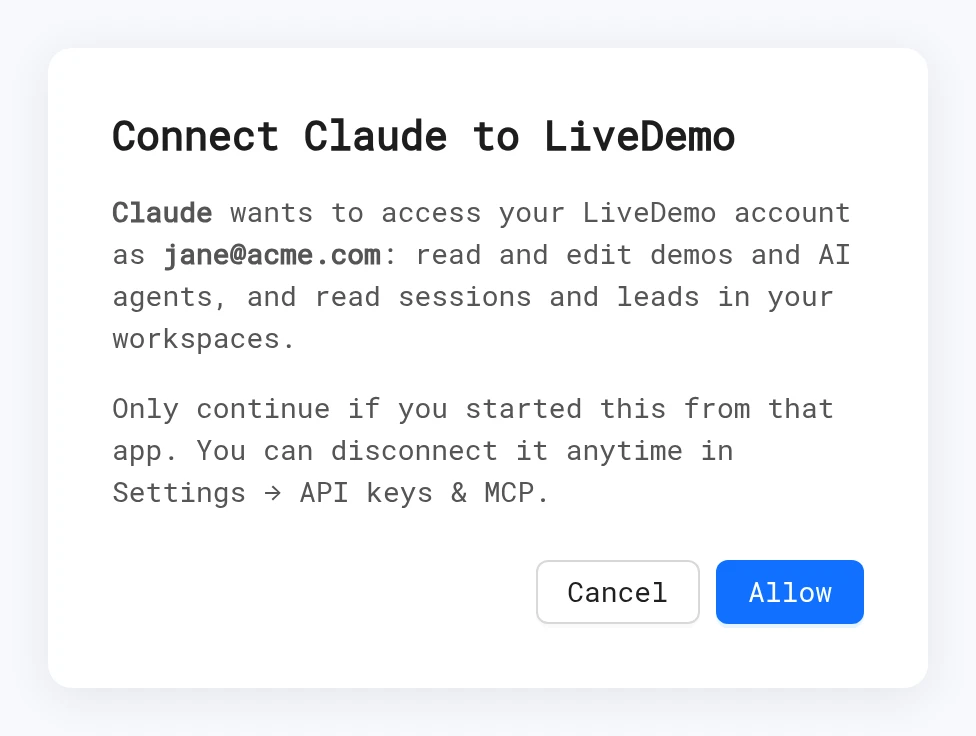
The app can read and edit demos and AI Demo Agents, and read sessions and leads, in your workspaces. Disconnect it anytime in Settings → API keys & MCP.
Cursor, Claude Code and others (API key)
Create a key
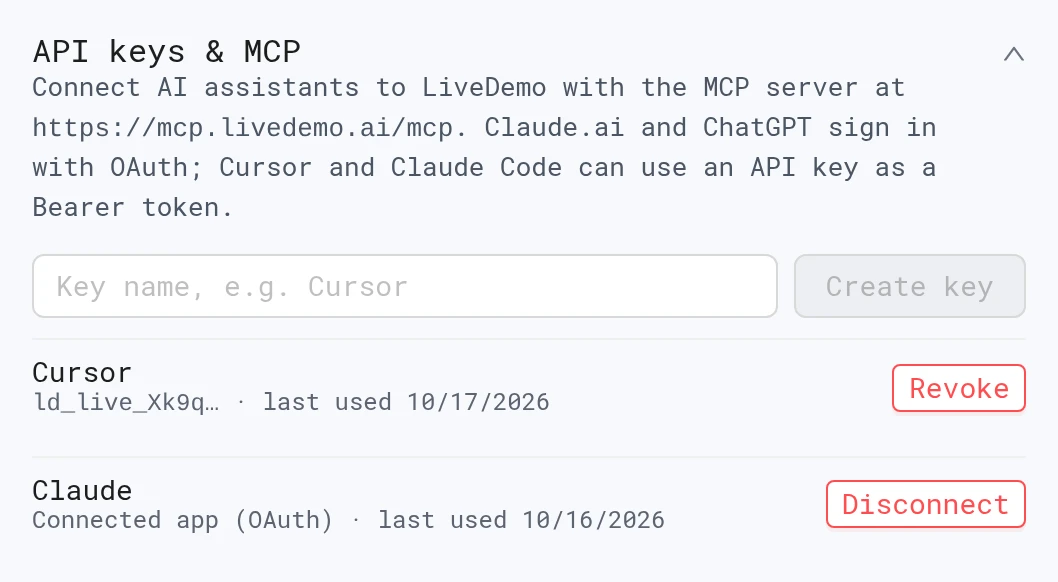
- Open Settings → API keys & MCP.
- Enter a name, such as "Cursor", and click Create key.
- Click Copy. The key starts with
ld_live_and is shown only once.
Each person can have up to 10 keys. A key acts as you, with your access to workspaces.
Cursor
Add to ~/.cursor/mcp.json (or .cursor/mcp.json in a project):
{
    "mcpServers": {
        "livedemo": {
            "url": "https://mcp.livedemo.ai/mcp",
            "headers": { "Authorization": "Bearer ld_live_YOUR_KEY" }
        }
    }
}
Claude Code
claude mcp add --transport http livedemo https://mcp.livedemo.ai/mcp --header "Authorization: Bearer ld_live_YOUR_KEY"
Claude Desktop and stdio-only clients
Use mcp-remote:
{
    "mcpServers": {
        "livedemo": {
            "command": "npx",
            "args": ["mcp-remote", "https://mcp.livedemo.ai/mcp", "--header", "Authorization: Bearer ld_live_YOUR_KEY"]
        }
    }
}
Tools
| Tool | What it does |
|---|---|
list_workspaces | Your workspaces (id, name, plan) |
list_demos | Demos in a workspace, newest first, 20 per page |
get_demo | A demo's screens and the text of every step |
get_demo_share_link | Public link and iframe embed code |
update_step_text | Replace the text of one step |
create_demo_from_url | Start an AI demo from a public URL (about a minute) |
get_demo_generation_status | Check that job and get the new demo id |
list_agents / get_agent | Your AI Demo Agents and their setup |
list_leads | Leads from demos and agents, last 48 hours, 7 or 30 days (max 50) |
list_demo_sessions | Demo viewer sessions |
list_agent_sessions | Agent conversations with summary and intent (max 30) |
Only update_step_text and create_demo_from_url change anything. Everything else is read-only.
Security
- Revoke a key or disconnect an app in Settings → API keys & MCP. Revoked keys can keep working for up to a minute.
- Keys and connected apps can't change your password or email, delete workspaces, or manage webhooks, API keys, SSO or the custom domain.
- Treat keys like passwords. Don't commit them to Git.
Next: HubSpot
More in Integrations
- Integrations Overview: Connect LiveDemo to HubSpot, Slack, Zapier or Make through webhooks, and Calendly or Cal.com, to sync leads and get alerts.
- HubSpot: Connect HubSpot to LiveDemo to create contacts from demo and AI Demo Agent leads, add conversation notes, and use HubSpot forms in demos.
- Slack: Get Slack alerts when an AI Demo Agent captures, qualifies or books a lead, with the summary and a replay link.
- Zapier & Make: Send AI Demo Agent leads and events to Zapier, Make or n8n with webhooks, and on to Salesforce, Pipedrive, Google Sheets and more.
- Calendly & Cal.com: Let visitors book a meeting inside the AI Demo Agent with Calendly or Cal.com, or inside a demo with an embed popup.