Custom links
A custom link is the same demo with different variable values. Available on paid plans ("Unlock Custom Links" on the free plan).
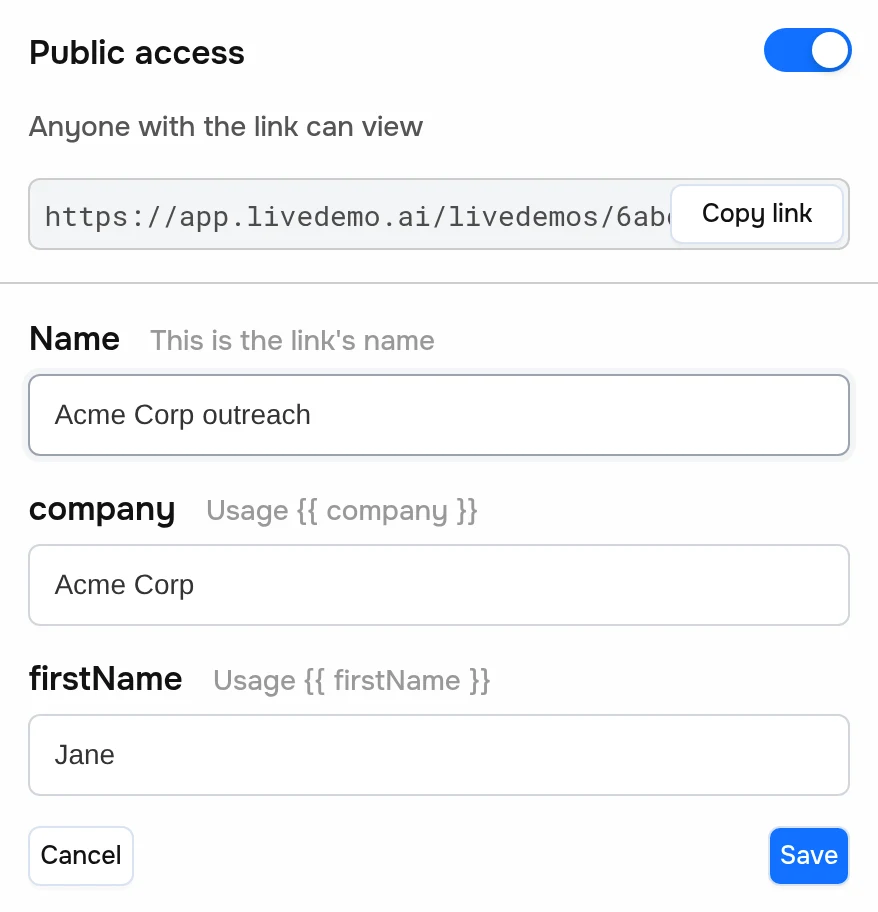
Create one
- Add variables to the demo, such as
companyandfirstName. - Turn on Share → Public access.
- Open Share → Links and click Create.
- Set Name (only you see it, such as "Acme – Jane") and a value for each variable.
- Click Save, then Copy link.
The link looks like:
https://app.livedemo.ai/livedemos/DEMO_ID/links/LINK_ID
Variables without a value on the link use their Default Value.
Edit or delete
Each link in the Custom links list has Copy link, Edit and Delete. Edits apply to the link right away. Deleted links stop working.
Embed a custom link
Add link=LINK_ID to the embed code's src:
https://story-api.livedemo.ai/workspaces/WORKSPACE_ID/stories/DEMO_ID/preview?step=1&embed&link=LINK_ID
Tips
- Name links so you can find them later: prospect, campaign or date.
- Custom links don't have their own analytics. Sessions show up under the demo in Analytics.
- Need values set on the fly, without creating links? Use the
varsURL parameter.
Next: URL parameters
More in Share
- Share your public LiveDemo: Publish your LiveDemo and share a public link so prospects and customers can explore the interactive demo without signing up.
- Public & Private Access: Control who can view your LiveDemo with the Public access switch, and what viewers see when a demo is private.
- Custom Domain: Share LiveDemos and AI Demo Agents from your own subdomain, like demos.acme.com, with one CNAME record and automatic HTTPS.
- Preview & Fullscreen: Preview your LiveDemo as viewers see it and present it fullscreen on a sales call or at an event.
- Embed on website: Embed your LiveDemo on your website, landing pages or help center with a responsive iframe snippet.
- URL Parameters: Control where an embedded LiveDemo starts, autoplay, audio, custom links and personalization with URL parameters.
- Embed Events: Listen to step changes from an embedded LiveDemo and move it to any step from your page with postMessage.
- Embed in WordPress: Add an interactive LiveDemo to a WordPress page or post with a Custom HTML block, in the block editor or Elementor.
- Embed in Webflow: Add an interactive LiveDemo to a Webflow page or CMS collection with a Code Embed element.
- Embed in Framer: Add an interactive LiveDemo to a Framer site with the Embed component.
- Embed in Wix: Add an interactive LiveDemo to a Wix site with the Embed HTML element.
- Embed in Squarespace: Add an interactive LiveDemo to a Squarespace page with a Code block.
- Embed in HubSpot Pages: Add an interactive LiveDemo to HubSpot landing pages, website pages, blog posts and knowledge base articles.
- Embed in Notion: Add an interactive LiveDemo to a Notion page for internal docs, onboarding wikis and public Notion sites.
- Embed in Zendesk & Help Centers: Add interactive LiveDemos to Zendesk Guide, Intercom, HelpScout and other help center articles.
- Embed in React & Next.js: Add an interactive LiveDemo to a React or Next.js app with a small responsive iframe component and listen to step events.
- Share on Medium: Share your LiveDemo in Medium articles so readers can try your product right inside the post.
- Share on X (Twitter): Share your LiveDemo on X (Twitter) with a link preview that drives followers into the interactive demo.
- Share into email platforms: Add your LiveDemo to marketing and sales emails with a preview image that links readers straight into the interactive demo.
- Export in GIF or Video: Export your LiveDemo as a GIF or video to use in social posts, docs, presentations and anywhere iframes are not supported.