HTML demos
An HTML demo captures the page code instead of pictures. Screens stay sharp at any size, and you can change text, swap images and blur data after recording.
Record
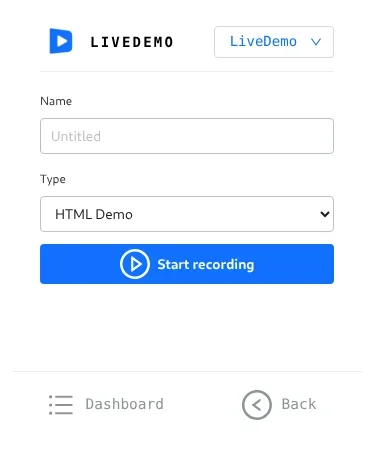
- Open the page where your workflow starts.
- Open the LiveDemo extension and set Type to HTML Demo.
- Click Start recording and click through the workflow.
- Click the LiveDemo icon to stop. The demo opens in a new tab.
Base and Delta screens
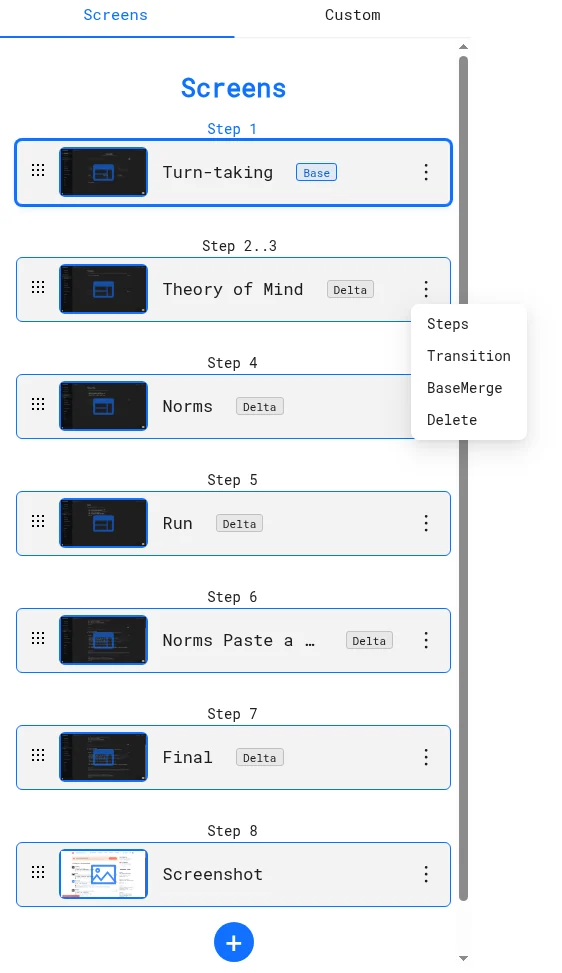
HTML screens are named after their page URL. To keep demos light, LiveDemo stores:
- a Base screen: a full snapshot of the page;
- Delta screens: only what changed after each click, applied on top of the Base.
You'll see the Base or Delta badge in the Screens tab. A Base can't be deleted while Deltas depend on it. To make a Delta independent, open its menu and click BaseMerge. This creates a new Base from that Delta.
Edit after capture

Click Edit in the toolbar to change any element. See Edit page content and Blur and hide data.
Limits
- Content that loads from your servers after a click (live charts, maps, embedded videos) may not replay. Capture those screens as Screenshots + Video.
- Fonts or images blocked by the demo's security policy can be allowed in Content Security Policy.
Next: AI Recording
More in Capture a LiveDemo
- How to capture a LiveDemo: Capture an interactive demo with the LiveDemo Chrome extension: screenshots and video, HTML, AI recording or a blank demo.
- Demo Types: Compare LiveDemo demo types (screenshot, video, HTML, AI recording and AI Demo Agent) and pick the right one.
- Screenshots + Video: Record a click-through demo with the LiveDemo Chrome extension: a screenshot on every click plus a video of the tab.
- AI Recording: Browse your app with AI Recording on and LiveDemo suggests three ready-made demo flows. Pick one and generate a LiveDemo.
- URL to Demo: Enter your website URL and LiveDemo generates an interactive demo from it automatically, ready to edit.
- Blank Demo & Uploads: Start a blank LiveDemo and upload your own screenshots or videos, or add screens to an existing demo from the extension or the library.
- Recording Tips: Prepare your app before you record a LiveDemo: demo data, window size, notifications, sensitive data and how to click for clean steps.