AI Recording
Not sure which flow to show? Browse your app normally and let AI pick the best demos.
Record
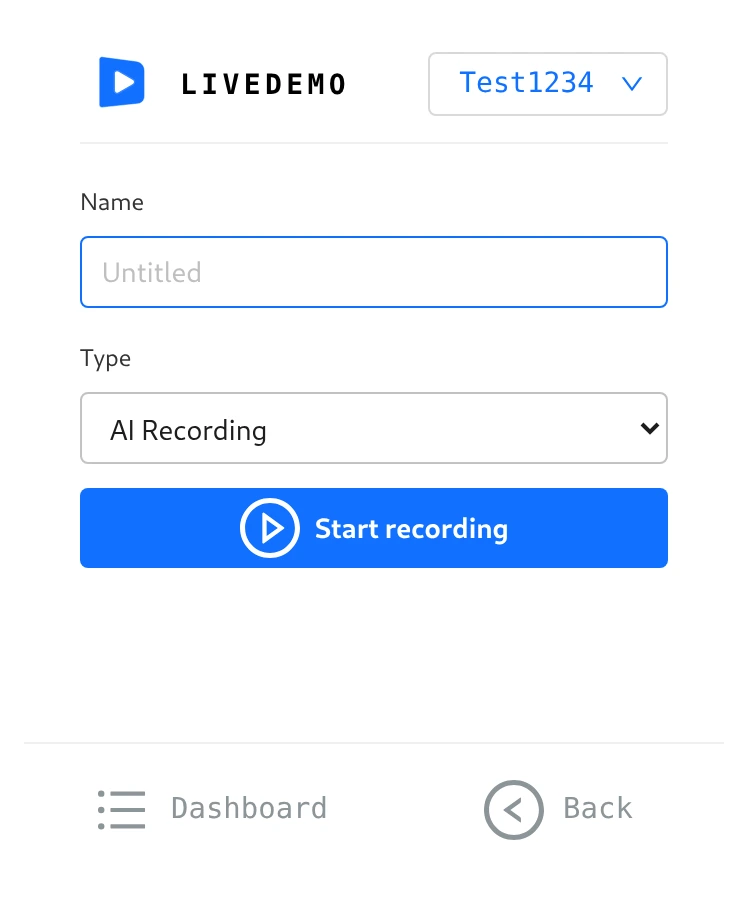
- Open your app.
- Open the LiveDemo extension and set Type to AI Recording.
- Click Start recording and use the app as you would in a demo. Every click is captured with a screenshot.
- Click the LiveDemo icon to stop. A new tab opens and shows Preparing your recording.... Processing can take a few minutes.
Pick a suggestion
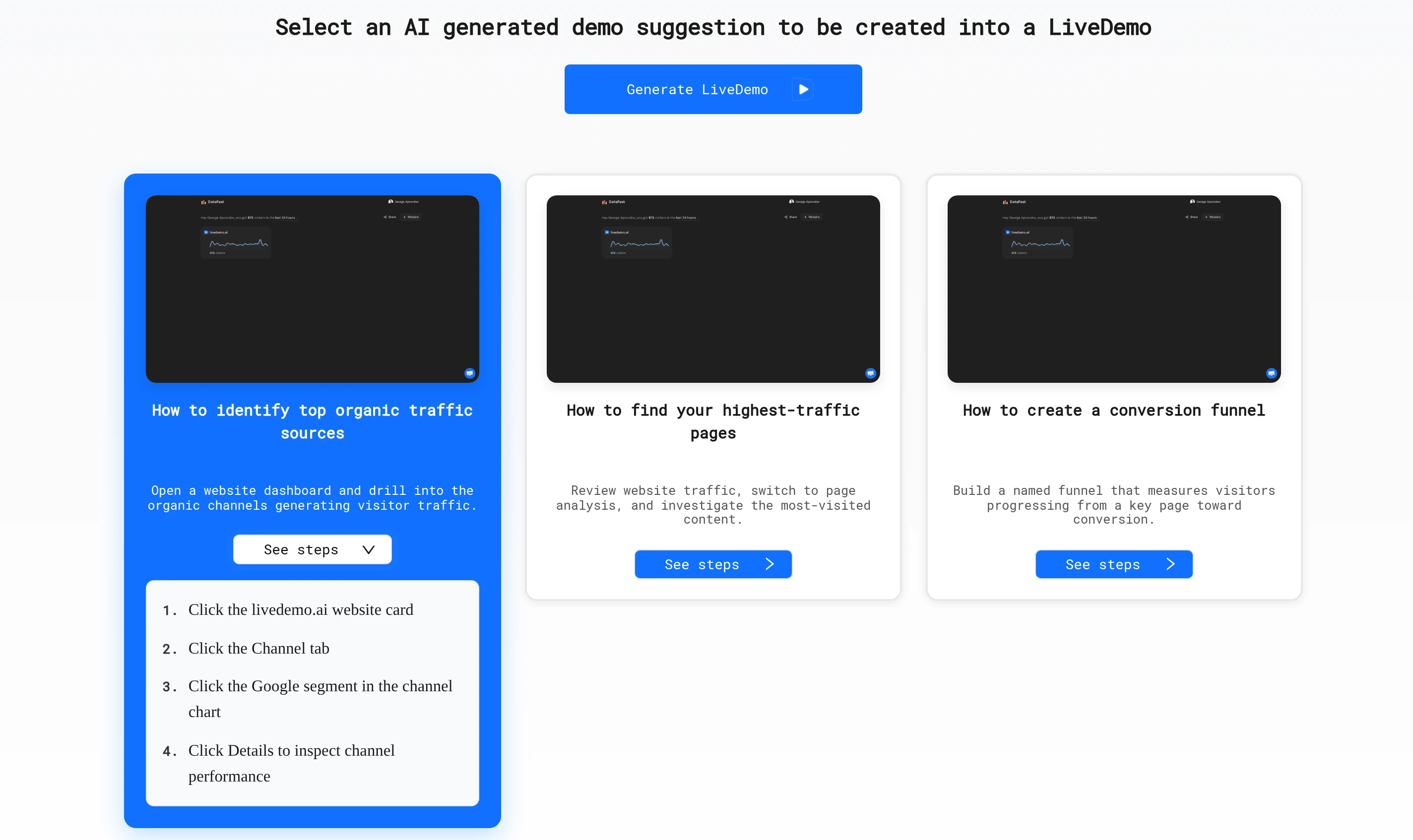
LiveDemo suggests 3 demos, each named "How to…" with 4–10 steps.
- Click See steps on a suggestion to check its steps.
- Select the one you want.
- Click Generate LiveDemo. It opens in the editor in a new tab.
Find your recordings later
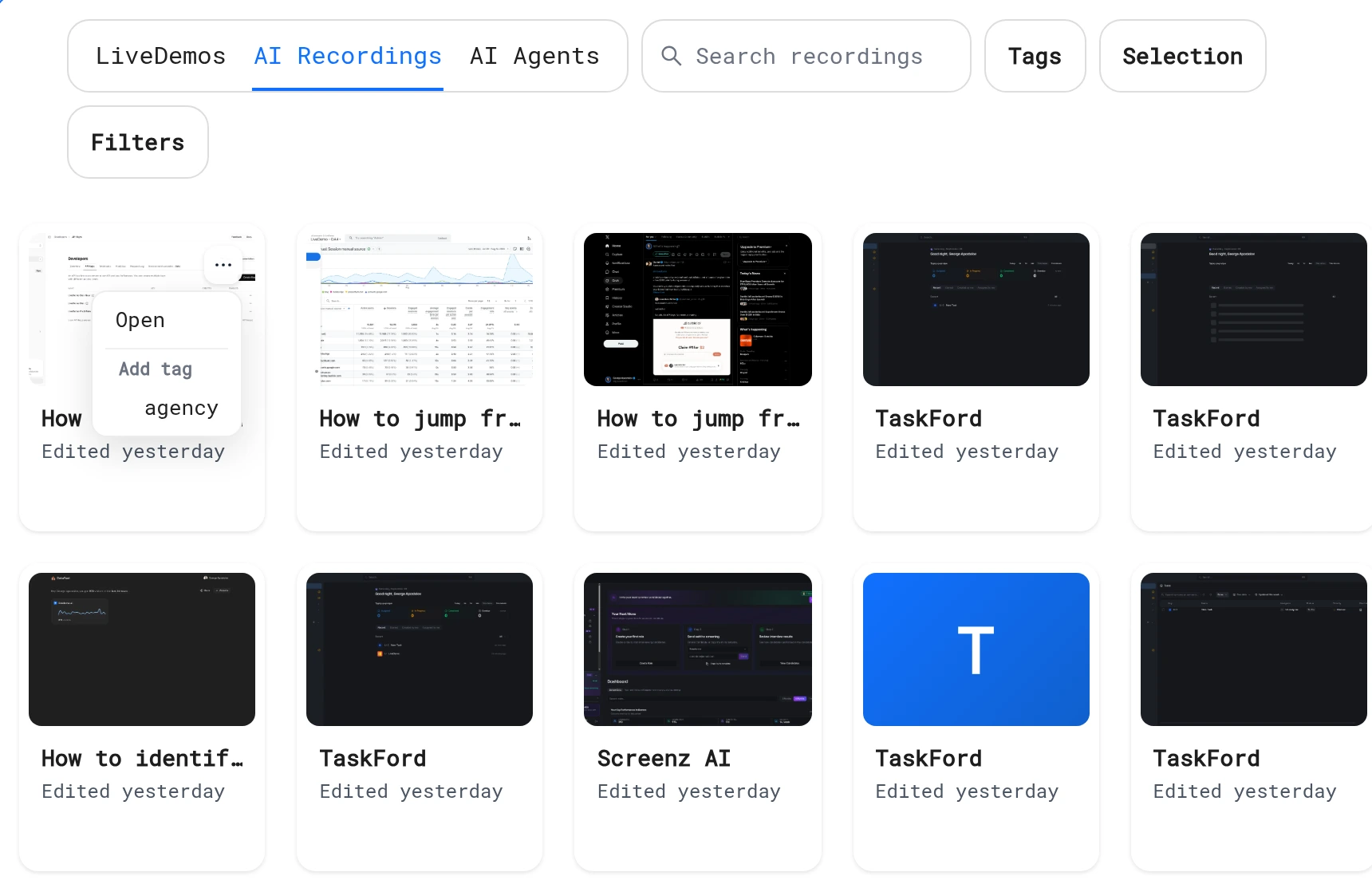
Open Demos → AI Recordings and click Open on a recording.
Tips
- Visit the features you're proudest of. AI can only suggest flows you clicked through.
- Keep the session under a few minutes and stay on topic.
- If you see Demo failed to be processed, please record again, record a shorter session.
Next: Blank demo & uploads
More in Capture a LiveDemo
- How to capture a LiveDemo: Capture an interactive demo with the LiveDemo Chrome extension: screenshots and video, HTML, AI recording or a blank demo.
- Demo Types: Compare LiveDemo demo types (screenshot, video, HTML, AI recording and AI Demo Agent) and pick the right one.
- Screenshots + Video: Record a click-through demo with the LiveDemo Chrome extension: a screenshot on every click plus a video of the tab.
- HTML Demos: Capture the real HTML of your app with the LiveDemo Chrome extension, so text and images stay sharp and editable after recording.
- URL to Demo: Enter your website URL and LiveDemo generates an interactive demo from it automatically, ready to edit.
- Blank Demo & Uploads: Start a blank LiveDemo and upload your own screenshots or videos, or add screens to an existing demo from the extension or the library.
- Recording Tips: Prepare your app before you record a LiveDemo: demo data, window size, notifications, sensitive data and how to click for clean steps.